
Overview
Blind spots are the things buyers told Clozd that your team missed or misjudged. Clozd finds them by comparing each deal's post-decision buyer feedback with that same deal's internal sources: rep feedback and call recordings.
When the buyer's account matches your team's, your read on the deal was right. When it doesn't, you've found a blind spot: a driver nobody on your side knew about, a factor your team saw differently than the buyer did, or a competitor that never came up internally.
You can see blind spots in two places:
- On each deal: The Blind Spots section of the Deal Summary tab shows the blind spots for that deal. For more information, see Deal Page.
- Across your program: The Blind Spots tab in the left-hand navigation shows how often blind spots occur across all your qualifying deals, which drivers and competitors come up most, and every individual blind spot with its deal context.
This article contains the following sections:
- Types of blind spots
- How blind spots are identified
- Accessing the Blind Spots tab
- Blind Spot summary
- Blind Spot cards
- Blind Spots table
- Filtering the Blind Spots tab
- Getting more deals into Blind Spots
- FAQs
- Need help?
Related articles:
Types of blind spots
There are three types of blind spots. The same definitions are used on the Deal page and the Blind Spots tab.
| Type | What it means |
|---|---|
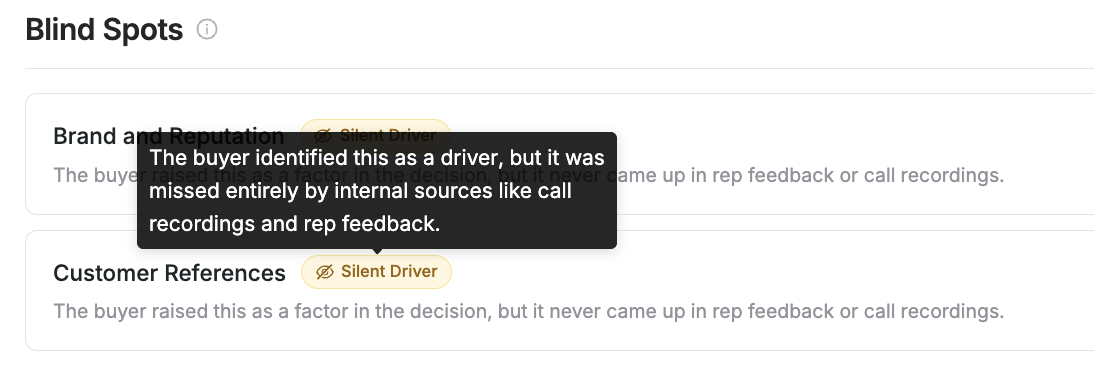
| Silent Driver | The buyer identified this as a driver, but it was missed entirely by internal sources like call recordings and rep feedback. |
| Perception Gap | The buyer and your internal sources both identified this driver but disagreed on its sentiment (positive vs. negative). |
| Hidden Competitor | The buyer identified a competitor that was not previously surfaced by internal sources like call recordings or rep feedback. |
Decision Drivers are the key factors that influenced the buyer's decision, such as price, product fit, or support. For more information, see Decision Drivers.
Hover over any blind spot type label on the page to see its definition.
How blind spots are identified
Clozd compares the sources on each deal against each other. It doesn't compare one group of deals to another.
A deal is included, or qualifies, when it has both of the following:
- Published buyer feedback, such as a buyer interview or survey
- At least one internal source: rep feedback (a rep interview or survey) or a call recording from a connected tool such as Gong or Chorus
Clozd then matches the Decision Drivers and competitors from each source on the deal. Anything the buyer raised that's missing from, or rated differently in, the internal sources becomes a blind spot.
Note: Most dashboards in Clozd use one response per deal. The Blind Spots tab uses every source on each deal, so its numbers won't always match other dashboards.
Note: Decision drivers from Clozd buyer feedback are reviewed by a Clozd consultant. Drivers from call recordings are identified by AI and aren't reviewed by a person.
Accessing the Blind Spots tab
Click Blind Spots in the left-hand navigation, next to Insight Gems. You can also click View all Blind Spots from the Blind Spots section of any deal's Deal Summary tab.
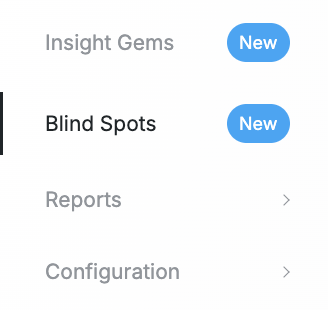
The Blind Spots tab appears when your organization has at least one internal feedback source, either rep feedback or a connected call recording tool. As soon as one deal has both buyer feedback and an internal source, the tab shows data.
If your organization only has buyer feedback, the tab explains what's needed to see blind spots. Admins also see options to connect a call recording tool or add rep feedback to a workflow.
Blind Spot summary
The top of the tab shows the Blind Spot Summary, an AI-generated overview of what buyers told Clozd that didn't surface in your internal sources. Next to it, you'll see the number of qualifying deals included in the analysis.
- The summary shows an "as of" date so you know when it was last generated. Everyone in your organization sees the same summary.
- When new qualifying feedback has been published and the summary is more than about a day old, Clozd generates a new summary in the background. You'll see the current version until the new one is ready.
- The summary always covers all qualifying deals. Page filters don't change it.
- Click the thumbs up or thumbs down icon to rate the summary
Blind Spot cards
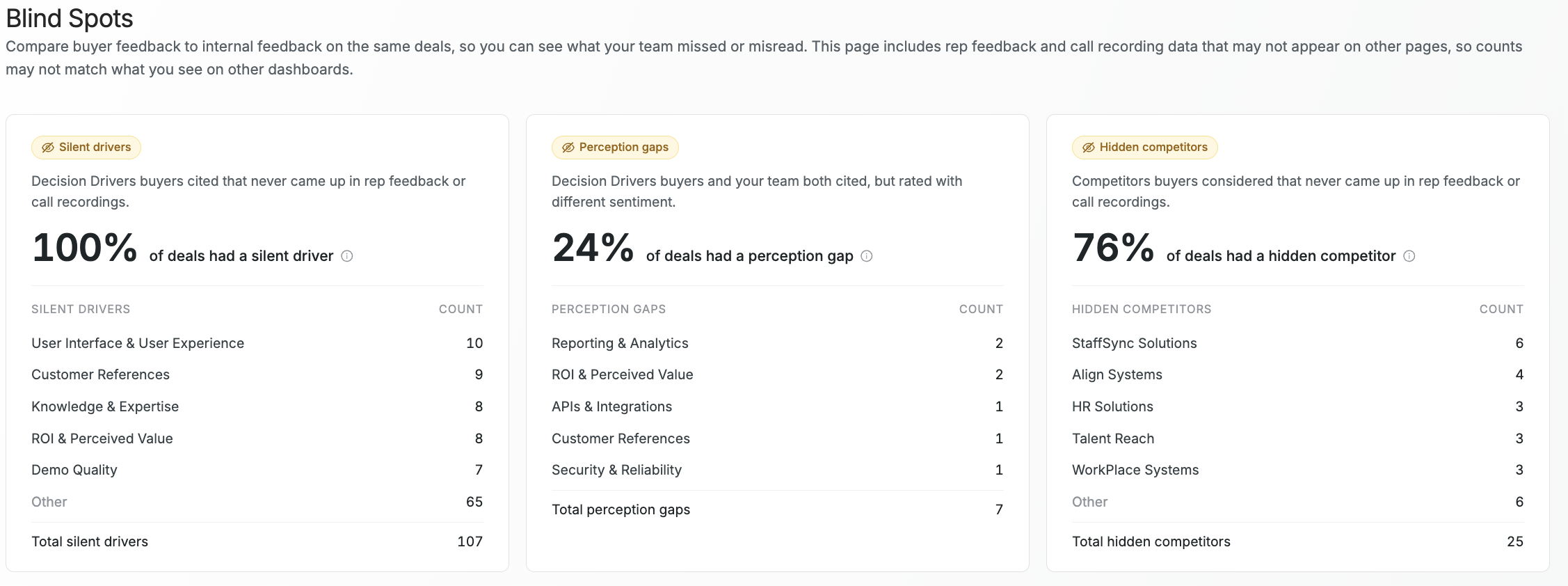
Below the summary, there's one card for each type of blind spot: Silent Drivers, Perception Gaps, and Hidden Competitors. Each card shows:
- How many qualifying deals had at least one blind spot of that type (for example, "30 of 43 qualified deals")
- That number as a percentage of qualifying deals
- The drivers or competitors that come up most often for that type
Cards count deals, not individual blind spots. A deal with three Silent Drivers counts once on the Silent Drivers card. Because a single deal can have more than one type of blind spot, the percentages across the three cards don't add up to 100%.
Hover over the info icon on a card for more detail.
Blind Spots table
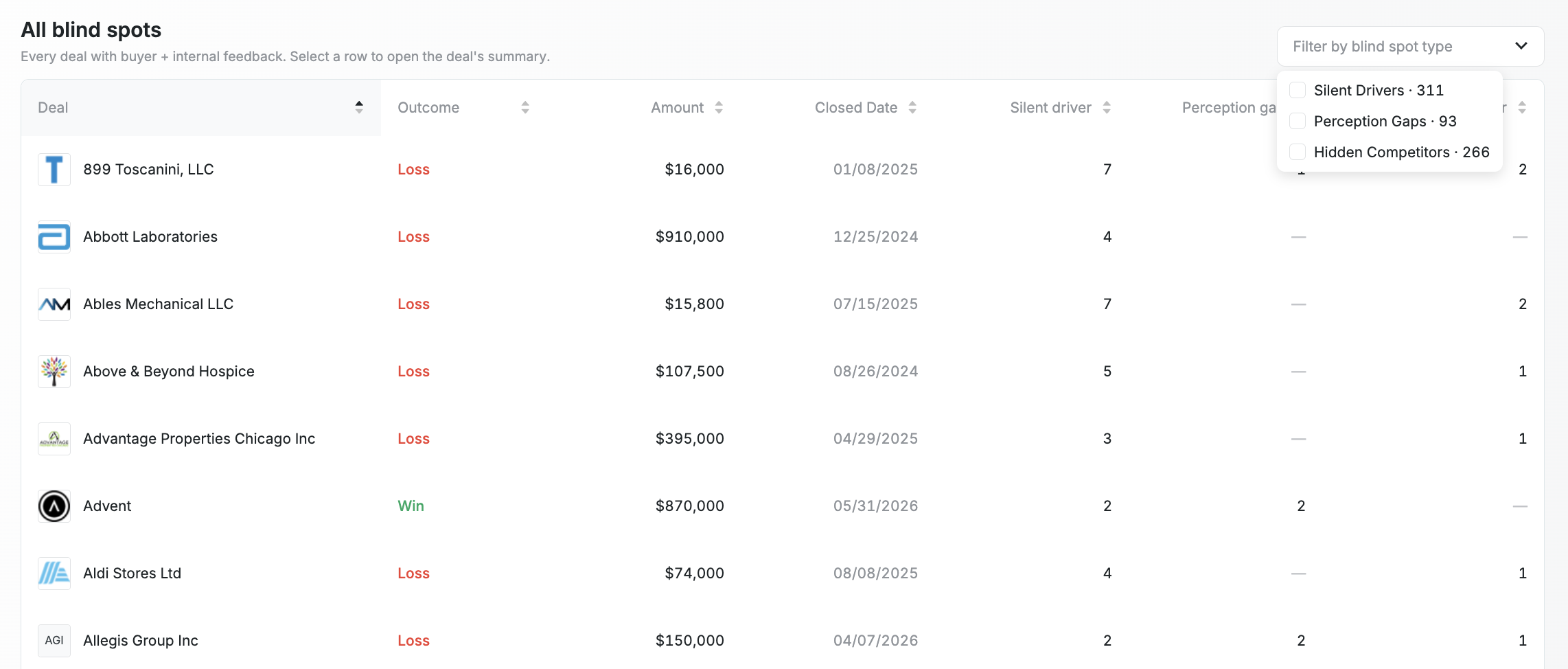
The Blind Spots table lists every individual blind spot across your qualifying deals, one row per blind spot.
Each row shows:
- The blind spot type
- The decision driver or competitor
- The deal name, outcome, amount, and closed date
To work with the table:
1. Use the blind spot type filter above the table to show one or more types.
2. Click a column header to sort the table.
3. Click a row to open that deal's Deal Summary tab, where you'll find the quotes and evidence behind the blind spot.
Filtering the Blind Spots tab
The Blind Spots tab supports the same quick filters as other dashboards:
- Saved filters
- Publish date
- Segment
- Outcome (win or loss)
Filters apply to the blind spot cards and the table. They don't apply to the Blind Spot summary. A notice appears on the page whenever a filter is applied.
For example, filter by publish date to compare blind spots from this year with last year, or filter by outcome to see blind spots on lost deals only.
Note: The Feedback Channel filter isn't available on this tab, because the analysis always includes every source on each deal.
Getting more deals into Blind Spots
The more deals that have both buyer feedback and an internal source, the more complete your Blind Spots analysis becomes. Admins can add internal sources in two ways:
- Connect a call recording tool: Connect Gong or Chorus from Configuration → Settings → Integrations. Calls are matched to deals automatically. For more information, see Gong Integration, Chorus Integration, or Salesloft Integration.
- Collect rep feedback: Add rep interviews or rep surveys to a workflow so reps share their view of each deal. You can also click Request feedback in the Data sources panel on any Deal page. For more information, see Workflow Management.
FAQs
Why don't I see the Blind Spots tab?
The tab appears when your organization has at least one internal feedback source, either rep feedback or a connected call recording tool. Contact your Clozd program manager if you expect to see it.
Which deals are included?
Only deals with published buyer feedback and at least one internal source (rep feedback or a call recording). Deals with only buyer feedback, or only internal sources, aren't included.
Why don't the numbers match my other dashboards?
Other dashboards use one response per deal. The Blind Spots tab compares every source on each deal, so counts can differ.
Why didn't the Blind Spot summary change when I applied a filter?
The summary always covers all qualifying deals. Filters apply only to the blind spot cards and the table.
How often is the Blind Spot summary updated?
When new qualifying feedback is published and the current summary is more than about a day old, Clozd generates a new one in the background. Check the "as of" date to see when it was last updated.
Why do the card percentages add up to more than 100%?
Each card counts the deals with at least one blind spot of that type. A single deal can have a Silent Driver and a Hidden Competitor, so it's counted on both cards.
Is a blind spot a sign my reps did something wrong?
No. Buyers often share things after a decision that they never raised during the sales process. Blind spots show where buyer feedback adds information your internal sources couldn't capture.
Need help?
If you have questions about blind spots, the deal summary, or connecting internal feedback sources, contact your Clozd program manager or reach out to support@clozd.com. For details on how Clozd handles call recording and CRM data, see the Clozd Privacy Policy.