Gong integration overview
Combining Clozd with Gong (which records sales calls with buyers while an opportunity is still live) provides a complete picture of what happened throughout the entire lifecycle of a deal.
This article contains the following sections:
- What is the Gong integration?
- Gong integration benefits
- Gong integration setup
- Choosing how interviews appear in Gong
- Reauthenticating
- FAQs
- Questions?
What is the Gong integration?
The Clozd + Gong integration connects what was said during the sales process with what buyers shared after the deal closed, giving you a clearer, more complete view of every opportunity.
This two-way integration pushes Clozd interviews into Gong as calls or Digital Interactions and pulls Gong call data into the Clozd Platform for analysis. That means reps can access buyer feedback where they already work, and your team can analyze call transcripts across the pipeline, even when no interview was completed.
Together, Gong and Clozd help you understand both what happened and why it happened—so you can move faster, coach smarter, and close more effectively.
Gong integration benefits
Bring buyer feedback into Gong
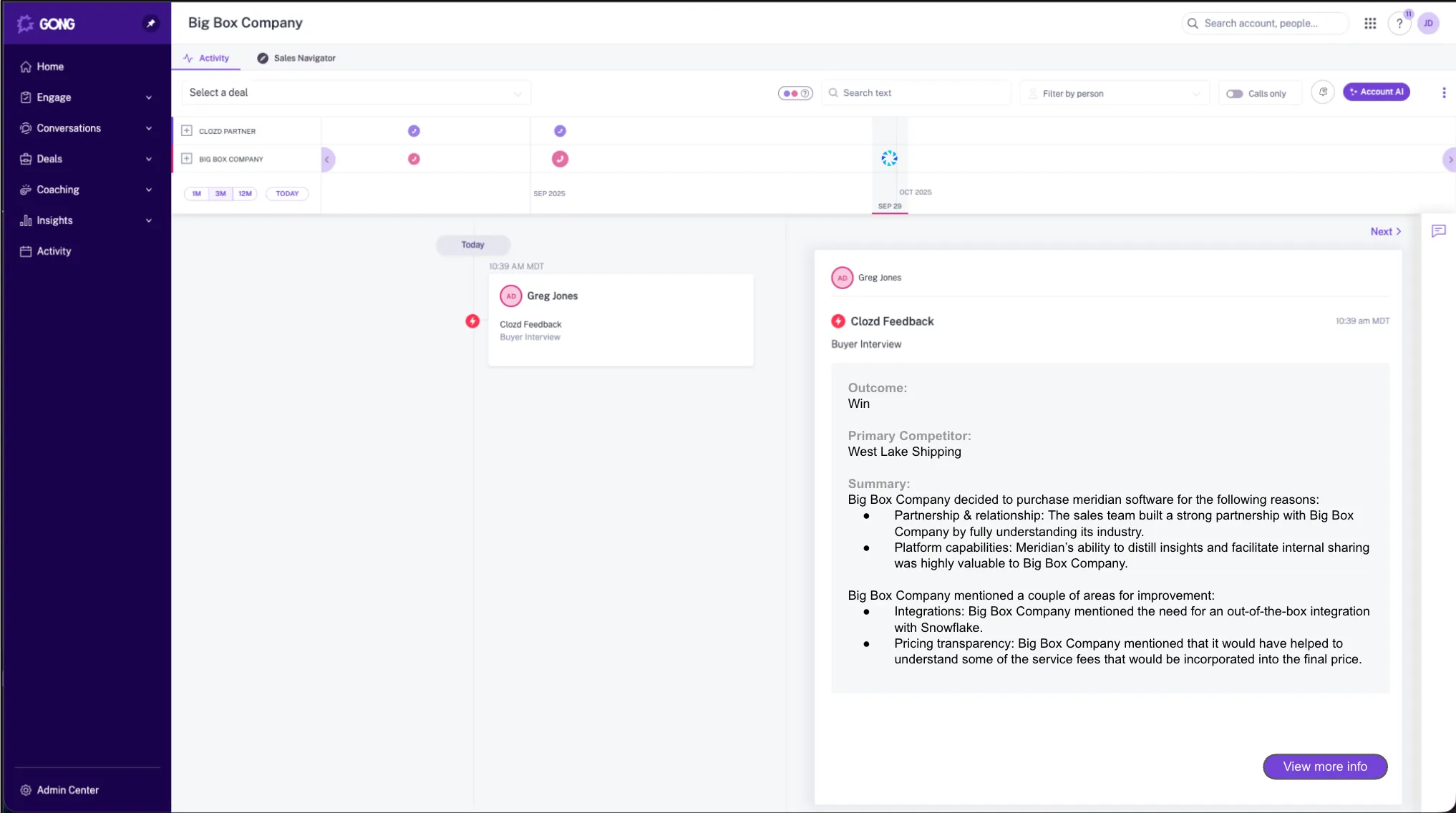
Clozd interviews now show up in the Gong account timeline, alongside calls and emails. Push interviews as calls so Gong's AI features, like account summaries and Ask Anything, include buyer feedback in their answers. Or push them as Digital Interactions so sales leaders and reps can view interview summaries and key Decision Drivers without switching platforms. Either way, you're putting buyer feedback directly in the flow of daily deal review.
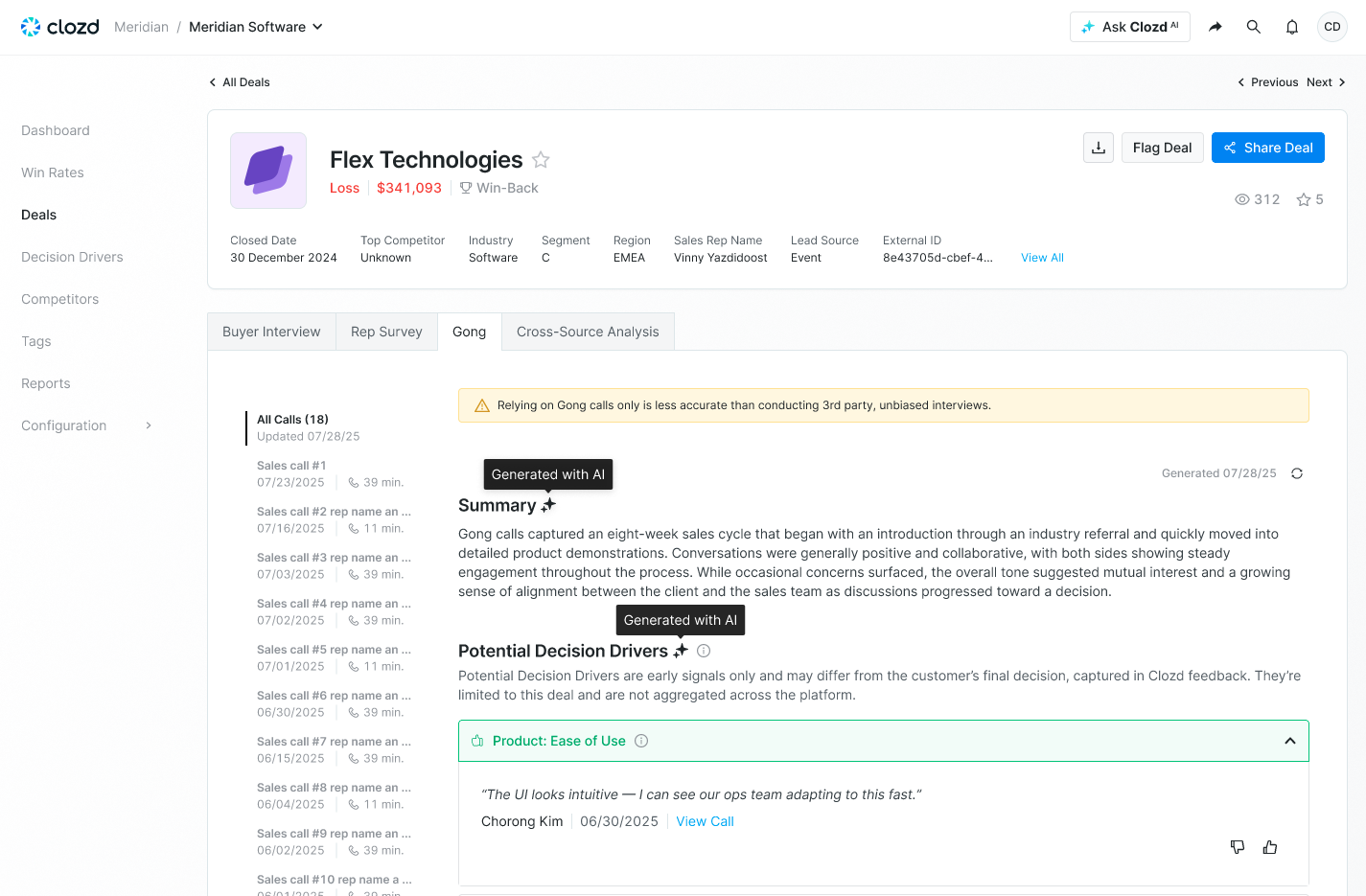
Analyze Gong calls in Clozd, even without an interview
Gong call transcripts are automatically imported into Clozd, where they're tagged and summarized using the same analysis applied to interviews. This gives you insights across your full pipeline, not just on deals where you completed an interview.
Compare what buyers said, and what they really meant
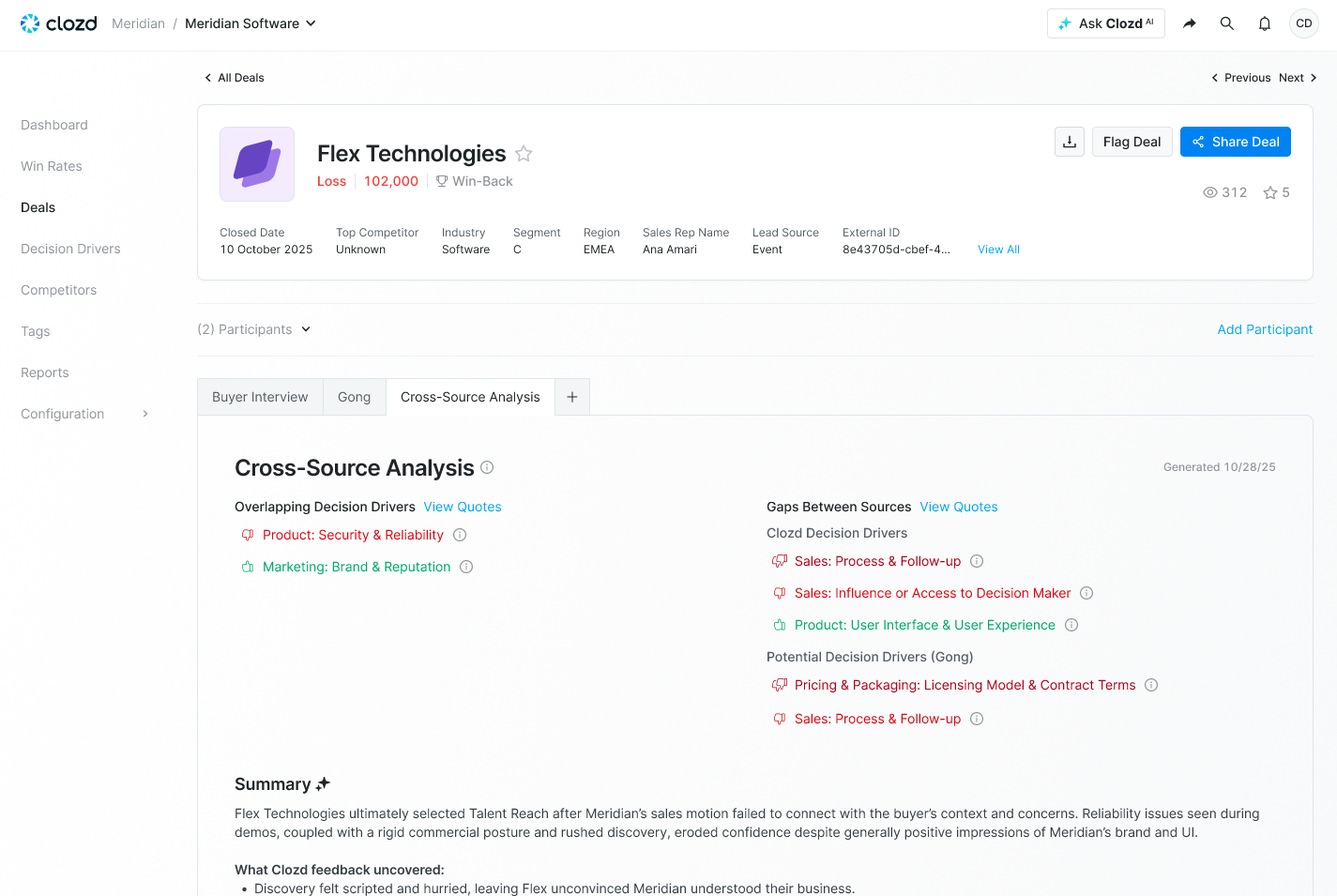
Buyers don't always say what they're thinking during sales calls. When a deal includes both Gong calls and a Clozd interview, Clozd highlights the differences, surfacing what buyers were willing to share only after the decision was made. This comparison reveals blind spots in your sales process and helps you focus on the insights that matter most.
Find the right person to interview, faster
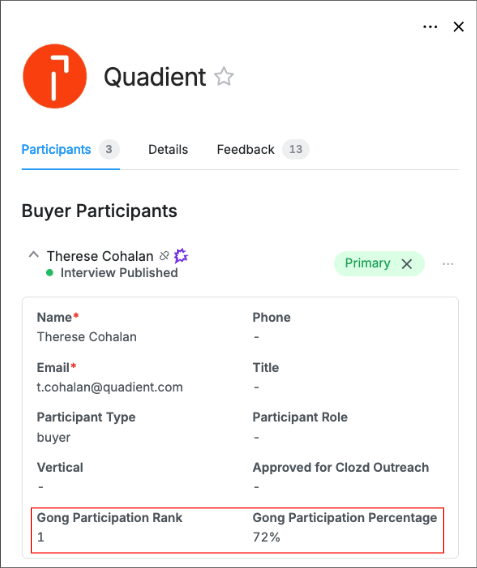
Clozd uses Gong call data to identify who actually participated in the deal. That means less time spent chasing reps for contact info, and more interviews with the right people, right away.
Gong integration setup
The Clozd Platform integration with Gong is simple and should only take a few minutes to set up. To enable the integration, you'll need to have technical administrator permissions in Gong and admin permissions in Clozd.
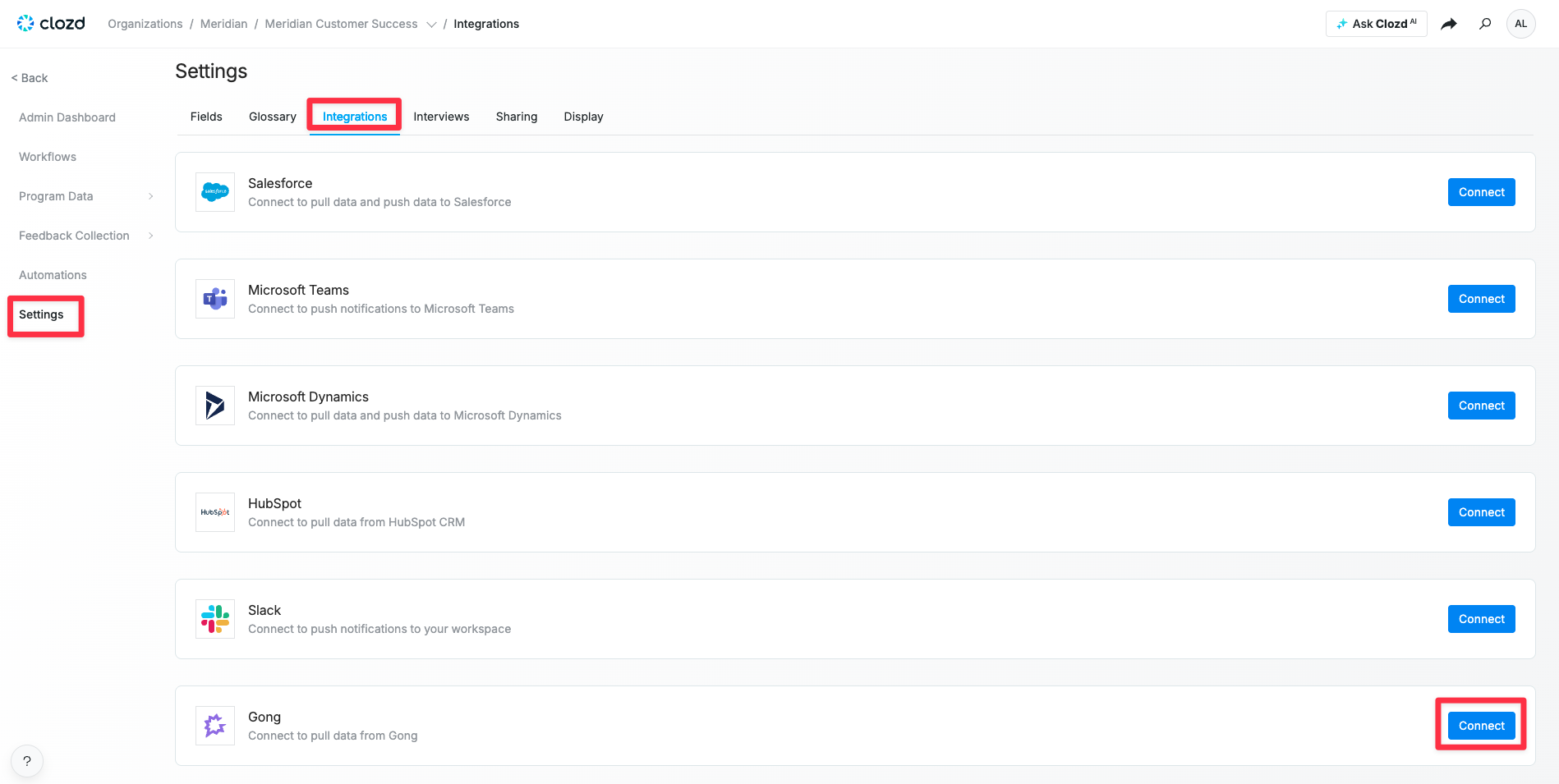
1. Navigate to the Configuration tab in the Clozd Platform.
2. Click on the Settings tab and select the Integrations section.
3. Locate the Gong integration, then click Connect.
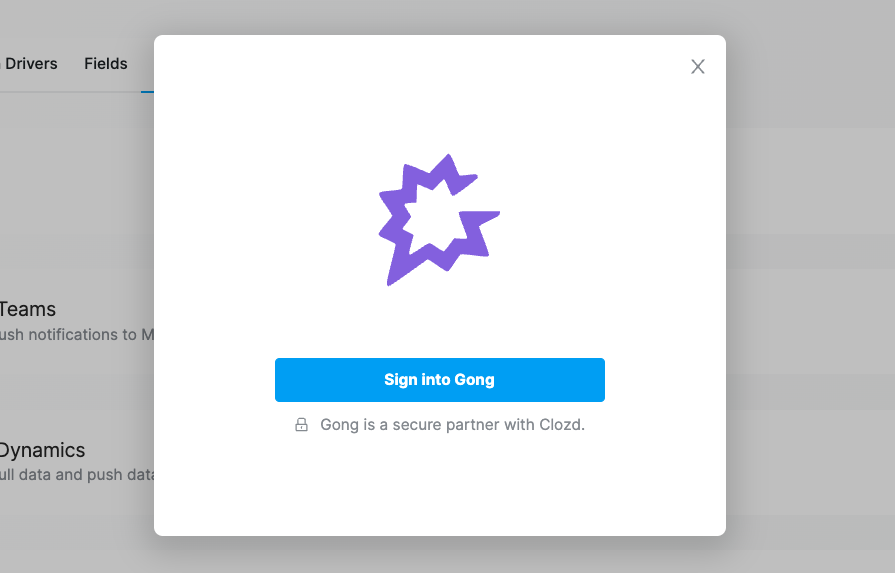
4. Sign in to your Gong account.
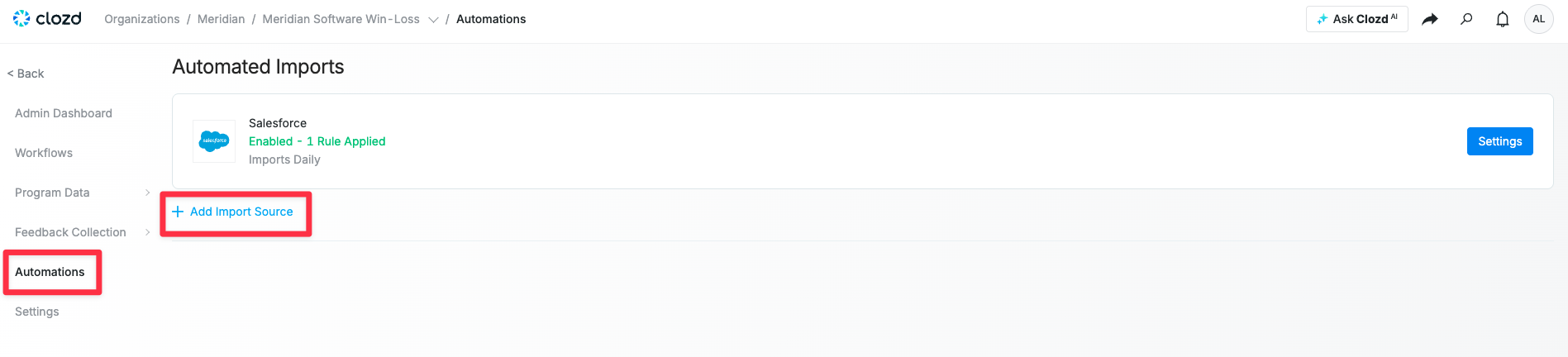
5. In the Clozd Platform, navigate to the Automations tab.
6. Click the + Add Import Source button.
7. Locate Gong and click Select.
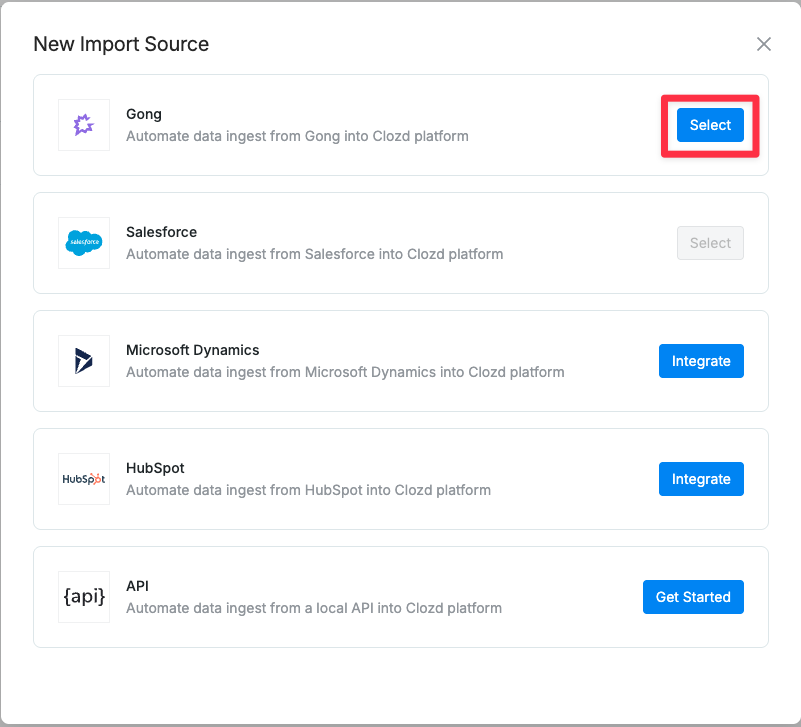
8. Once you select Gong, you'll see a pop-up that explains that any deals associated with your CRM will be imported to Clozd. You'll also see an option to add a Workspace ID.
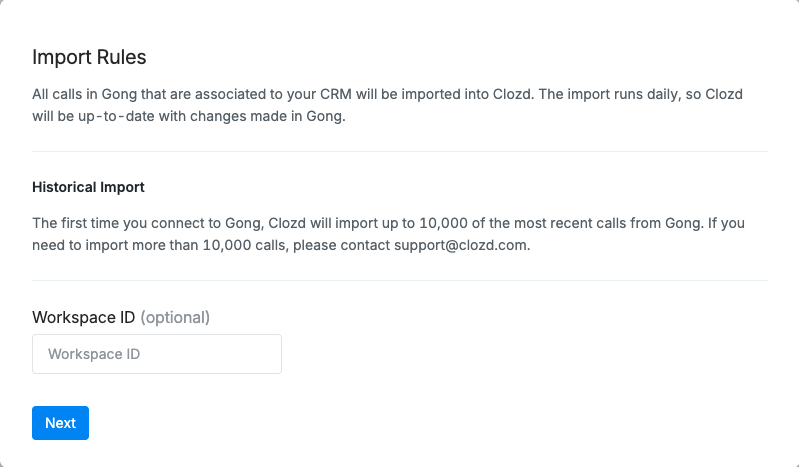
9. Click Next to see a preview of the Gong calls that will be imported. If the import preview looks good, click Confirm.
10. Once the integration is complete, please allow up to 15 minutes for the corresponding deal data to populate.
Note: New Gong connections push interviews to Gong as calls by default. See Choosing how interviews appear in Gong below to change this.
Choosing how interviews appear in Gong
When an interview is published, Clozd can push it to Gong in one of two formats. Each format sends different information, so choose the one that best fits how your sales team uses Gong.
| Format | What it includes | Best for |
|---|---|---|
| Gong call | The interview audio and transcript. Gong transcribes the recording and files it as a call on the related deal and account. | Teams that use Gong's AI features, like account summaries and Ask Anything. Calls are included in Gong's AI analysis of an opportunity, account, or pipeline. |
| Digital Interaction | Clozd's analysis of the interview, including the summary and Decision Drivers, shown on the Gong account timeline. | Teams that want reps to read Clozd's summary and Decision Drivers directly in Gong. Digital Interactions are not included in Gong's AI features. |
Changing the push format
1. Navigate to the Configuration tab in the Clozd Platform.
2. Click on the Settings tab and select the Integrations section. Scroll down to Gong and click Settings.
3. Make sure Push Interviews to Gong is turned on.
4. Select Gong call or Digital Interaction.
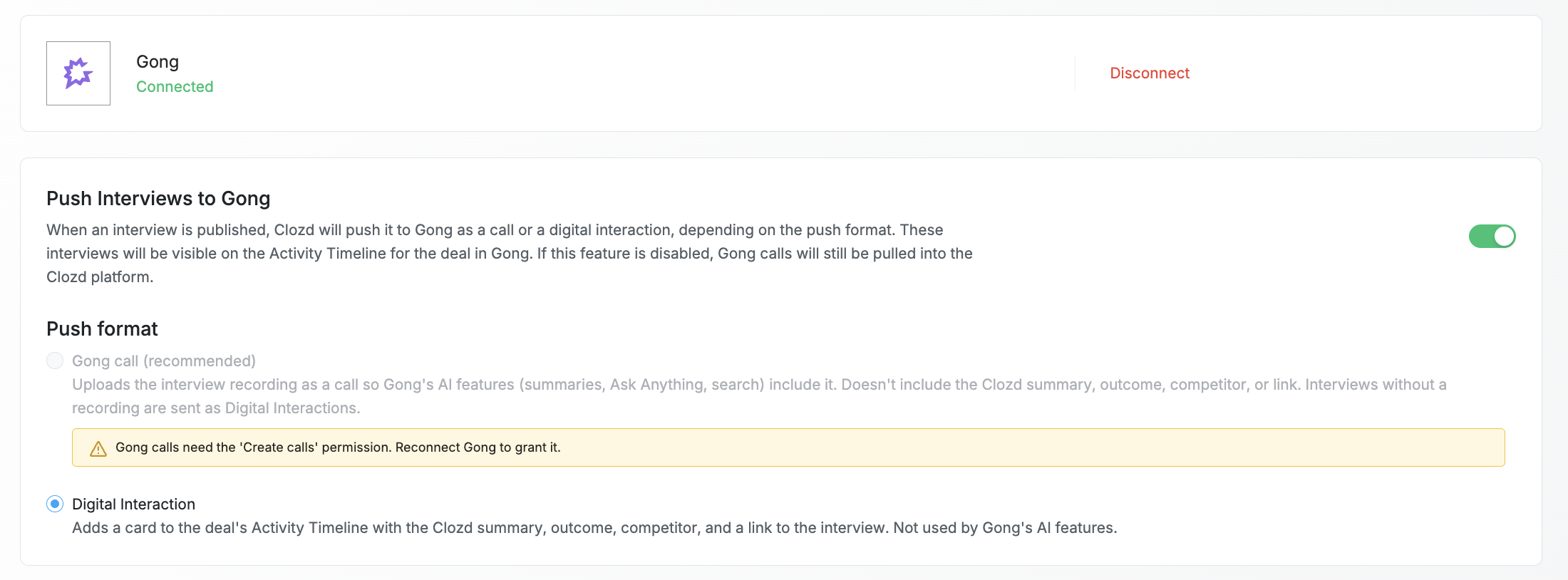
The new format applies to interviews published after you save the change. Interviews already in Gong are not resent.
Note: If the Gong call option is unavailable, a message will explain why. This usually means your Gong integration was connected before calls were supported and needs to be reauthenticated (see Re-authenticating the Gong integration below), or Clozd couldn't match the person who connected the integration to an active Gong user.
Things to know about pushing interviews as calls
- Calls are owned by the Gong user who connected the integration. That user needs to be an active Gong user, and the call is filed into the workspace and visibility settings that apply to them.
- Calls include the interview audio and transcript only. They don't include Clozd's summary, Decision Drivers, outcome, competitors, or a link back to Clozd. To see that analysis, open the deal in Clozd.
- Some interviews can't be sent as calls, such as interviews shorter than five minutes or interviews without an audio recording. When this happens, Clozd automatically sends the interview as a Digital Interaction instead, so your buyer feedback still reaches Gong.
Reauthenticating the Gong integration
In order to take advantage of all of the new Gong integration features released in October 2025, you will need to reauthenticate the integration. If your Gong integration was connected before October 2026, you'll also need to reauthenticate before you can push interviews to Gong as calls. After reauthenticating, your interviews will continue to be pushed as Digital Interactions until you select Gong call in your Gong settings (see Changing the push format above).
To reauthenticate:
1. Navigate to the Configuration tab in the Clozd Platform.
2. Click on the Settings tab and select the Integrations section. Scroll down to Gong and click Settings.
3. Click on Disconnect on the right hand side of the screen.
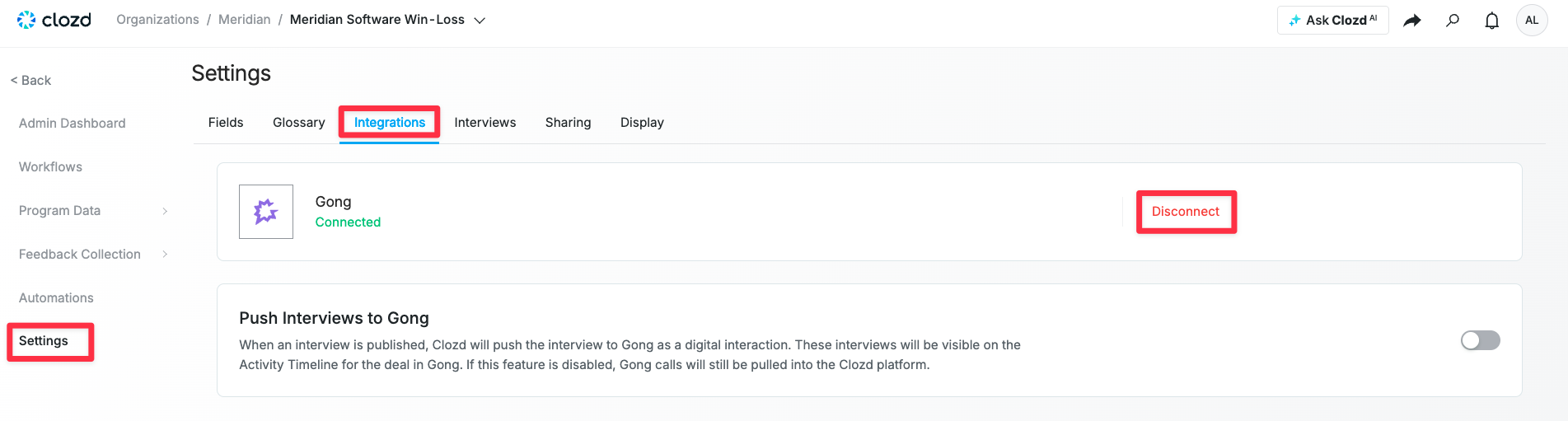
4. Click Reauthenticate.
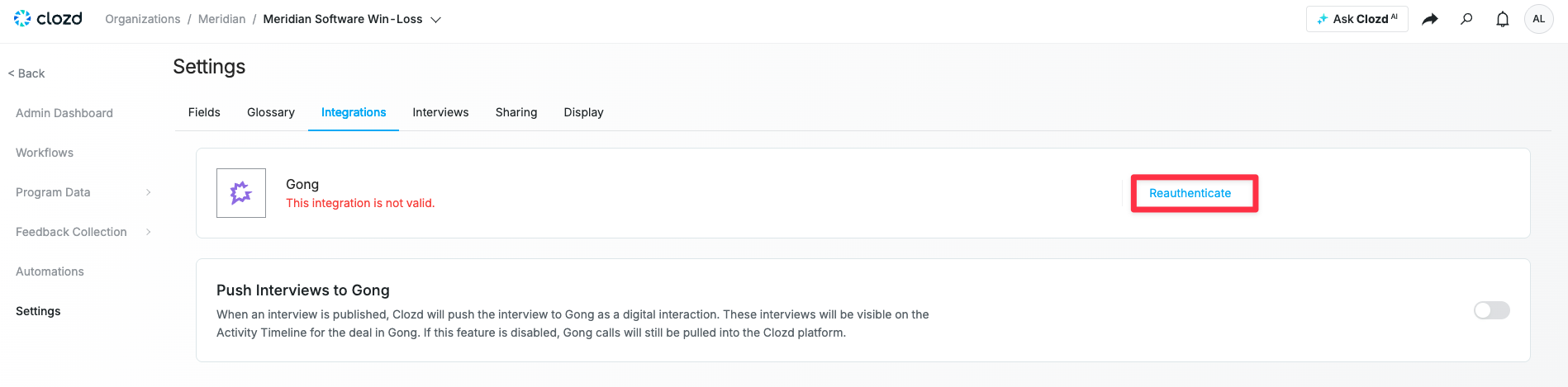
5. Sign in to your Gong account. When prompted, approve the requested permissions, including the permission to create calls.
FAQs
- What level of permission is needed to connect to Gong?
To integrate Gong with Clozd, a Gong technical admin needs to authenticate from Clozd. - How does Clozd know which opportunity is associated with each Gong call recording?
Clozd maps call recordings from Gong to deals in Clozd using your CRM opportunity ID. Customers need to link Gong to their CRMs for the Clozd <> Gong integration to work. - Who will be able to see Gong data in Clozd?
Users will be able to view Gong transcripts on any deal with published win-loss feedback (interviews or surveys). If a user's level of access limits what deals they can see, that user will only see Gong transcripts that exist on the deals they have permission to access. - What can I do with Gong data in Clozd?
Users will be able to search Gong transcripts, and add comments to Gong transcripts, the same way that users can currently search and comment on published win-loss feedback. Users will not be able to edit Gong data in Clozd. - How can I create a filter to see the deals that have Gong feedback
Create a filter and add this criterion:
Feedback Channel --> Includes --> Third Party - Can I choose to not push my interviews to Gong?
To not push your interviews to Gong, navigate to Configuration → Settings → Integrations and select "Settings" on the Gong tile. You will then see a "Push Interviews to Gong" tile that you can toggle on and off. - Should I push my interviews to Gong as calls or as Digital Interactions?
It depends on how your team uses Gong. Choose Gong call if you want Gong's AI features, like account summaries and Ask Anything, to include buyer feedback. Choose Digital Interaction if you want reps to see Clozd's summary and Decision Drivers in Gong. See Choosing how interviews appear in Gong for details. - Will pushing interviews as calls create duplicate calls in Clozd?
No. Clozd recognizes the calls it creates in Gong and doesn't import them back into Clozd as Gong calls. - Can I find this integration on the Gong Collective site?
Yes, you can find that here: https://integrations.gong.io/integrations/clozd - When I turn on the Gong integration, will it retroactively add my Clozd interviews to Gong?
No, only interviews that are published after you turn on the Gong integration will be added to your Gong activity timeline.
Questions?
For questions about the fit of the Gong integration for your Clozd win-loss program, please contact your Clozd program manager.
For questions about the integration or troubleshooting, please contact support@clozd.com.