
Overview
Workflows is a tool to help Clozd clients automate the qualitative feedback collection process. This article provides an overview of Workflows and covers how to set up and manage Workflows in your win-loss program. This article contains:
- Managing a workflow
- Sorting deals in workflows
- Exclusion rules
- Managing unassigned deals
- Workflow glossary
Related articles:
- Workflows: Overview and Configuration
- How to manage deals as a contributor
- Sequences (for Admin)
Managing a workflow
Once a Workflow has been created, you can click into the detailed view to monitor the progress of deals through the outreach pipeline and quickly take action to progress deals through the pipeline.
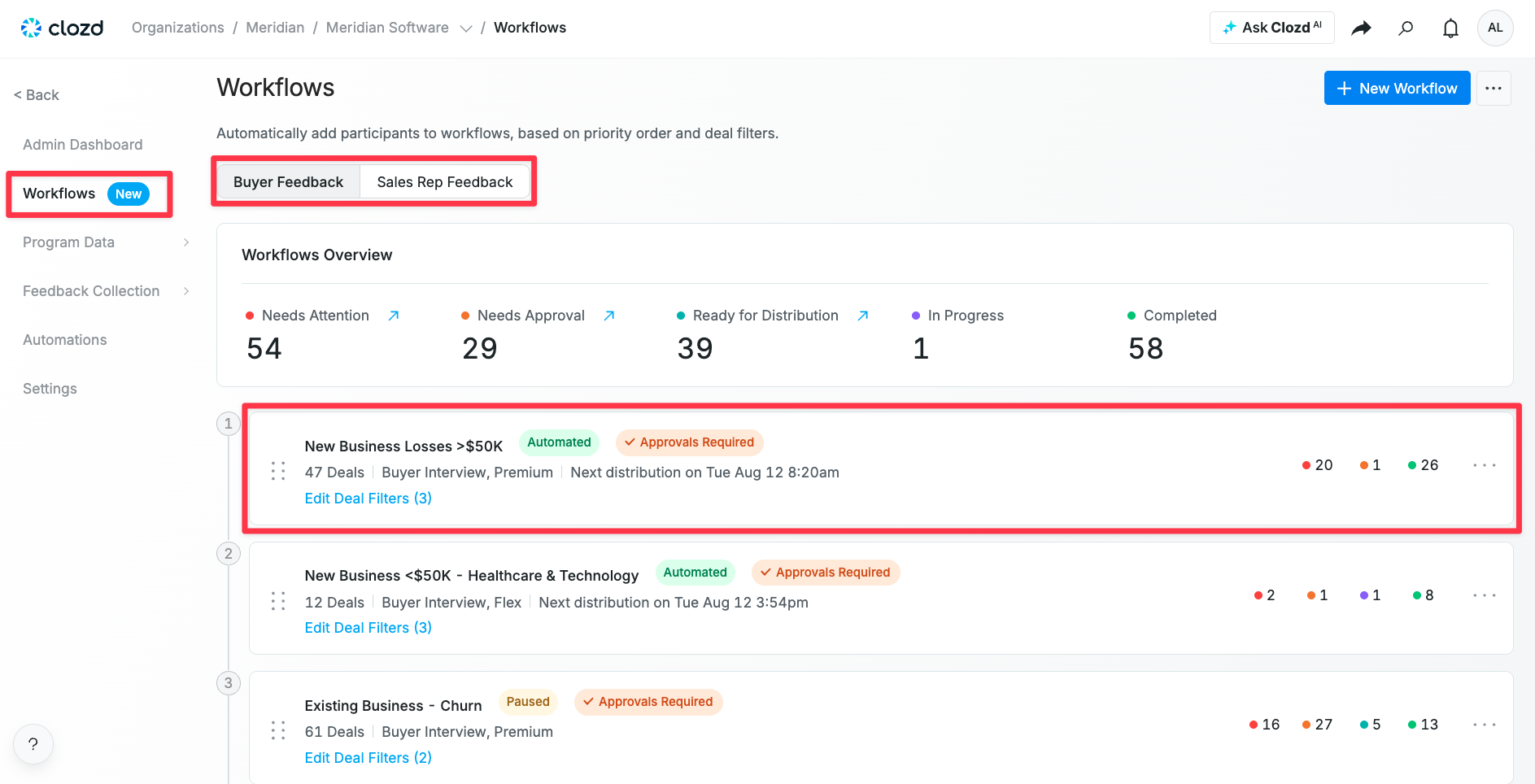
When you click on Workflows (under the Configuration tab), you will see an overview of the workflows. This page is split into Buyer Feedback workflows and Sales Rep Feedback workflows. The Workflows Overview is where you will see a quick overview of where the deals are in terms of outreach (e.g., Needs Attention, Needs Approval, etc.). Under the Workflows overview, you will see a list of created workflows.
Click into the workflow you want to manage. At the top of the page, you can see an overview of the Workflow. If you have Automated Outreach enabled, this banner will show when the next distribution is scheduled to be sent. Clicking Pause Outreach will pause any automated distributions from being sent. The Workflow will continue to evaluate deals as they are imported into the platform and will finish any distributions that are already in progress. You can resume automation at any time.
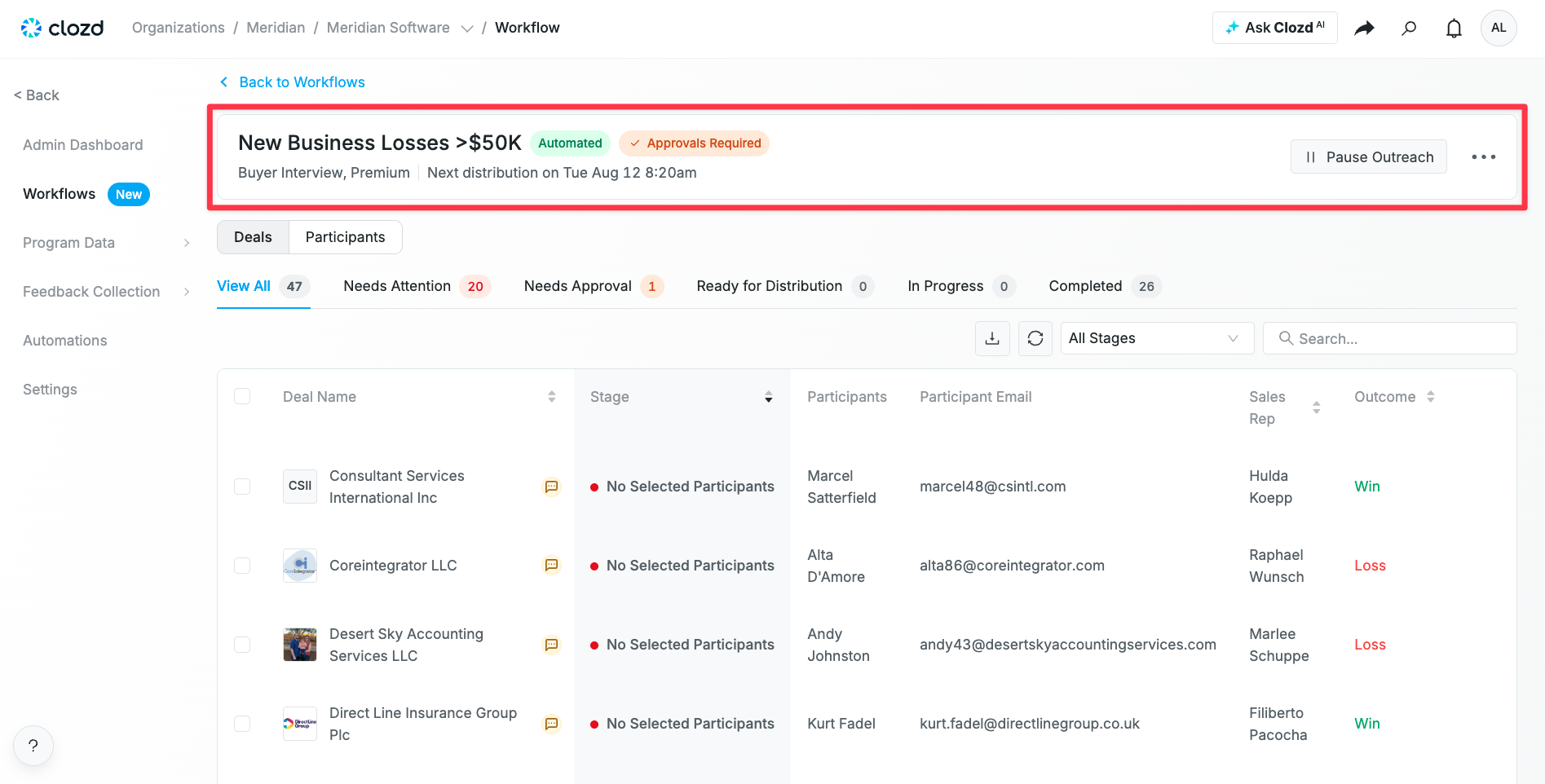
This page can be filtered by Deals or Participants that are in the workflow.

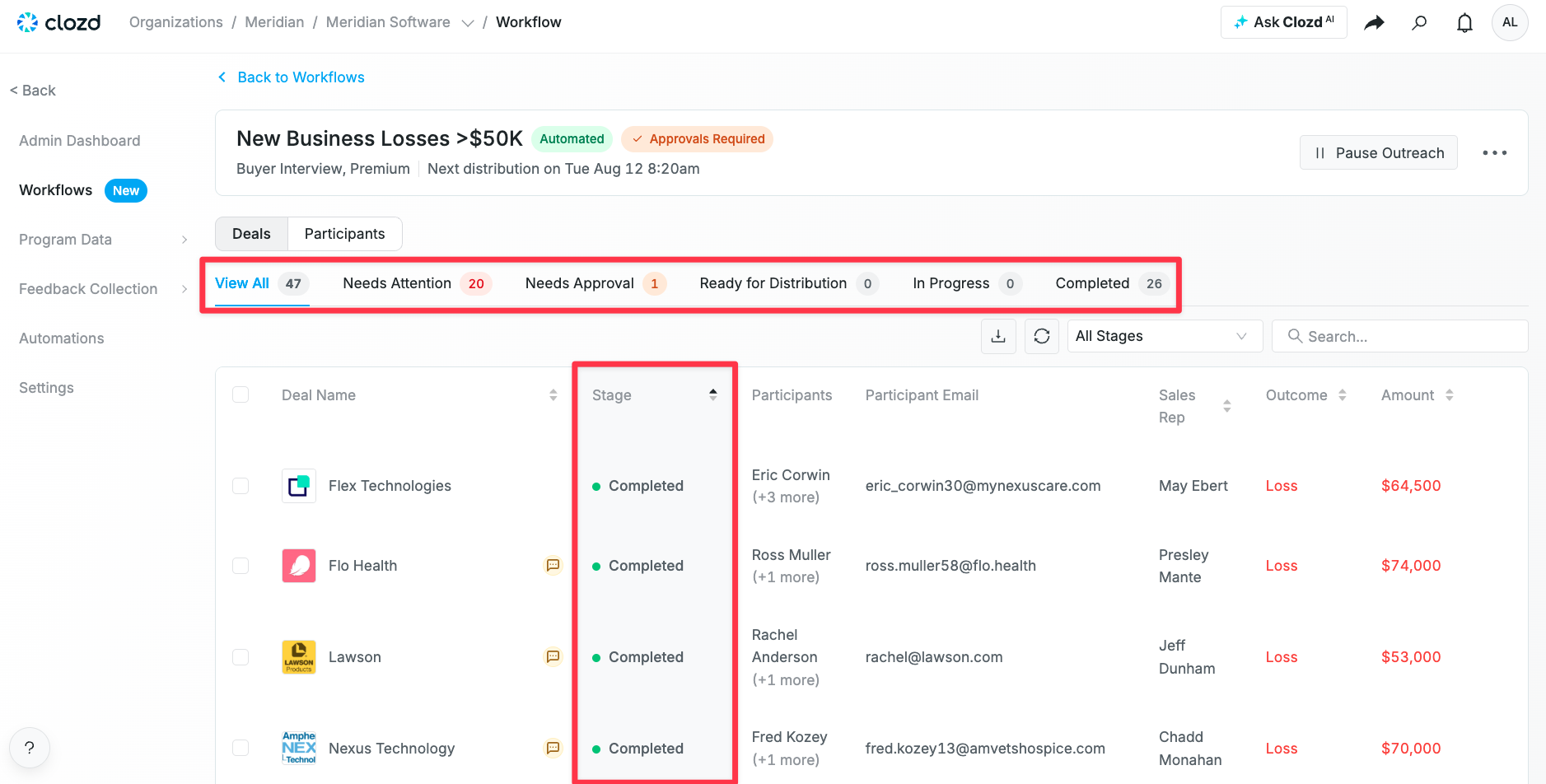
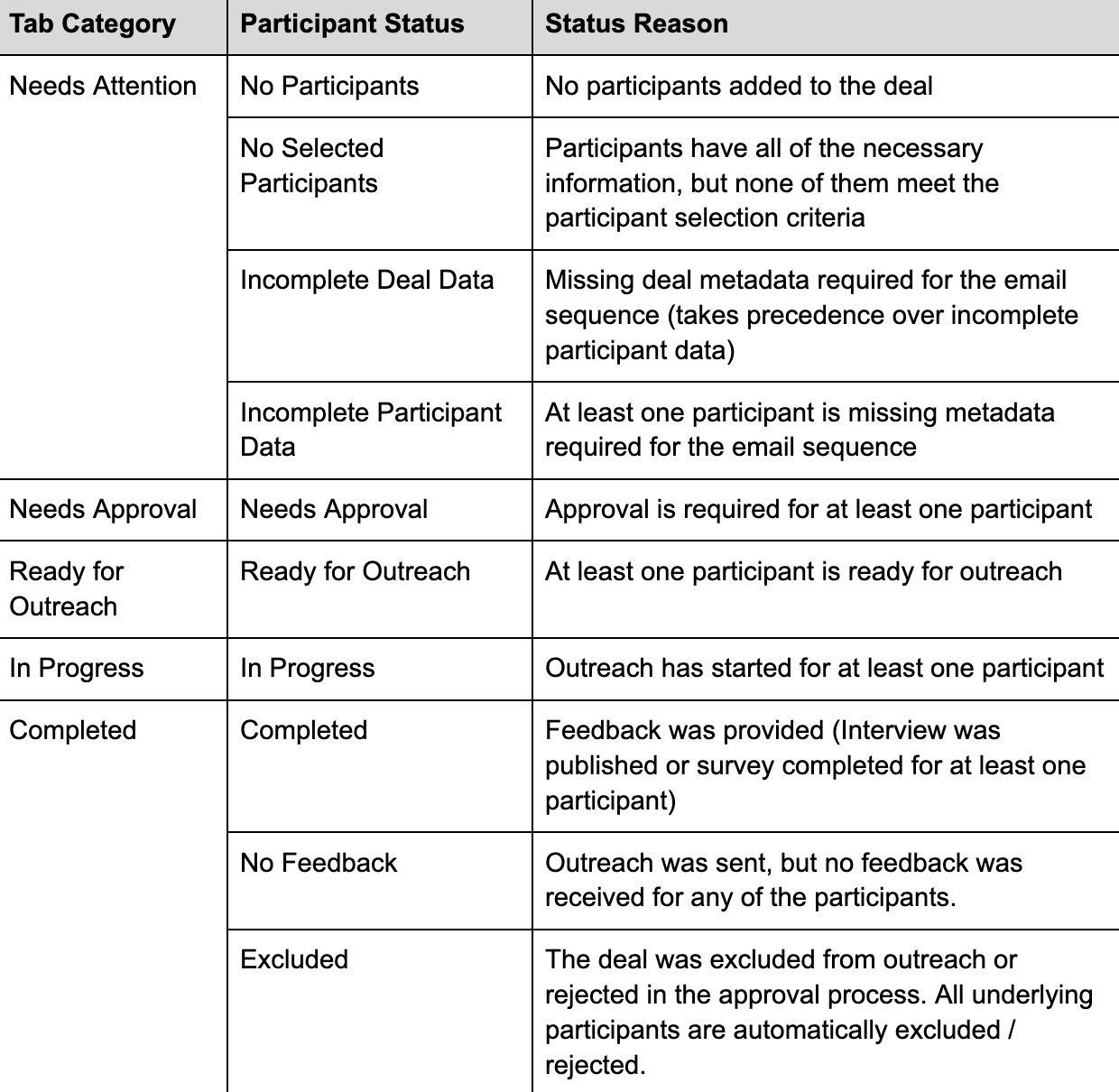
At the bottom of the page, you can see a list of deals or participants included in the Workflow. Deals are sorted into tabs that represent key points in the outreach pipeline. The key points/tabs are View All, Needs Attention, Needs Approval, Ready for Distribution, In Progress, and Completed. Each Deal has an assigned stage that determines which tab it will appear on. The different stages are Completed, In Progress, Needs Approval, Excluded, No Feedback, and No Participants.
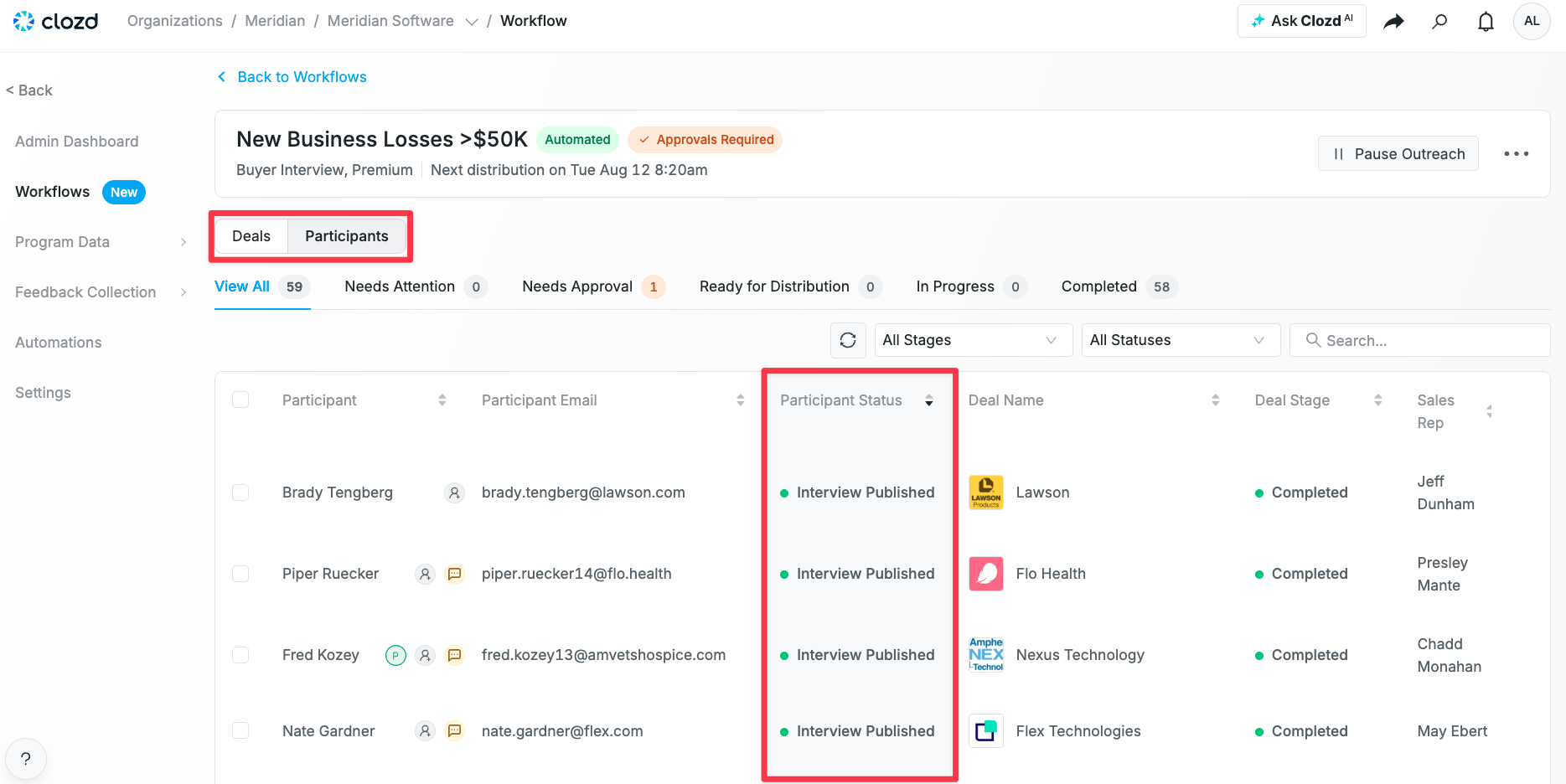
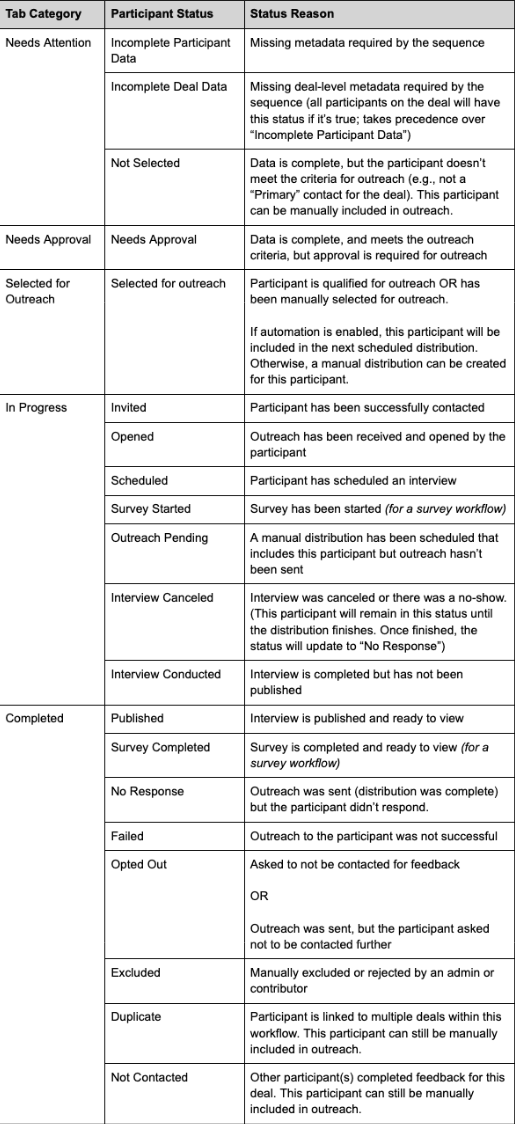
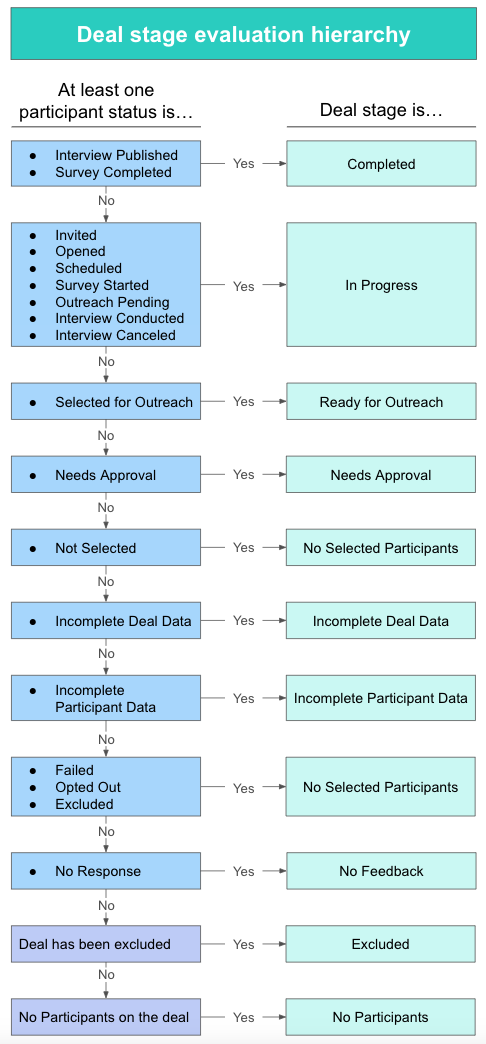
Don't forget you can change the table to track progress at the Participant level rather than the Deal level. The key points/tabs will stay the same whether you're filtering by Deals or Participants. Each Participant has an assigned Status. The Stage of a Deal is determined by the Status(es) of its underlying Participant(s).
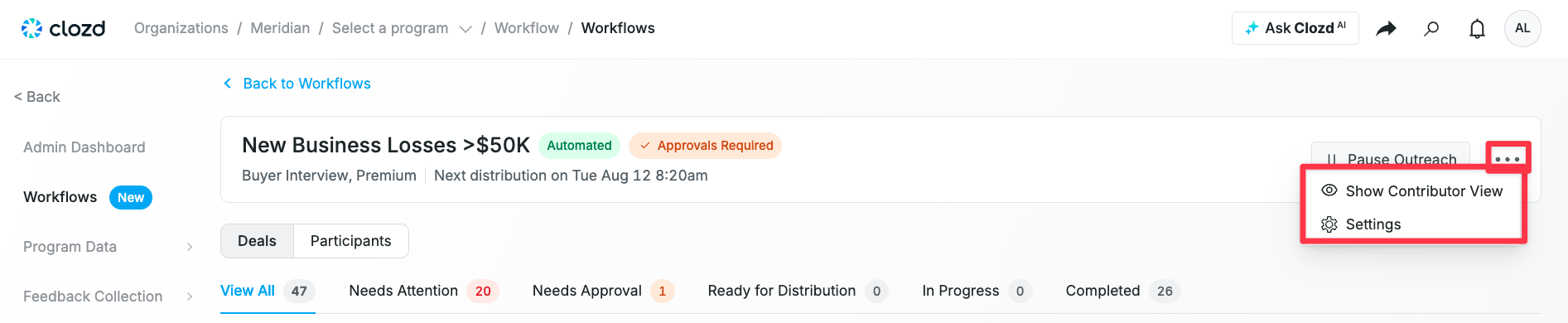
Clicking the ... (more options icon) on the right-hand side of the Workflow description banner to the right of Pause Outreach allows you to edit the settings of a Workflow or view the Contributor Portal.
Sorting deals into workflows
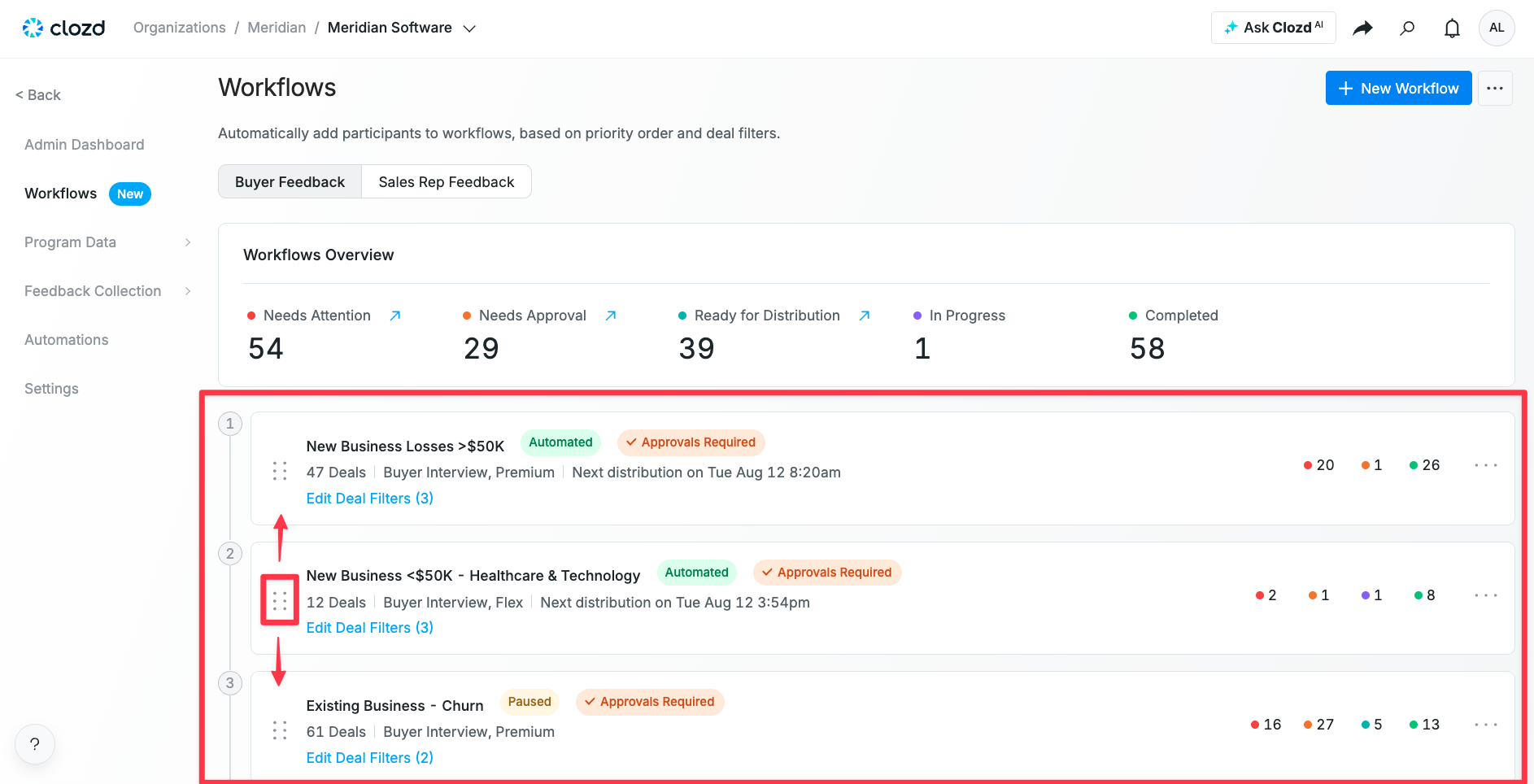
As deals are imported to the platform, they will be automatically sorted into Workflows. When you click on Workflows (under the Configuration tab), you can see a list of your Workflows in priority order. This list acts as a sort of funnel. If an incoming deal matches the criteria for more than one Workflow, it will be sorted into the highest priority Workflow (the one closest to the top).
The priority order of your Workflows can be adjusted at any time by simply dragging the left side of the Workflow up or down in the list.
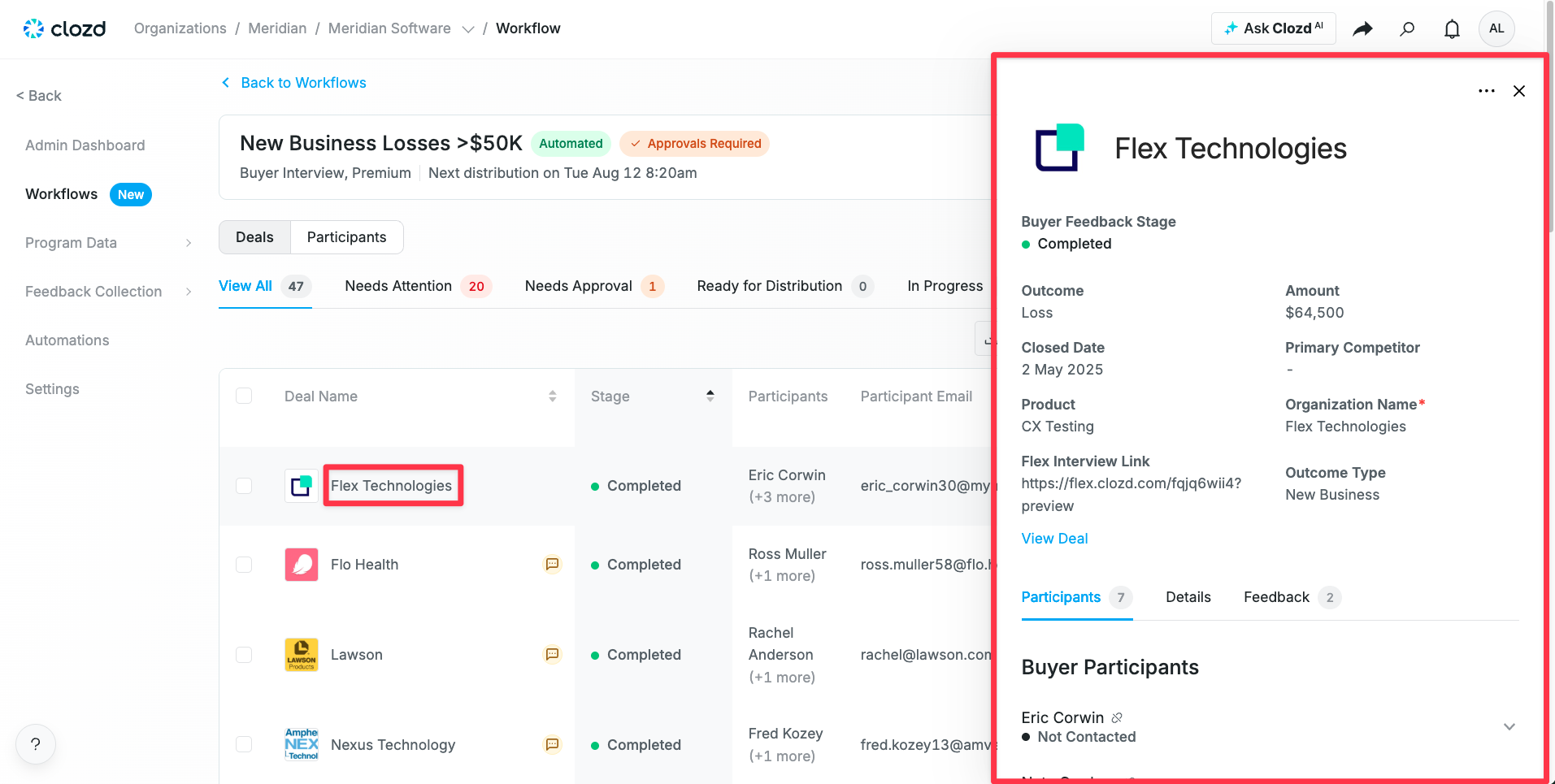
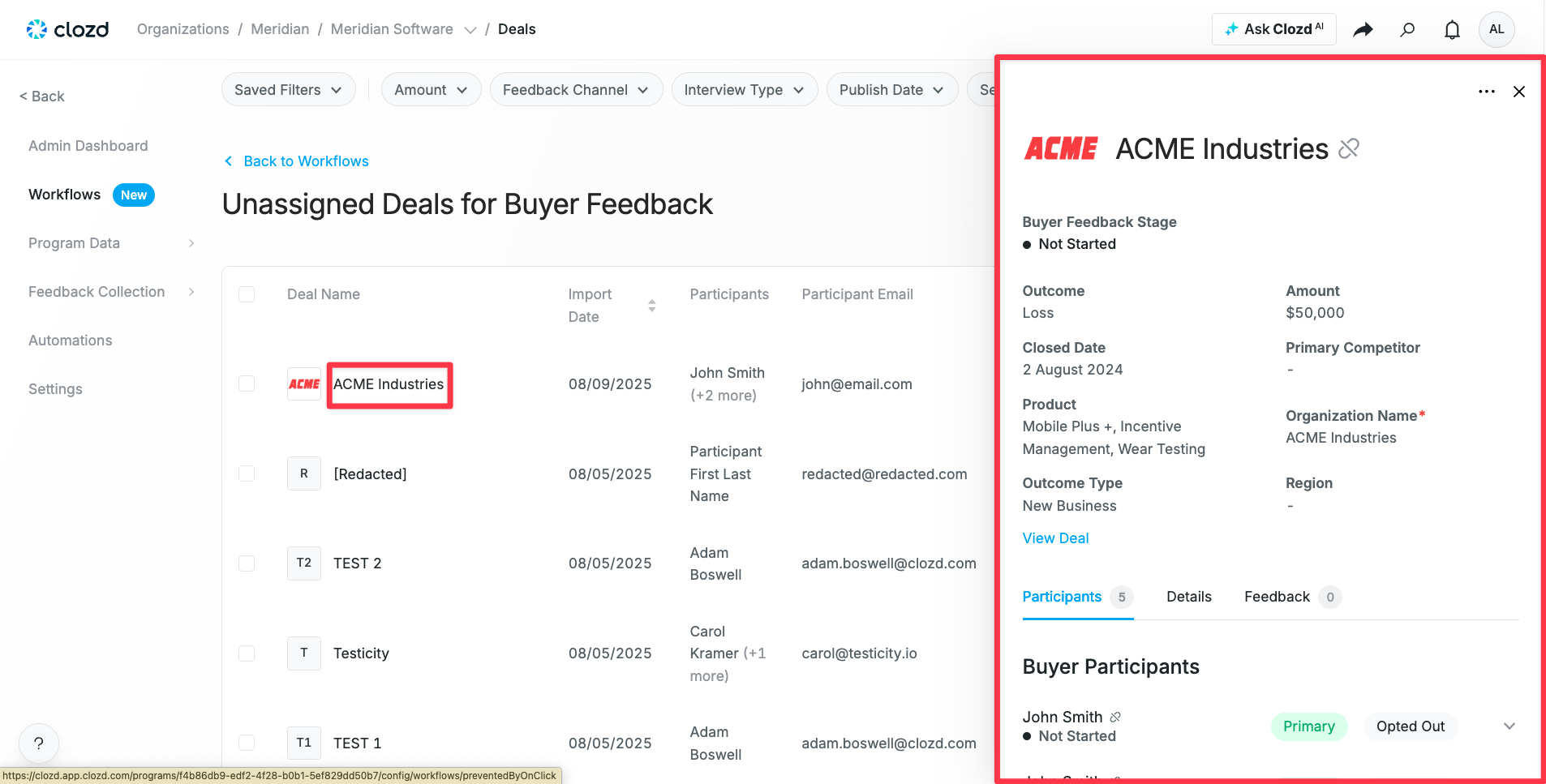
If you want more information about a deal without going to the Deals page, click on the deal name and a deal drawer will open up. The deal drawer will show metadata fields, along with the participants of the deal. If you want to exclude a participant from a deal, see Exclusion Rules below for more information.
Within a Workflow, deals can be removed or moved to a different Workflow by selecting the deal and using the action items in the selection toolbar.
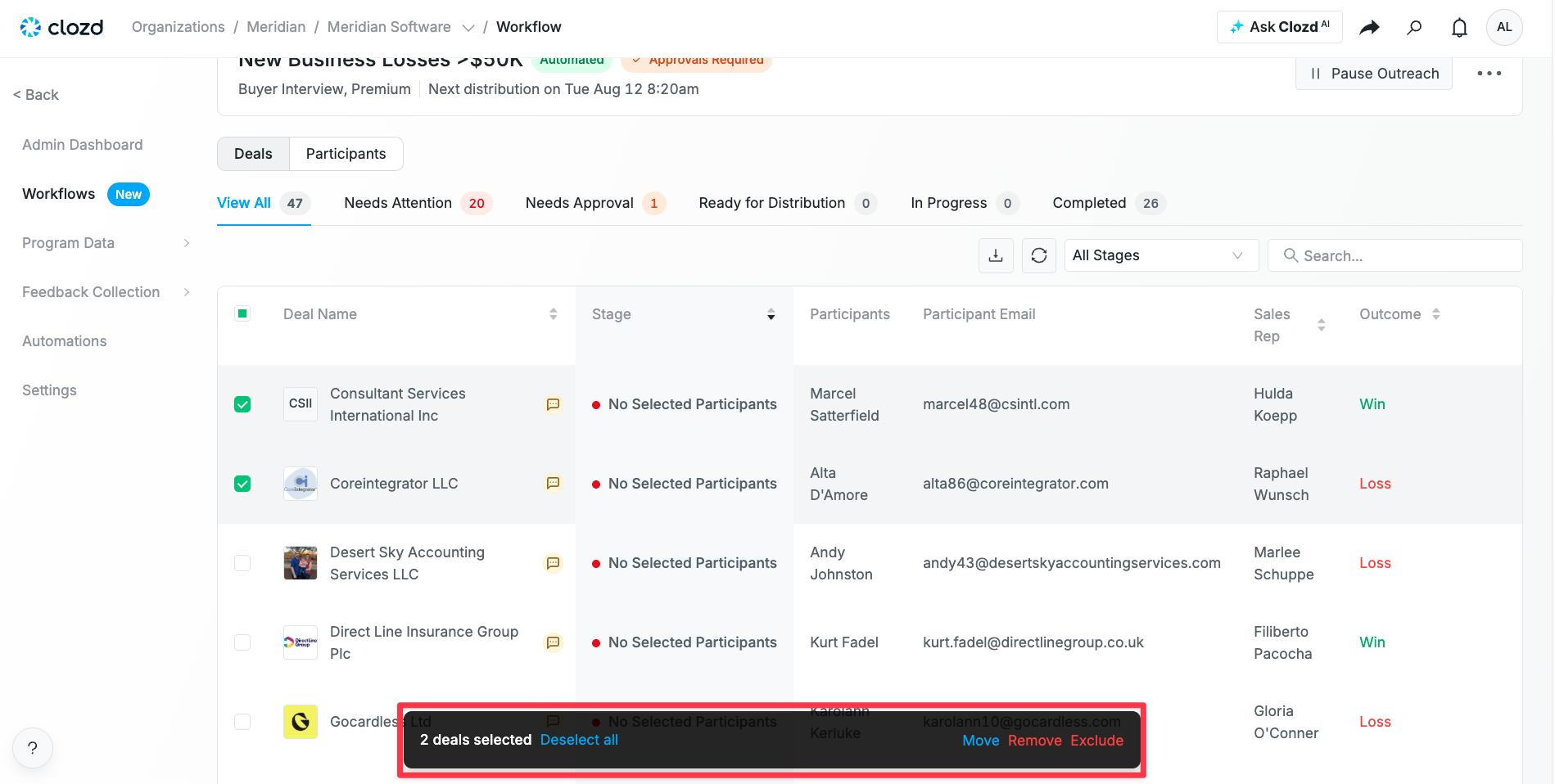
In the selection toolbar, you have the option to Deselect all, Move, Remove, and Exclude.

Deselect all simply deselects which deals you've selected.
Move allows an admin to move the selected deals to another workflow.
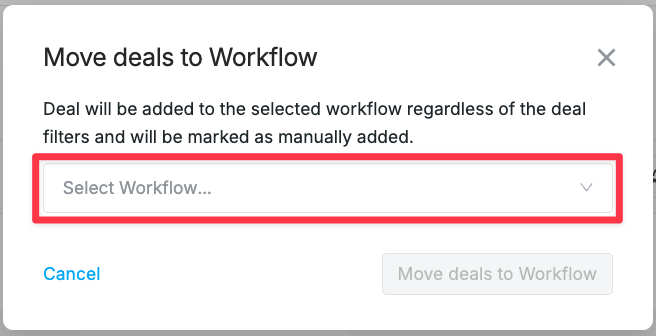
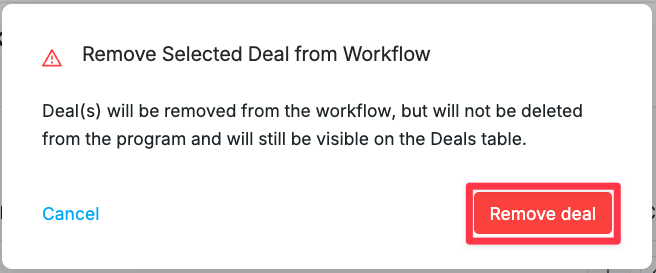
Remove allows an admin to remove the selected deals from the current workflow. Although they'll be removed from this workflow, the deals will still be accessible from the platform via the Deals page.
Exclusion rules
Using the Exclude option from the selection toolbar above will remove the selected deal and its associated participants from outreach. This exclusion applies for all stages EXCEPT for deals that are already marked as In Progress.
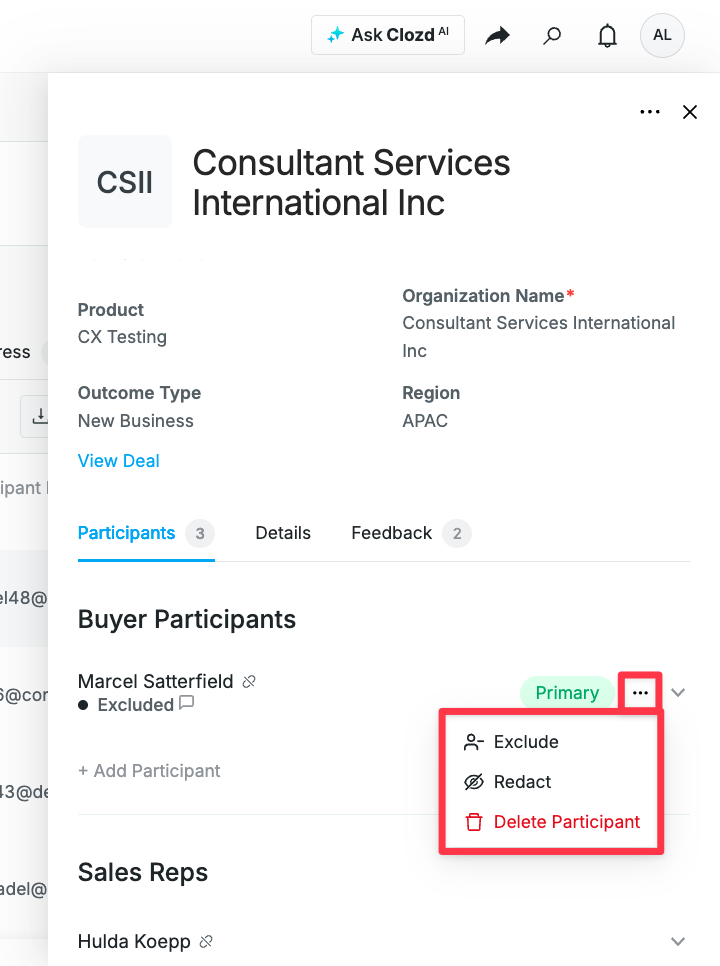
Using the Exclude option from the deal drawer acts as a "Do not contact" for that specific deal. To do this, click on the name of a deal, and the deal drawer will open. In the deal drawer, scroll down to the participant you would like to exclude. Click on the ... (more options icon) to the right of their role (whether primary contact or not). Click Exclude.
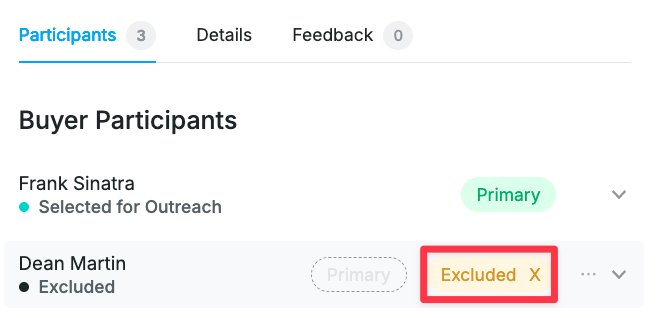
If for whatever reason you accidentally exclude someone that you want to include back, hover over the Exclude icon and click on the X on the right side.
Note: Both exclusions move the selected deals to the Completed tab.
Managing unassigned deals
Below the list of Workflows, you will see a link to the Unassigned Deals page.
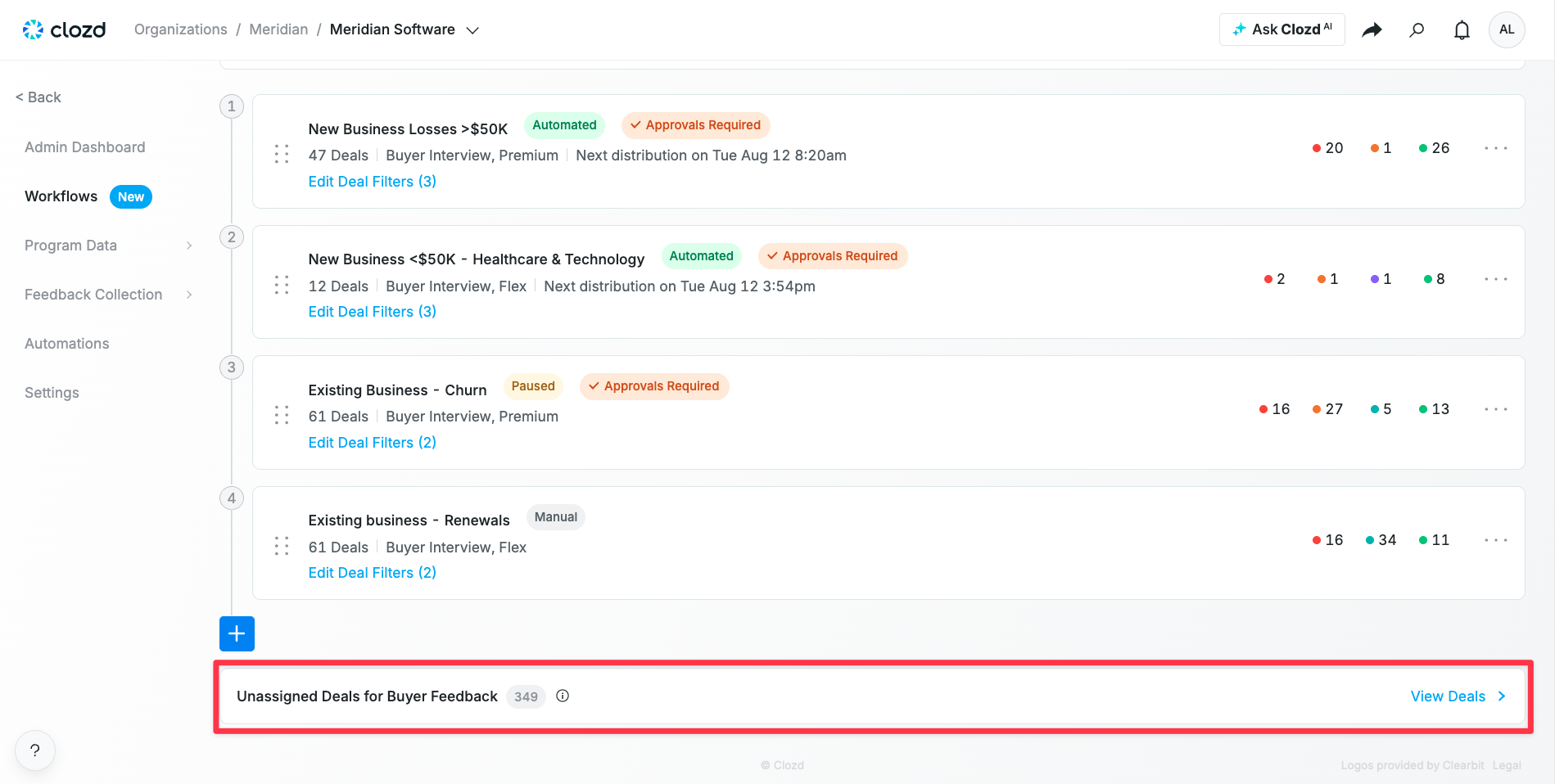
The Unassigned Deals page contains all deals that haven’t been included in a Workflow. You can take several actions from this page:
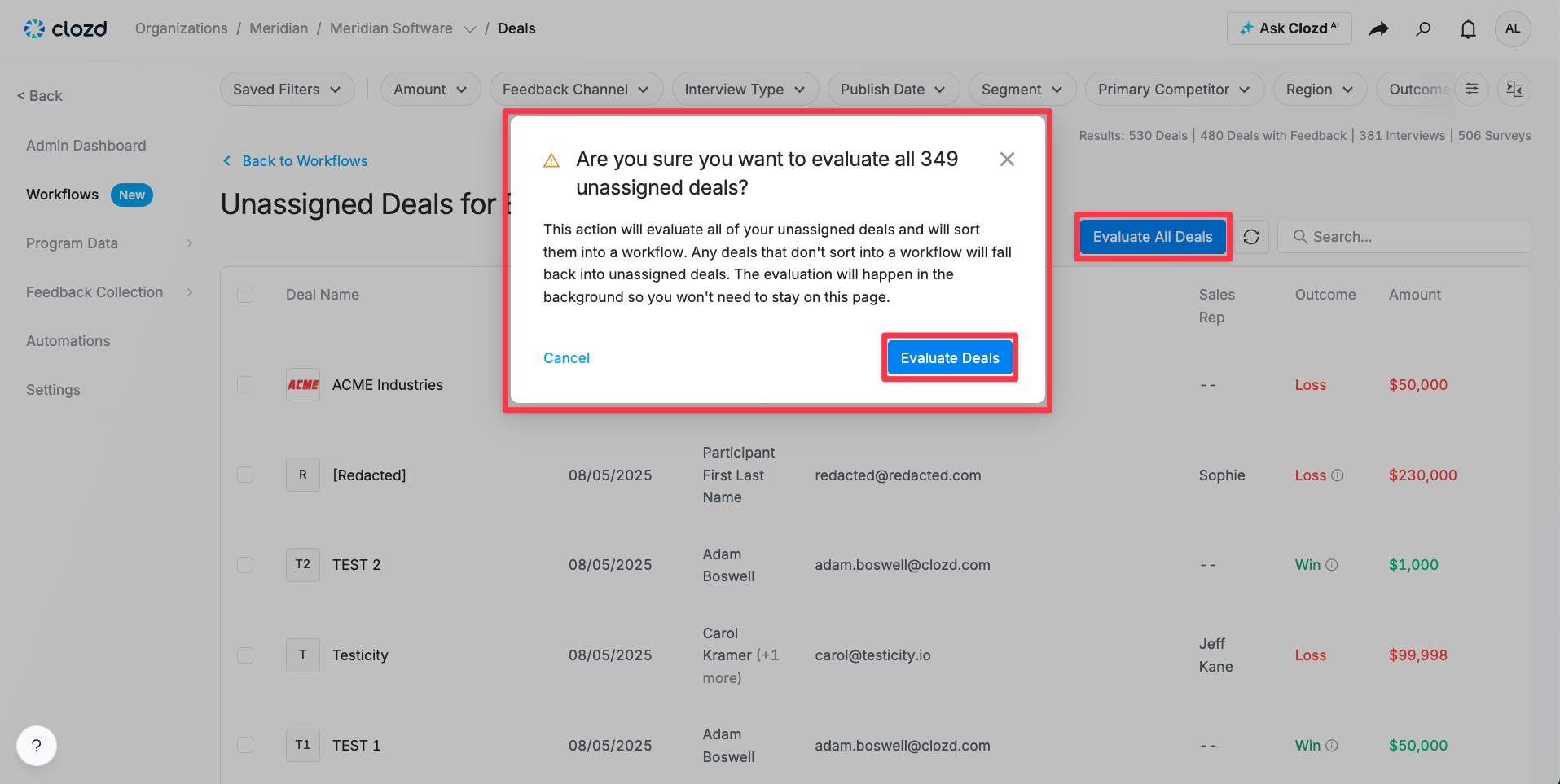
- Evaluate All Deals: Clicking this button will evaluate all unassigned deals against the current list of Workflows based on the set priority and criteria. If a deal meets the criteria of a Workflow, it will be added and will no longer show up on the Unassigned Deals tab.
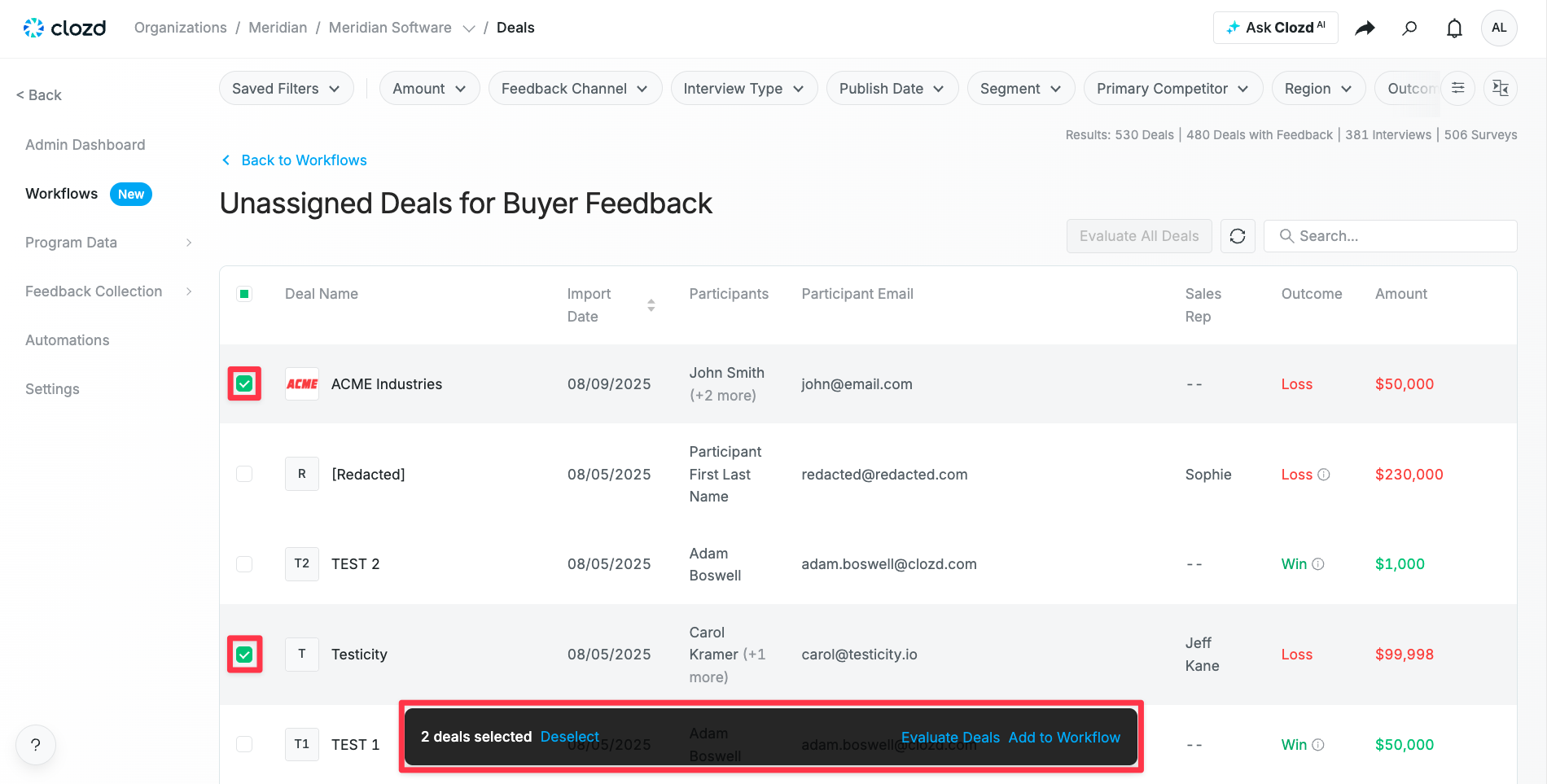
- Evaluate Specific Deals: Selecting one or more deals will bring up a selection toolbar that shows potential actions. One option is to Evaluate deal(s) which will evaluate the selected deals against the current list of Workflows.
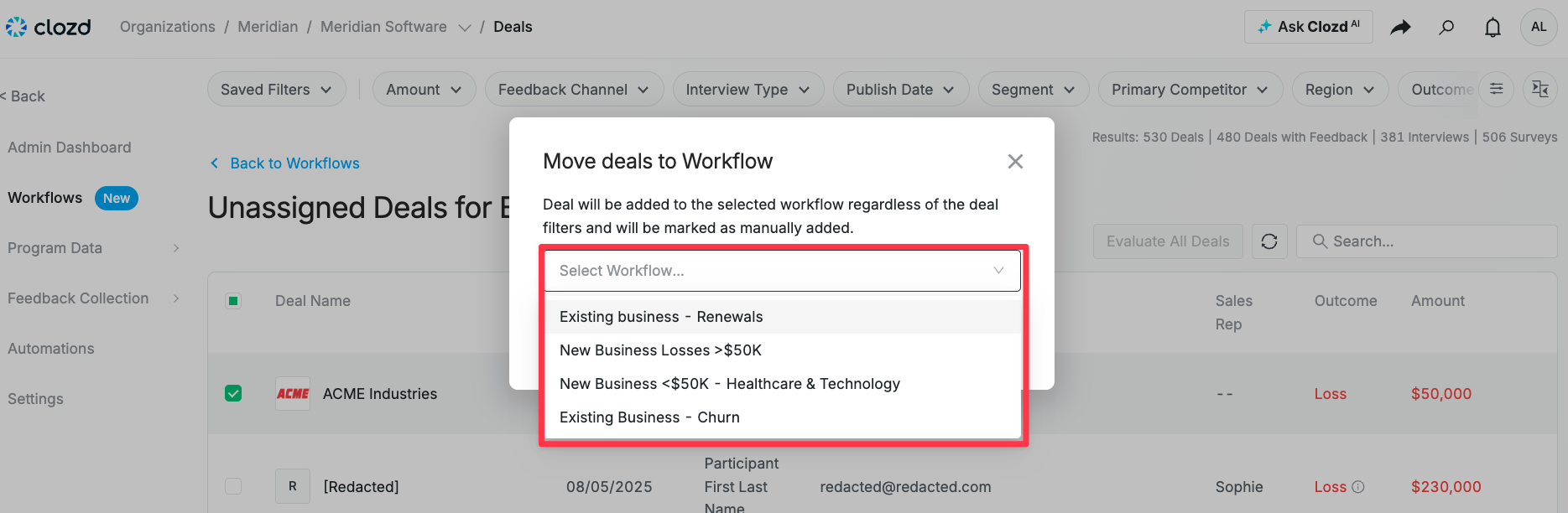
- Add Specific Deals to a Workflow: Another option on the selection toolbar is Add to Workflow. This will add the deals to a Workflow regardless of whether the deal meets the criteria in the Workflow settings. Deals that are manually added to a Workflow will be tagged with an “M” next to the name in the Workflow.
- View Deal Data: Like shown above, clicking the name of a deal will display the Deal Drawer which contains additional information about the deal and the associated participants which can help you decide how to handle that deal.
Workflow glossary
Participant statuses
Deal stages
If a deal has multiple participants, the stage is determined based on a hierarchy of participant statuses represented in the logic tree below.
Questions?
For questions about sequences or troubleshooting, please contact support@clozd.com.