
Overview
Sequences are a series of automatic emails designed to support outreach efforts or facilitate enrollment in a Distribution within an organization. This article will be broken out into the following sections:
- Navigating to the Sequences page
- Creating a sequence
- Setting up the email
- Email settings
- Email footer
Navigating to the Sequences page
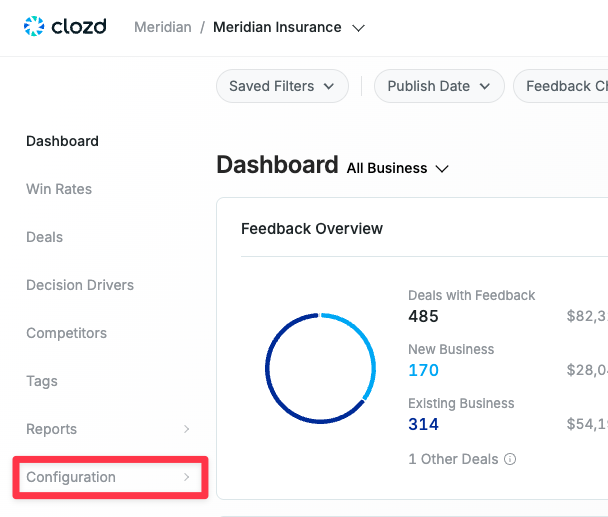
- Navigate to Configuration.
- Click on Feedback Collection.
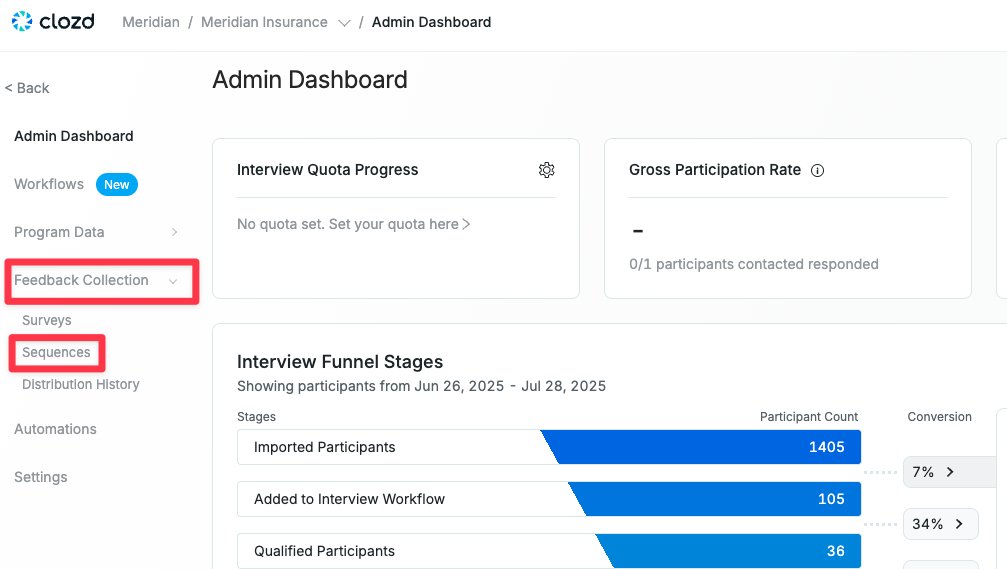
- Click on Sequences. Here you will see a list of created sequences with a status of either Active or Inactive.
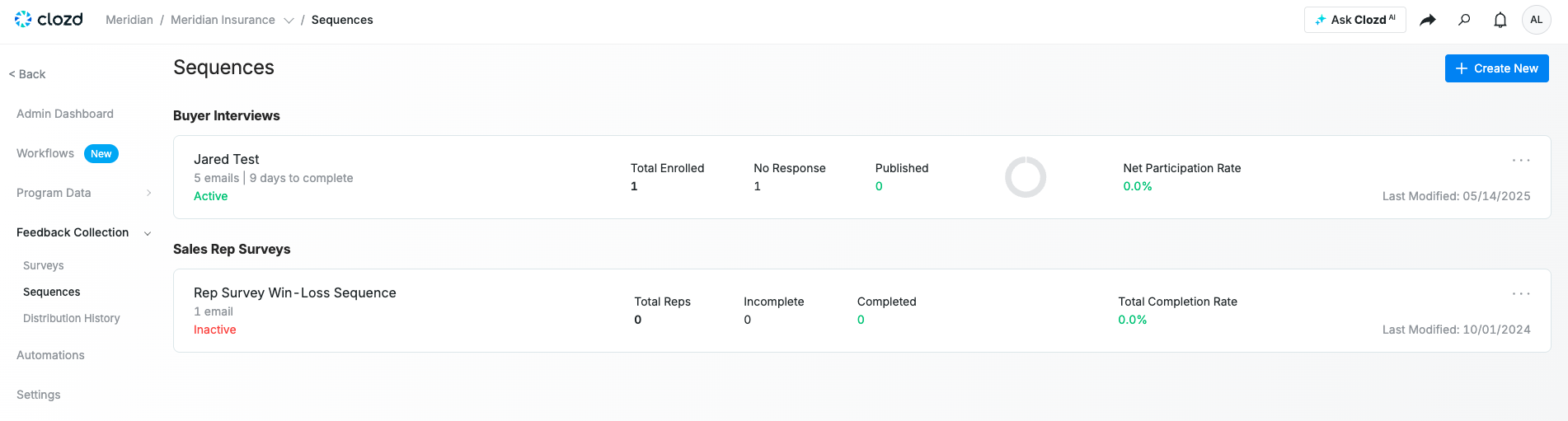
Note*: The sequences will be categorized based on their type: Buyer Interviews, Buyer Surveys, Sales Rep Interviews, or Sales Rep Surveys.*
Creating a sequence
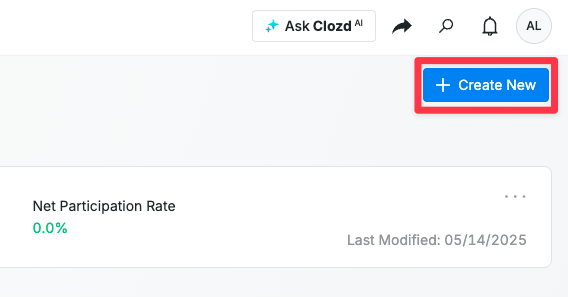
- Click on + Create New in the top right corner of the Sequences page.
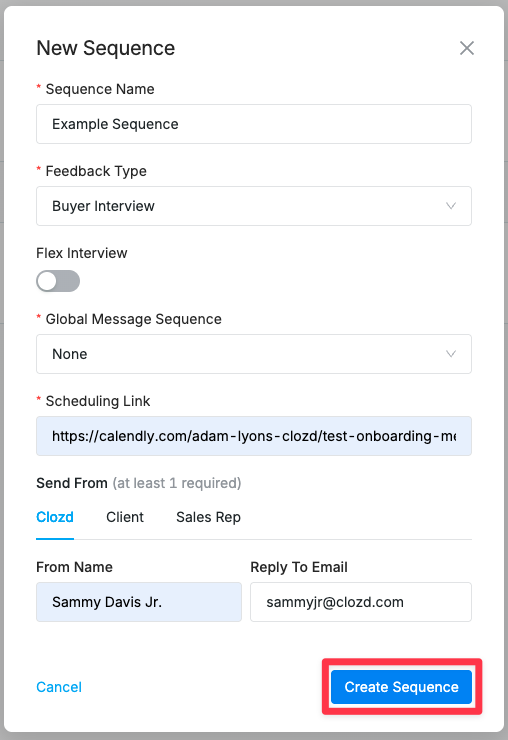
- Give the sequence a name.
- Select what type of sequence you'd like to create.
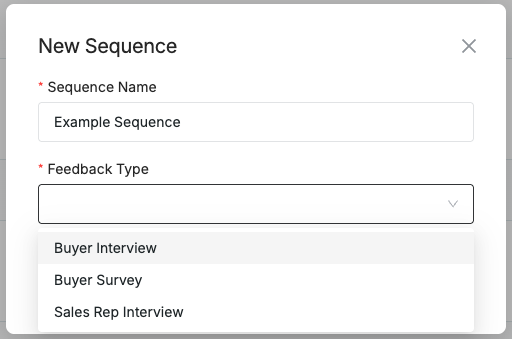
Note: If you want to use a Sales Rep Survey, there's nothing to customize and so you will need to request feedback via the Deals page. See this article for more details: Automated Distributions - Only one option for the Sales Rep Survey, hence why there isn't an option there.
- If it's a Flex Interview, make sure you click on the toggle. If not, ignore this step.
- Choose which Global Message Sequence best fits the sequence you want to create.
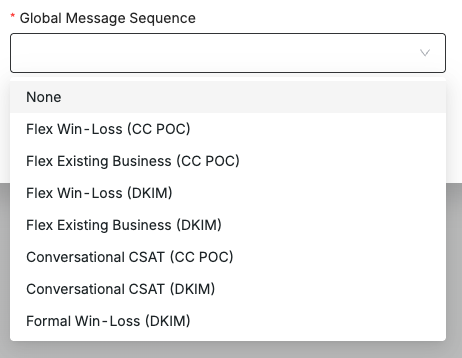
Selecting a Global Messaging Sequence is simply a starting point. You can choose to begin with a prebuilt template tailored to specific use cases, or you can opt to start from scratch (selecting None).
If you already know your use case, you’ll find several ready-made templates in the dropdown that can be customized to fit your needs. If you’re unsure of what you want, select None to build your sequence from the ground up.
For this example, I’ll choose None and walk through building a sequence from scratch. - Enter your Scheduling Link from Calendly.
- Choose who you want the sequence to send from (e.g. Clozd, Client, Sales Rep).
- Click Create Sequence. It should look something like this when you're done:
Setting up the email
- Now that you've created the framework of the sequence, you'll see a blank page where you can begin setting up/writing the emails. Click + Add email on the lefthand side of the screen. You can choose as many or as few emails as you want to send in a sequence.

Once you click + Add email, you will see a menu on the right hand side of the screen where you can customize the email(s) further.
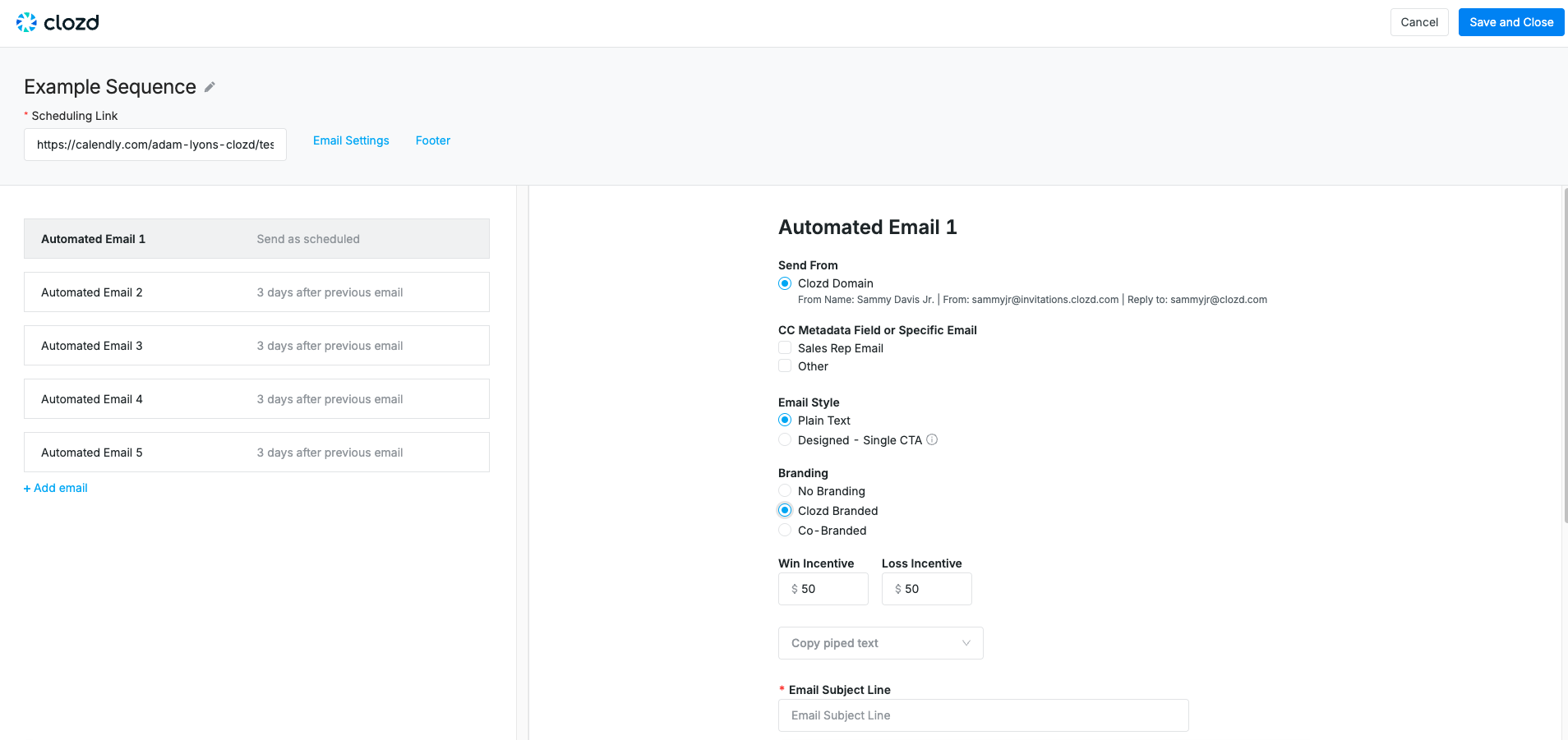
- Choose which email you're sending from. If didn't choose a template above, you will only see the option to send from the Clozd Domain.
- If you want to send a carbon copy to someone, select either Sales Rep Email (which will automatically use the rep's email on file) or Other (which will prompt you to manually enter the email address you want to CC).
- Choose the Email Style, whether you want Plain Text or Designed - Single CTA. If you choose the latter, then a button will be sent in the email for them to click to schedule the interview.
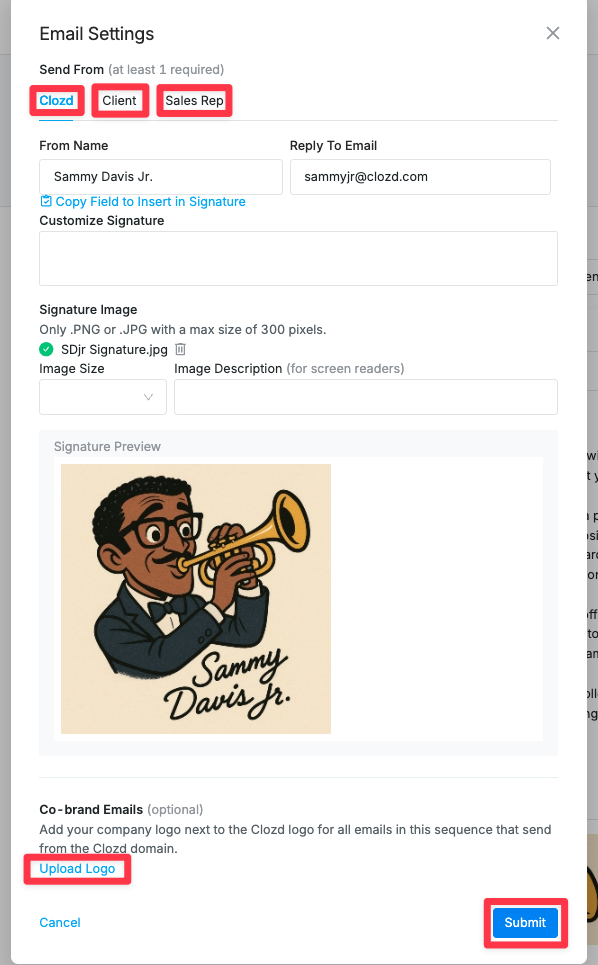
- Choose whether you want No Branding, Clozd Branded, or Co-Branded.
Note: If you choose Co-Branded, see Email Settings below for how to add your logo. - There's an option to Copy piped text. This means that you can copy the information coming into the sequence from the deals selected (e.g. Company Name, Deal Name, etc.). Click on the information you want, and then it will copy it to the clipboard.
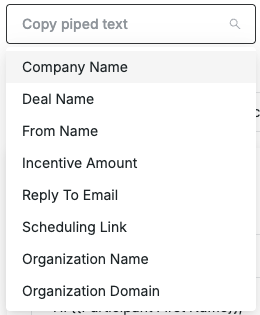
- Choose how much the Win Incentive and Loss Incentive amounts are.
- Write the Email Subject Line as if you were writing a normal email.
- Fill out the email with what you want to say. Here's an example of an email:
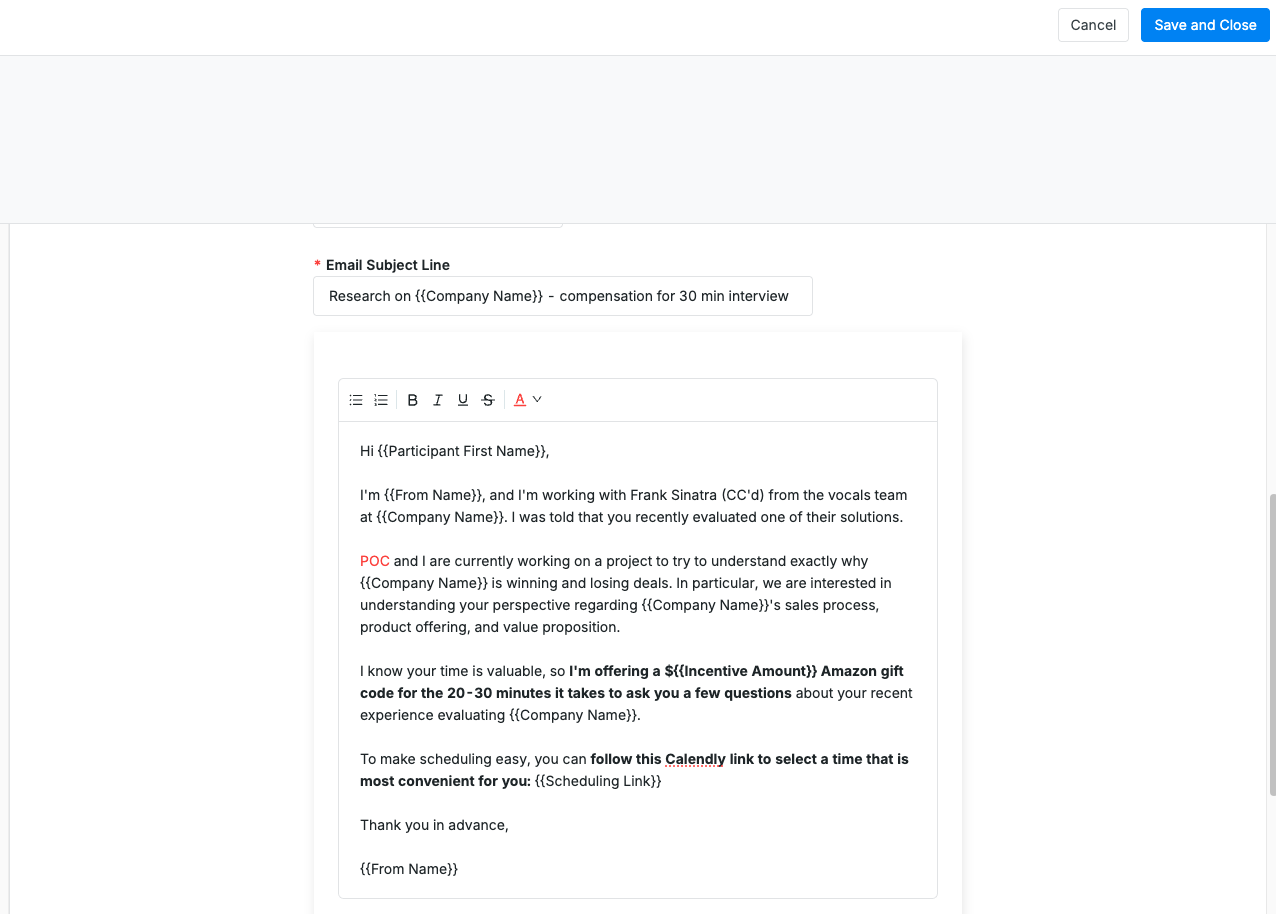
- Once you have all fields filled out, you can Save and Close and start using the sequence!
Email settings
Click on Email Settings in the top left of the screen
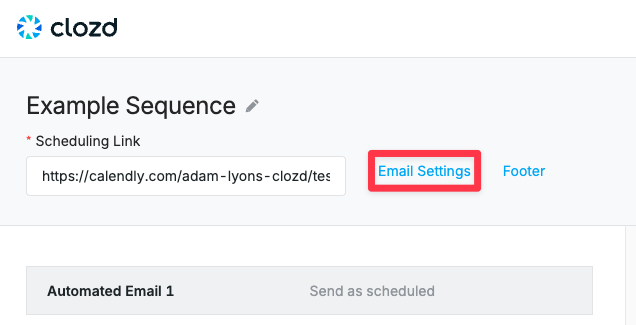
In the Email Settings you can customize who the email is being sent from, whether Clozd, the Client, or the Sales Rep.
Here is where you can also edit the signature, add a signature image, and Co - brand emails.
Email footer
Click on Footer in the top left of the screen
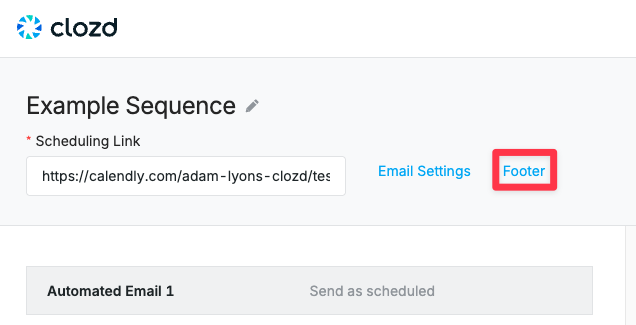
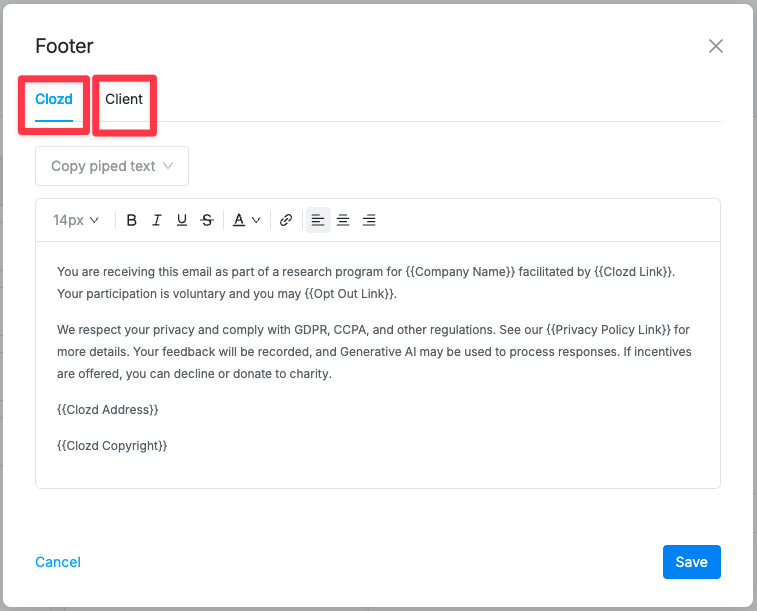
This is where you can edit the footer for sending from Clozd or from the Client side.
Questions?
For questions about sequences or troubleshooting, please contact support@clozd.com.