
Overview
Insight Gems surface actionable follow-ups for key team members based on buyer feedback, preventing important signals from getting buried in interview transcripts. Each Insight Gem identifies a specific opportunity or risk tied to a deal and includes a reason, supporting quotes, and an assigned owner responsible for follow-up.
Within Clozd, Tags track mentions of specific topics or keywords, and Decision Drivers identify the thematic reasons a deal was won or lost. Insight Gems are the recommendation layer that sits on top of that feedback: They tell you what to do next. Each gem is one specific, actionable follow-up tied to a deal, backed by direct evidence from the buyer's own words and assigned to the person best positioned to act on it.
Insight Gems include a dedicated dashboard for tracking and managing gems across your program, assigned owners for accountability, notes for collaboration, and notifications to keep your team informed.
This article contains the following sections:
- The Insight Gems dashboard
- Understanding Insight Gem types
- How Insight Gems are created
- Scanning existing feedback for Gems
- Managing Insight Gems
- Adding notes to a Gem
- Sharing a Gem
- Insight Gem notifications
- Custom Insight Gems
- Frequently asked questions
- Need help?
The Insight Gems dashboard
The Insight Gems dashboard is available as a top-level tab in the main navigation sidebar. It provides a centralized view of all Insight Gems across your program.
At the top of the dashboard, you'll see a summary of the number of deals and the total deal amount associated with each Insight Gem type. This gives you a quick view of the scope and value tied to each category.
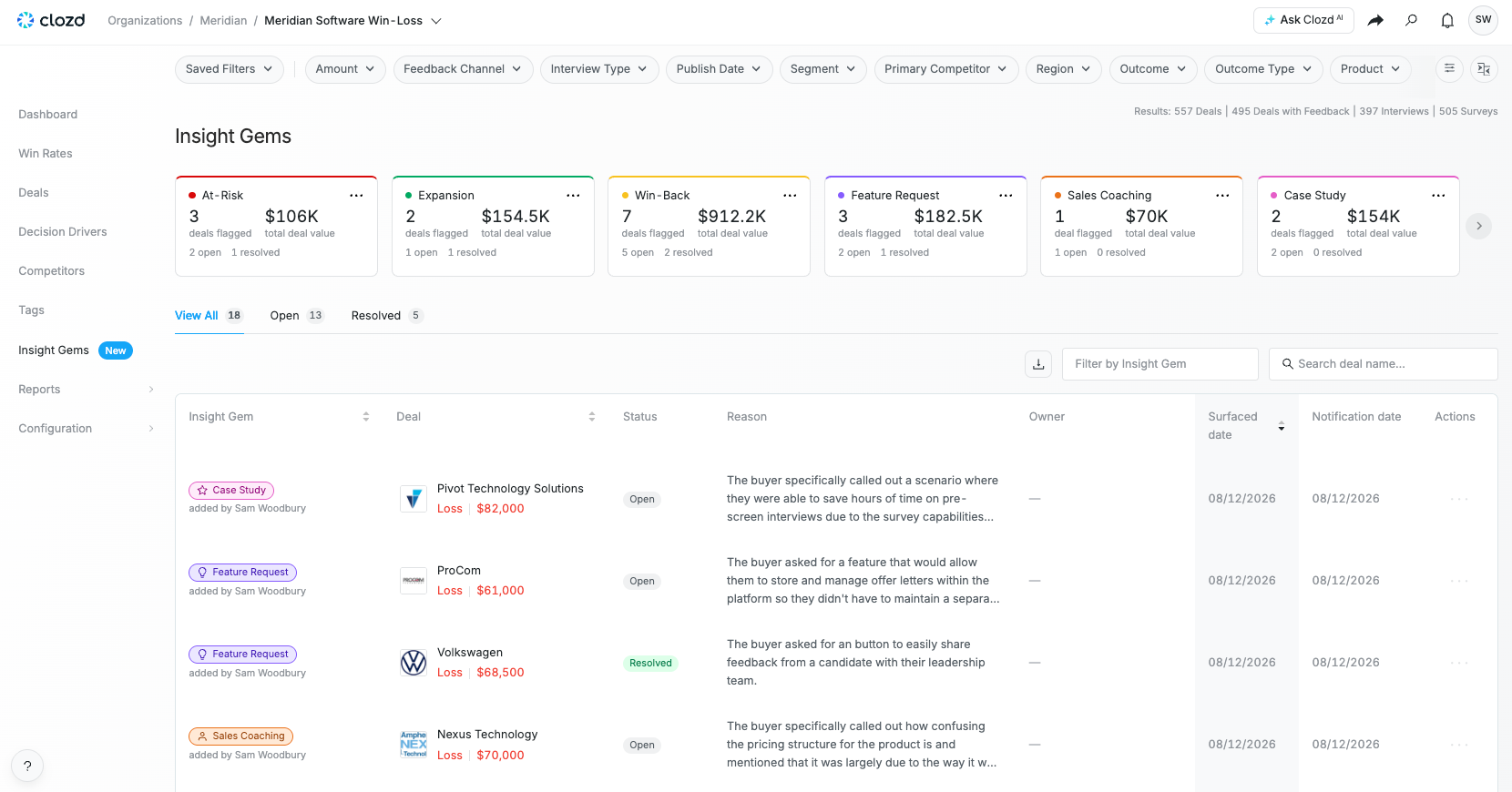
Below the summary, a table lists each individual Insight Gem. Each row includes the gem type, the associated deal, the reason the gem was applied, the gem status, and the assigned owner(s). You can use this table to scan for gems that need attention, filter by type or status, and click into any gem for more detail.
From the dashboard you can also subscribe to the Insight Gem Digest (see Insight Gem notifications below), adjust Insight Gem settings (see How Insight Gems are created below), scan existing feedback for gems (see Scanning existing feedback for Gems below), and manage the status of Insight Gems (see Managing Insight Gems below).
Insight Gems also appear on each deal's page, so you can review and manage a deal's gems alongside the rest of its feedback.
Understanding Insight Gem types
Insight Gems currently include six built-in types. Each type corresponds to a specific scenario identified from buyer feedback:
- At-Risk: The buyer indicates potential churn, dissatisfaction, reduced usage, or a risk that the account could be lost. Use this gem to prioritize retention outreach.
- Win-Back Opportunity: The buyer explicitly signals openness to revisiting your product in the future. For example, if the budget opens up, timing changes, or a specific gap is addressed. Use this gem to identify re-engagement opportunities.
- Expansion Opportunity: The buyer indicates they would or could buy more from you, such as additional modules, seats, teams, geographies, or use cases. Use this gem to surface upsell and cross-sell opportunities.
- Sales Coaching Opportunity: The buyer's feedback points to something the sales team could have done differently during the deal, such as discovery, demos, responsiveness, or deal execution. Use this gem to give sales leaders concrete, deal-specific coaching moments.
- Feature Request: The buyer identifies a missing capability or product gap that influenced their decision. Use this gem to route validated product feedback directly to your product team.
- Case Study Opportunity: The buyer expresses strong satisfaction with your product or team and their story is a strong candidate for marketing follow-up, such as a case study, reference, or testimonial.
Note: Because of the nature of the feedback they capture, Sales Coaching Opportunity and Feature Request gems are typically flagged more frequently than the other gem types.
How Insight Gems are created
When a buyer interview (flex or live) is added to your program, the Clozd Insights Agent reviews the transcript and applies Insight Gems where the buyer's own words provide direct evidence. A single interview can receive more than one gem when the feedback supports it. If the transcript does not clearly support a gem, no gem is applied. No setup is required to start receiving gems.
Each AI-applied gem includes:
- Reason: A short summary grounded in the buyer's comments explaining why the gem was applied.
- Supporting quote(s): One or two direct quotes from the interview transcript that justify the gem.
This context helps you quickly assess whether the gem is accurate and decide on next steps.
Note: The AI is intentionally conservative. It will not infer intent or apply a gem based on ambiguous signals.
Draft gems
If the Insights Agent finds a gem before the interview is published, the gem is held in a Draft state until the interview goes live. This ensures owners are never notified about feedback they can't see yet.
While a gem is in Draft:
- Owners are not notified.
- The gem does not appear on the Insight Gems dashboard, the deal page, the Clozd API, or the Clozd MCP Server for non-admin users.
- Admins can see draft gems on the deal page and the Insight Gems dashboard, and can remove any draft gem they don't agree with before the interview is published.
When the interview is published, its draft gems go live automatically, and owner notifications are scheduled based on the publish date.

Gem sources
Each gem records who added it. Gems can be added by the Clozd Insights Agent, by a Clozd program manager, or manually by users on your team.
Controlling automatic tagging
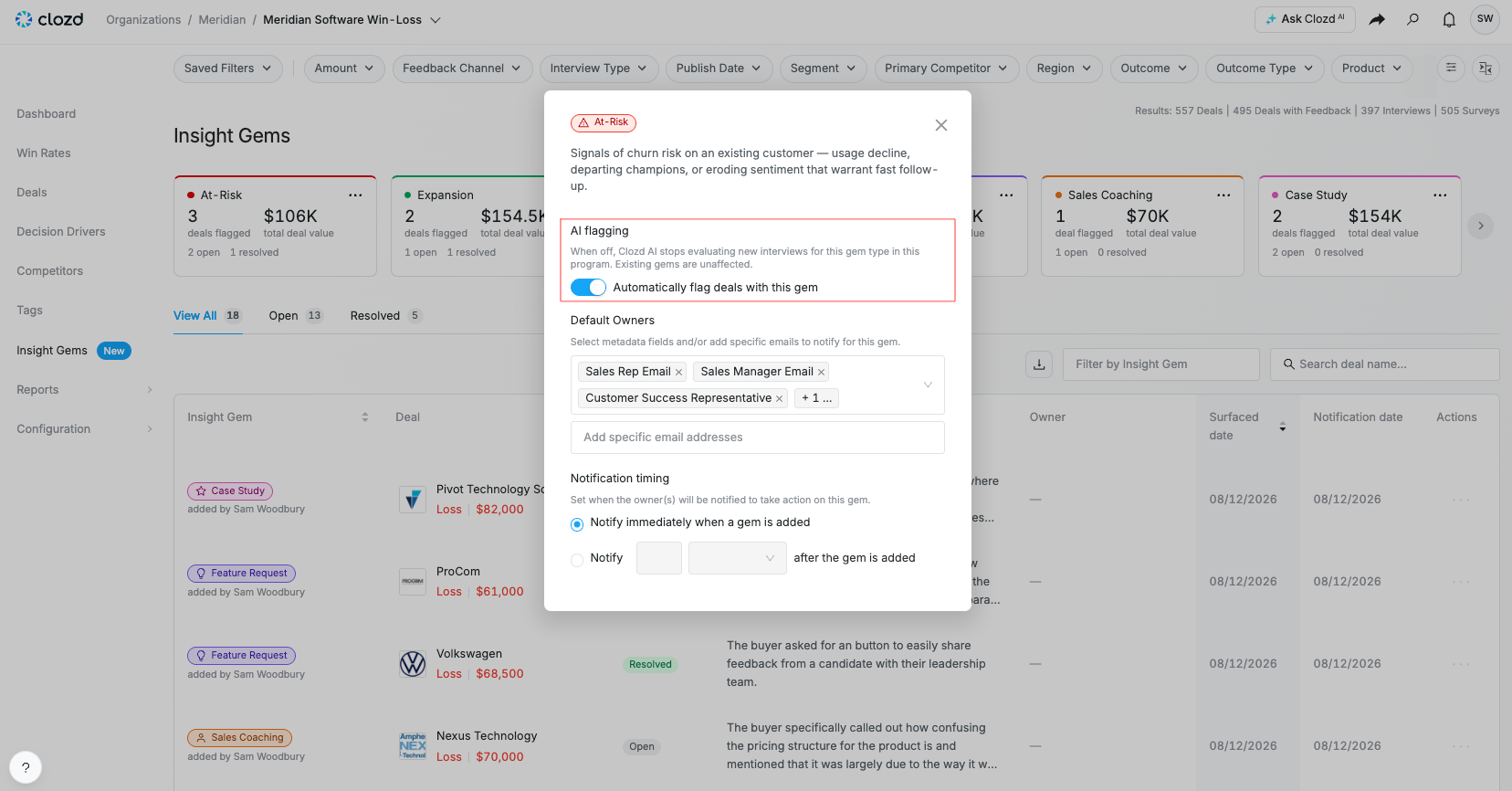
Automatic tagging from the Clozd Insights Agent can be turned on or off by gem type from the Insight Gems dashboard. If there is a gem type your team does not want the AI to apply automatically, disable it and that type will only be added manually.
Providing feedback to the Clozd Insights Agent
You can provide direct feedback to our Clozd Insights Agent about the quality of an AI-applied gem using the thumbs-up or thumbs-down button on the gem. A thumbs-down indication will automatically remove the gem and send feedback to Clozd so we can continue improving the accuracy of the Insights Agent.
Scanning existing feedback for gems
The Insights Agent automatically reviews new interviews. To find gems in interviews that were published before Insight Gems were available, or before a gem type was turned on, admins can run a scan on existing feedback.
- Go to the Insight Gems tab in the main navigation.
- Click the ... menu and select Scan for gems on existing feedback.
- Select the gem types you want the Insights Agent to look for.
- Filter to the deals you want to scan.
- Choose whether to notify gem owners about the gems the scan finds.
- Start the scan.
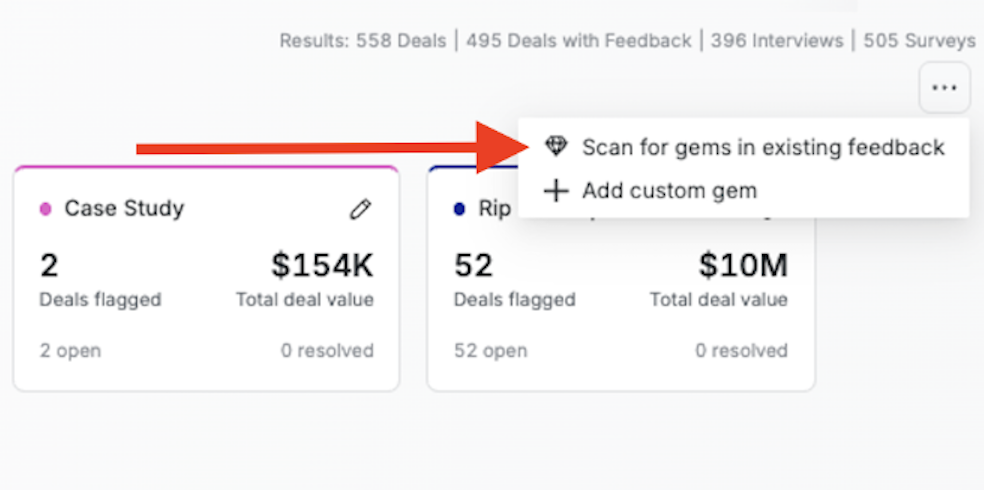
The scan runs in the background and only adds gems that haven't already been tagged. When it finishes, review the results and use the thumbs-up or thumbs-down buttons to give feedback on each gem.
You can also scan a single deal from its deal page.

Note: If you choose to notify owners, notifications follow each gem type's current notification settings. Gems found by a scan are also included in the Insight Gem Digest, even when owner notifications are turned off. For large scans, consider letting digest subscribers know ahead of time.
Managing Insight Gems
Gem status
Each Insight Gem has a status that indicates where it stands in your follow-up process:
- Open: The gem has been identified and is awaiting action. All new gems start with this status.
- Resolved: The gem has been actioned and closed. Marking a gem as resolved helps your team track which follow-ups have led to results and which are still outstanding.
- Draft: The buyer interview from which the gem was identified has not yet been published. Owners will not be notified and the gem will only be visible to admin users. See the Draft Gems section above for more details.
Assigned owners
Every Insight Gem can have one or more assigned owners. Owners are the people responsible for following up on the recommended action, and they receive a follow-up notification for the gem. Default owners can be set or edited for a given gem using either an email field associated with the deal or a specific user or email address. The default owner determines who is set as owner when a gem is identified by the Insights Agent. Owners can be edited or added manually after an Insight Gem is created.
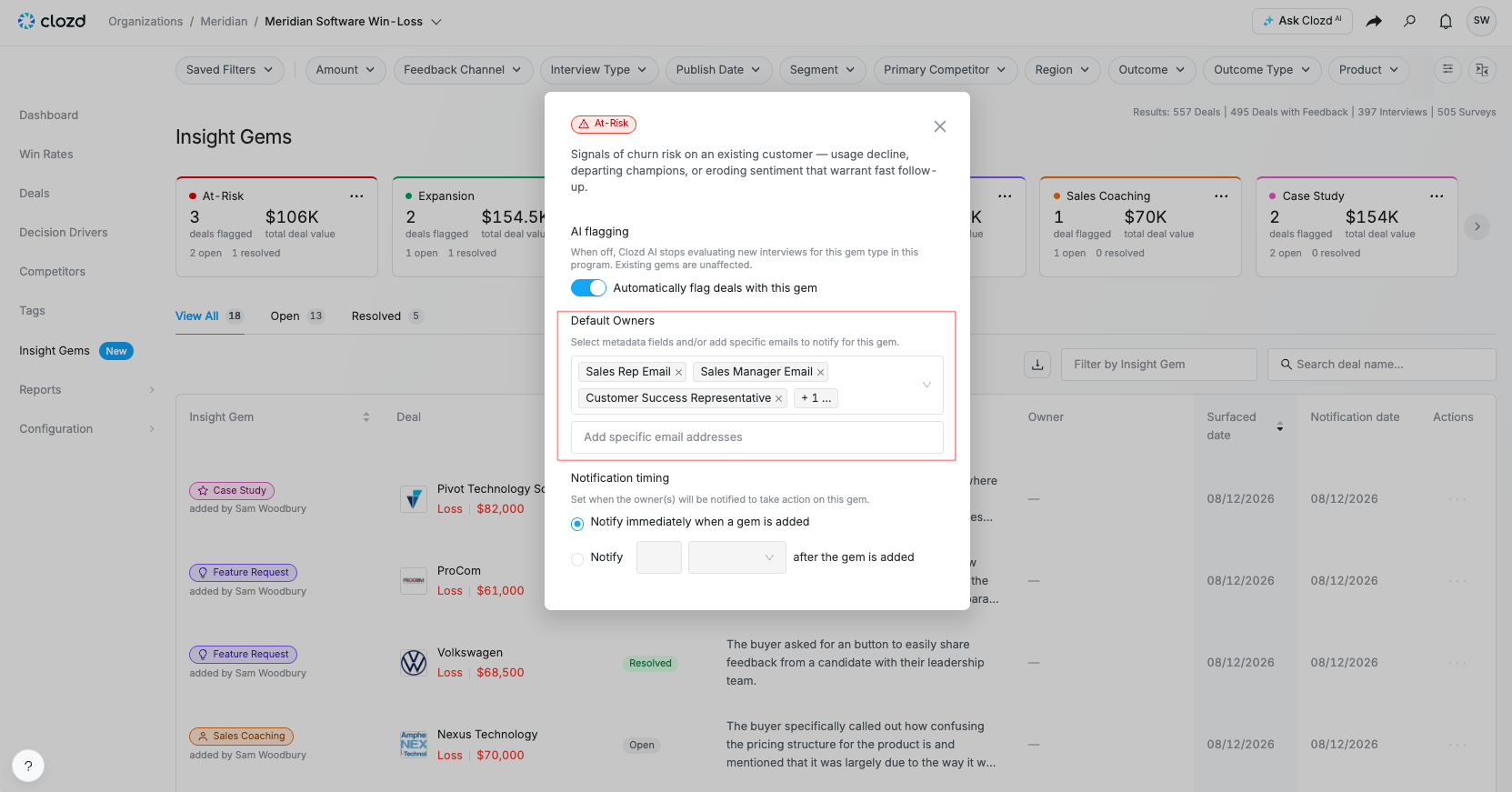
For At-Risk, Win-Back, and Expansion gems, the default owner is automatically set to be the sales rep on the deal. You can change this at any time. For Sales Coaching Opportunity, Feature Request, and Case Study gems, there's no default owner. Assign the person best suited to act, such as a sales leader for coaching opportunities, a product manager for feature requests, or a marketer for case studies.
Editing and managing gems
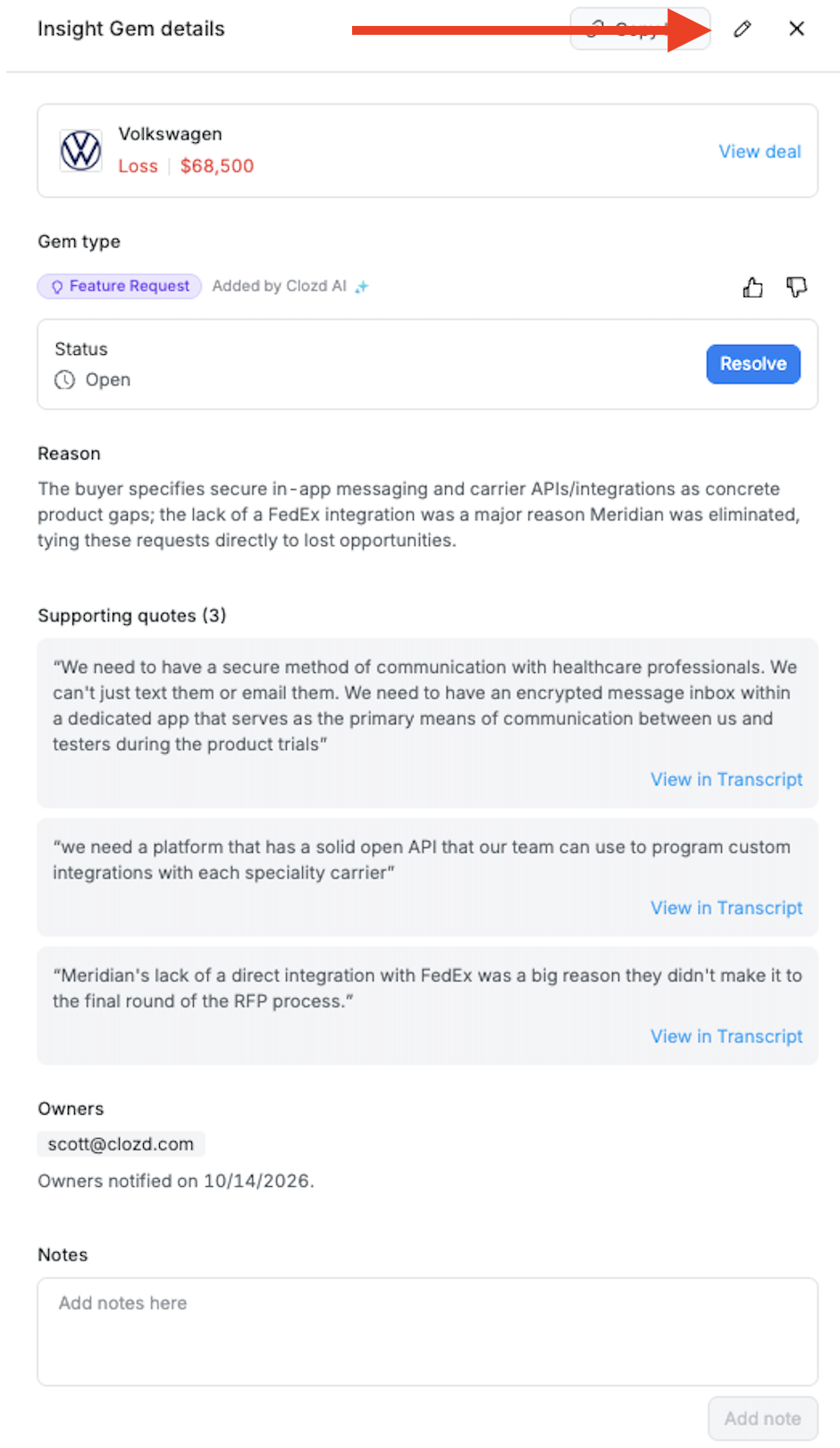
You can edit and manage gems directly from the Insight Gems dashboard or from a deal page. Editing works the same way in both places. Click on any gem to open its side panel, where you can:
- View the full gem details, including the reason, supporting quotes, and associated deal
- See and update the assigned owner(s)
- Edit the reason
- Change the gem status between Open and Resolved
- Add notes
- Remove a gem that isn't accurate (thumbs down)
Changes are made directly in the side panel. The Owners section shows each owner and whether they have already been notified, so you can see what will happen before you add or remove someone.
Adding notes to a gem
Owners and other users can add notes to any Insight Gem from the gem's side panel. Notes are useful for documenting follow-up actions, recording outcomes, or coordinating with teammates on how to handle a gem.
To add a note:
- Navigate to the Insight Gems tab in the main navigation.
- Click on the gem you want to add a note to. The side panel will open.
- In the notes section of the side panel, type your note.
- Save your note.
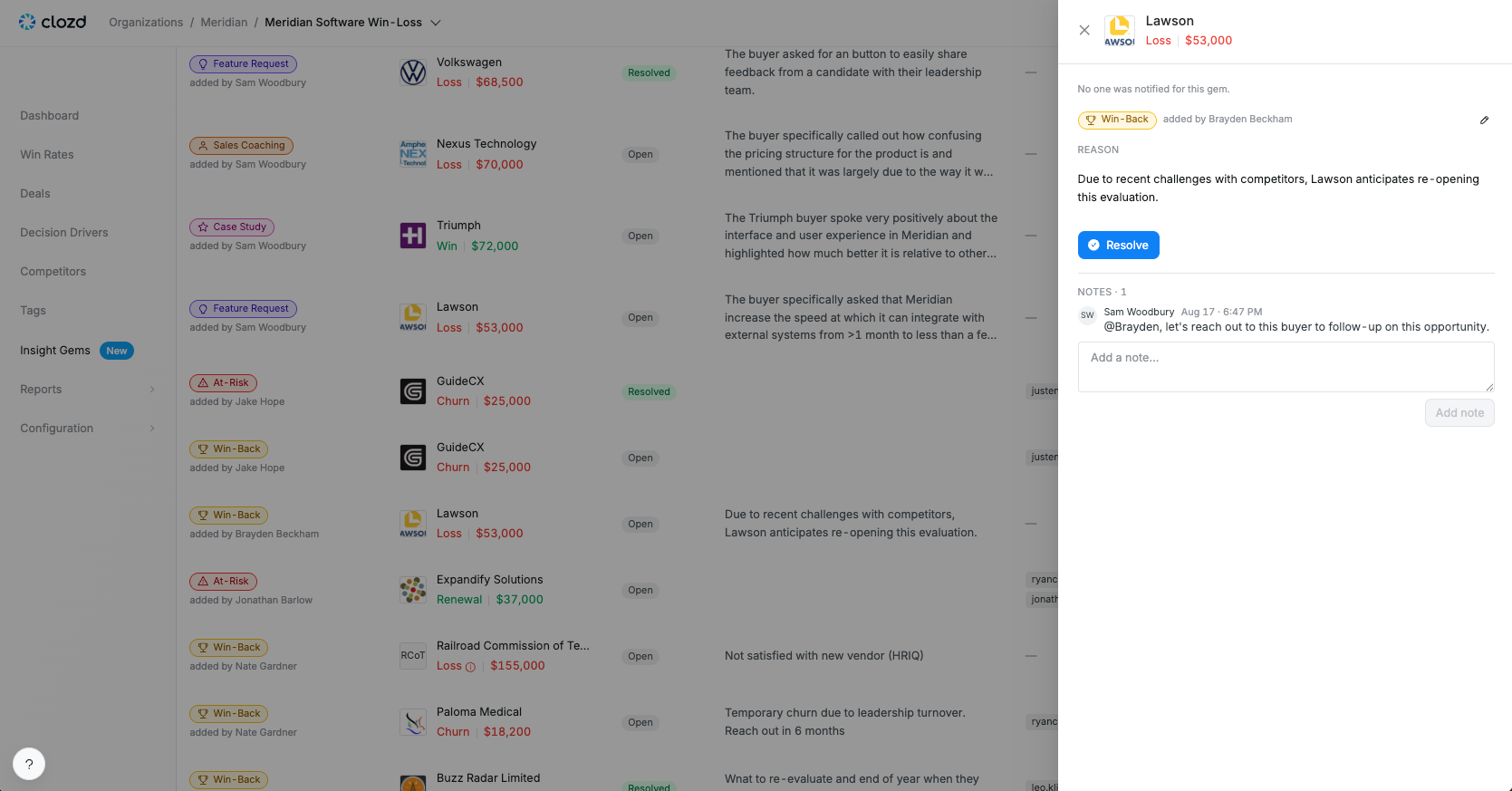
Notes are visible to all users who can access the gem.
Sharing a gem
To share a gem in Slack, email, or another tool, open the gem's side panel and click Copy link in the header. This copies a short summary to your clipboard that includes:
- The gem type
- The deal name
- The reason
- The number of supporting quotes
- A View in Clozd link that opens the gem directly
Note: Anyone who opens the View in Clozd link must log in and have access to the deal.
Insight Gem notifications
There are two kinds of Insight Gem notifications:
Owner follow-up notification
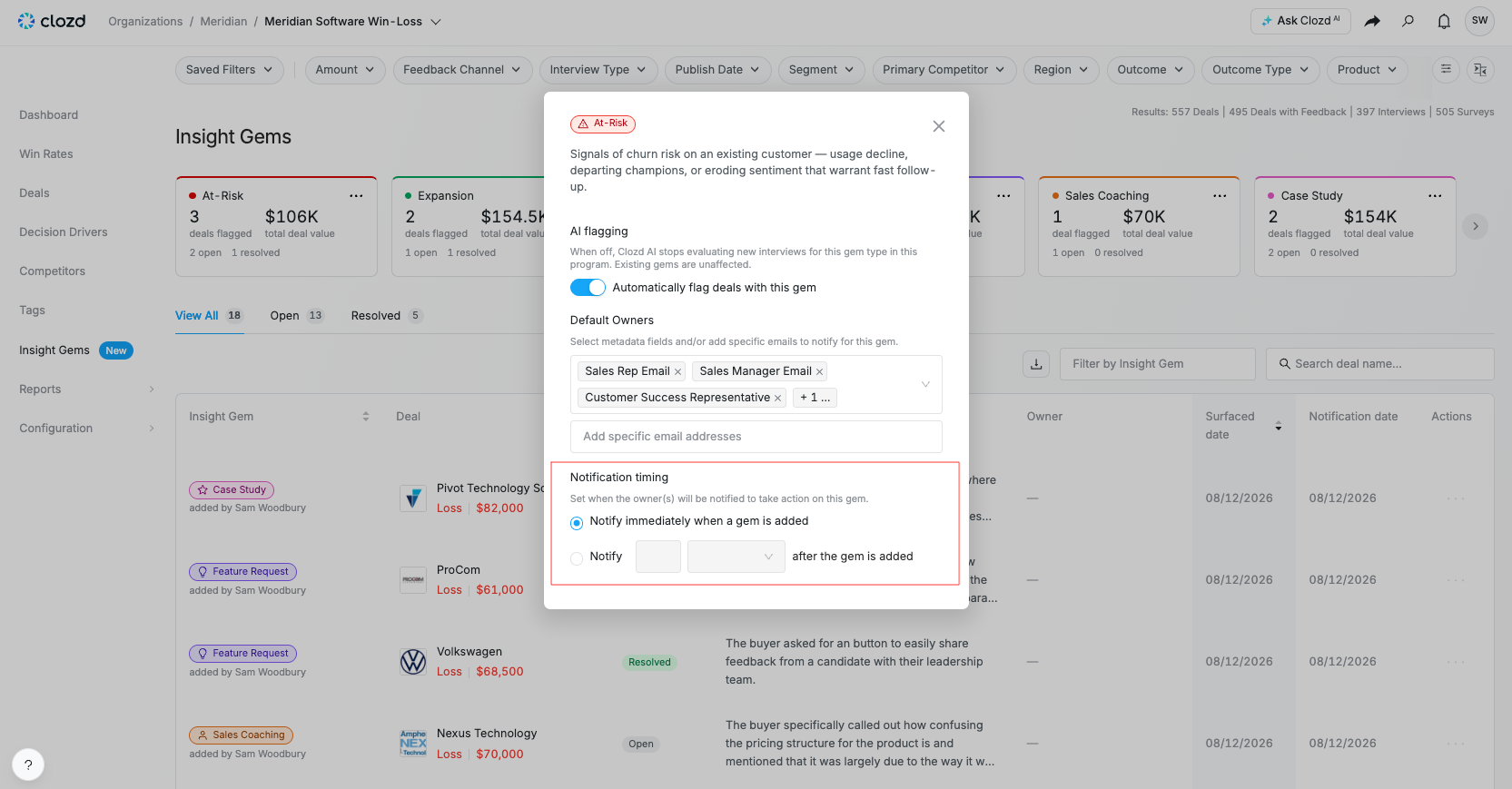
The assigned owner(s) of a gem receive a notification inviting them to follow up on the recommended action. Each gem shows the date its owner will be notified. Admin users can edit the timing for when the owner follow-up notification will be sent.
The timing you choose also affects how notifications are grouped:
- Notify immediately when a gem is added: Owners receive a separate email for each gem.
- Notify a set number of days or weeks after the gem is added: Owners receive one consolidated email for gems due on the same day.
Insight Gem Digest
Any user can subscribe to the Insight Gem Digest, a recurring summary that keeps you informed about recently flagged gems without needing to check the dashboard manually. The digest includes:
- A list of recently flagged Insight Gems
- The reason each gem was applied
- The assigned owner(s) for each gem
- The date each owner will be notified to follow up
To subscribe, click the subscribe button on the Insight Gems dashboard (or manage it from your profile settings page). You can choose which gem types you want included and how often you receive the digest: every few weeks, monthly, or after a certain number of gems have been added.
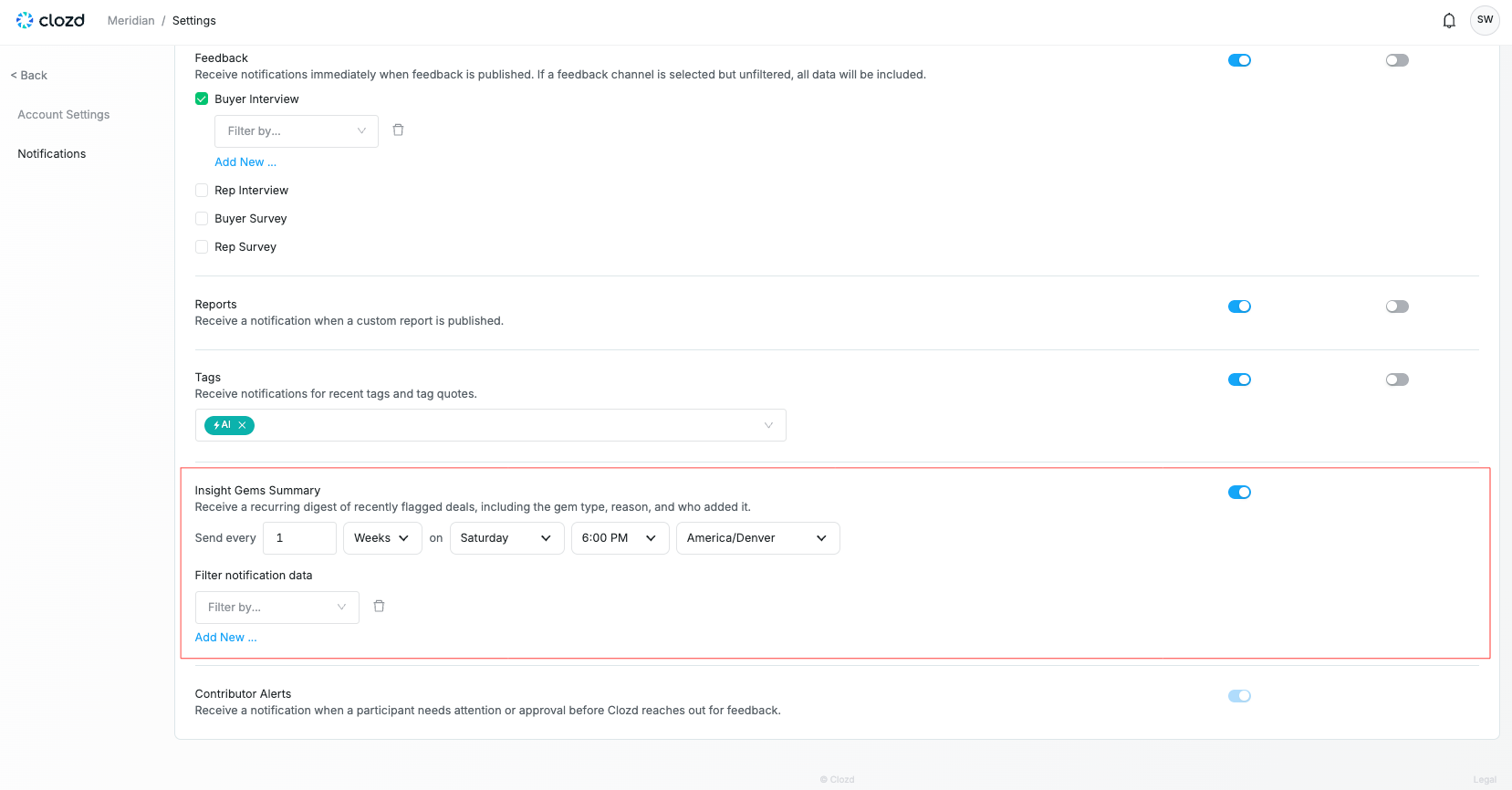
Note: The Insight Gem Digest is separate from other Clozd notifications. Subscribing to it does not affect your other notification preferences.
Custom Insight Gems
Creating a custom gem type
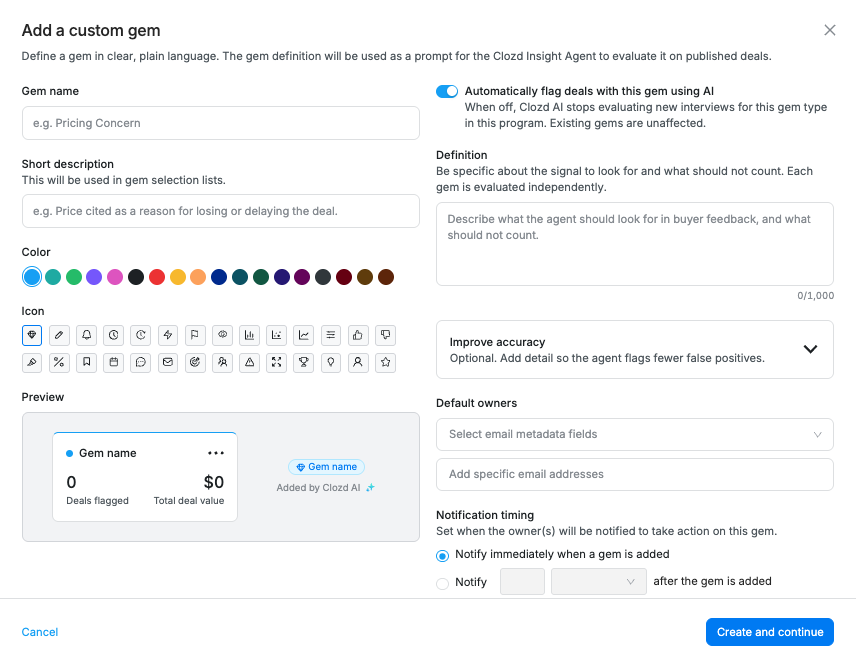
Admins can create gem types tailored to your program, so the Insights Agent looks for the follow-ups that matter most to your team. Each custom gem type includes:
- Name, icon, and color
- Definition: A plain-language description of what the Insights Agent should look for
- Examples (optional): Sample feedback that should qualify
- Default owners and notification timing
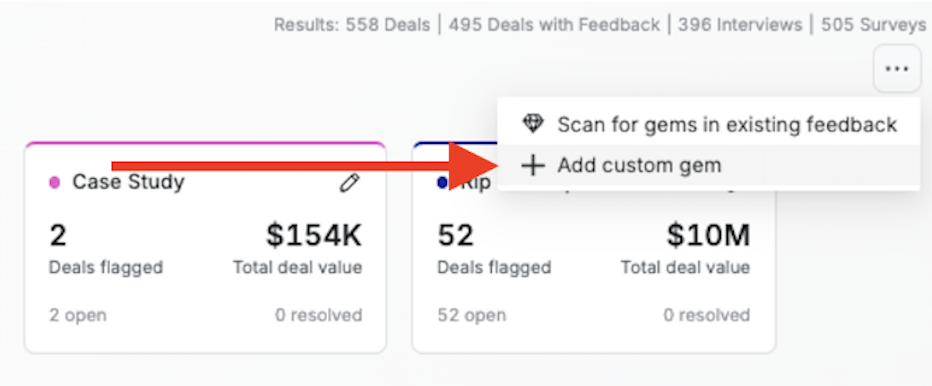
Once a custom gem type is turned on, the Insights Agent checks every newly published interview for it alongside the built-in gems. Custom gems appear everywhere built-in gems do, including the dashboard cards and filters, deal pages, notifications, the Clozd API, and the Clozd MCP Server. To find custom gems in past interviews, see Scanning existing feedback for Gems.
Note: Deleting a custom gem type also removes every gem of that type. To pause a custom gem without losing existing gems, turn off automatic tagging for it instead.
Renaming built-in gems
Admins can change the display name, color, and icon of any of the six built-in gem types to match your team's terminology. For example, you could rename Win-Back Opportunity to "Go-Back." The new name appears on the dashboard, deal pages, notifications, the digest, the Clozd API, and the Clozd MCP Server.
Renaming a gem doesn't change what the Insights Agent looks for. To restore the original name, color, and icon, click Reset to default.
Frequently asked questions
How are Insight Gems created?
Most Insight Gems are created automatically by the Clozd Insights Agent when a buyer interview is published. The AI evaluates the transcript and applies gems only when the buyer's own words clearly support them. Gems can also be added by your Clozd consultant or manually by users on your team.
Can one interview receive more than one gem?
Yes. If the buyer's feedback clearly supports multiple follow-ups, such as both a win-back signal and a feature request, the AI can apply multiple gems to the same deal.
Can I turn off automatic tagging?
Yes. Automatic tagging can be managed by gem type from the Insight Gems dashboard.
What should I do if a gem is inaccurate?
Use the thumbs-down button on the gem. This removes it and sends feedback to Clozd to improve the accuracy of the Clozd Insights Agent.
Can I find gems in interviews published before Insight Gems were turned on?
Yes. Admins can use Scan for gems on existing feedback from the Insight Gems tab or from an individual deal page. See Scanning existing feedback for Gems.
Why can my admin see a gem that I can't?
The gem is likely a draft. Gems found before an interview is published stay in Draft and are only visible to admins. They become visible to everyone once the interview is published.
Who can see and manage Insight Gems?
All users with access to the program can view the Insight Gems dashboard and individual gems. Any user can update gem statuses, add notes, and manage assigned owners. Only admins can see draft gems, scan existing feedback, and create or rename gem types.
What does "Resolved" mean?
Marking a gem as Resolved indicates that the recommended follow-up action has been taken or the gem has been addressed. Resolved gems remain visible on the dashboard for tracking purposes.
Can I access Insight Gems through the Clozd API?
Yes. Insight Gems are available through the Clozd API (v3) on the deals endpoint, including each gem's type, source, reason, and follow-up notification date. Custom gems are included and can be used as a filter on the deals list endpoint. See the API documentation for details.
Can I access Insight Gems through the Clozd MCP server?
Yes. Insight Gems are available through the Clozd MCP Server through a dedicated tool. The tool can return all gems in a program, with each gem's type, source, reason, and follow-up notification date. Custom gems are also included.
Need help?
If you have questions about Insight Gems, the Insight Gems dashboard, or configuring your notifications, contact your Clozd program manager or reach out to support@clozd.com.