Chorus integration overview
Combining Clozd with Chorus by ZoomInfo (which records sales calls with buyers while an opportunity is still live) gives you a complete picture of what happened throughout the entire lifecycle of a deal.
This article contains the following sections:
- What is the Chorus integration?
- Chorus integration benefits
- Before you begin
- Chorus integration setup
- Checking sync status
- Updating your Chorus API token
- FAQs
- Questions?
Other integrations to consider:
- Gong integration
- Salesloft integration
- Salesforce integration & automation
- HubSpot integration & automation
- Microsoft Dynamics integration & automation
What is the Chorus integration?
The Clozd + Chorus integration connects what was said during the sales process with what buyers shared after the deal closed, giving you a clearer, more complete view of every opportunity.
The integration pulls Chorus call recordings and transcripts into the Clozd Platform for analysis. Your team can analyze call transcripts across the pipeline, even on deals where no interview was completed.
Together, Chorus and Clozd help you understand both what happened and why it happened, so you can coach smarter and close more effectively.
Chorus integration benefits
Analyze Chorus calls in Clozd, even without an interview
Chorus call transcripts are automatically imported into Clozd, where they're tagged with Decision Drivers and competitors and summarized using the same analysis applied to interviews. This gives you insight across your full pipeline, not just on deals where you completed an interview.
Compare what buyers said, and what they really meant
Buyers don't always say what they're thinking during sales calls. When a deal includes both Chorus calls and a Clozd interview, Clozd highlights where the two sources agree, where they differ, and what came up on calls but never surfaced in the interview. This comparison reveals blind spots in your sales process and helps you focus on the insights that matter most.
Find the right person to interview, faster
Clozd uses Chorus call data to identify who actually participated in the deal. Each buyer participant gets a talk-time rank and percentage based on how much they spoke across the deal's calls, which you can use to filter participants for outreach. If the most active buyer isn't already on the deal in Clozd, Clozd adds them automatically.
Note: Insights from Chorus calls appear on each deal and are available through the Clozd MCP server. They aren't included in your program-wide Decision Driver and Competitor dashboards, which are based on buyer feedback.
Before you begin
To set up the integration, you need:
- Admin permissions in Clozd.
- A Chorus user whose role has API access enabled. The integration connects using that user's API token.
- Chorus connected to your CRM, so Chorus calls carry the CRM opportunity ID.
- Your CRM connected to Clozd, so Clozd deals carry the same opportunity ID. For more information, see Salesforce integration & automation, HubSpot integration & automation, or Microsoft Dynamics integration & automation.
Chorus integration setup
Setting up the integration with Chorus is simple and should only take a few minutes.
Generate a Chorus API token
1. Sign in to Chorus.
2. Open Personal Settings.
3. Generate an API token and copy it.
Note: If you don't see the option to generate an API token, ask your Chorus admin to enable API access for your Chorus role.
Connect Chorus in Clozd
1. Navigate to the Configuration tab in the Clozd Platform.
2. Click the Settings tab and select the Integrations section.
3. Locate the Chorus integration, then click Connect.
4. Paste your Chorus API token and click Submit.
5. Once connected, the Chorus card shows a green Connected label and a Settings button.
Add Chorus as an import source
1. In the Clozd Platform, navigate to the Automations tab.
2. Click the + Add Import Source button.
3. Locate Chorus and click Integrate.
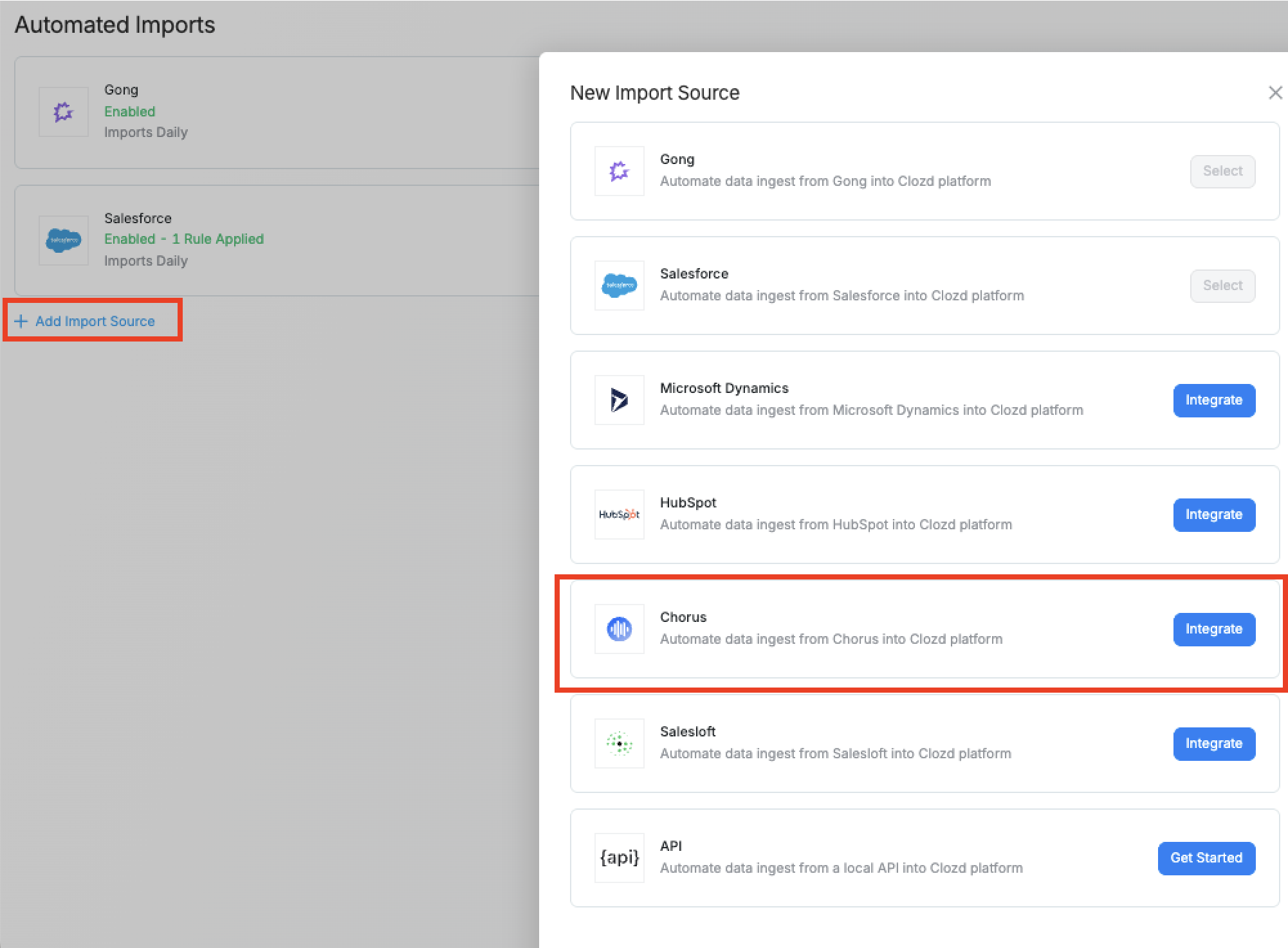
4. Click Next to see a preview of the Chorus calls that will be imported. If the import preview looks good, click Confirm.
5. Once the import source is added, Clozd imports Chorus calls daily and adds them to the matching deals.
Note: If a call belongs to a deal that hasn't been added to Clozd yet, Clozd stores the call and attaches it once the deal is created.
Checking sync status
To see the health of the integration, go to Configuration → Settings → Integrations and click Settings on the Chorus card. The settings page shows:
- Last synced: When Clozd last pulled calls from Chorus.
- Status: Syncing, Connected, or Attention Required. When attention is required, an error message explains what to fix.
- Sync now: Starts a sync right away instead of waiting for the next daily import.
Updating your Chorus API token
If your API token expires, is revoked, or the Chorus user who connected the integration leaves your company, the Chorus card shows a red This integration is not valid message. To reconnect:
1. Generate a new API token in Chorus Personal Settings.
2. Navigate to Configuration → Settings → Integrations.
3. On the Chorus card, follow the prompt to re-authenticate.
4. Paste the new API token and click Submit.
FAQs
What level of permission is needed to connect to Chorus?
You need admin permissions in Clozd and a Chorus user whose role has API access enabled.
Why does Chorus use an API token instead of a sign-in?
Chorus doesn't support signing in to third-party apps through OAuth. The API token is how Chorus grants Clozd access to your calls.
How does Clozd know which opportunity is associated with each Chorus call?
Clozd maps Chorus calls to deals in Clozd using your CRM opportunity ID. Chorus must be linked to your CRM for the integration to work. Calls without an opportunity ID, and calls marked private in Chorus, aren't imported.
Who will be able to see Chorus data in Clozd?
Users can view Chorus call data on the deals they have permission to access. If a user's level of access limits what deals they can see, that user only sees Chorus data on those deals.
What can I do with Chorus data in Clozd?
You can search Chorus transcripts and add comments to them, the same way you search and comment on published win-loss feedback. You can't edit Chorus data in Clozd.
How can I create a filter to see the deals that have Chorus feedback?
Create a filter and add this criterion: Feedback Channel → Includes → Third Party.
Can I push my Clozd interviews into Chorus?
Not yet. Unlike the Gong integration, the Chorus integration doesn't currently add Clozd interviews to Chorus.
I just connected Chorus. Do I have to wait until tomorrow to see calls?
No. After you add the Chorus import source, click Sync now on the Chorus settings page to pull calls right away.
Questions?
For questions about the fit of the Chorus integration for your Clozd win-loss program, contact your Clozd program manager.
For questions about the integration or troubleshooting, contact support@clozd.com.
To learn how Clozd handles your data, see the Clozd Privacy Policy.