Overview
The Deal page displays the details of a specific deal (whether imported or manually added), including feedback, participants, and the option to export the deal. (For more information on exporting deals, see Exporting Deal Data.) This article contains the following sections:
- Navigating to the deal page
- Participants
- Details
- Metadata
- Summary
- Decision Drivers
- Quotes
- Audio and transcript
- Comments
- Adding a deal flag
- Share a deal
- Questions
Navigating to the deal page
Selecting the Deals tab from the left-hand navigation will take you to a list of your organization’s deals, including both Published and All Imported Deals. For more information on the Deals page, see Deals Page.
Once you’ve found a deal you’d like to view, click on the deal to open the deal drawer.
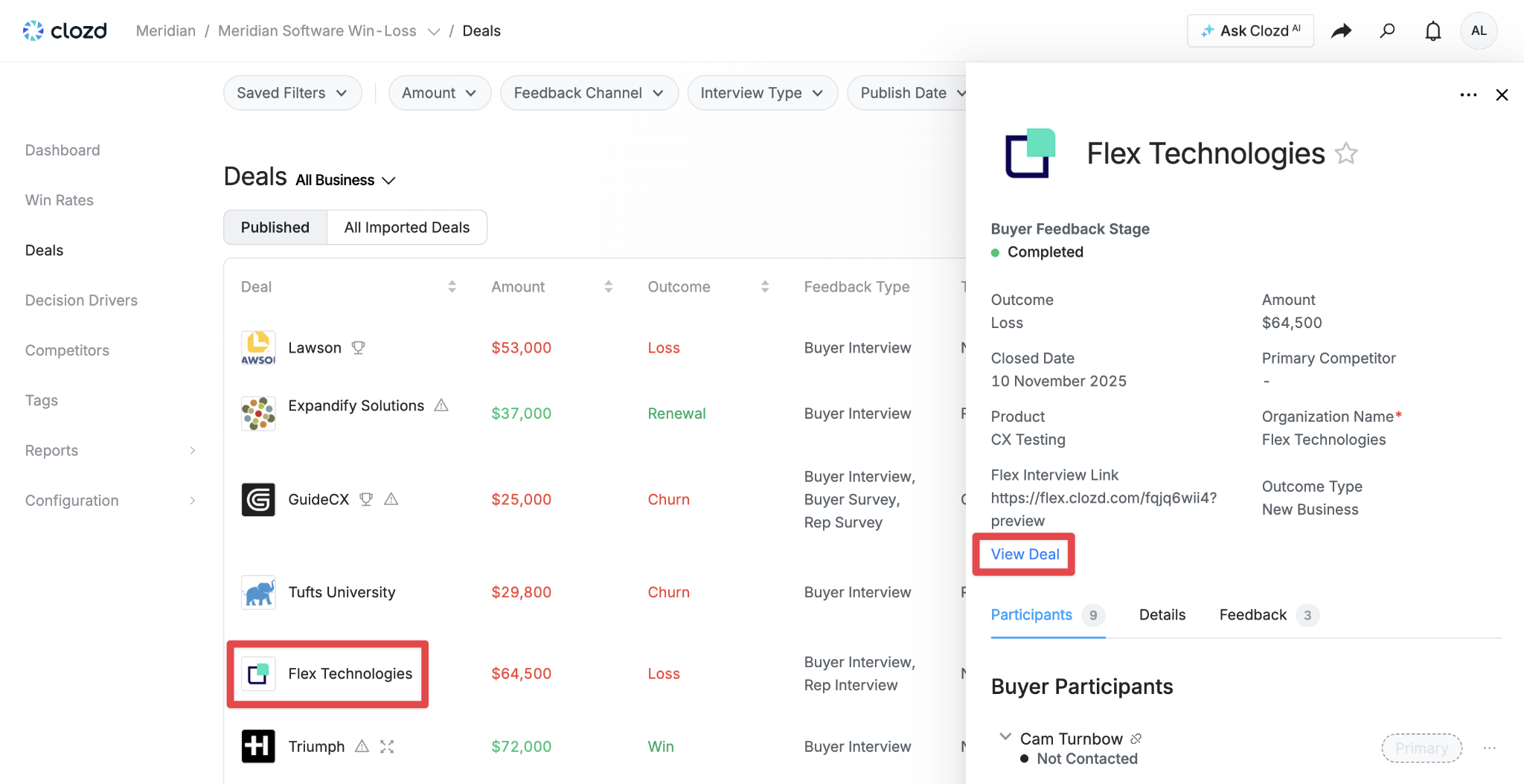
This drawer provides a quick overview of the deal’s details. The Participants tab displays the participant(s) and sales rep(s). The Details tab shows the deal metadata (see Metadata below for more information). The Feedback tab displays the interview(s) that have been conducted, along with their associated publish date(s).
Note: The metadata fields that display at the top of the deal drawer are random, depending on how they get returned from the backend.
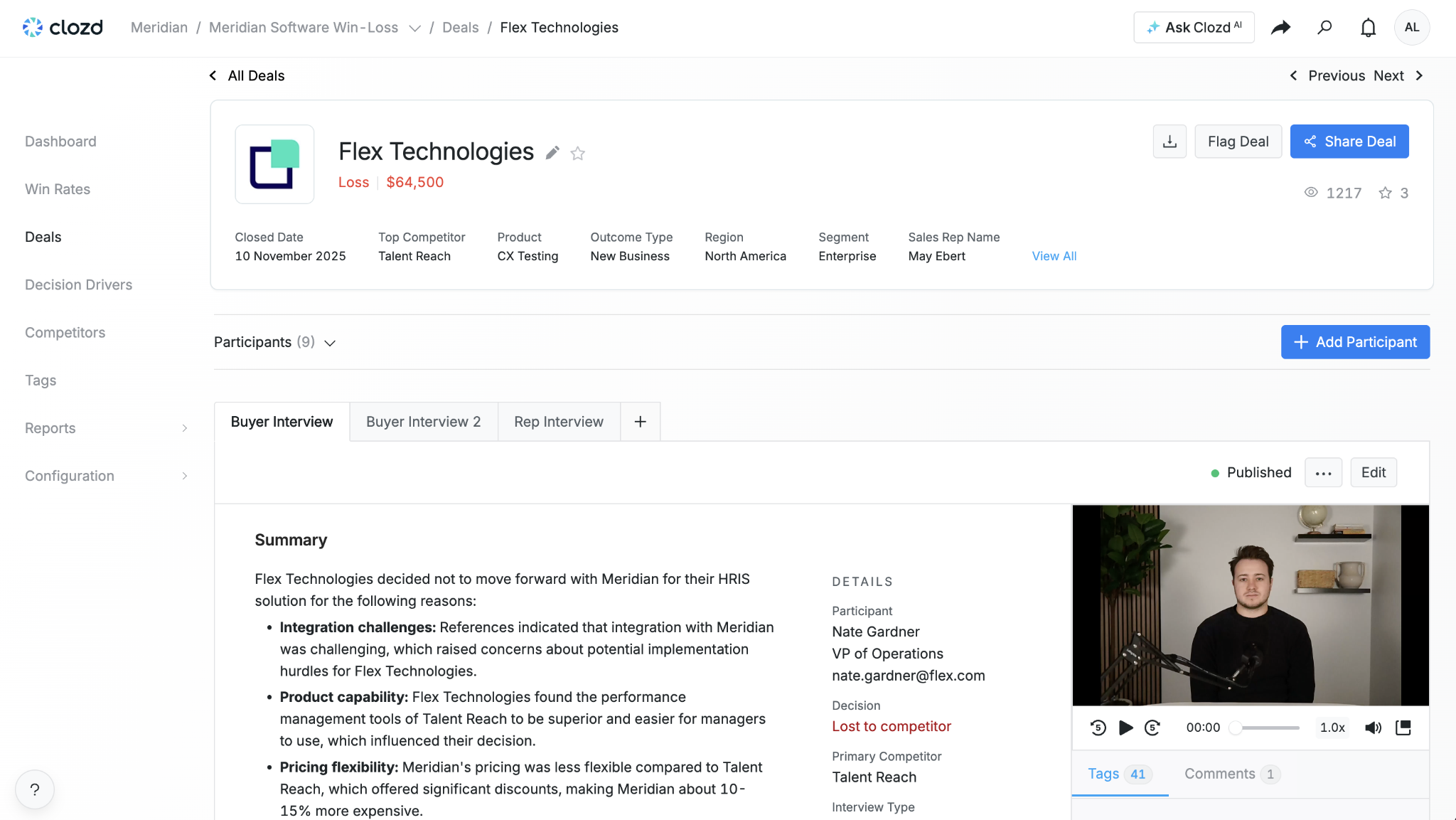
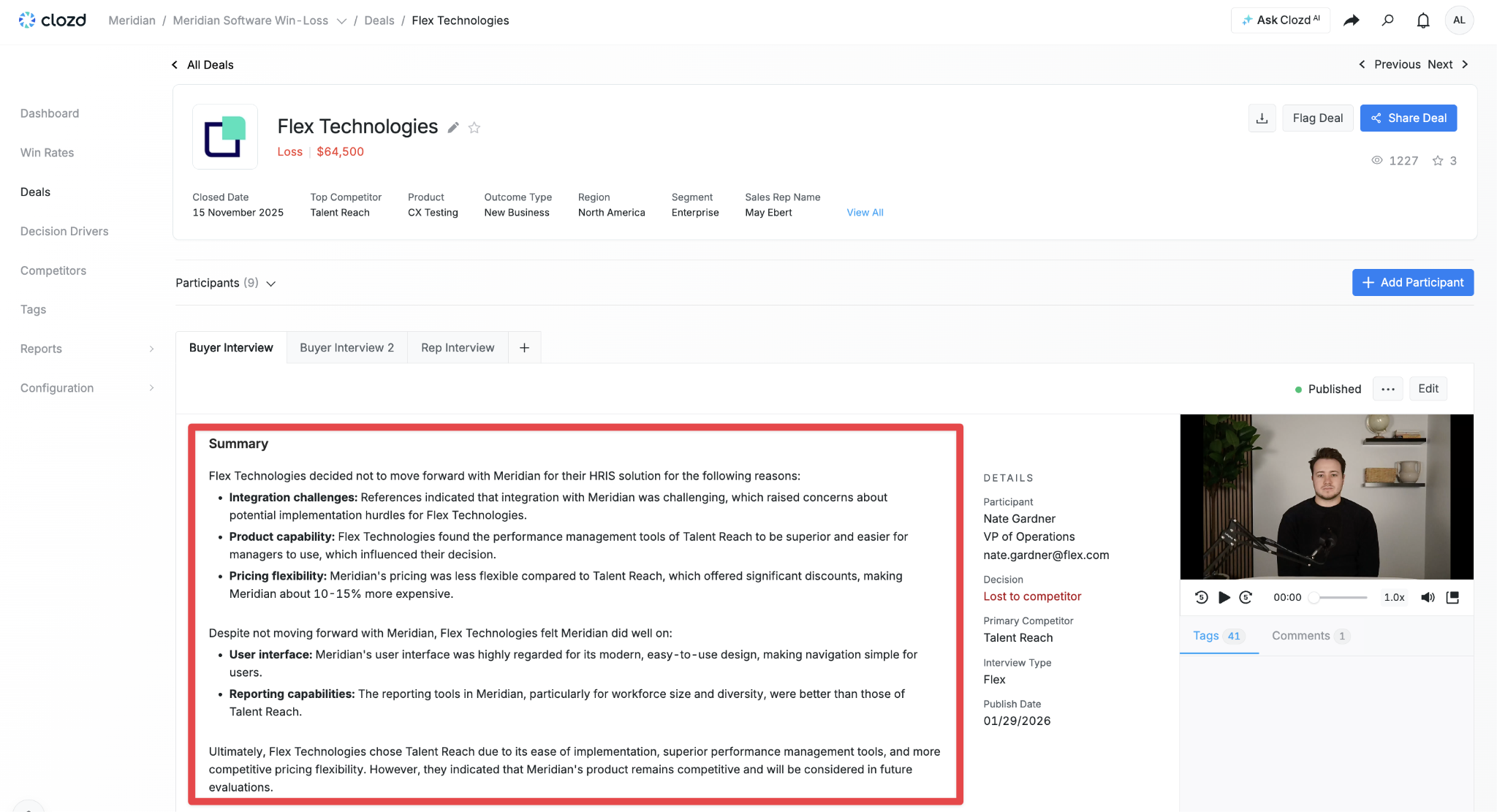
Click on View Deal to be taken to a page that looks like this:
Participants
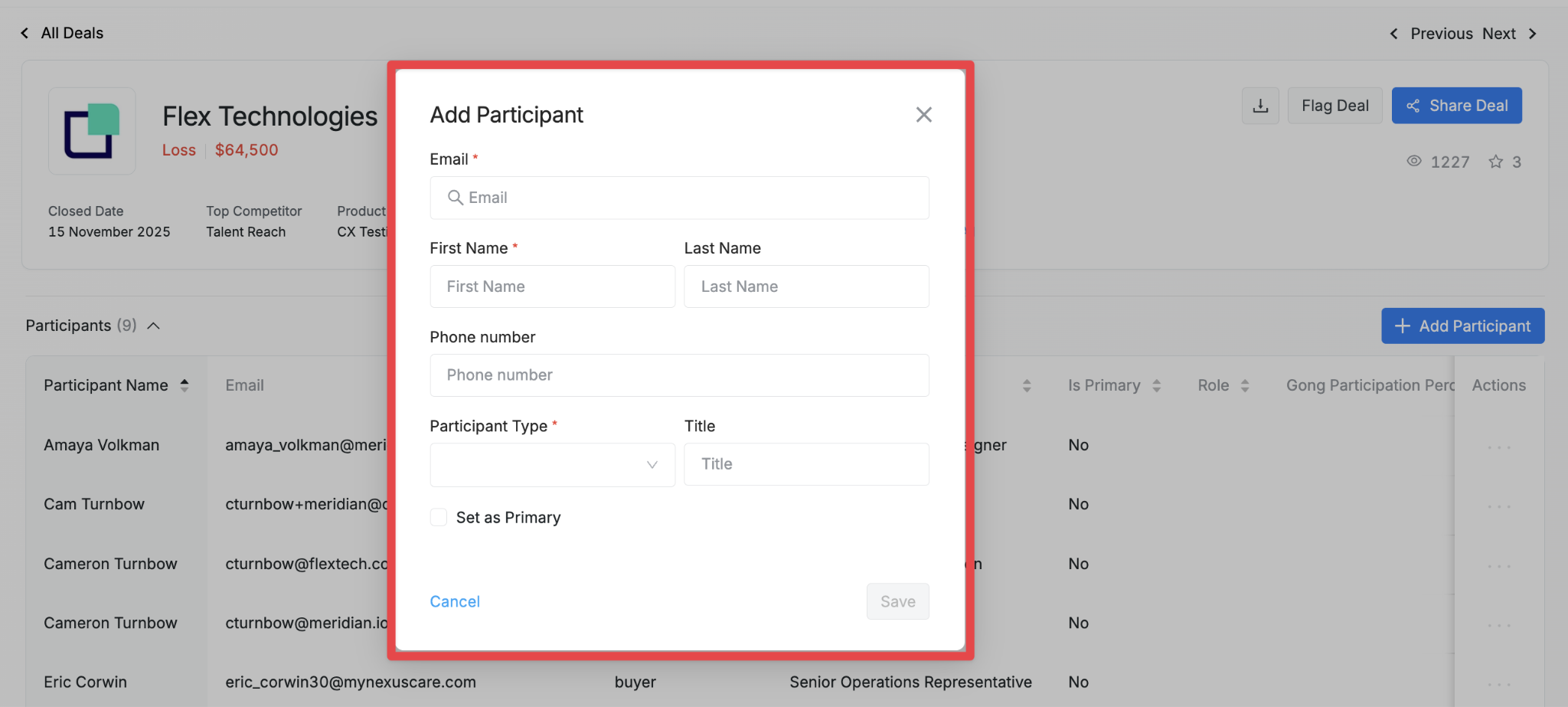
Click on the carrot by Participants to view a list of all the participants associated with the deal. To add a participant, click the + Add Participant button.
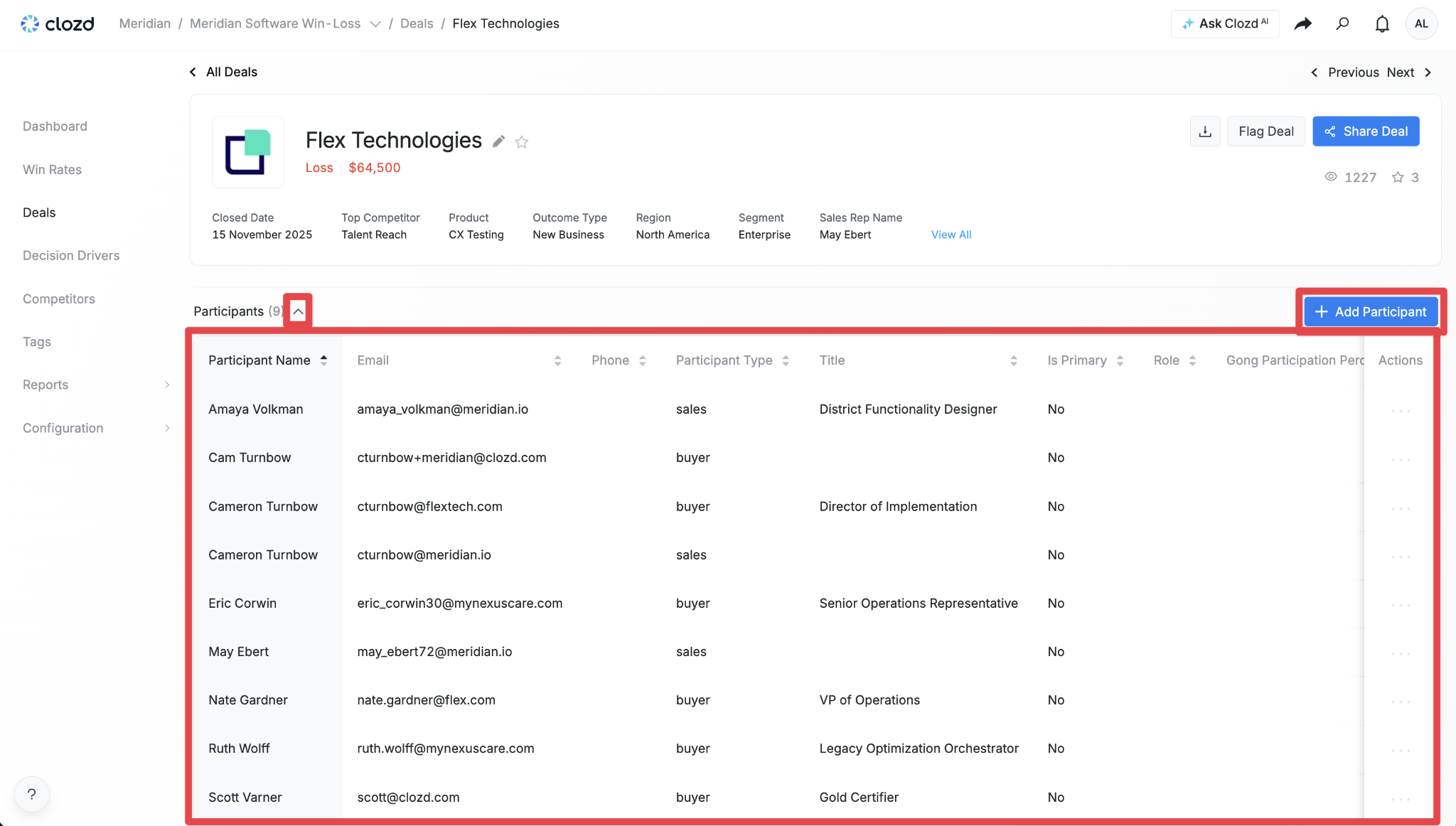
Fill out at least the required fields, including Email, First Name, and Participant Type, and then click Save. This will add the participant to the deal.
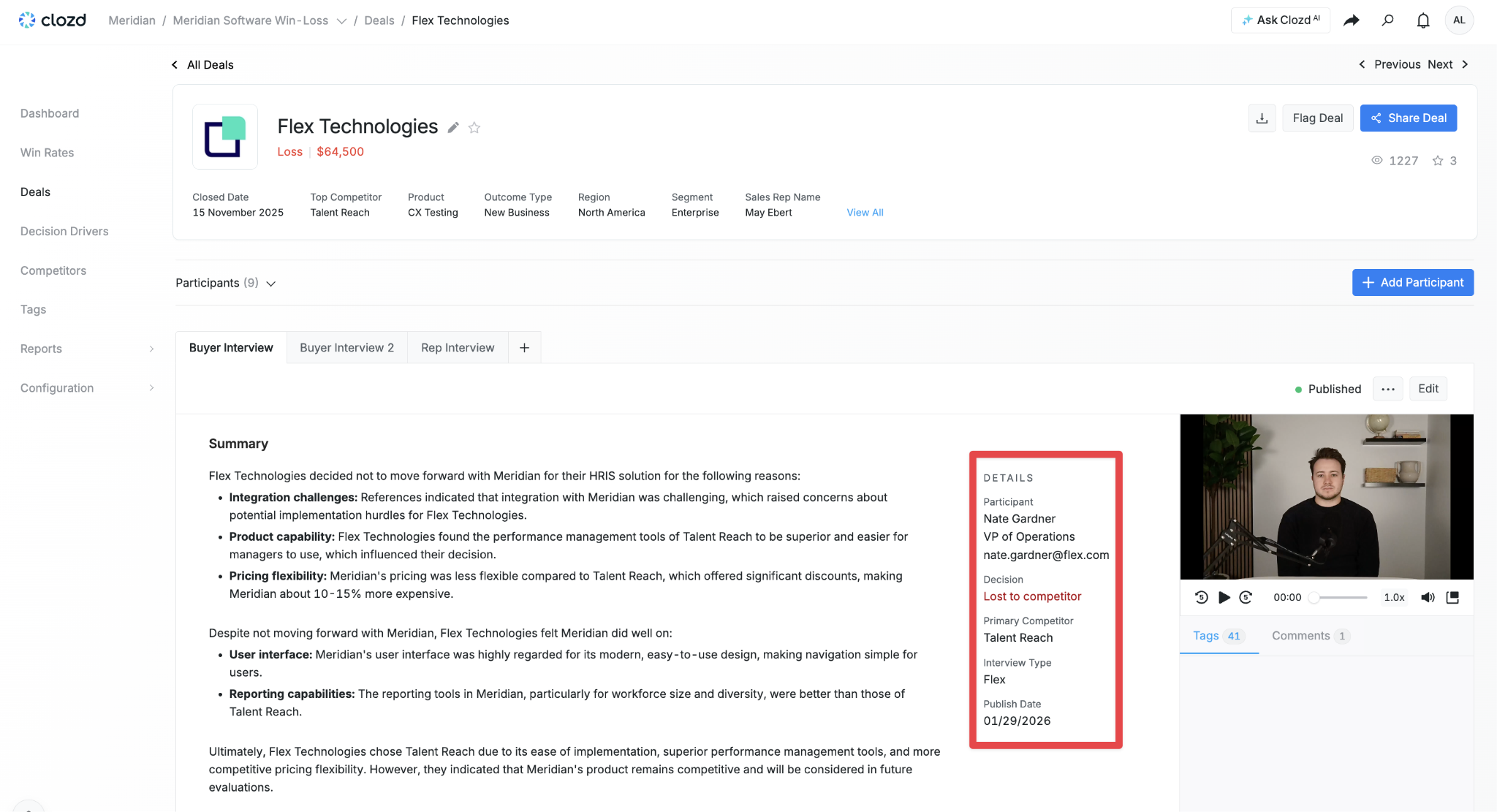
Details
This is where you’ll see a quick overview of the participant’s details (including their name, title, and email) as well as the decision, primary competitor, interview type (e.g., premium, scale, flex), and the publish date of the completed interview.
Metadata
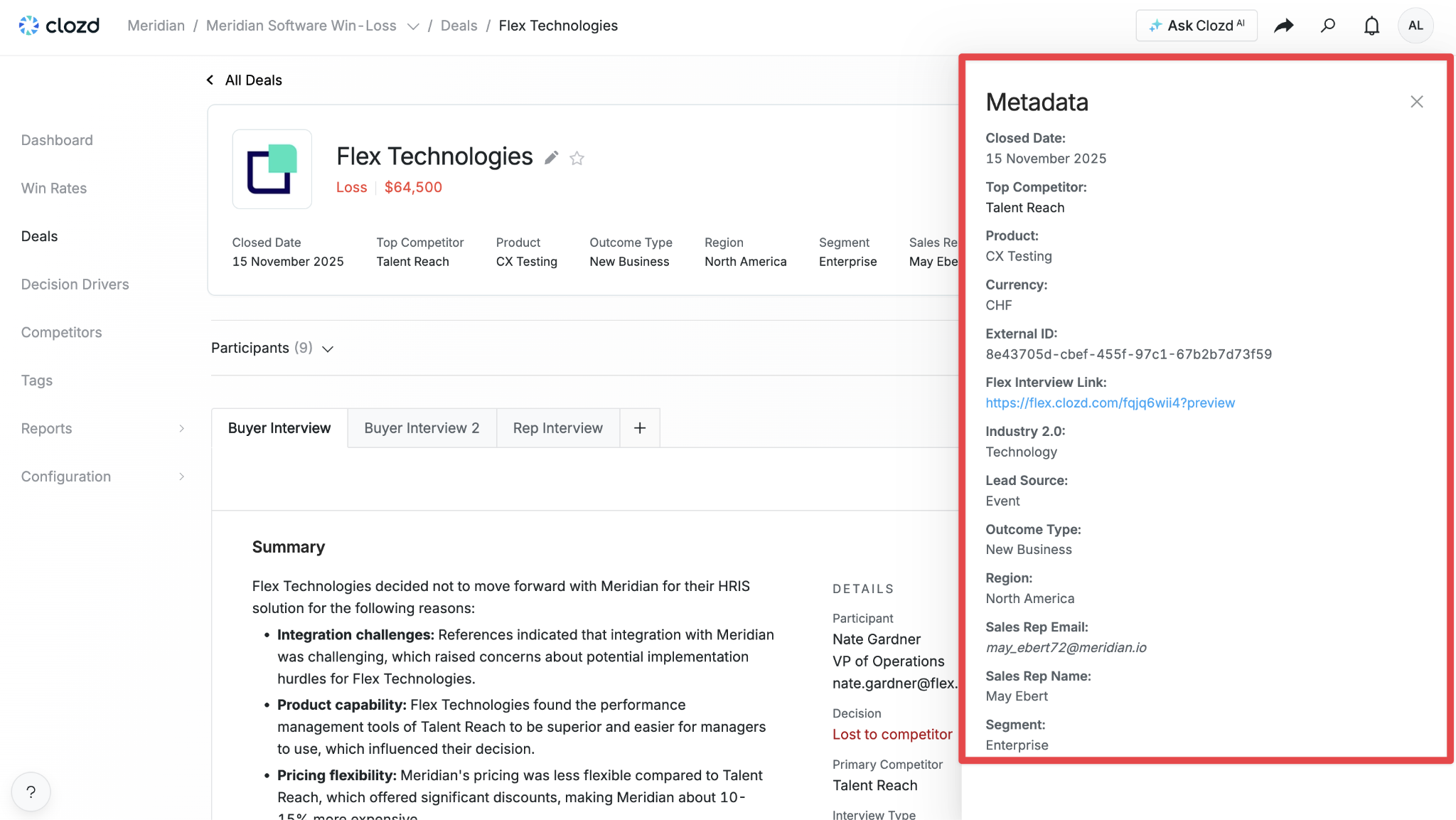
General information about the deal is located at the top of the page. We call this metadata. These fields include the deal’s closed date, primary competitor, product name, opportunity ID, amount, industry, and more. These are populated from a spreadsheet that was manually uploaded or from fields mapped through the CRM integration (see Salesforce Integration & Automation).
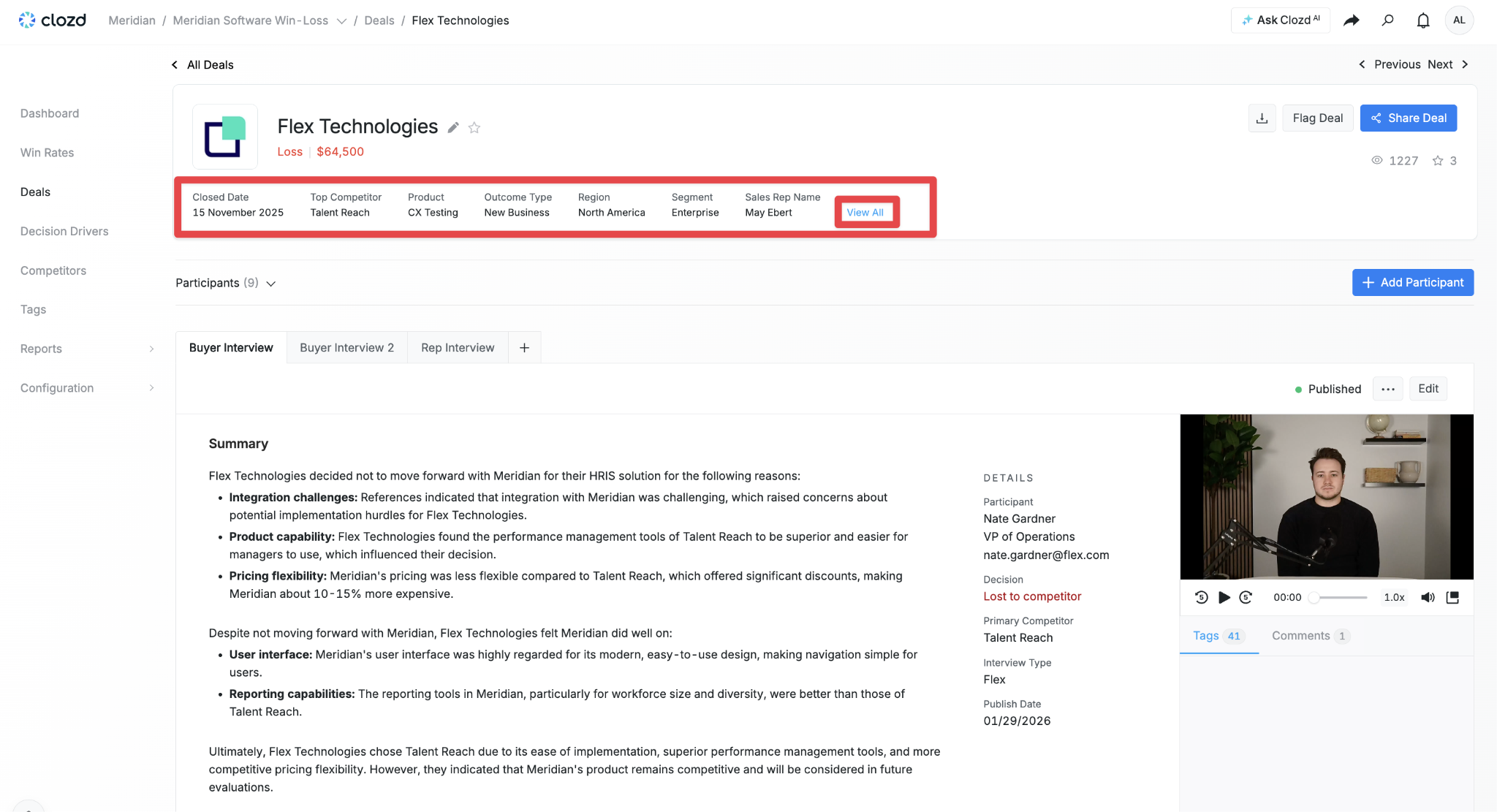
To view a list of all the metadata, click View All.
Summary
The summary is a high-level but thorough depiction of what transpired during the deal. If you don’t have time to read the entire interview, the summary is a great place to get a clear understanding of what happened. Summaries are generated automatically through AI and reviewed by a consultant, and can be customized to fit your organization’s preferences by adding a custom summary prompt in your Program Settings. Navigate to Configuration → Settings → Interviews → Summary Prompt to create or update your prompt.
Decision Drivers
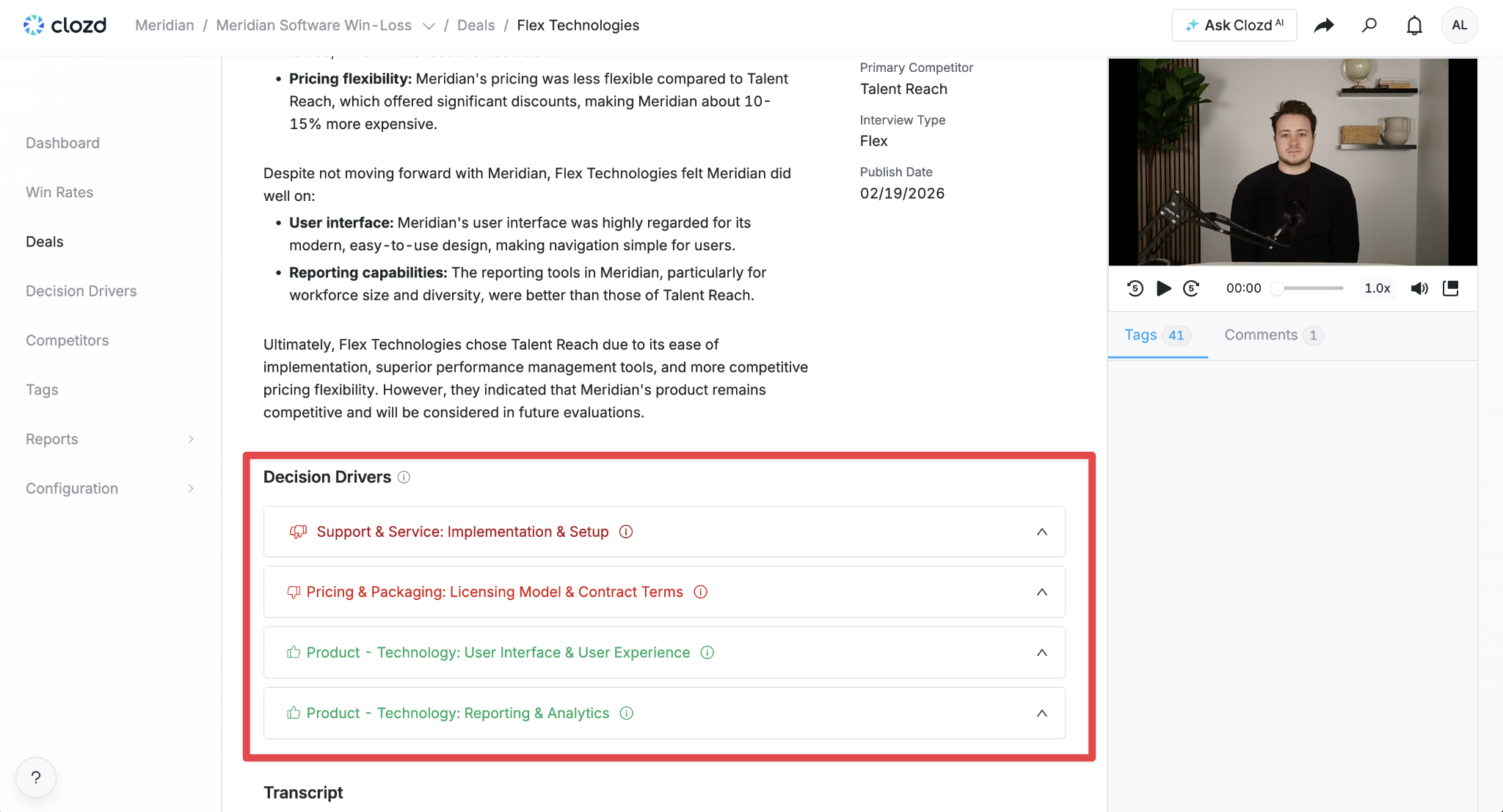
The Decision Drivers section highlights the key factors that influenced the buyer’s final decision, either positively or negatively. Decision Drivers marked with a double thumbs up (Strong Positive) or double thumbs down (Strong Negative) represent the strongest influences on the outcome. In the example below, several factors contributed to the decision, but the double thumbs down indicates that the primary reason for the loss was support and service. For more information, see Decision Drivers.
Quotes
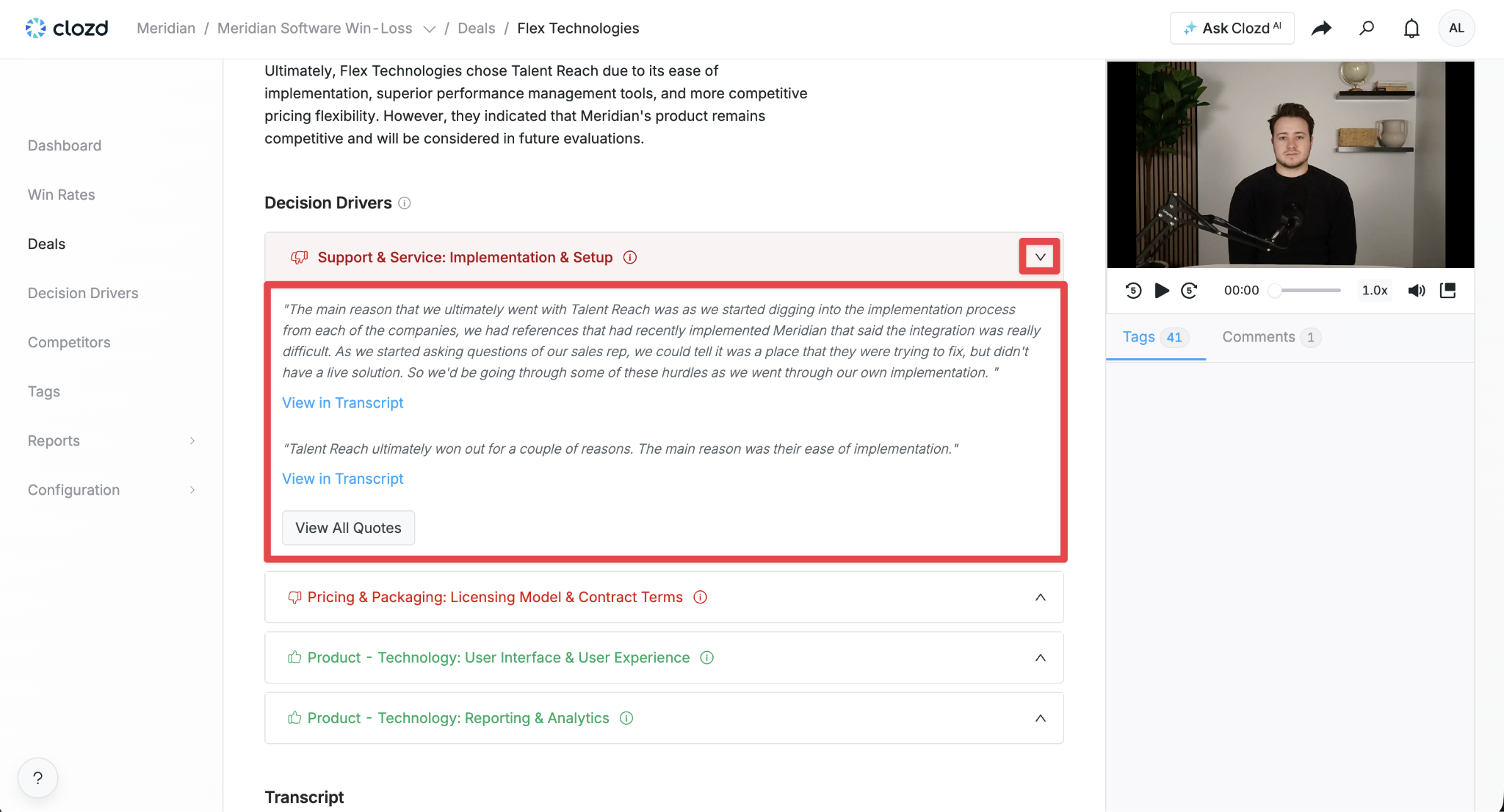
Click the caret to the right of a Decision Driver to view direct quotes from the interviewee that provide additional context. Each decision driver typically includes 1–3 quotes, and their goal is to support the Decision Driver selected for the interview. If you’re looking for the quote associated with a specific Decision Driver, click View in Transcript to quickly jump to the relevant section.
Audio and transcript
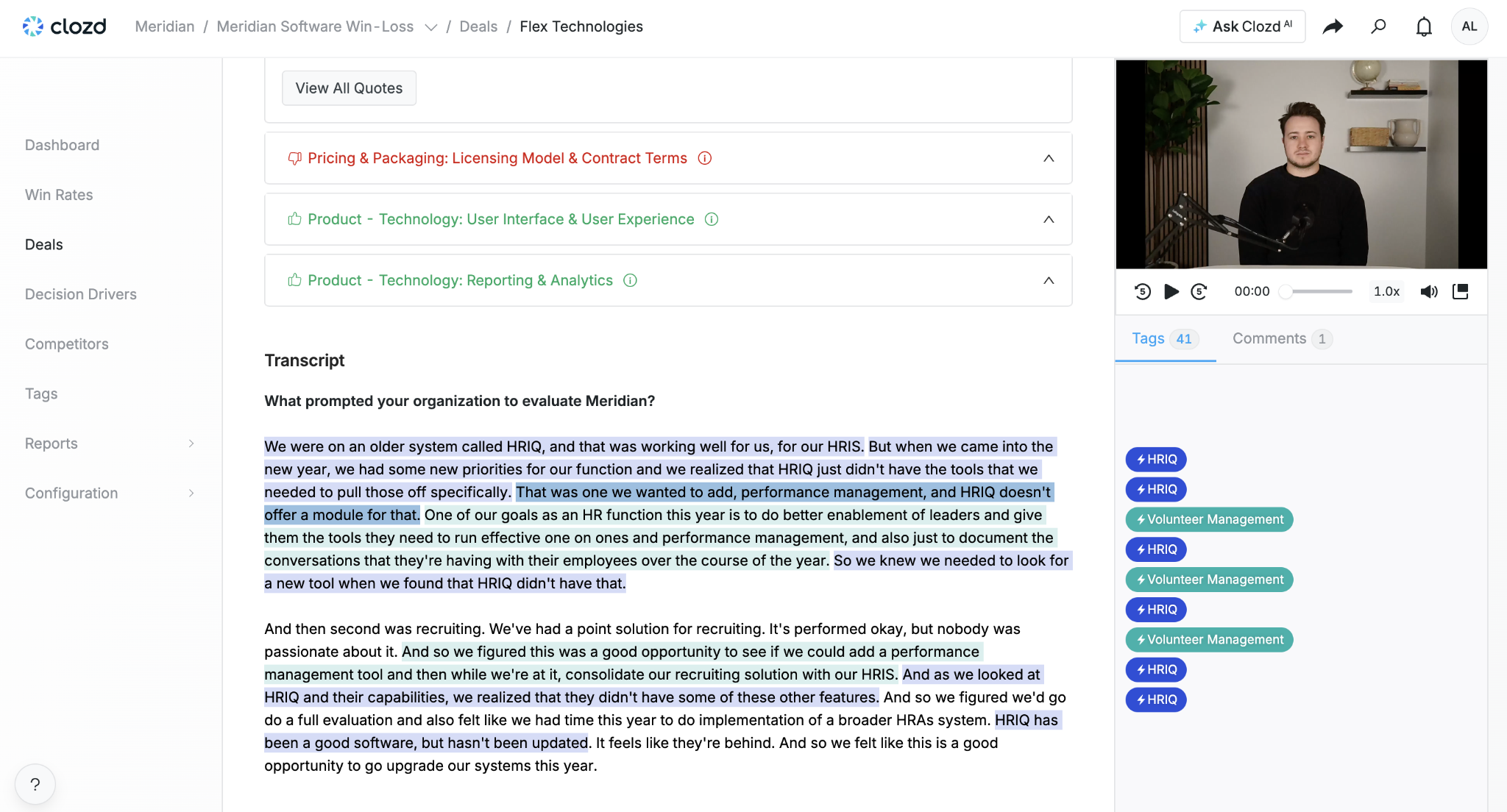
The full interview transcript is included at the bottom of the Deal page, allowing you to review the conversation in detail. Audio files are automatically included with the transcript, and clicking within the transcript will adjust the audio to match the selected section. If you'd like audio files to be excluded, reach out to your Clozd program manager, and they can remove the audio before the interview is published.
Smart Tags are also automatically applied to the transcript based on predefined topics. For more information on smart and manual tags, see Tags.
Comments
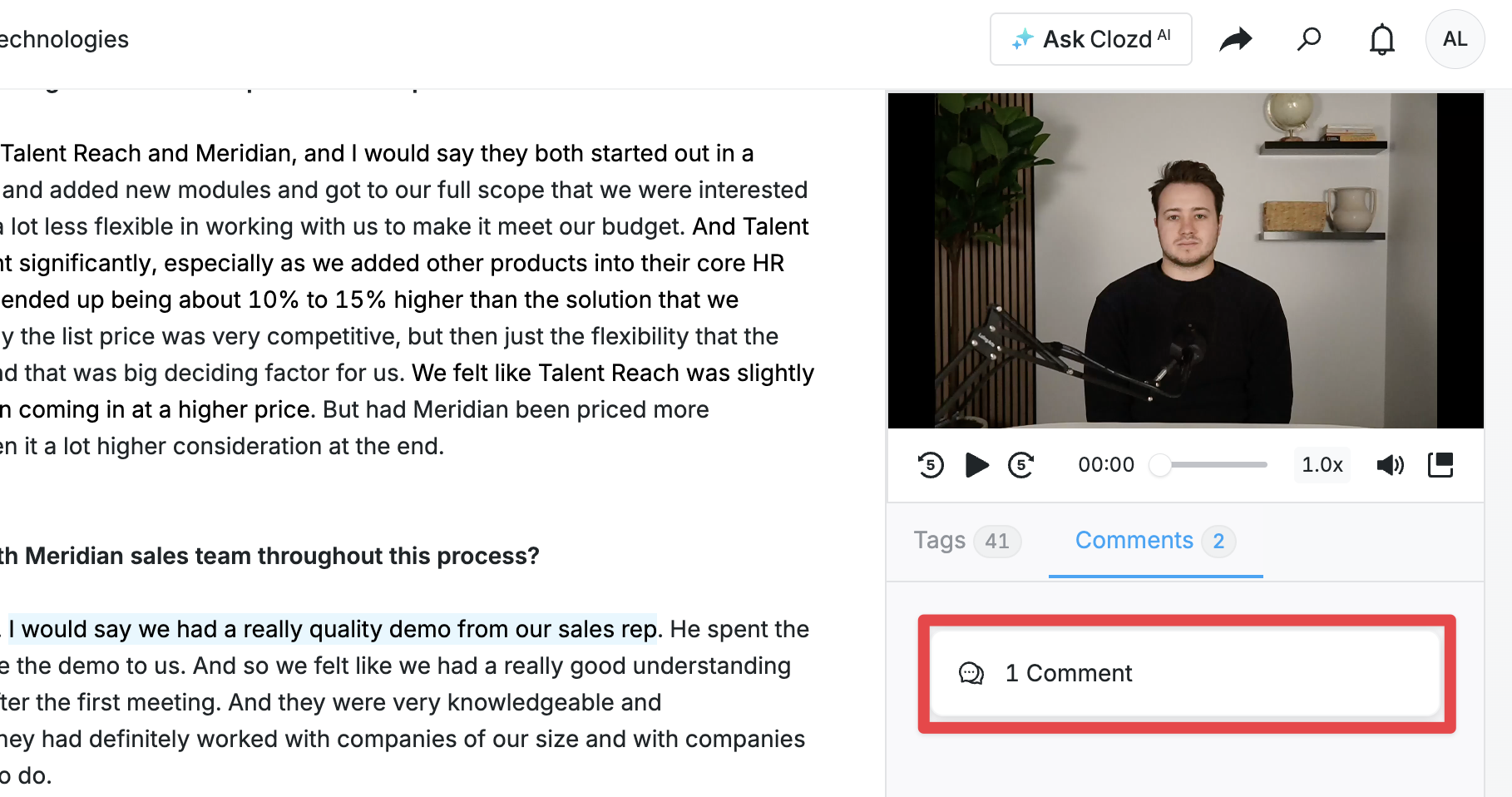
Comments can be used to add important details or feedback to specific parts of a deal, making it easier for others to understand the context and refer back to it later. Comments can be either public or private, depending on whether you want others in your organization to view them.
To view a comment, click on the comment next to the body of text.
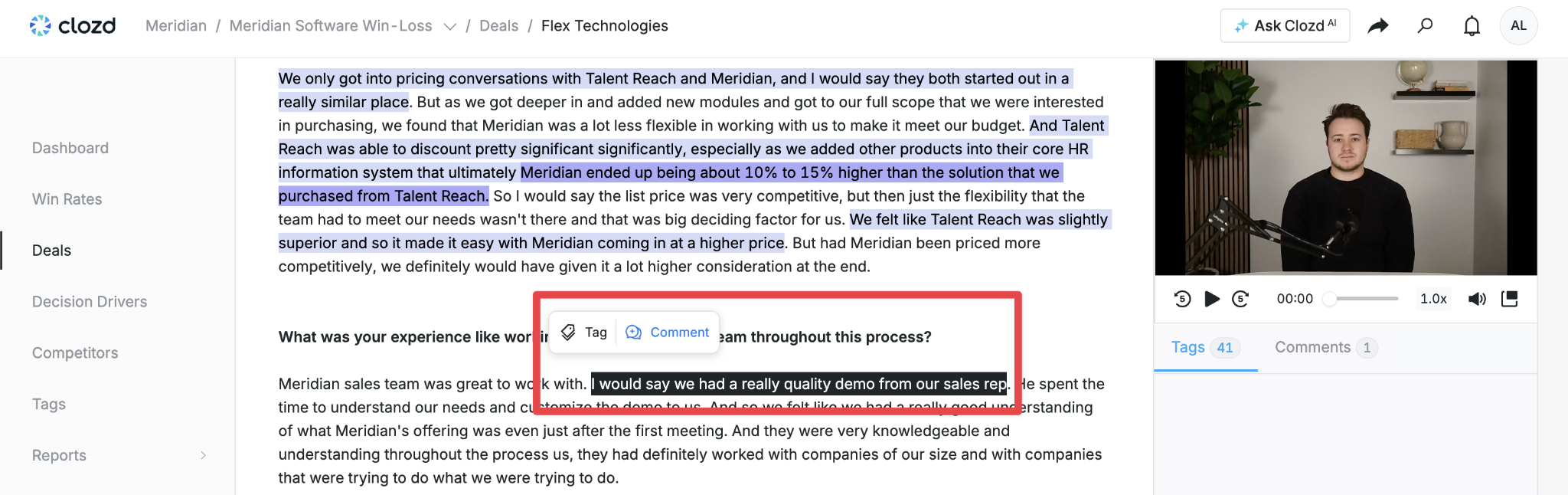
To add a comment, highlight the portion of text you’d like to comment on and click Comment.
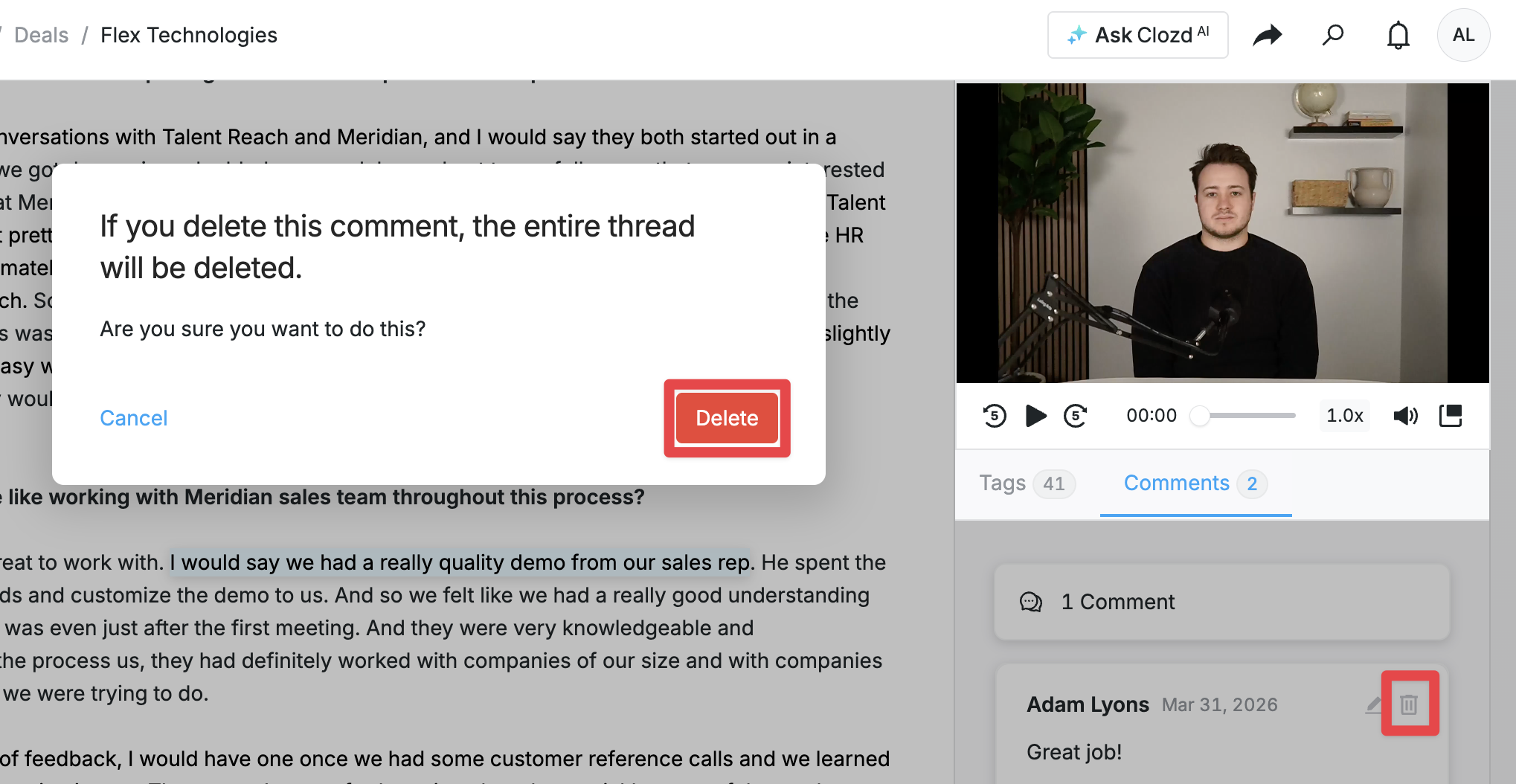
To delete a comment, click on the comment to the right of the text. Click the trash in the top right corner, followed by Confirm.
You can also mention a person directly to bring their attention to a specific part of a deal. Type @ followed by their name to send them an email notification.
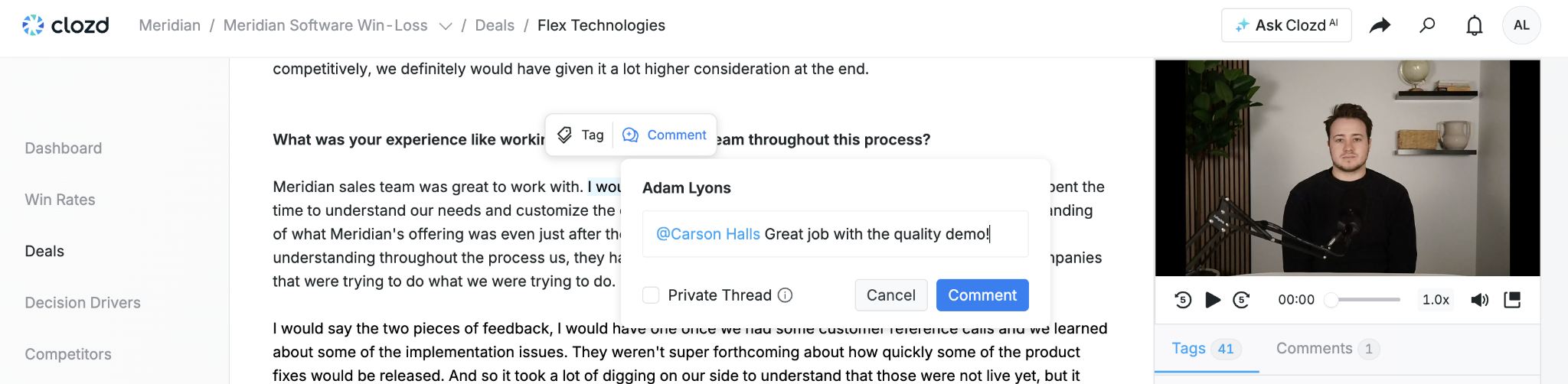
To make a comment private, select Private Thread. This ensures that only users included in the thread can view it.
Note: Once a comment has been made private, it cannot be made public at a later date.
Adding a deal flag
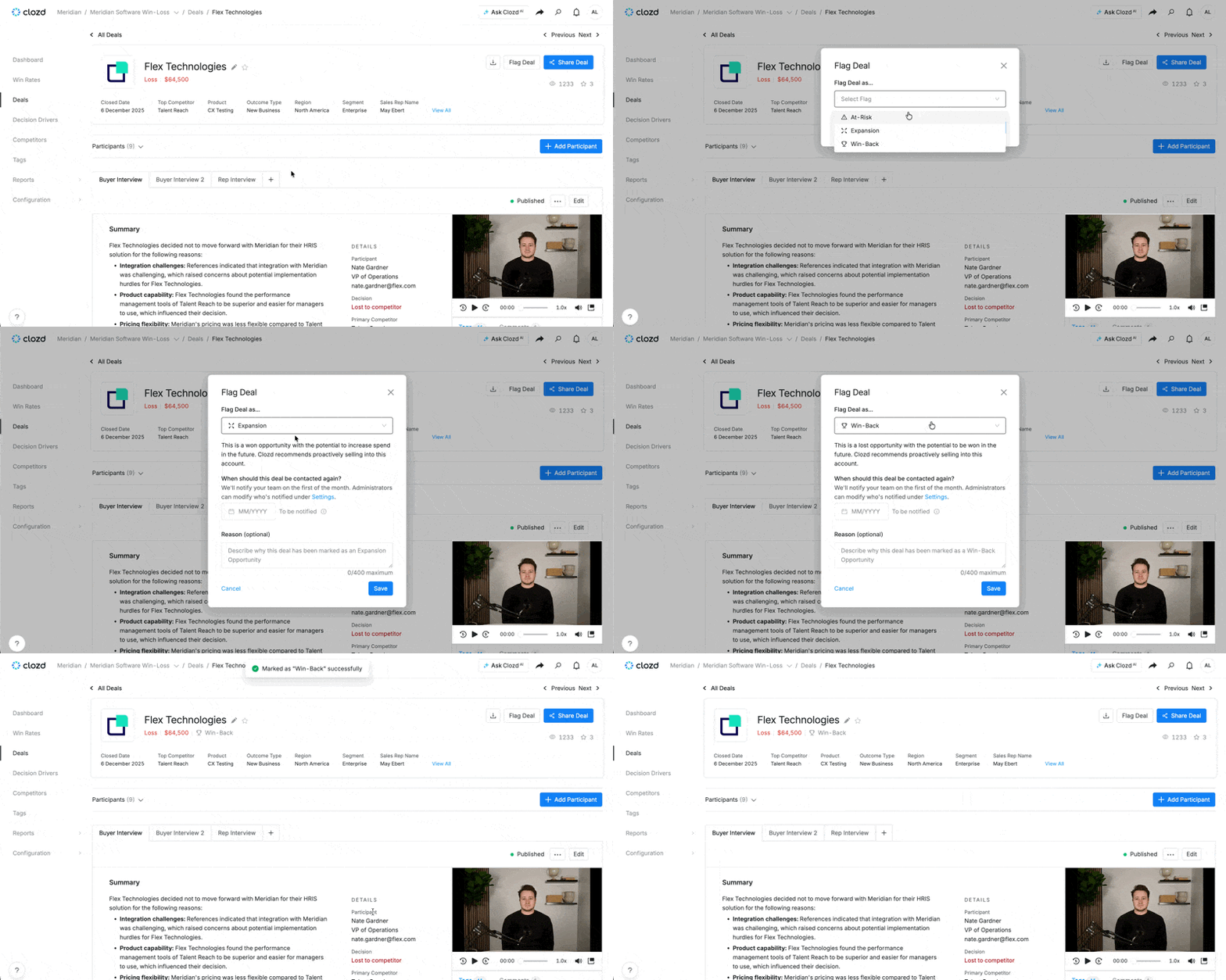
Adding flags to deals helps you categorize and sort deals as At-Risk, Expansion, or Win-Back. This makes it easier for the appropriate team members to identify which opportunities may need additional attention, where an expansion opportunity may exist, or which lost deals may be candidates for to re-engage and attempt to win back based on insights from the interview.
Note: Deal flags can be added to both published and unpublished deals, as long as feedback has been assigned to the deal.
To add a deal flag, navigate to the deal you’d like to flag and click Flag Deal in the top-right corner. Select At-Risk, Expansion, or Win-Back, and then enter a reason for the flag and click Save. For Expansion and Win-Back flags, you can also select a reminder date.
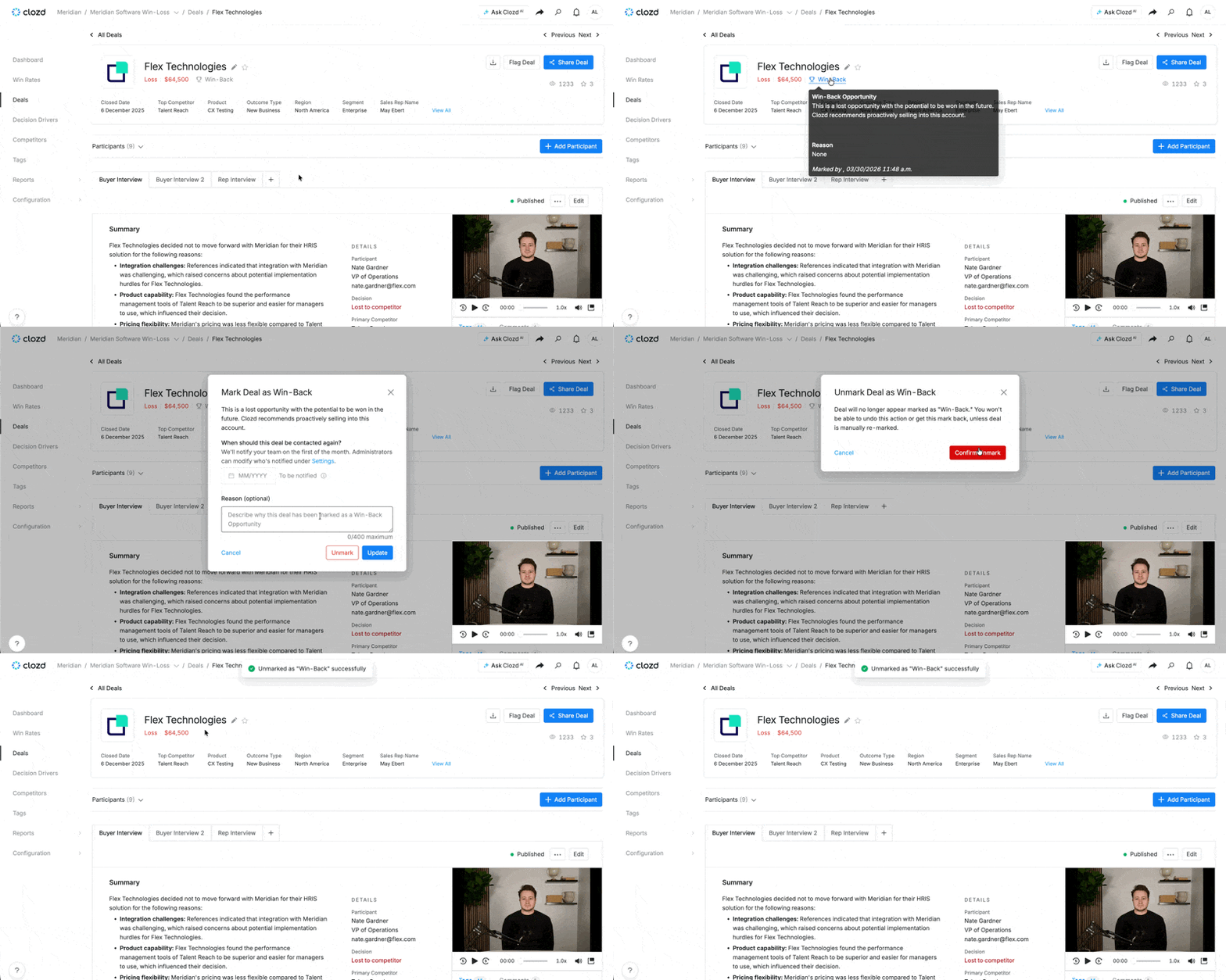
To remove a deal flag, click the flag beneath the deal or opportunity name. Click Unmark, then select Confirm Unmark. The deal flag will be removed.
Export data
For information on exporting or downloading deal data, see Exporting Deal Data.
Share a deal
Clozd does not charge per user, because we believe that win-loss data is most impactful when as many people as possible in your organization are consuming and applying the feedback. Because of this, we’ve made it easy to share win-loss feedback broadly. At the top of the Deal page, there's a Share Link icon. Clicking this icon will copy the URL to your clipboard so you can paste it into an email or otherwise send it to someone else within your organization. After clicking the link, the recipient will be taken directly to the Deal page, where they can review the entire deal. The recipient will need to log into the Clozd Platform to navigate to other pages.
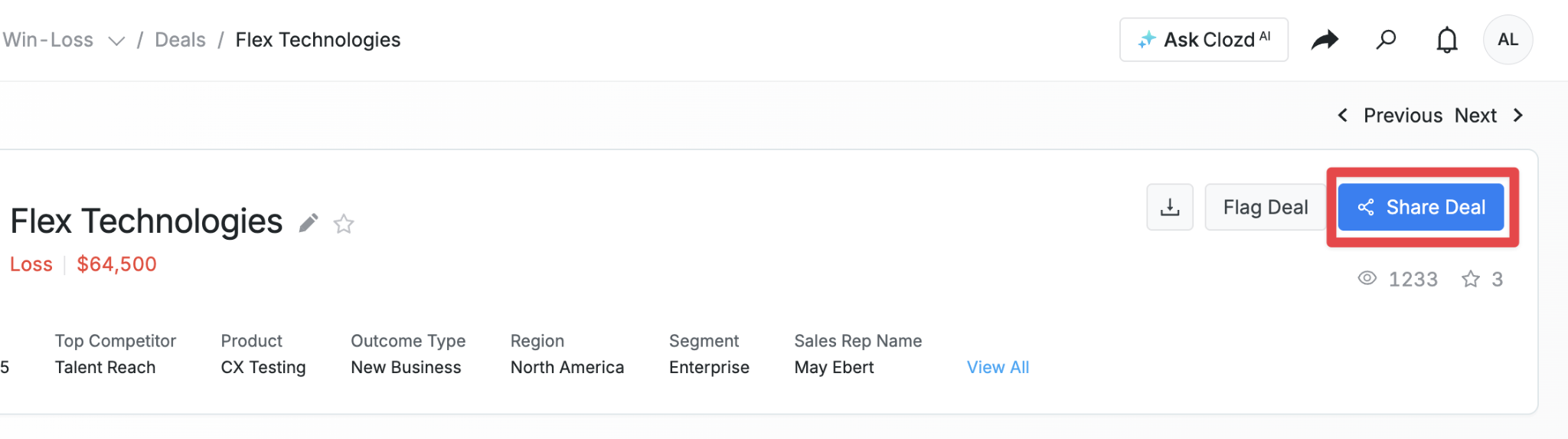
Note: If you don't see the Share Link icon at the top of your Deal Page, it's been disabled by your organization’s admin.
Questions?
Please reach out to support@clozd.com if you have any additional questions.