
Overview
Similar to Decision Drivers, which capture the key reasons your organization wins or loses deals, tags allow you to track other valuable insights uncovered during a win-loss interview that may not directly impact the final decision. Tags help you monitor how often specific keywords or phrases appear and understand what buyers are saying about those topics.
For example, you might create a tag for AI to see how often buyers mention it and gauge how important it is to your customer base. Or you could set up a tag for a new market entrant to track how frequently that competitor comes up and assess whether it’s becoming a real threat.
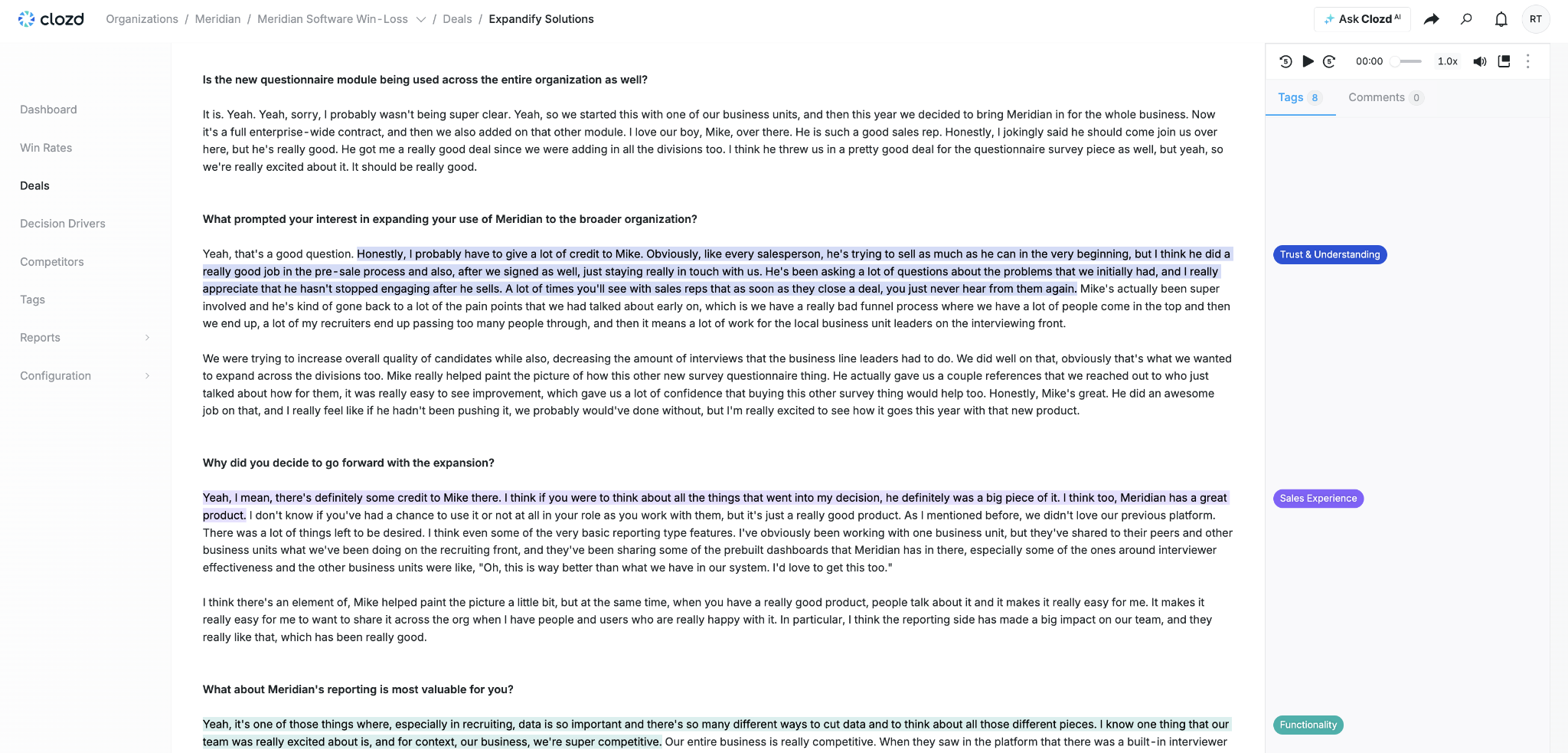
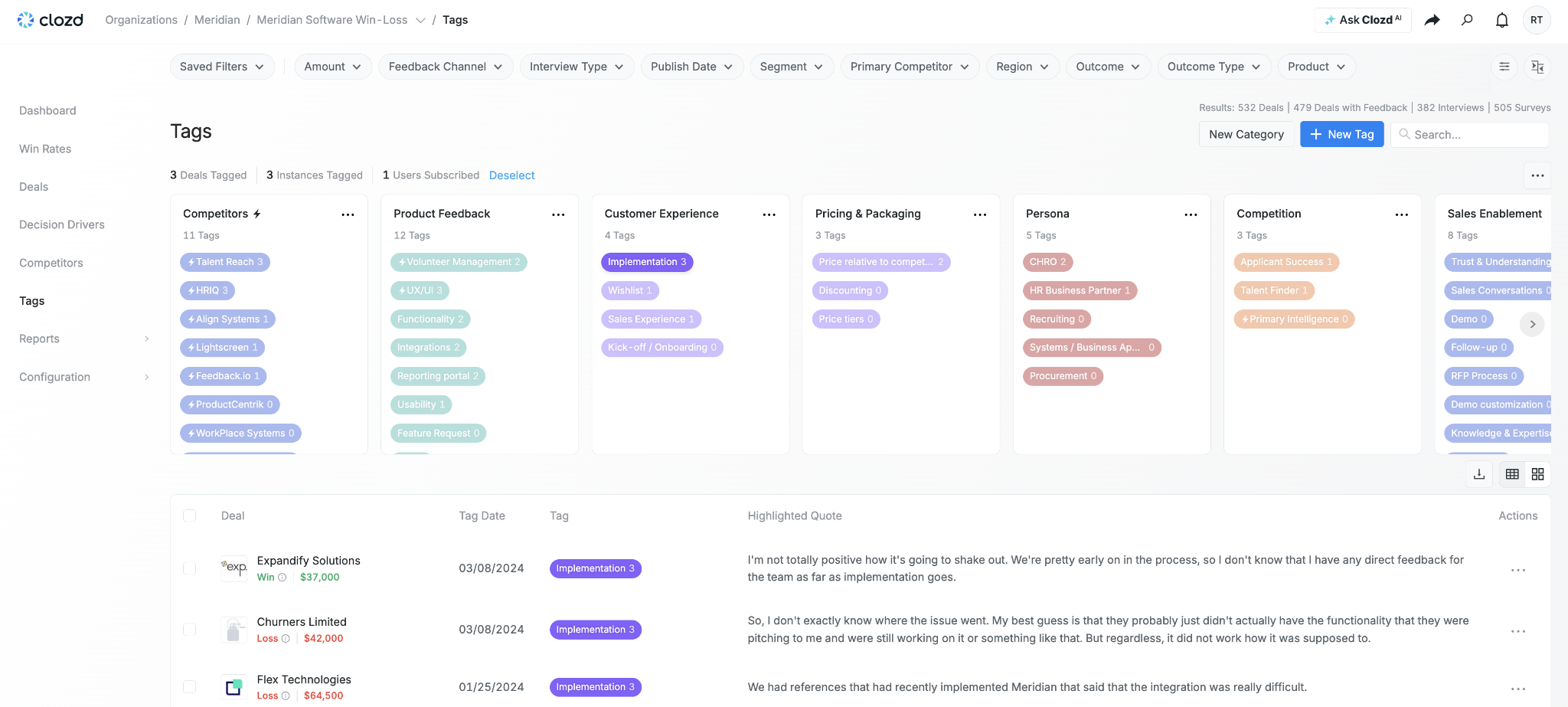
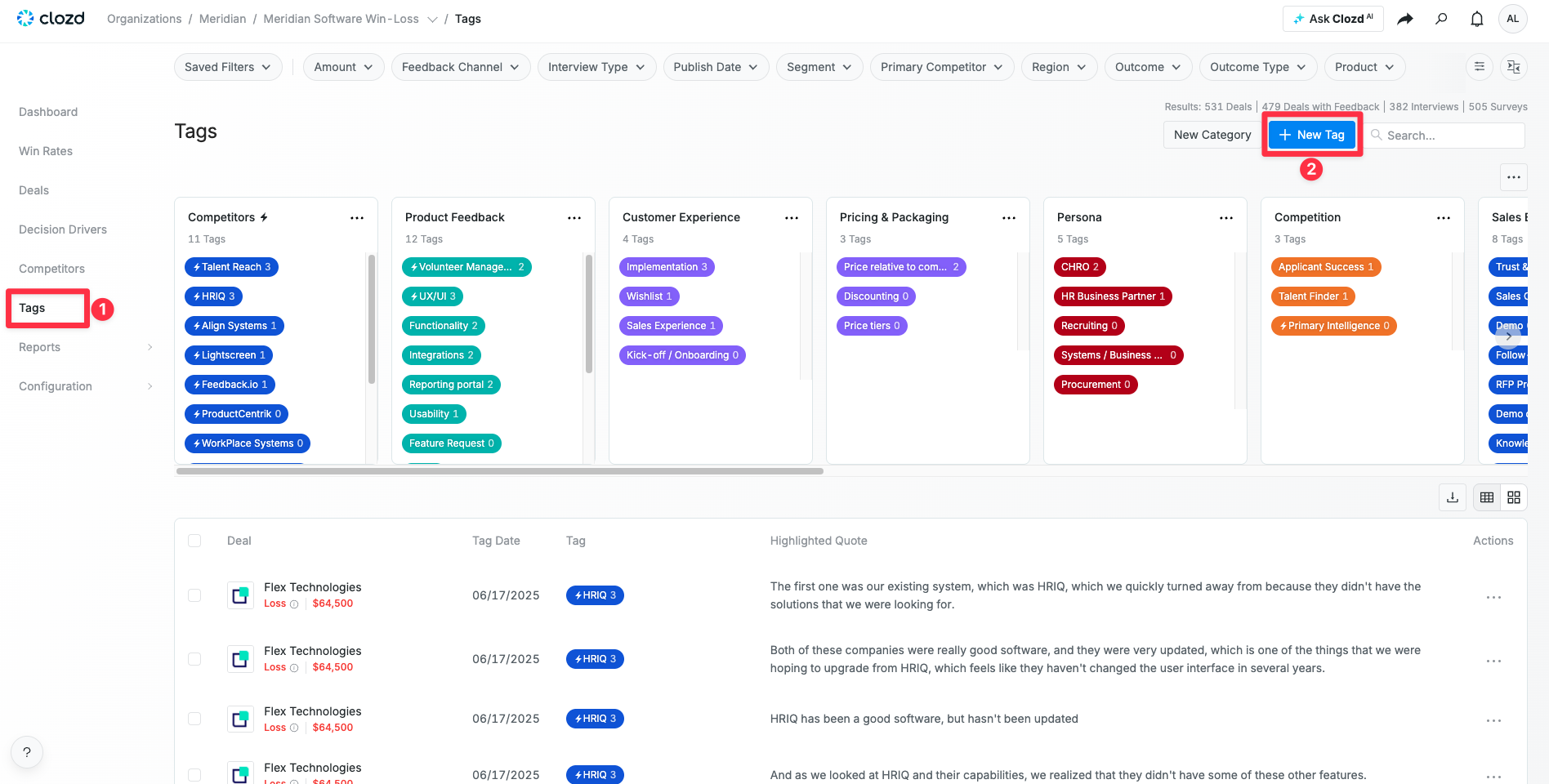
Tags can be created manually or automatically through Smart Tags. Each tag is highlighted on the Deal Page and aggregated by Category under the Tags tab for easier analysis and reporting:
This article contains:
How to create tags
Creating a category
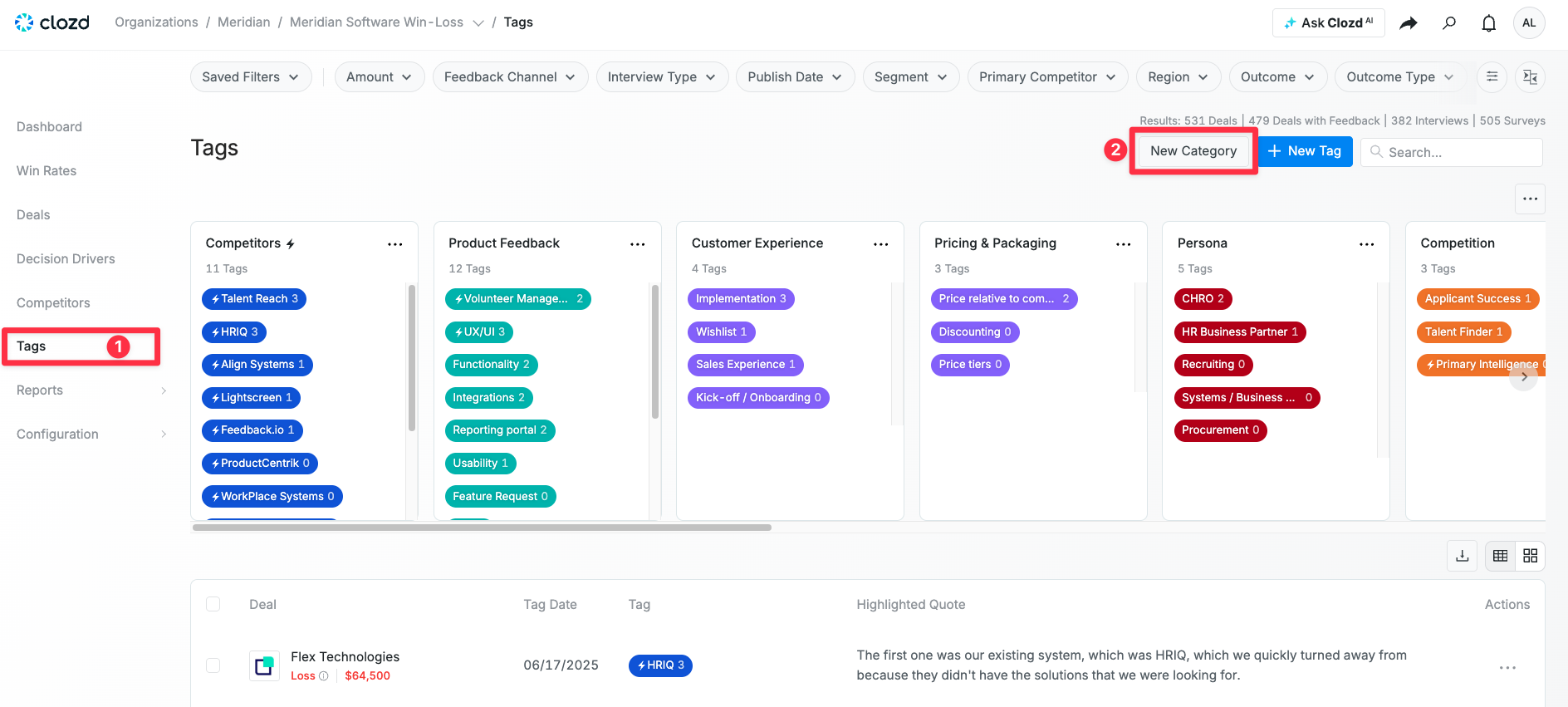
1. Navigate to the Tags tab.
2. Click the New Category button.
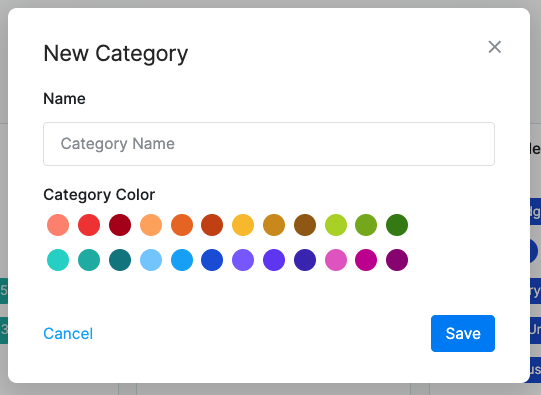
3. Name the category and assign it a color.
Creating a tag
1. Navigate to the Tags tab.
2. Click the + New Tag button.
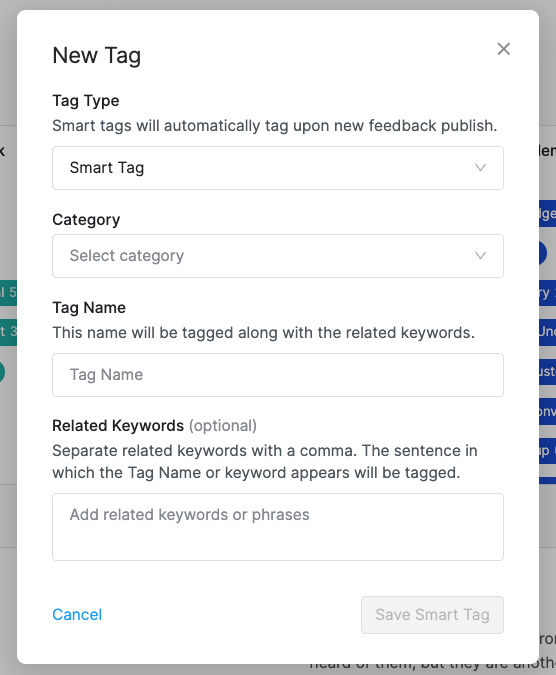
3. Fill out the Tag Type (Manual or Smart), Category, and Tag Name
Note: If you want to have complete control over what excerpts are being tagged, utilize a Manual Tag. If you would like the system to tag excerpts for you, utilize a Smart Tag. Smart Tags scan the text of your win-loss interview transcripts and automatically tags any relevant sentence, significantly reducing manual effort and ensuring consistent tagging across your interviews.
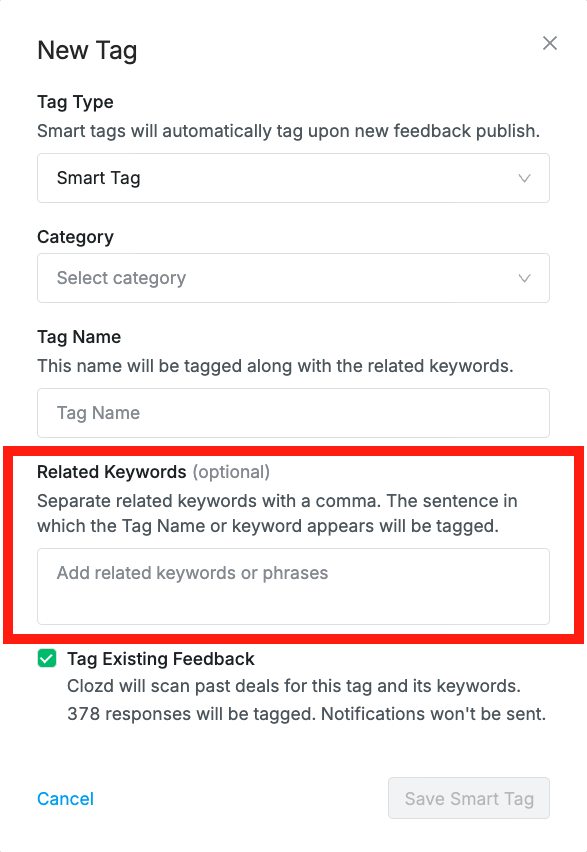
4. If you selected to create a Smart Tag, you can add keywords or phrases that will trigger this tag when detected in a transcript. Separate multiple keywords or phrases using commas. For example, if I were trying to create a Smart Tag for AI, I might insert keywords such as "AI," "ChatGPT," "OpenAI," and "machine learning."
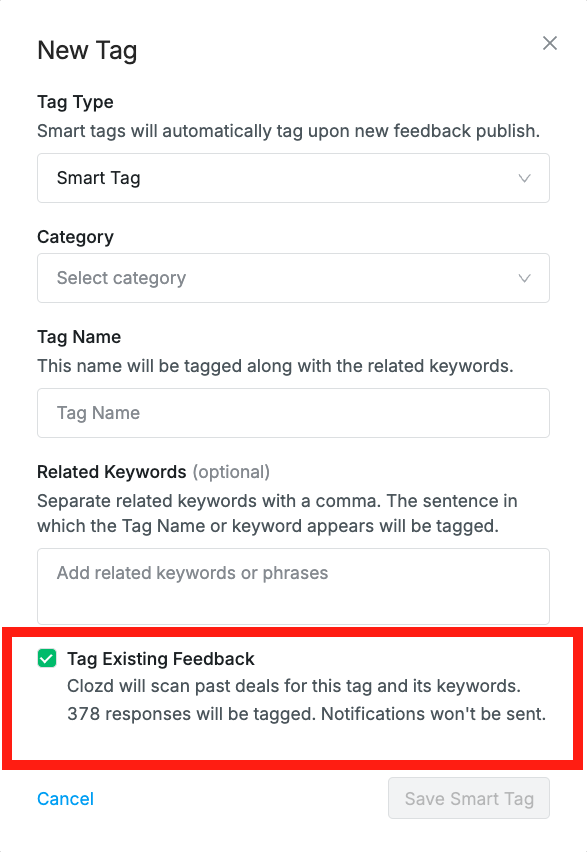
5. If you’re creating a Smart Tag, you’ll have the option to apply it to existing feedback that’s already been published in your program. Leave this box unchecked if you only want the tag to apply to future feedback.
6. Click Save to complete the setup.
Manual tags
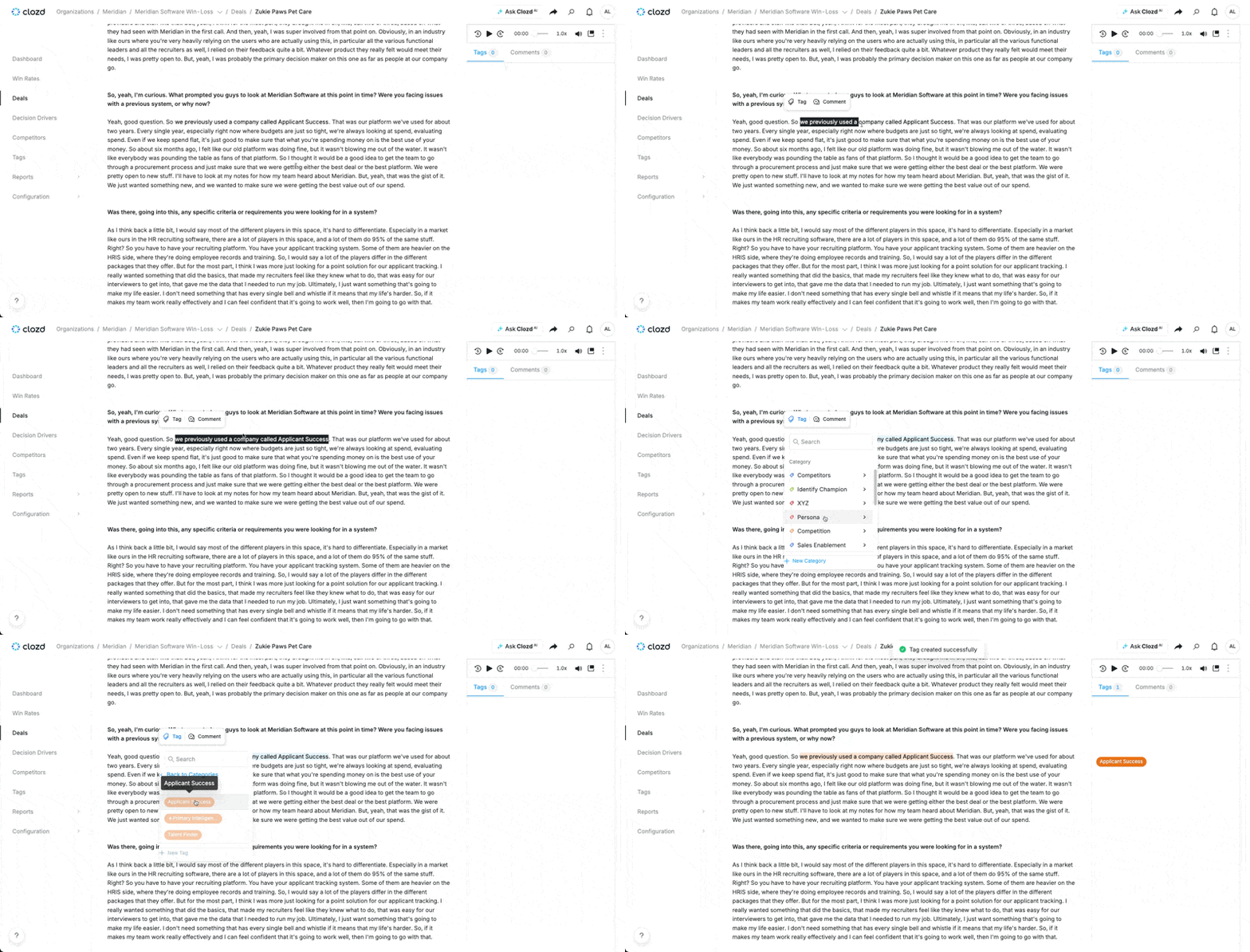
Manually tag text in an interview
1. Highlight the desired text.
2. Click the Tag button that will appear above the text
3. Choose the category that the tag is in and select the tag.
Deleting a tag
1. Click on the three dots on the right side of the tag.
2. Select Remove Tagged Quote.
3. You'll then get a pop up asking you if you're sure. Click Confirm Remove.
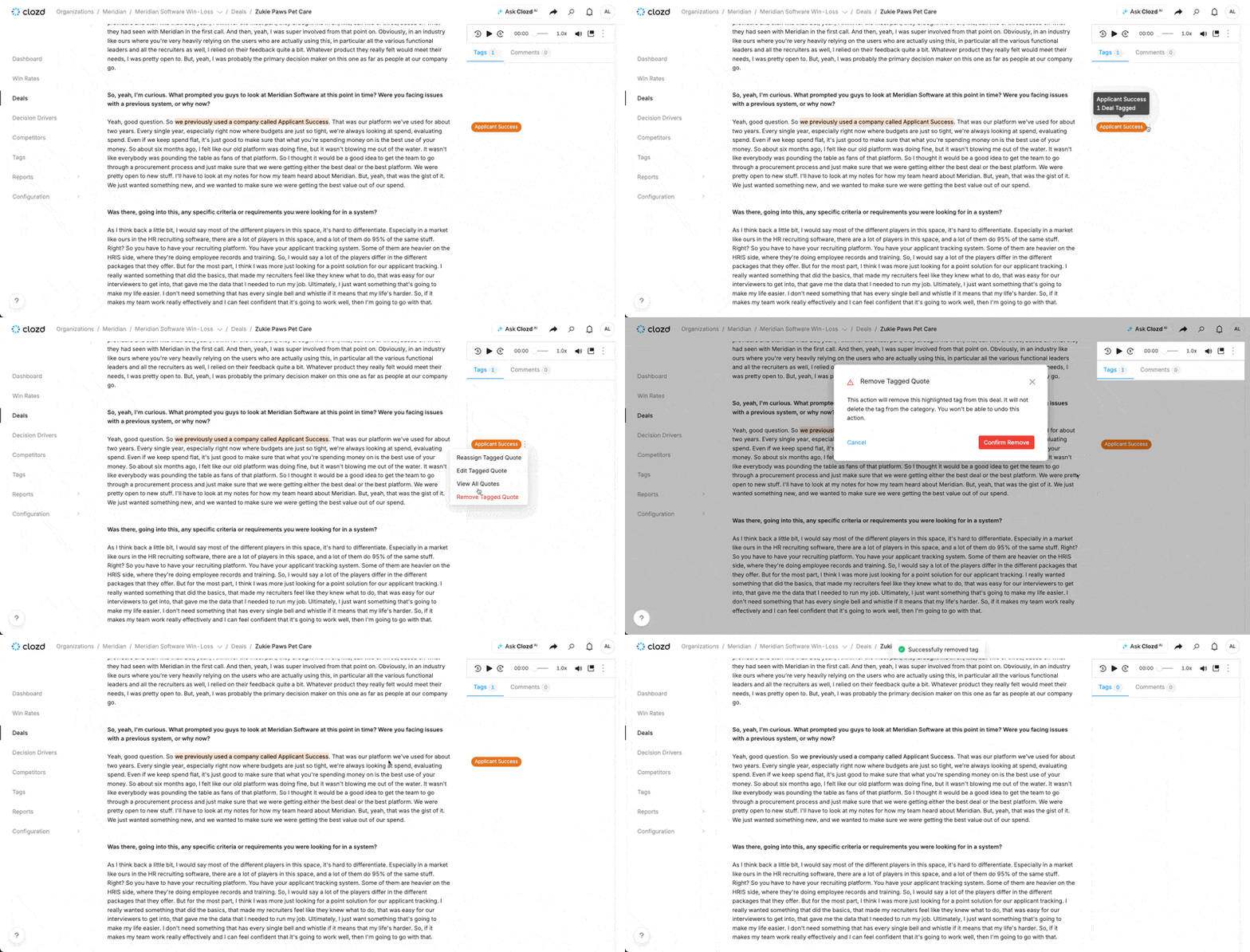
Note: This will only remove the tag from the specific quote, it will not remove the tag from the category.
Merging tags
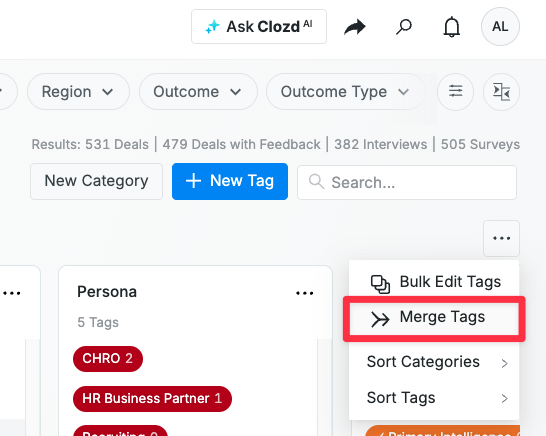
Since any user in the Clozd Platform can add and edit tags, you may occasionally need to clean up redundant or duplicate entries. You can use the Merge Tags feature to combine similar tags and keep your Tags page clean, organized, and easy to manage:
1. Click on the three dots under the Search box on the Tags page.
2. Select Merge Tags.
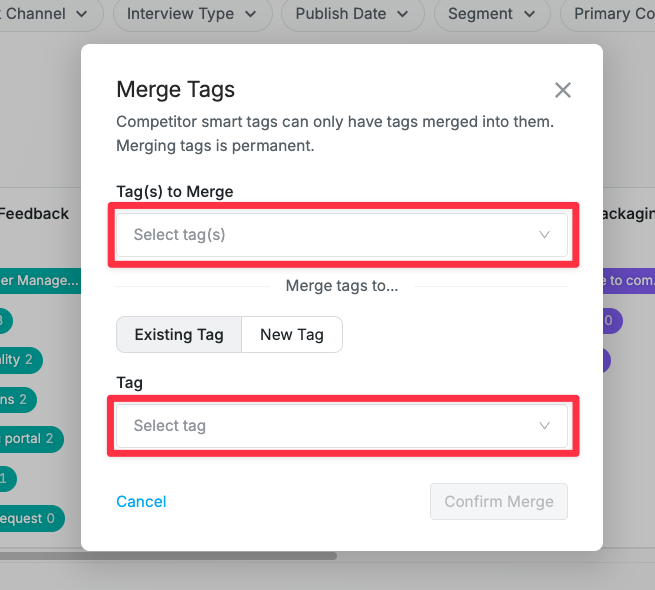
3. You'll then get a pop up where you can select the tag(s) you'd like to merge. You can merge one or more tags to an existing tag, or merge to a new tag.
Subscription and notifications
To subscribe to a tag:
1. Hover over the tag you'd like to subscribe to.
2. Click the envelope icon that appears on the right side of the tag.
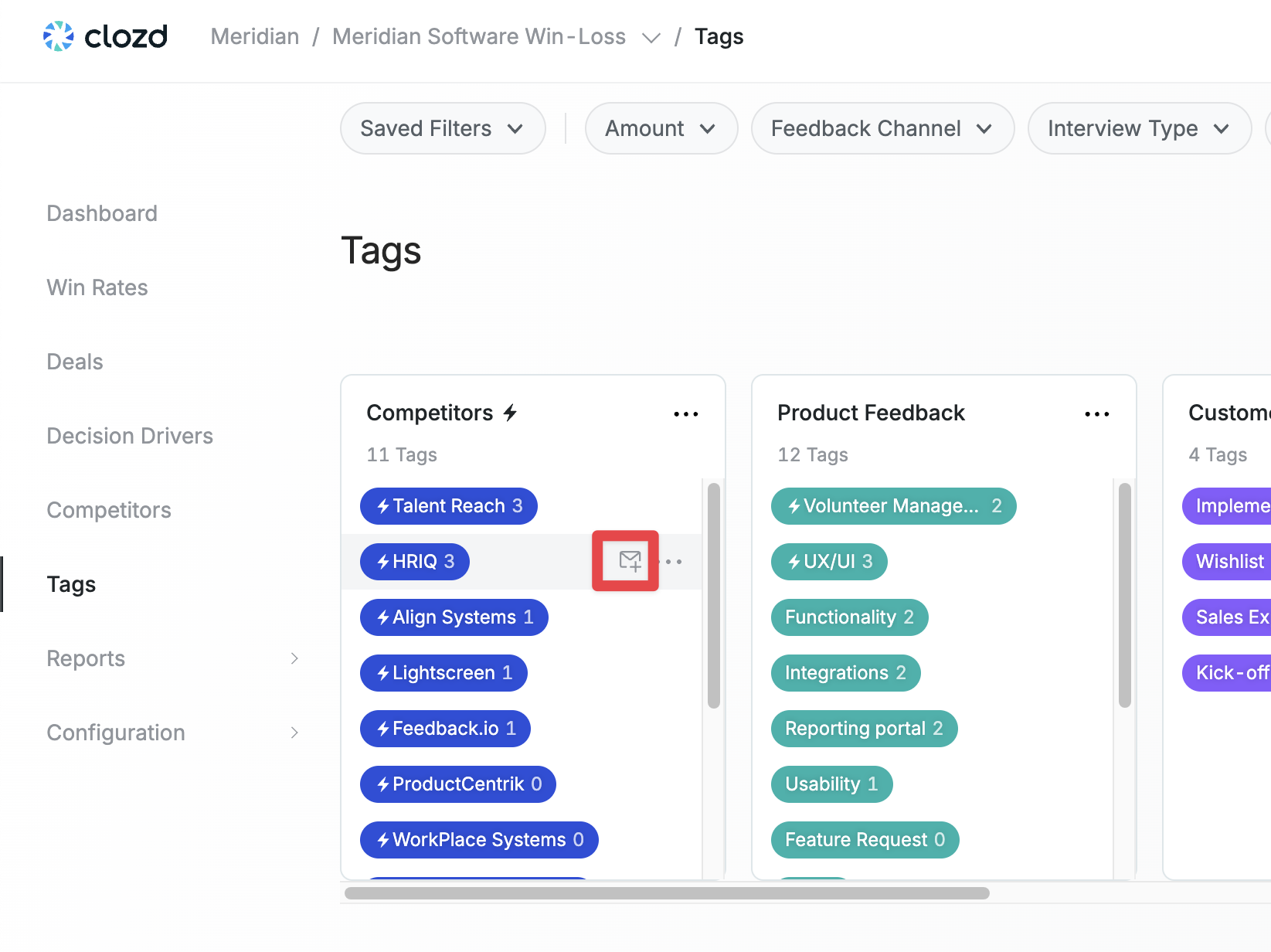
To unsubscribe from a tag, click on the envelope icon again.
Once subscribed, you will receive email notifications whenever a new instance of that tag occurs, ensuring you stay informed about key feedback in real time.
FAQs
Do I have to use smart tags?
No, users can still create Manual Tags. Existing tags won’t be automatically updated to Smart
Tags.
Are smart tags compatible with my existing tags?
Yes! You can even change existing tags to Smart Tags if you want.
How do I know if a tag is a smart tag?
Look for the little lightning bolt inside the colored tag. This denotes automation and helps
differentiate between manual and Smart Tags.
When are smart tags added to an interview?
Clozd scans interviews for keywords when the interview is published. Smart Tags won’t be
applied to interviews that have not been published yet.
Can I tag any feedback channel (interviews, surveys, etc.)?
Tags are supported on all published interviews, including Premium, Scale, Flex, and sales rep
interviews. Tags are not supported on surveys.
What is the new competitors section I see on the tags page?
By default, the Clozd Platform creates a Smart Tag for every competitor. Mentions of each
competitor in interviews are displayed on each competitor’s dashboard. These new competitor
tags are grouped in a new default tag category called “Competitors.” If you have an existing
competitor category, we suggest merging it with the new Competitors category.
Can I edit tags in bulk?
Yes! Users can select multiple tags and merge them, move them to a different category, or
delete them. Users can also select multiple quotes that have been tagged and reassign them to a
different tag or remove them completely.
Can I export my tags from Clozd?
Yes! You can export a CSV of all tags from the Tags page.
Can I get tag data through the Clozd API?
Tags are not currently available through the API.
Can I create roles that limit who can view or edit tags?
No, currently all users can view and edit tags. Clozd does not currently support RBAC for tags.
Questions?
For questions about the fit of Smart Tags for your Clozd win-loss program, please contact your Clozd program manager.
For questions about the Smart Tags functionality or troubleshooting, please contact support@clozd.com.