
Overview
The Deals table contains all deals imported into the Clozd Platform for your organization, regardless of whether feedback has been collected. This article contains the following sections:
- Navigating the deals table
- Adding a deal manually
- Manually requesting feedback
- Applying filters
- Sorting
- Questions
Navigating the deals table
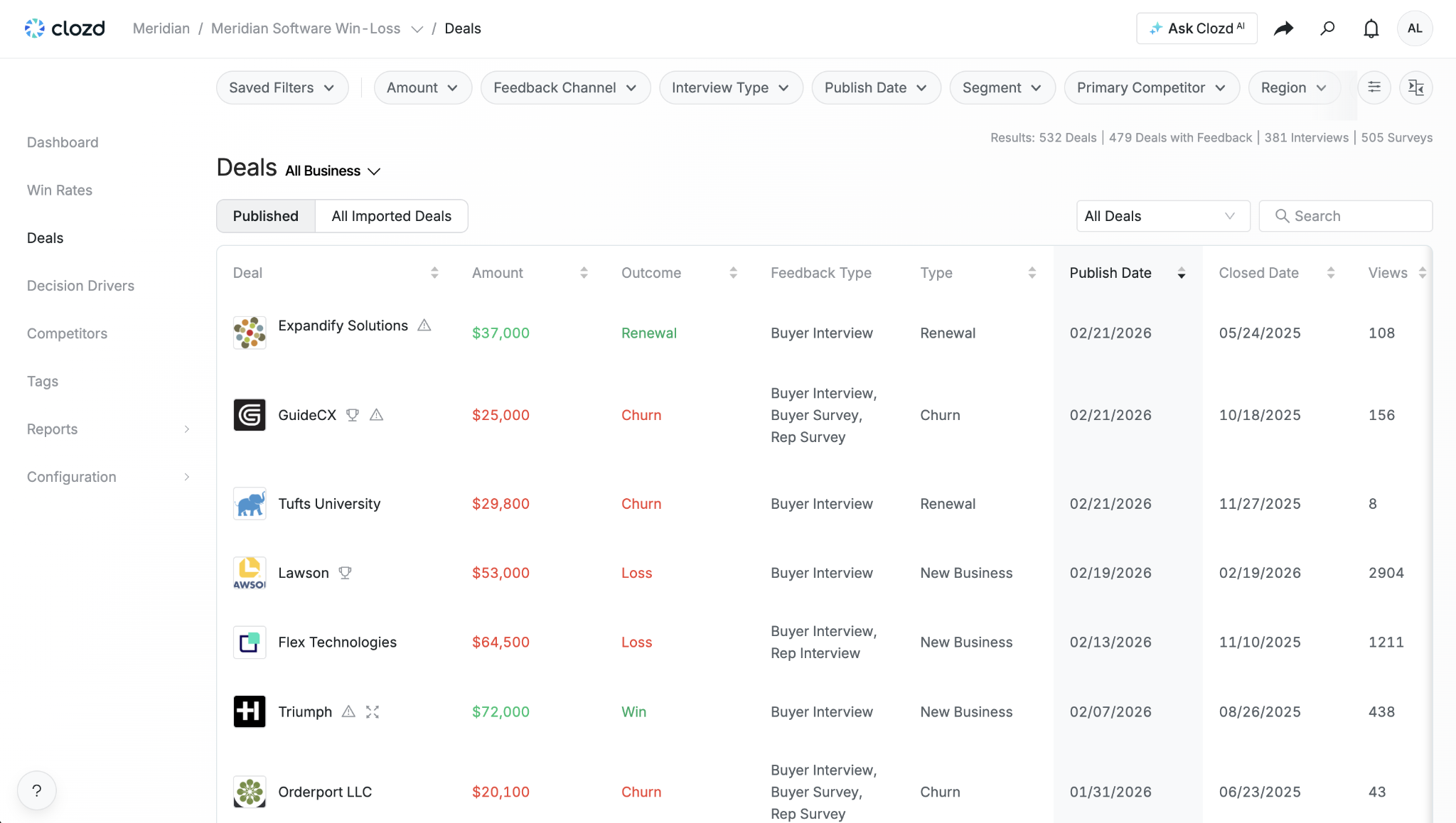
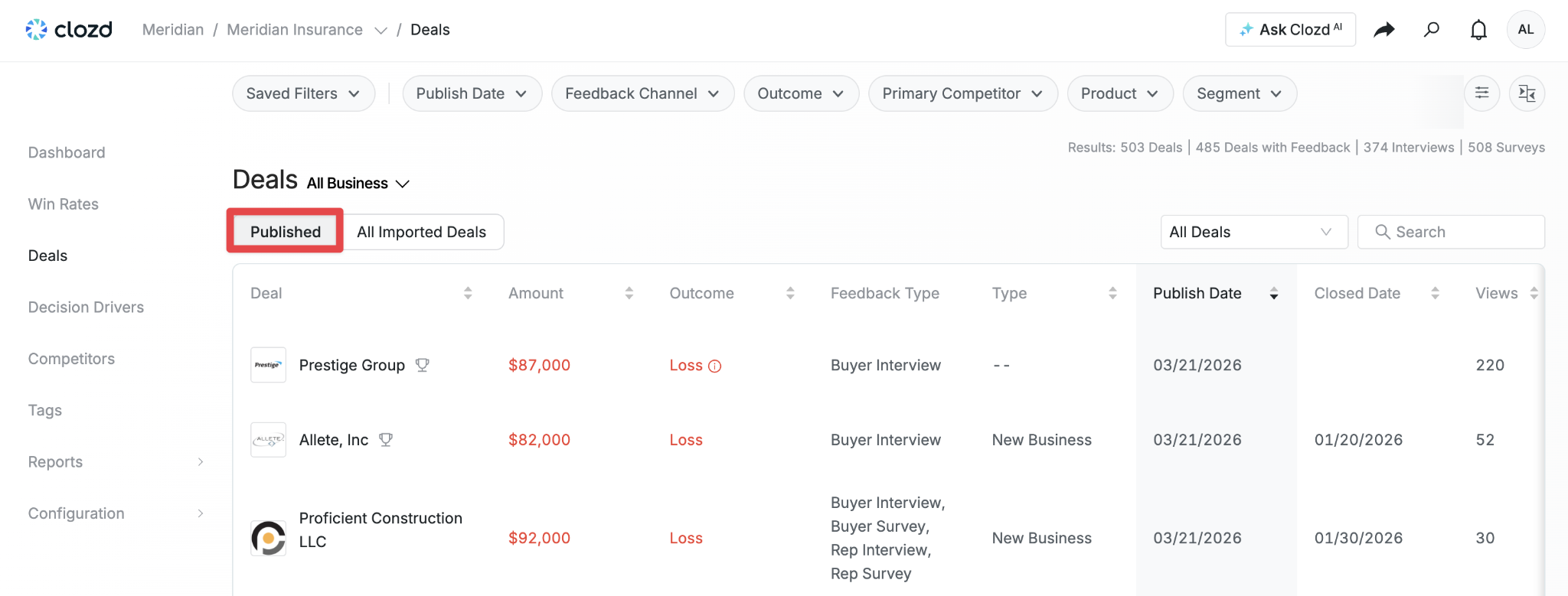
Deals that have received feedback and have been published will appear under the Published tab. Published feedback may include Buyer Interviews, Buyer Surveys, Sales Rep Interviews, or Sales Rep Surveys.
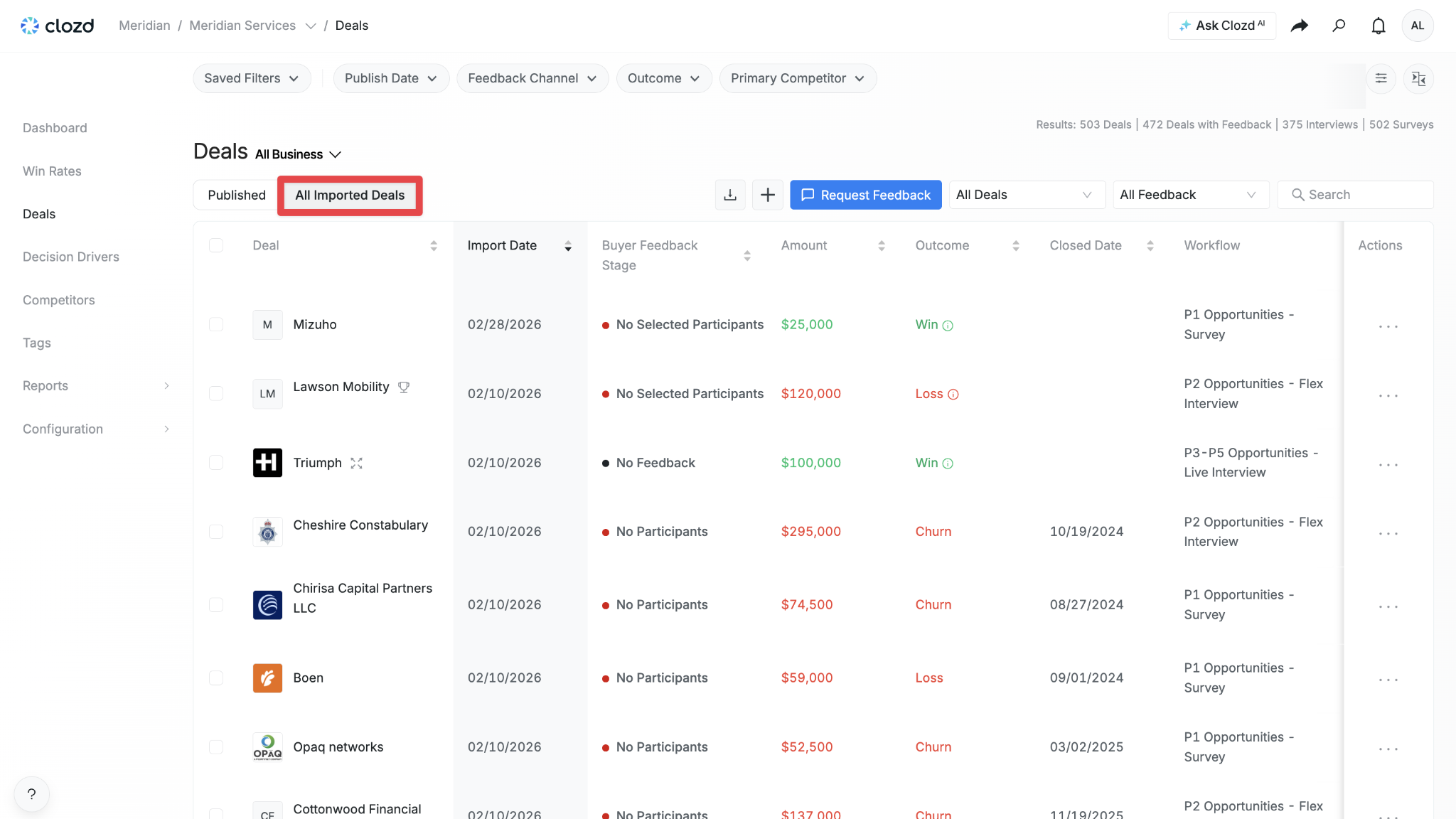
Deals without feedback or with unpublished feedback can be found under All Imported Deals. This is where you can manually add a deal, manually send a distribution, sort by deal flags, and export deals. To export deals, see Exporting Deal Data.
Adding a deal manually
Deals are typically brought into the Clozd Platform through your CRM integration (such as Salesforce) or through bulk imports. As a last resort, deals can also be added manually using the Add Deal option. This can be useful in situations such as running trials or when a CRM sandbox environment is not available. Keep in mind that manually added deals are not synced with your CRM data.
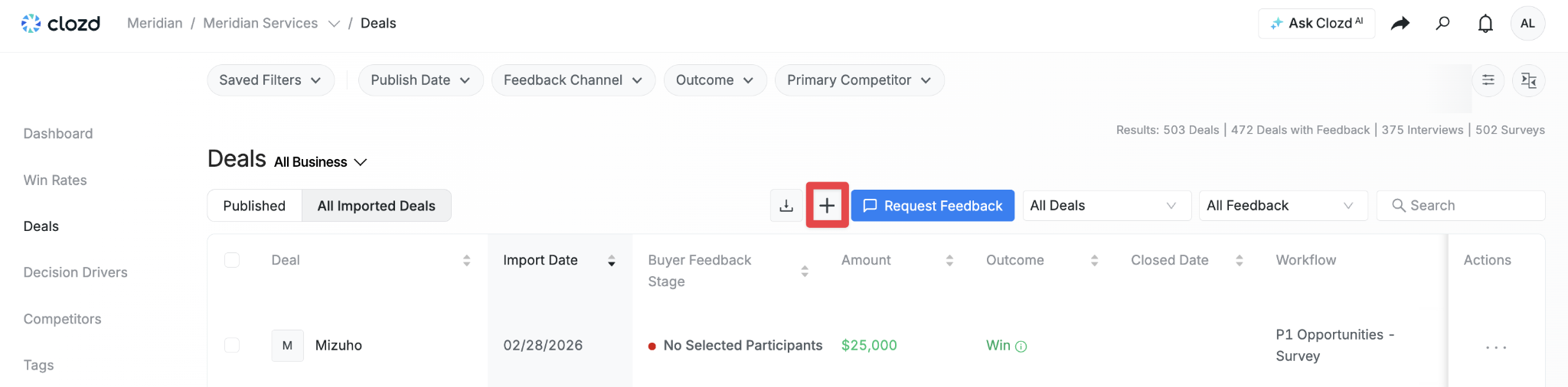
To add a deal, navigate to the All Imported Deals tab. Click on the + button that is in between the Download Deals button and the Request Feedback button.
An Add Deal popup will appear, allowing you to enter the details of the deal you’d like to manually add, including any metadata fields used by your organization.
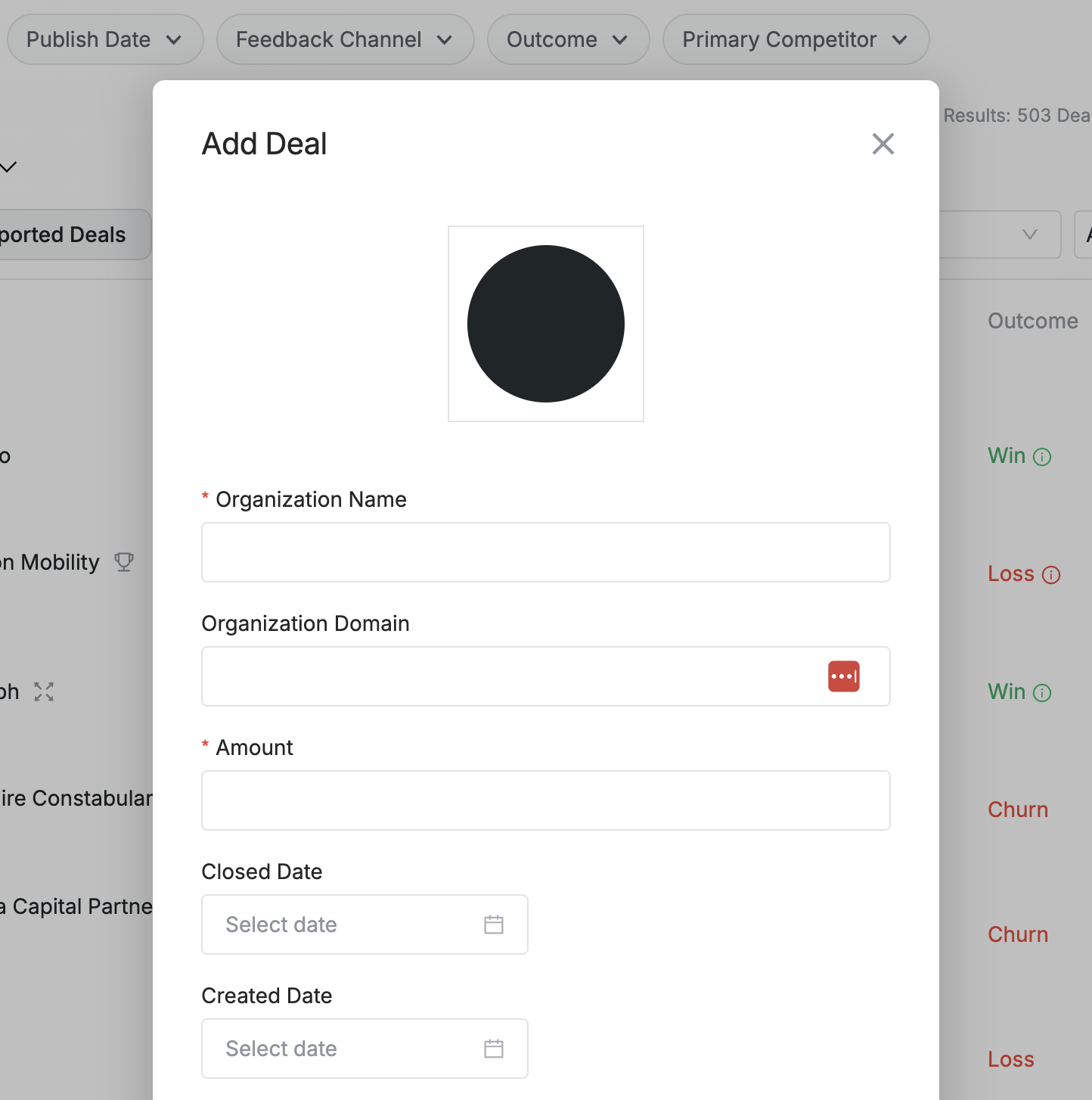
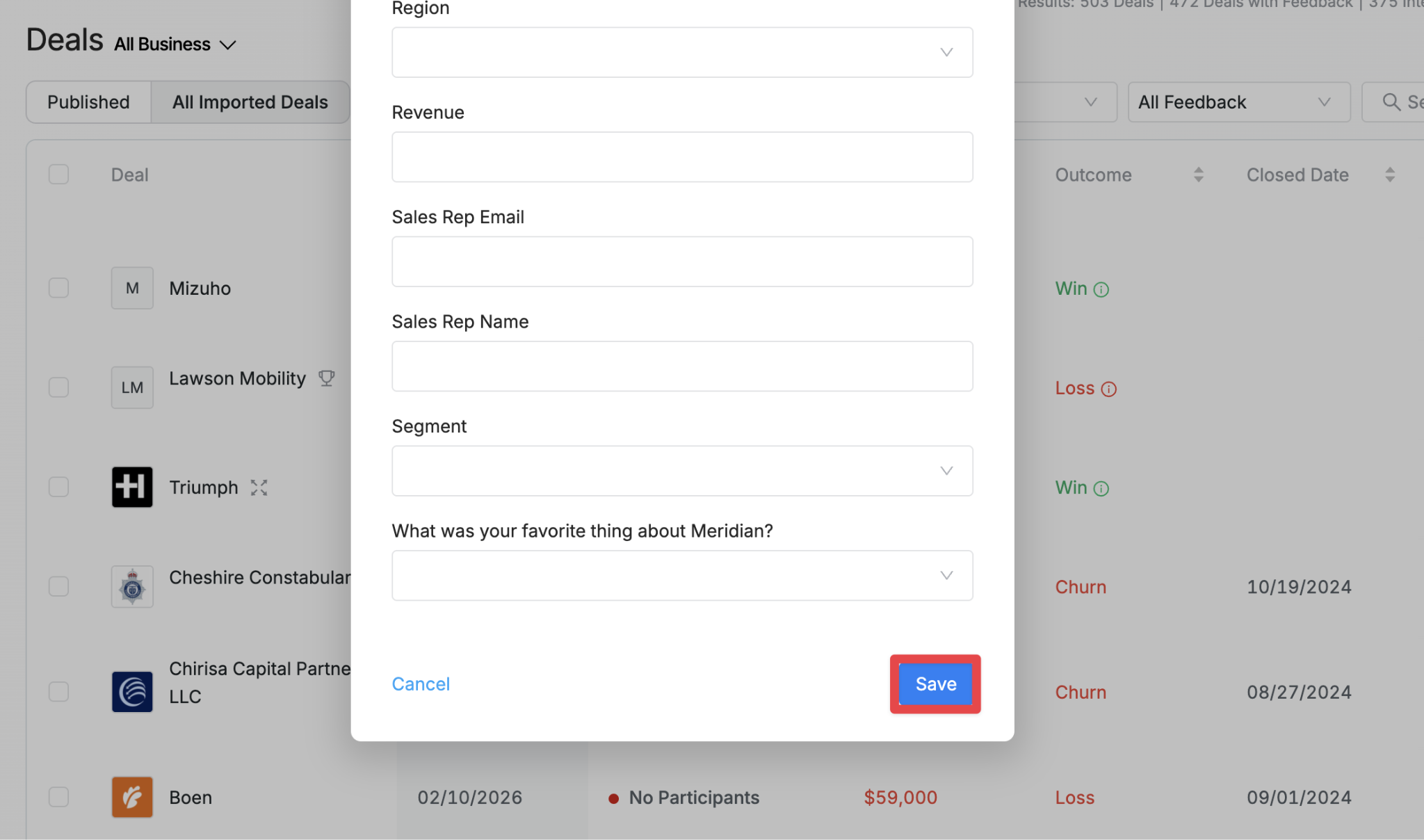
Be sure to complete at least the required fields. When you’re finished, scroll down to the bottom and click Save in the bottom-right corner.
Manually requesting feedback
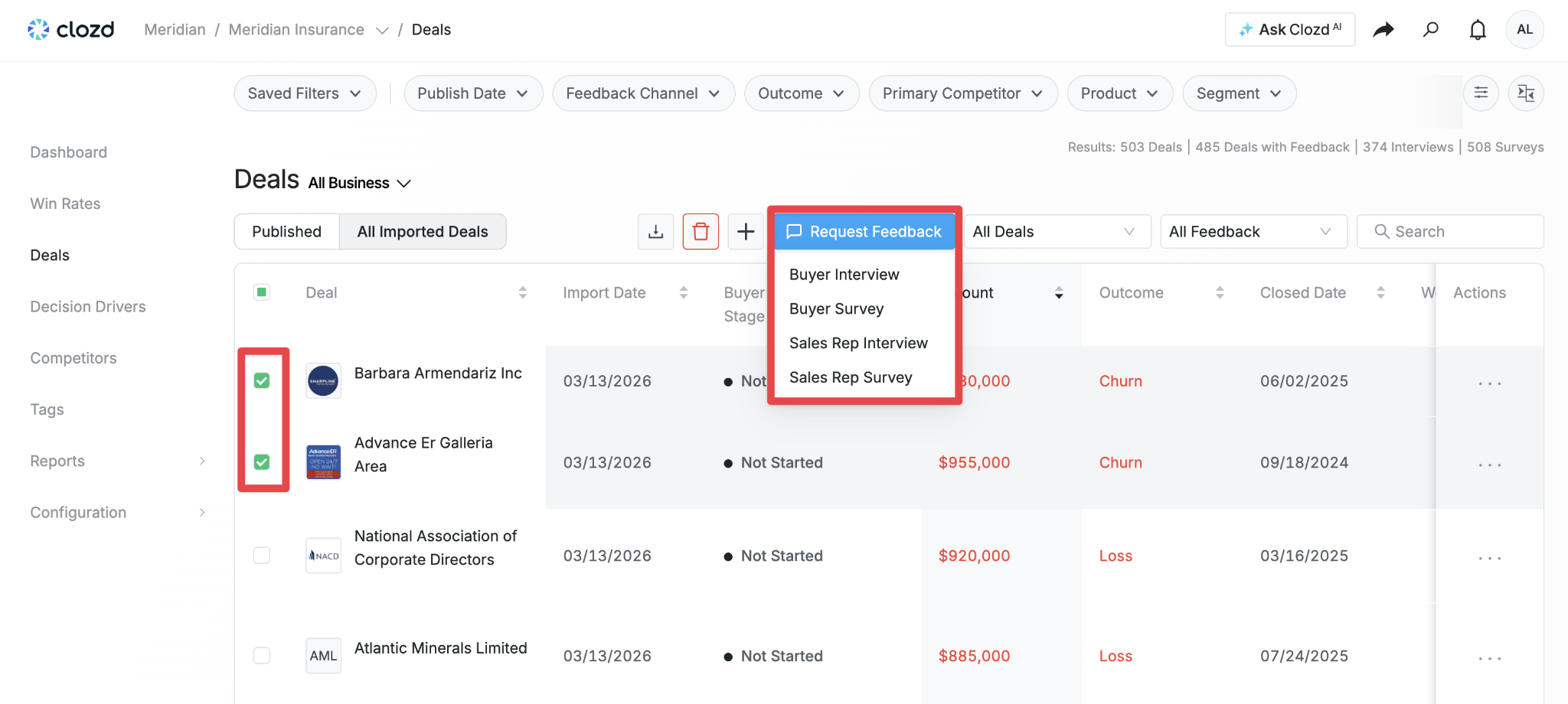
When a deal is part of a workflow, outreach is determined by the workflow settings (whether manual or automated), including which sequence is used. To request feedback manually, navigate to the All Imported Deals tab. Select the deals you'd like to send a distribution to, then click on the Request Feedback button. Choose the type of distribution you’d like to send: Buyer Interview, Buyer Survey, Sales Rep Interview, or Sales Rep Survey.
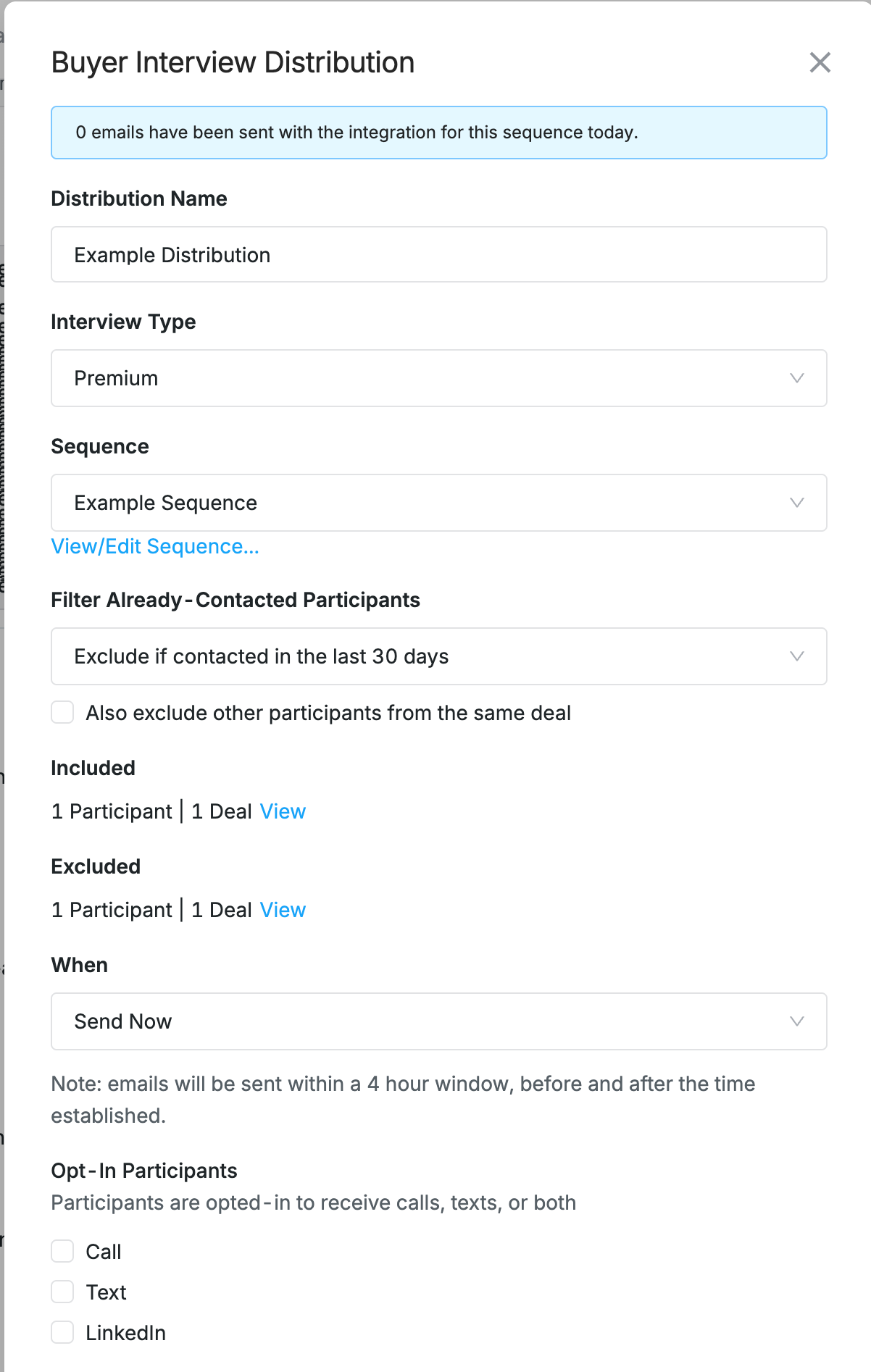
Fill out the fields in the Distribution popup, including (but not limited to) Distribution Name, Interview Type, and Sequence.
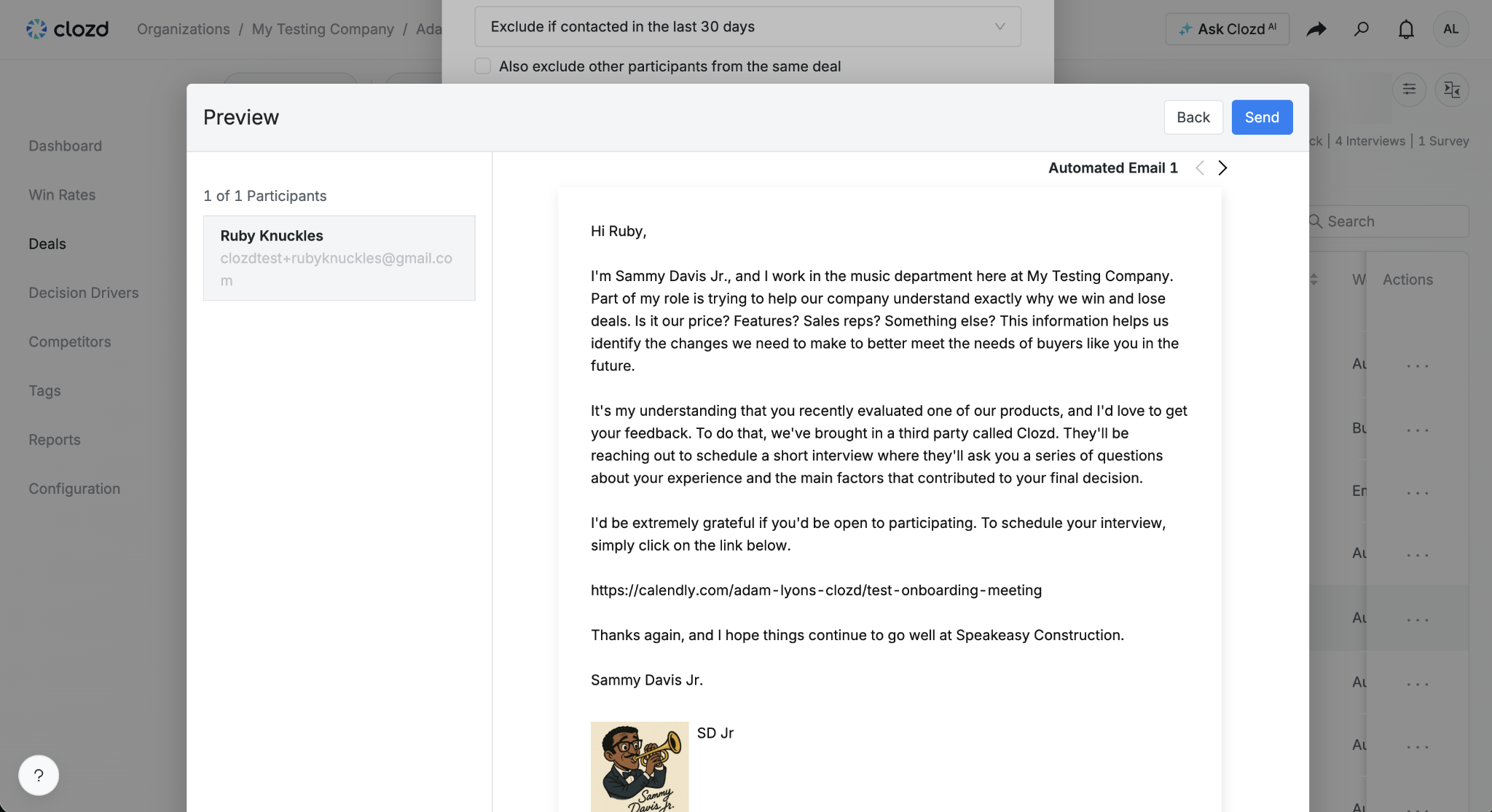
Once finished, click Next in the bottom-right corner of the popup to proceed to the preview message.
If everything looks correct, click Send to schedule the distribution for the previously selected date and time.
Applying filters
For information on applying filters, see Navigating Filters.
Note: Once a filter is applied, it will reflect across all tabs (e.g., Dashboard, Deals, etc.).
Sorting
Sorting the deals
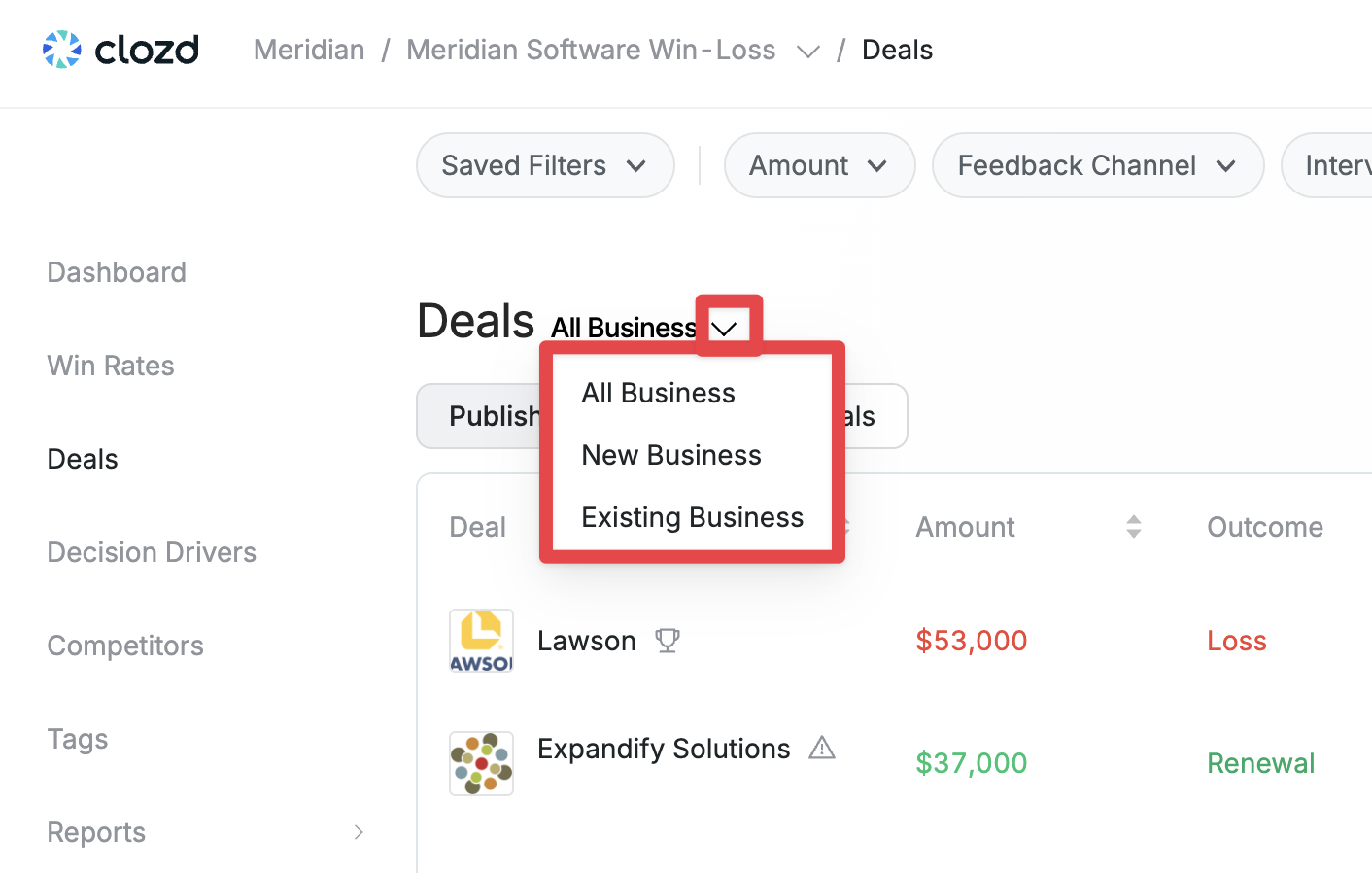
By default, the Deals table is sorted with the most recently published feedback at the top. You can sort the list by Deal, Amount, Outcome, Feedback Type, Type, Publish Date, Closed Date, Views, or Competitors by clicking the up or down arrow next to each column header. The selected column will appear slightly darker than the others. You can also filter by All Business deals, New Business deals, and Existing Business deals.
Sorting by feedback
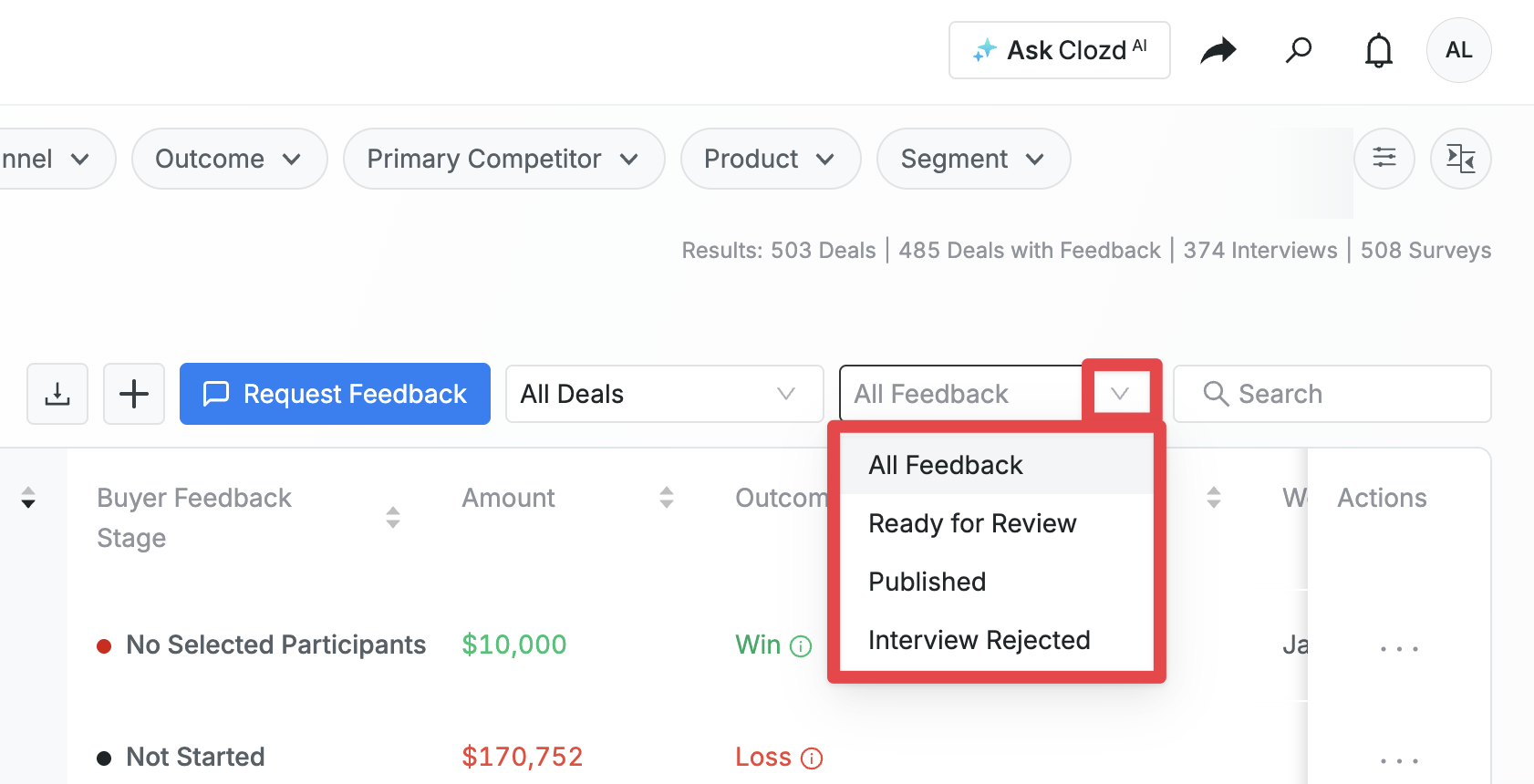
To filter by feedback status, navigate to the All Imported Deals tab and click the dropdown to the left of the search bar. By default, the page is set to All Feedback, but you can also filter by Ready for Review, Published, or Interview Rejected.
Sorting by deal flags
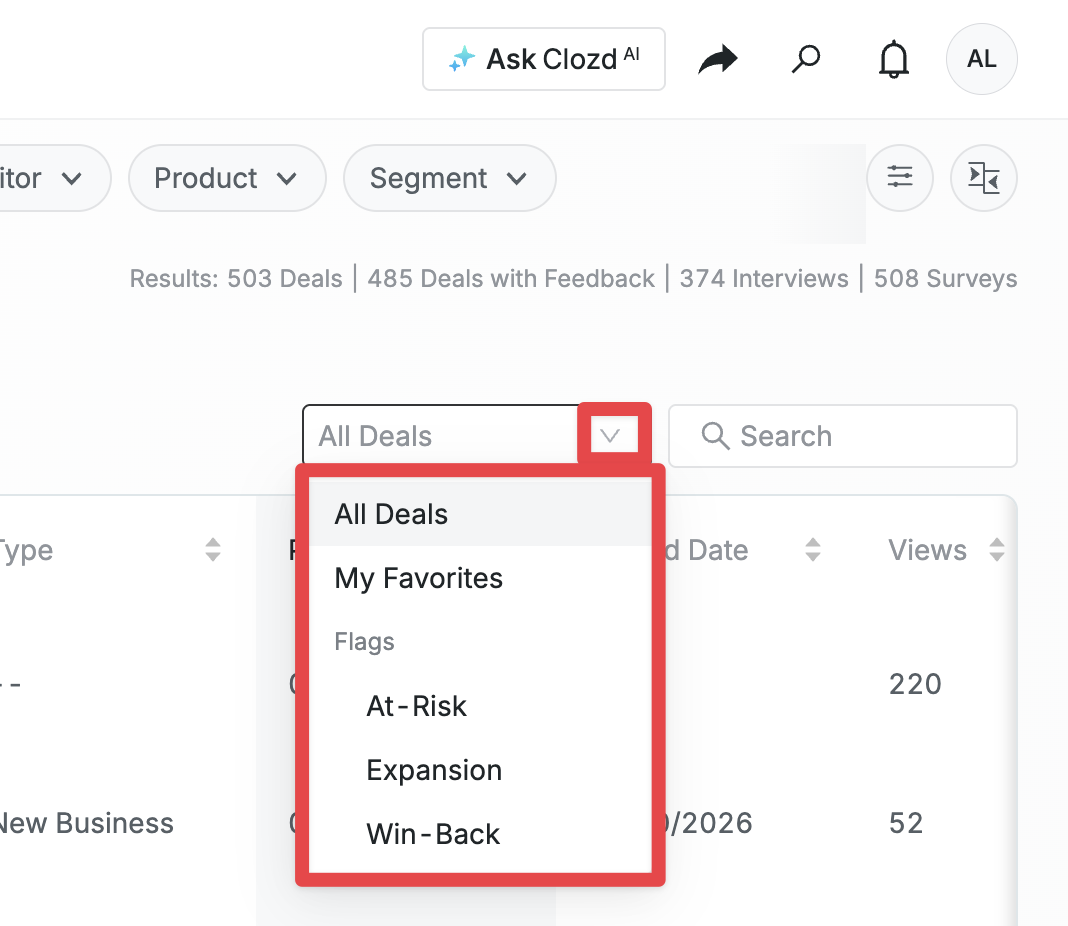
Deal flags can be applied to a deal to mark it as At-Risk, Expansion, or Win-Back. This is applied on the actual deal itself, but here on the deals table is where you can filter by which deal flag you're looking for.
For more information on deal flags, see the Deal Page.
Questions?
Please reach out to support@clozd.com if you have any additional questions.