
Exporting deals overview
Downloading a specific deal or exporting all deal data is an effective and efficient way to share win-loss feedback data. This article contains the following sections:
Related articles:
- Deals tab
Downloading individual deals
To export feedback from a published deal, you must be an admin.
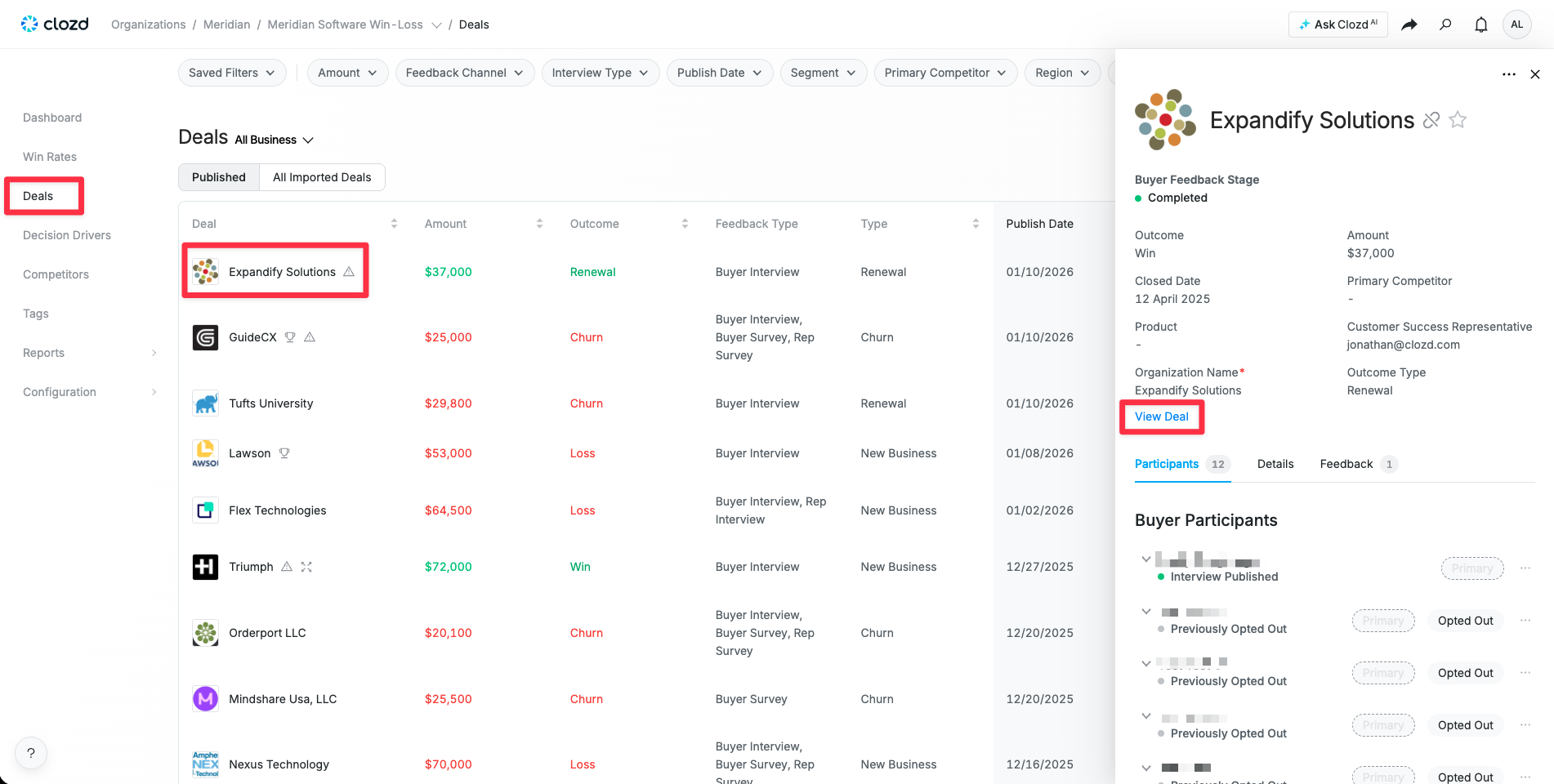
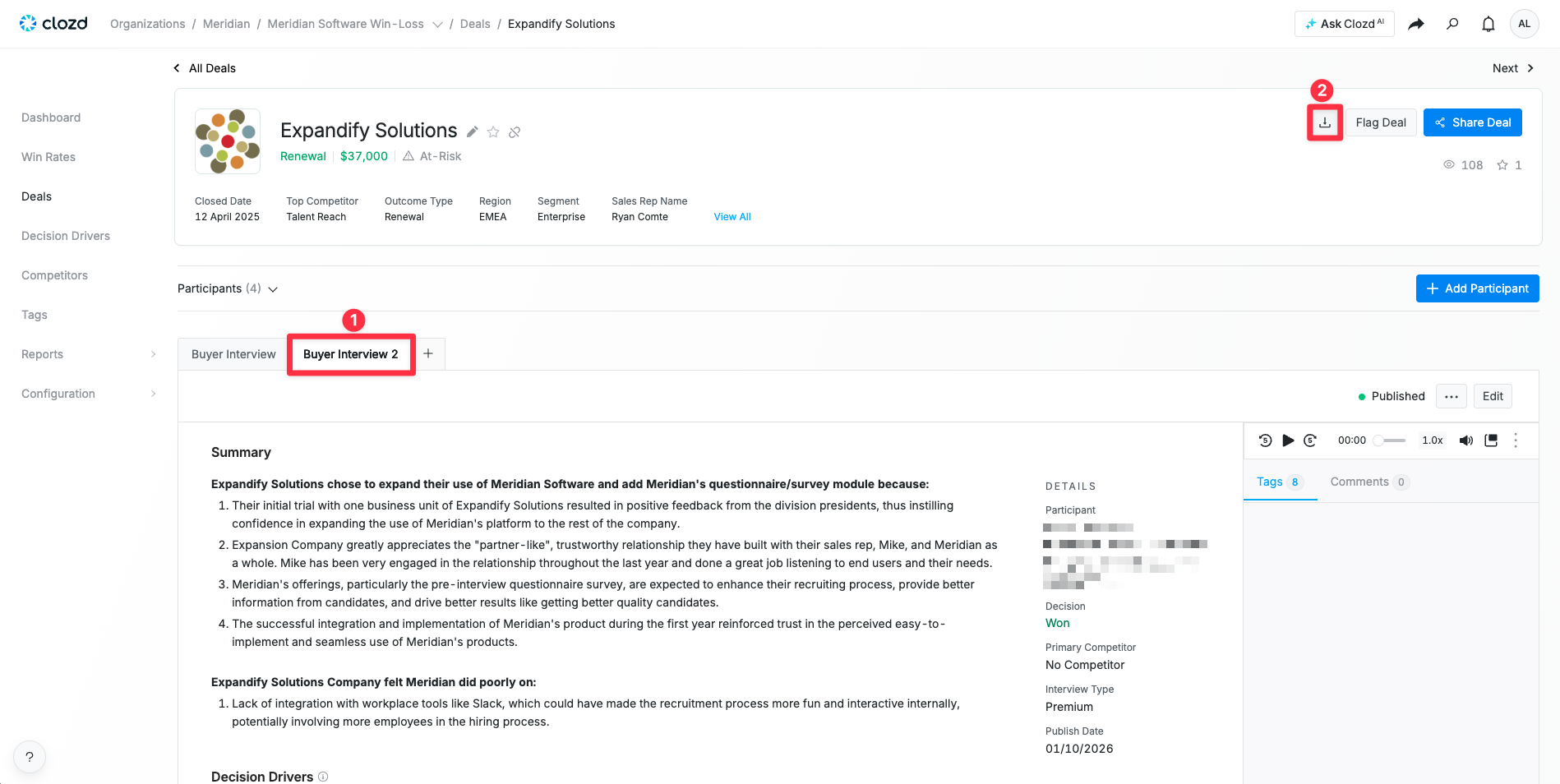
Start by navigating to the Deals tab. Click on the deal you'd like to download, and then click on View Deal in the deal drawer that opens on the right side of your screen. Make sure you've navigated to the correct deal on the page (e.g., "Buyer Interview 2") and click on the Download button at the top-right corner of the page. This will download a PDF version of the deal page. The format of the export mirrors the format in the Clozd Platform.
Exporting all deal data
To download a CSV file that includes deal data regarding selected deals:
1. Click the Deals tab on the left-hand side of the page.
2. Click All Imported Deals.
3. Click Export All Deals.
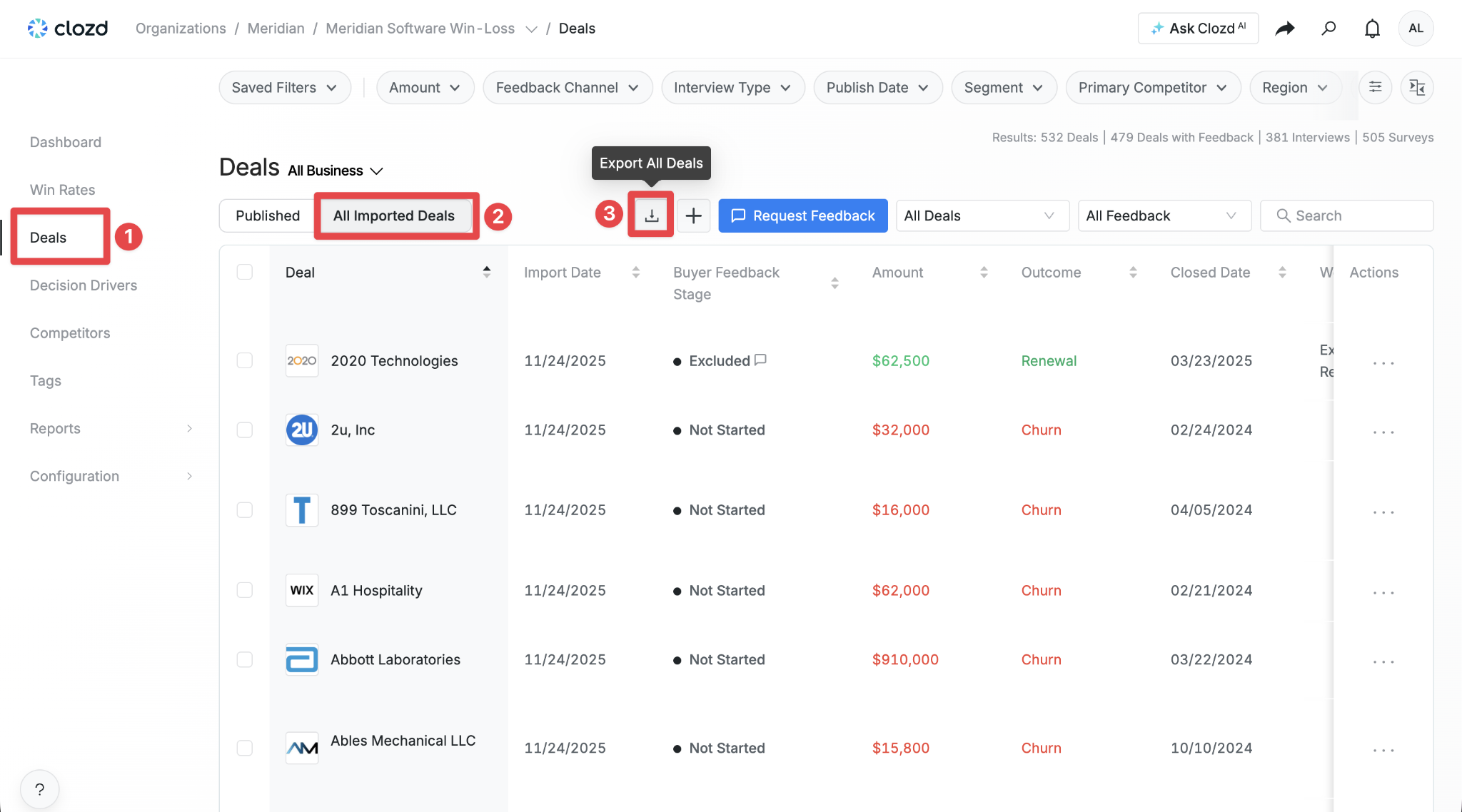
Note: Please limit exports to a maximum of 10,000 deals
4. Choose what data to include and then click Export.
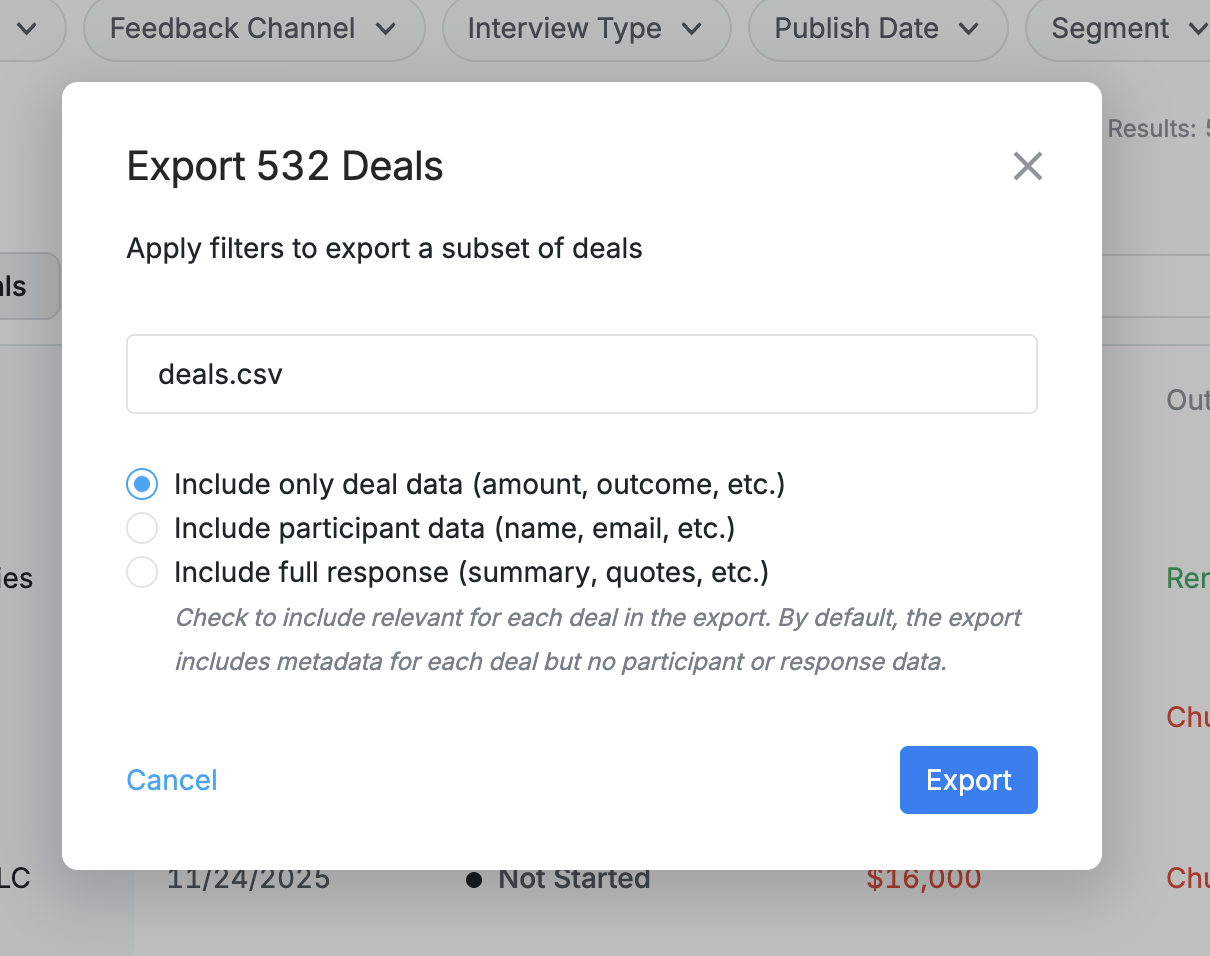
Note: Depending on the number of deals being downloaded and your connection, the download may take a few minutes.

Questions?
For additional questions, please contact support@clozd.com.