
Overview
The Clozd connector for Claude lets you ask questions about your win-loss program directly in Claude. Ask about deal outcomes, competitors, and buyer feedback in plain language, and Claude answers using the interviews, surveys, and call data in your Clozd programs.
The connector is listed in Claude's connector directory, so you can connect with the click of a button. There's no server URL to copy and no configuration to edit. It uses the same Clozd MCP server described in Connecting to Clozd via MCP, so you get the same data and tools.

The connector is read-only. Claude can view your Clozd data, but it can't add, edit, or delete anything in the Clozd Platform. Access follows your Clozd account, so you only see the programs and deals you already have permission to view.
This article contains the following sections:
- Before you begin
- Connect Clozd to Claude (Free, Pro, and Max plans)
- Connect Clozd to Claude (Team and Enterprise plans)
- Use Clozd in a conversation
- FAQs
- Need help?
Related articles:
Before you begin
You need:
- A Clozd account. Sign in with the same login you use for the Clozd Platform.
- A Claude account on any plan (Free, Pro, Max, Team, or Enterprise).
How you connect depends on your Claude plan:
| Your Claude plan | How to connect |
|---|---|
| Free, Pro, or Max | Connect Clozd yourself from the connector directory. |
| Team or Enterprise | A Claude owner adds Clozd for your organization first. Then each member connects with their own Clozd login. |
Note: On Team and Enterprise plans, only Claude owners and primary owners can add connectors for the organization. If you aren't an owner, ask your Claude admin to complete the owner steps below.
Connect Clozd to Claude (Free, Pro, and Max plans)
1. In Claude, go to Settings → Customize → Connector
2. Click + next to Connectors to browse the directory, then search for Clozd. You can also open the Clozd listing directly at https://claude.ai/directory/clozd.
3. Click Connect to Claude.
4. Sign in to Clozd
A Clozd sign-in window opens. Enter your Clozd email address. The next screen shows the login method your organization uses (password, Google, Okta, or SAML).
5. Complete sign-in
Clozd will then appear in your connectors list as connected.

The steps are the same on claude.ai, Claude Desktop, and Cowork. Once you connect on one, Clozd is available on the others.
Connect Clozd to Claude (Team and Enterprise plans)
Step 1: Add Clozd for your organization (owners only)
This is a one-time step that makes Clozd available to everyone in your Claude organization. Adding the connector doesn't give anyone access to Clozd data. Each person still signs in with their own Clozd account.
1. In Claude, go to Organization settings → Connectors.
2. Click Browse connectors at the bottom of the page.
3. Click Add → All Available.
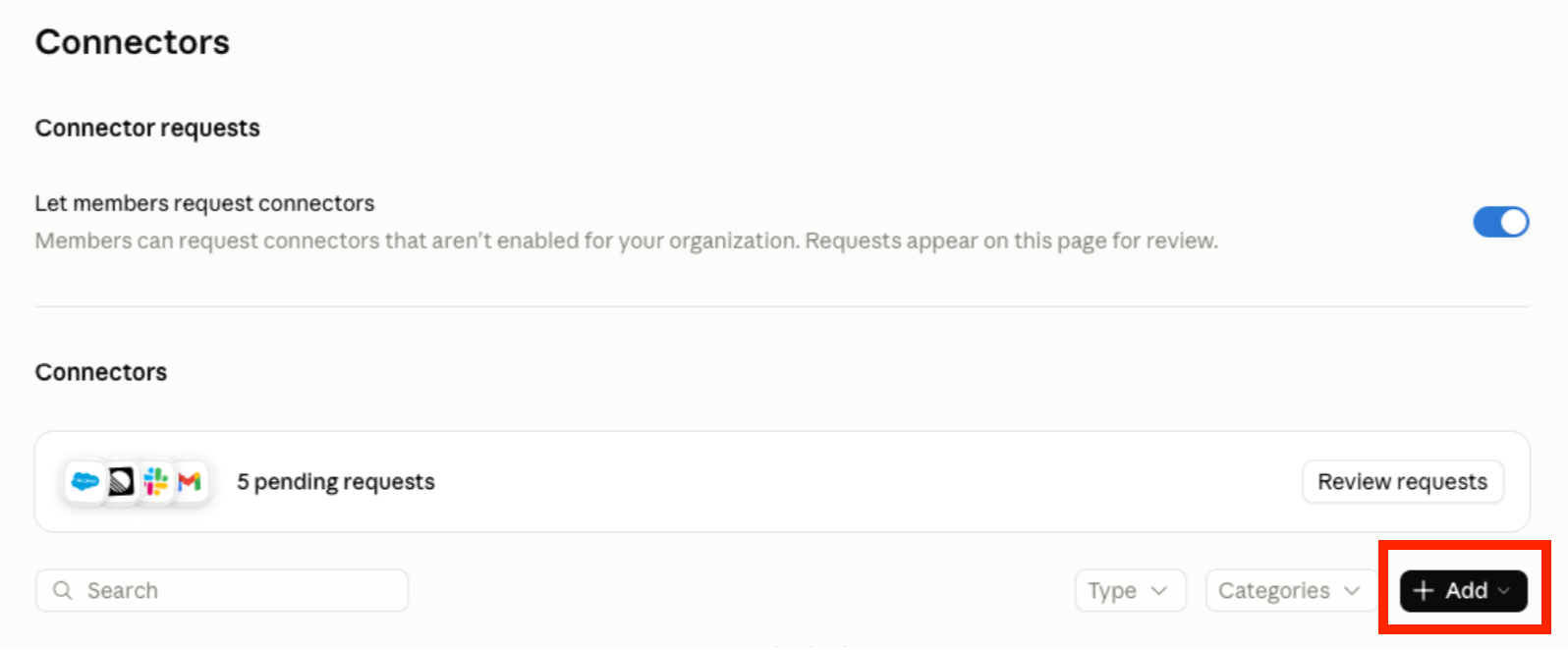
4. Search for Clozd, then click Connect to Claude.
Note: Owners can also set tool permissions for connectors across the organization. Because every Clozd tool is read-only, you can allow all Clozd tools without risk of changes to your Clozd data.
Step 2: Connect your Clozd account (all members)
1. In Claude, go to Settings → Customize → Connectors.
2. Find Clozd MCP in the list and click Connect.
3. Enter your Clozd email address and complete sign-in using your organization's login method.
If you're on a Team plan and Clozd hasn't been added yet, you'll see a Request button instead of Connect. Clicking it sends a request to your organization's Claude owners.
Use Clozd in a conversation
Once connected, Claude can use Clozd whenever it fits your question. You can also turn the connector on or off for a specific conversation.
1. Open a new conversation in Claude.
2. Click + in the lower left of the chat box, then hover over Connectors.
3. Make sure Clozd is toggled on.
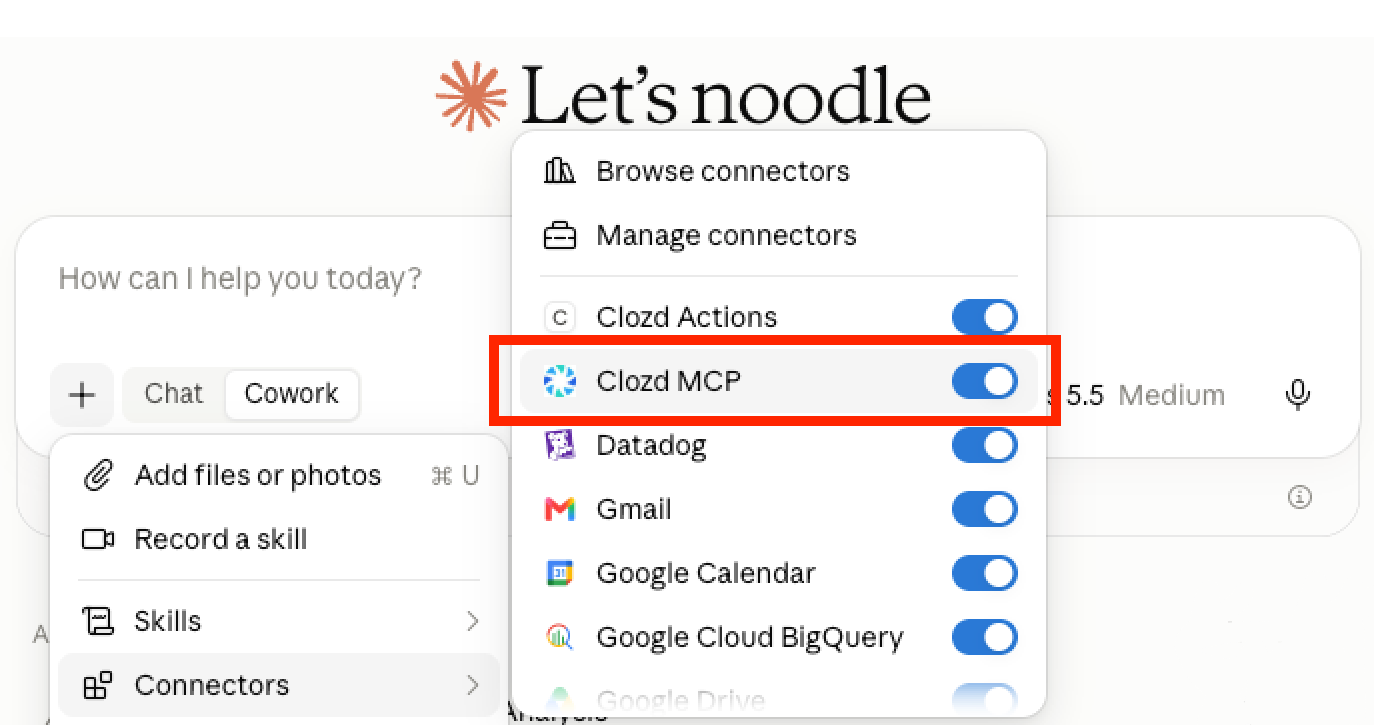
4. Ask your question.
To confirm that the connection is working, ask: "What tools do you have from Clozd?" Claude should list the available Clozd tools.
Choosing a program
Clozd data is organized by program. If you have access to more than one program, Claude may ask which one to use, or you can name it in your question (for example: "In our North America win-loss program, why did we lose to Competitor X?"). Claude pulls data from one program at a time.
Questions to start with
- "Why did we lose to [competitor] in enterprise last quarter?"
- "What's our win rate by region this year?"
- "Can you show me buyer quotes about pricing from closed-lost deals?"
- "Which accounts are flagged at risk right now?"
- "Where do our sales calls and buyer interviews disagree?"
The connector also includes two ready-made prompts (why-we-lose and why-we-win) that summarize the main drivers behind your losses and wins.
For a full list of the data Claude can access, see the "What data is available?" section of Connecting to Clozd via MCP.
FAQs
I already connected Claude to Clozd using the MCP server URL. Do I need to do anything else?
No. Existing custom connections have automatically been moved to the directory connector.
Can Claude change data in Clozd?
No. The connector is read-only. Claude can search and read your Clozd data, but it can't create, edit, or delete anything.
Will I see data I can't see in the Clozd Platform?
No. Your Clozd role permissions apply to the connector. If you can only view certain programs or data in Clozd, the same limits apply in Claude.
Which Claude plans can use the connector?
All of them: Free, Pro, Max, Team, and Enterprise. On Team and Enterprise plans, a Claude owner has to add Clozd for the organization before members can connect.
I'm on a Team or Enterprise plan and don't see Clozd in my connectors. What should I do?
Ask your Claude owner to add Clozd under Organization settings → Connectors. On Team plans, you can also click Request on the Clozd listing to notify your owners.
Claude says it doesn't have access to Clozd. How do I fix it?
Make sure Clozd is toggled on for the conversation (click + → Connectors). If it still doesn't work, go to Customize → Connectors, disconnect Clozd, and connect again.
Can I use Clozd with other AI tools besides Claude?
Yes. The Clozd MCP server also works with ChatGPT, Cursor, Microsoft Copilot, and other MCP-compatible tools. See Connecting to Clozd via MCP for setup steps.
Need help?
If you have questions about connecting Clozd to Claude or using the connector, contact your Clozd program manager or reach out to support@clozd.com.
To learn how Clozd handles your data, see the Clozd Privacy Policy.