Overview
This article is a setup guide for connecting your AI assistant to Clozd data. This article contains the following sections:
- What is the Clozd MCP server?
- Before you begin
- Clozd MCP server URL
- Claude desktop & web (Claude.ai)
- ChatGPT
- Cursor
- Microsoft Copilot
- Windsurf
- Antigravity
- Gemini CLI
- Generic setup: Any MCP-compatible client
- What data is available?
- What can you ask?
- Coming soon
- Need help?
What is the Clozd MCP server?
MCP (Model Context Protocol) is an open standard that lets AI assistants (like Claude, Cursor, or Windsurf) connect directly to external tools and data sources. Think of it as a secure bridge between your AI assistant and Clozd.
Once connected, you can enter prompts or questions for your AI assistant, such as:
- "Summarize the top reasons we lost deals to Competitor X last quarter."
- "What decision drivers came up in interviews with enterprise prospects?"
- "Pull the latest win-loss trends from my Clozd account."
Your AI assistant will query Clozd in real time and return insights grounded in your actual win-loss data.
Security & authentication
Clozd uses OAuth 2.0 (Authorization Code flow) to authenticate users. When you connect, your AI client will open a browser window where you sign in through your organization's identity provider (e.g., Okta, Google, Microsoft). No passwords or API keys are stored in any configuration file.
Before you begin
You will need:
- A Clozd account with MCP access enabled.
- Access to your organization's identity provider (e.g., Okta, Google, SAML, etc.) to complete the login flow.
- One of the supported AI clients listed in this guide.
Note: If your company is not currently using SSO with the Clozd Platform, you will simply need to enter your email address and password.
Don't have MCP access?
Contact your Clozd account admin or reach out to support@clozd.com to confirm MCP is enabled for your organization.
Clozd MCP server URL
Use the following URL when configuring any MCP-compatible client:
https://mcp.clozd.com/mcp
This is the only value you need. Authentication is handled automatically via OAuth. No API keys or tokens are required.
Claude desktop & web (Claude.ai)
Claude Desktop and Web supports OAuth-based MCP servers out of the box. You just need to add the Clozd server as a custom connector.
| Your Claude plan | Who adds the connector? | Limit |
|---|---|---|
| Free | You (individually) | 1 connector max |
| Pro / Max | You (individually) | No limit |
| Team / Enterprise | Owner must add first, then members connect individually | No limit |
Note: Team & Enterprise users cannot add the connector themselves. A workspace Owner must set it up for the org first (Step 1 below). If you don’t see Clozd listed, ask your Claude admin to complete Step 1 before continuing.
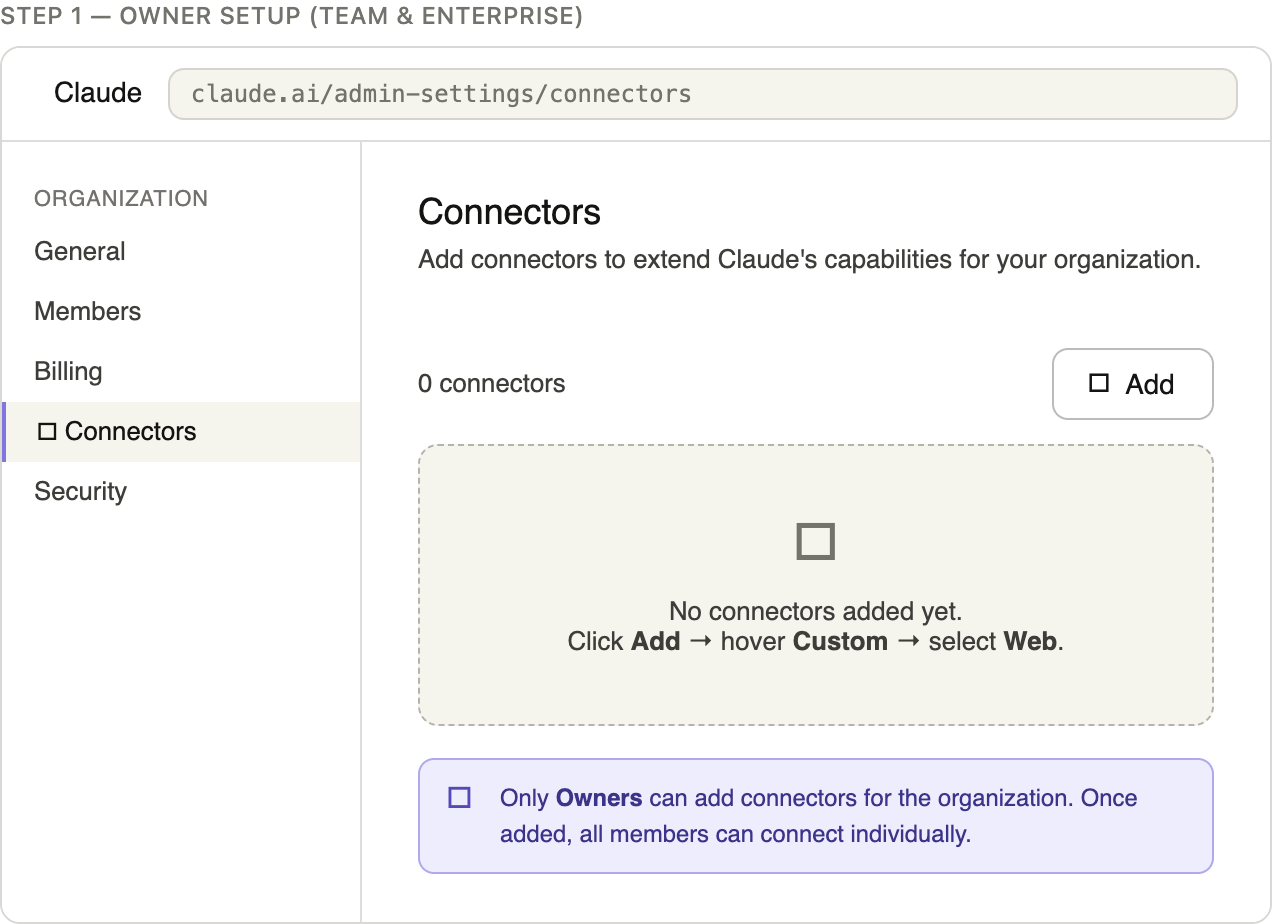
Owner setup (Team & Enterprise only)
Skip this section if you are on a Free, Pro, or Max plan.
This is a one-time step that unlocks the connector for everyone in your organization.
1. Open Claude
Go to Organization Settings → Connectors.
2. Add Custom Connector
- Click the Add button.
- Hover over Custom and select Web.
- Paste in the Clozd MCP server URL provided by your Clozd contact.
- Click Add. The Clozd connector will now appear in your organization’s connector list for all members.
3. Log in and authorize Clozd
A browser window will open. Enter your Clozd email address. The next screen will automatically show the login method your organization has configured (password, Google, Okta, or SAML).
4. Verify the connection
Start a new conversation and type: "What tools do you have from Clozd?" Claude should list the available Clozd tools.
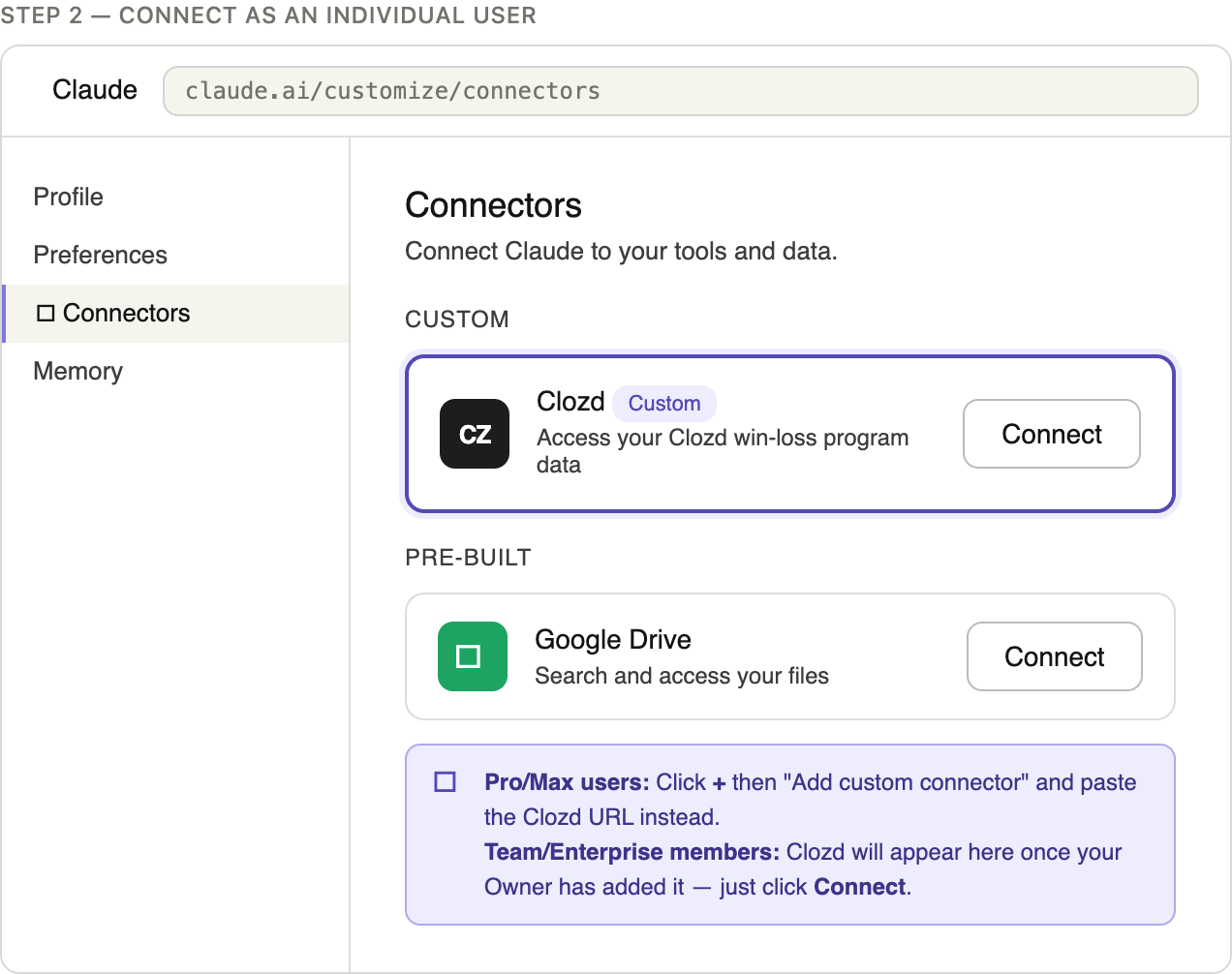
Connect as an individual user
Follow the steps below for your Claude plan. The process is the same whether you use Claude on the web (claude.ai), Claude Desktop, or the Cowork app.
1. Pro or Max plan
- Go to Customize → Connector s .
- Click + then Add custom connector.
- Paste in the Clozd MCP server URL and click Add.
- Complete the OAuth flow to authenticate and grant Clozd the necessary permissions.
2. Team or Enterprise (after your Owner has completed the previous step)
- Go to Customize → Connectors .
- Find Clozd in the list. It will be labeled Custom.
- Click Connect and complete the OAuth authentication flow.
Note: If you're using Claude Desktop, the steps are identical to the web instructions above. Clozd's server is a remote connector managed through your Claude account. You do not need ot edit any configuration files. Follow the same steps on claude.ai and the connection will be available in Claude Desktop automatically.
Enable Clozd in a conversation
The connector is not active by default in every chat: you turn it on when you need it.
1. Leverage the Clozd MCP
- Open a new Claude conversation.
- Click the + button at the bottom left of the chat input.
- Select Connectors.
- Toggle Clozd on.
Claude now has access to your Clozd program data for that conversation. Try asking things like:
- “What were the top loss reasons last quarter?”
- “What are buyers saying about our pricing?”
- “How does our win rate compare against Competitor X?”
ChatGPT
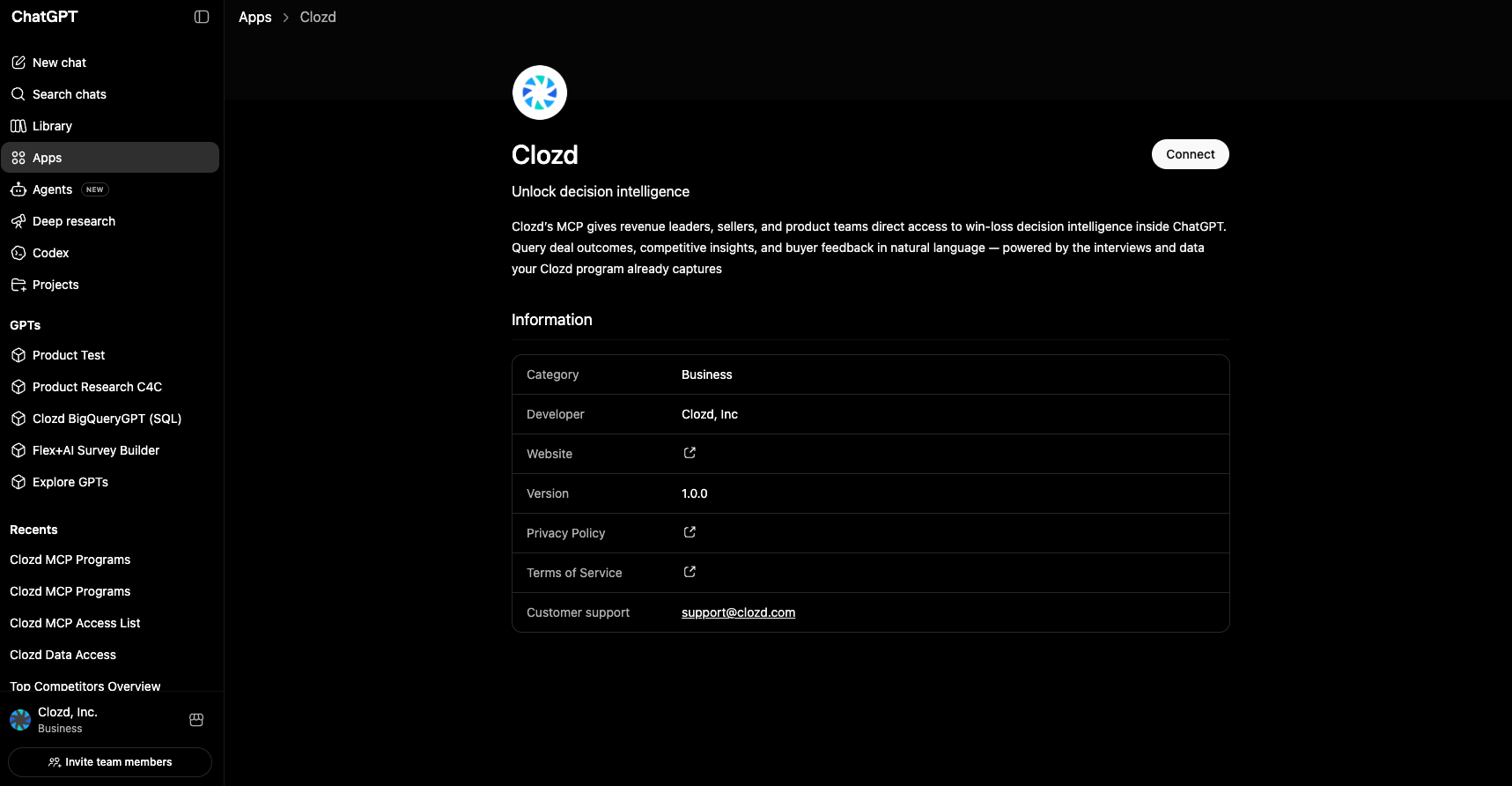
The Clozd MCP is available within the Apps section of ChatGPT.
Step-by-step instructions
1. Navigate to Apps within your ChatGPT account.
2. Search for Clozd.
3. Connect to the MCP using your Clozd credentials.
Cursor
Cursor is a code editor with built-in AI capabilities. It supports OAuth-based MCP servers directly in its settings panel.
Step-by-step instructions
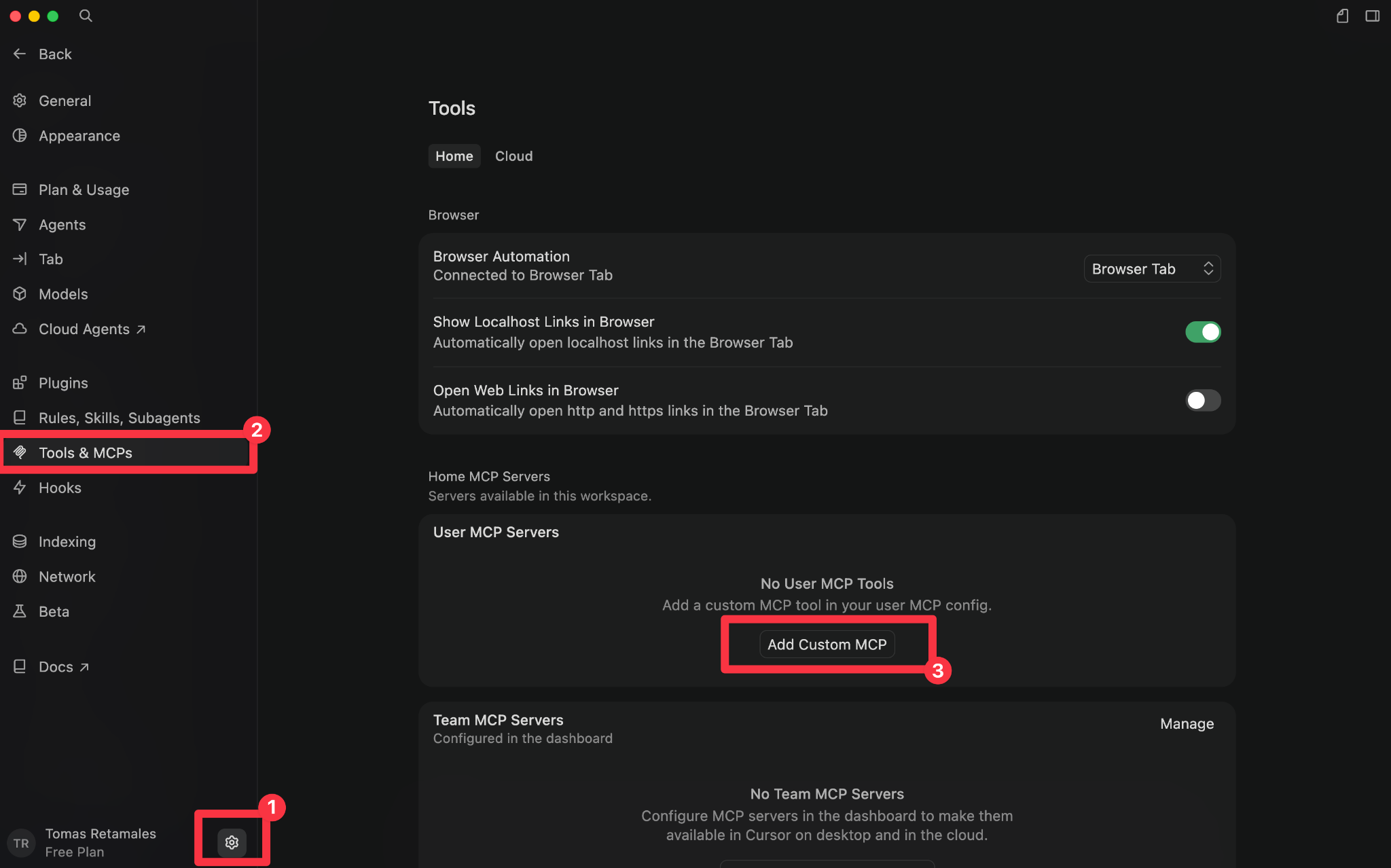
1. Open Settings
Click the Settings icon next to your name in the bottom-left corner.
2. Navigate to MCP settings
Click Tools & MCPs → Add Custom MCP.
3. Add the Clozd server
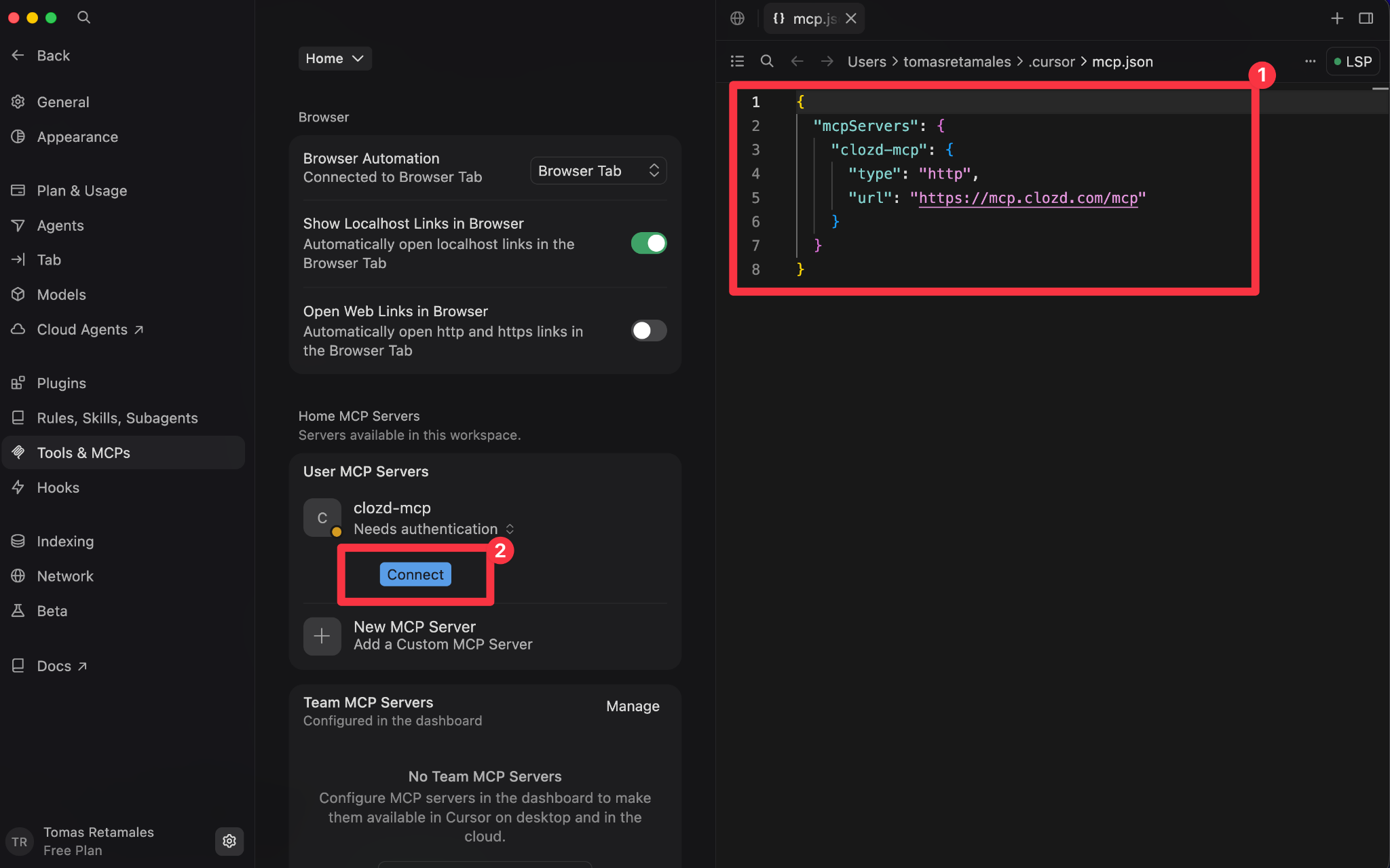
A window will open with your mcp.json file. Add the following configuration:
 {
   "mcpServers": {
     "clozd-mcp": {
       "type": "http",
       "url": "https://mcp.clozd.com/mcp"
     }
   }
 }
Click Connect.
4. Log in and authorize Clozd
A browser window will open. Enter your Clozd email address. The next screen will automatically show the login method your organization has configured (e.g., password, Google, Okta, or SAML).
5. Verify the connection
Open the Cursor AI chat and type: "What tools do you have from Clozd?" Cursor should list the available Clozd tools.
Note: Make sure you're in Agent mode in Cursor's chat panel for MCP tools to activate. They won't appear in regular chat mode.
Microsoft Copilot
Microsoft Copilot is an AI-powered digital assistant integrated into Microsoft 365 apps. It supports OAuth-based MCP servers enabled through agents in Copilot Studio.
Step-by-step instructions
1. Open Microsoft Copilot Studio and create or edit an agent
Choose which agent you will connect to Clozd MCP.
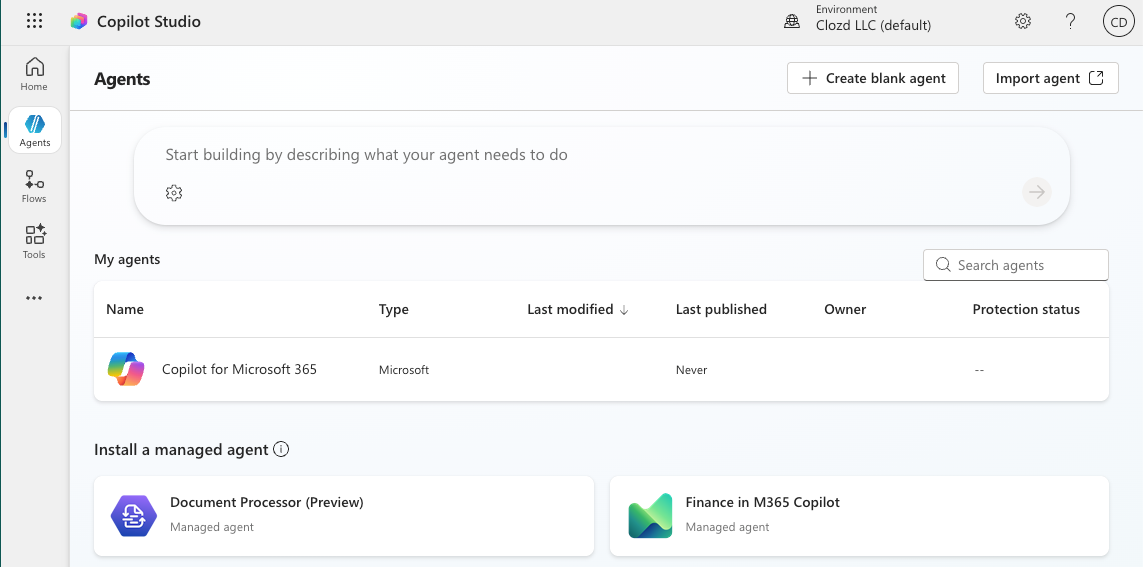
2. Go to tools
Choose Add tool and choose model context protocol.

3. Enter the Clozd MCP server details
- Name
- Description
- MCP Server URL
https://mcp.clozd.com/mcp
- Select OAuth 2.0
- Select Dynamic discovery
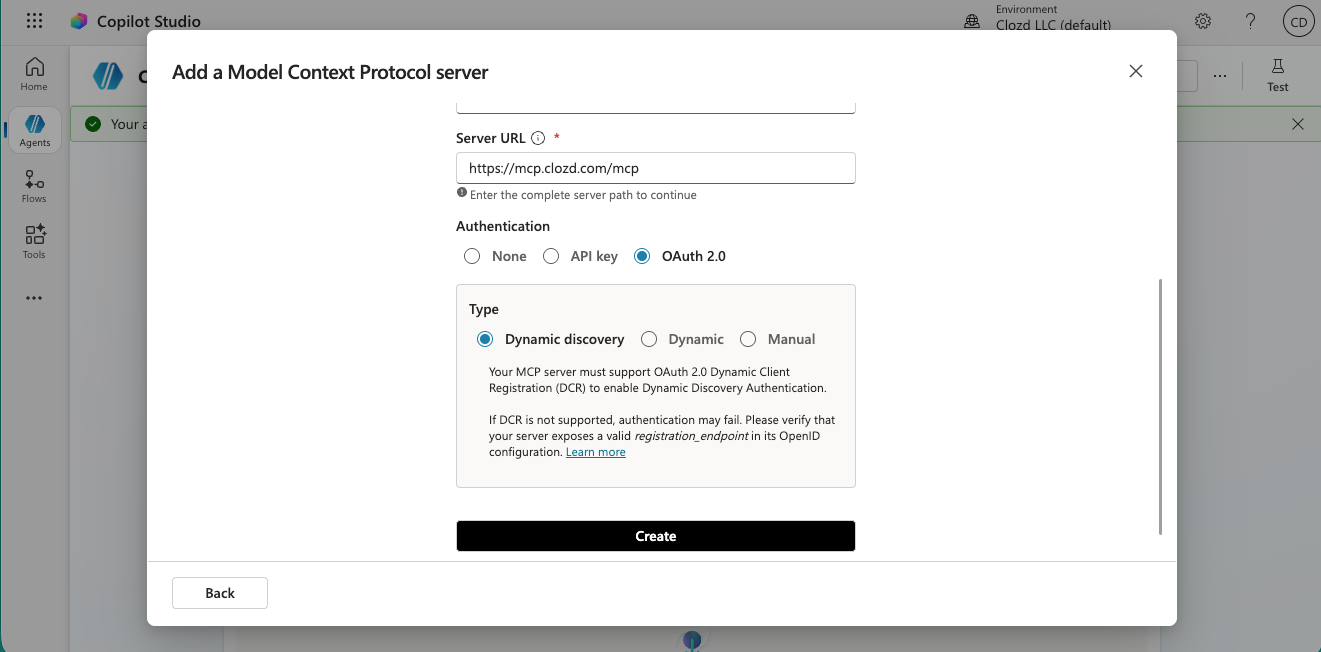
4. Authenticate through your SSO provider
Connect the MCP to the agent by authenticating through your user account.
Windsurf
Windsurf (by Codeium) is a code editor with built-in AI capabilities. It supports OAuth-based MCP servers through its Cascade agent panel.
Step-by-step instructions
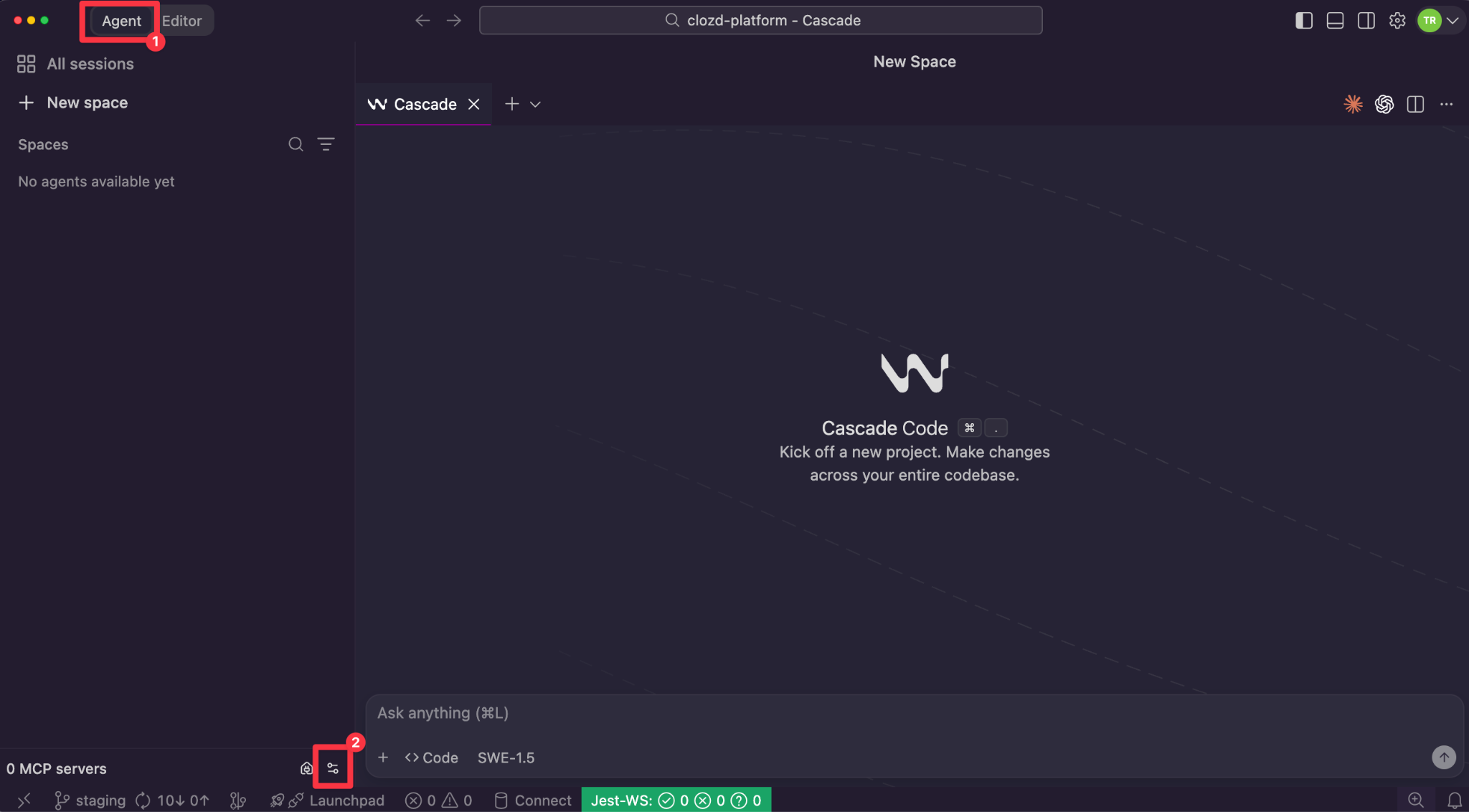
1. Open the agent panel
In the top-left corner, make sure you're on the Agent tab.
2. Open the MCP settings
Click the Preferences button in the bottom-left corner. This will open your mcp_config.json file.
3. Add the Clozd server
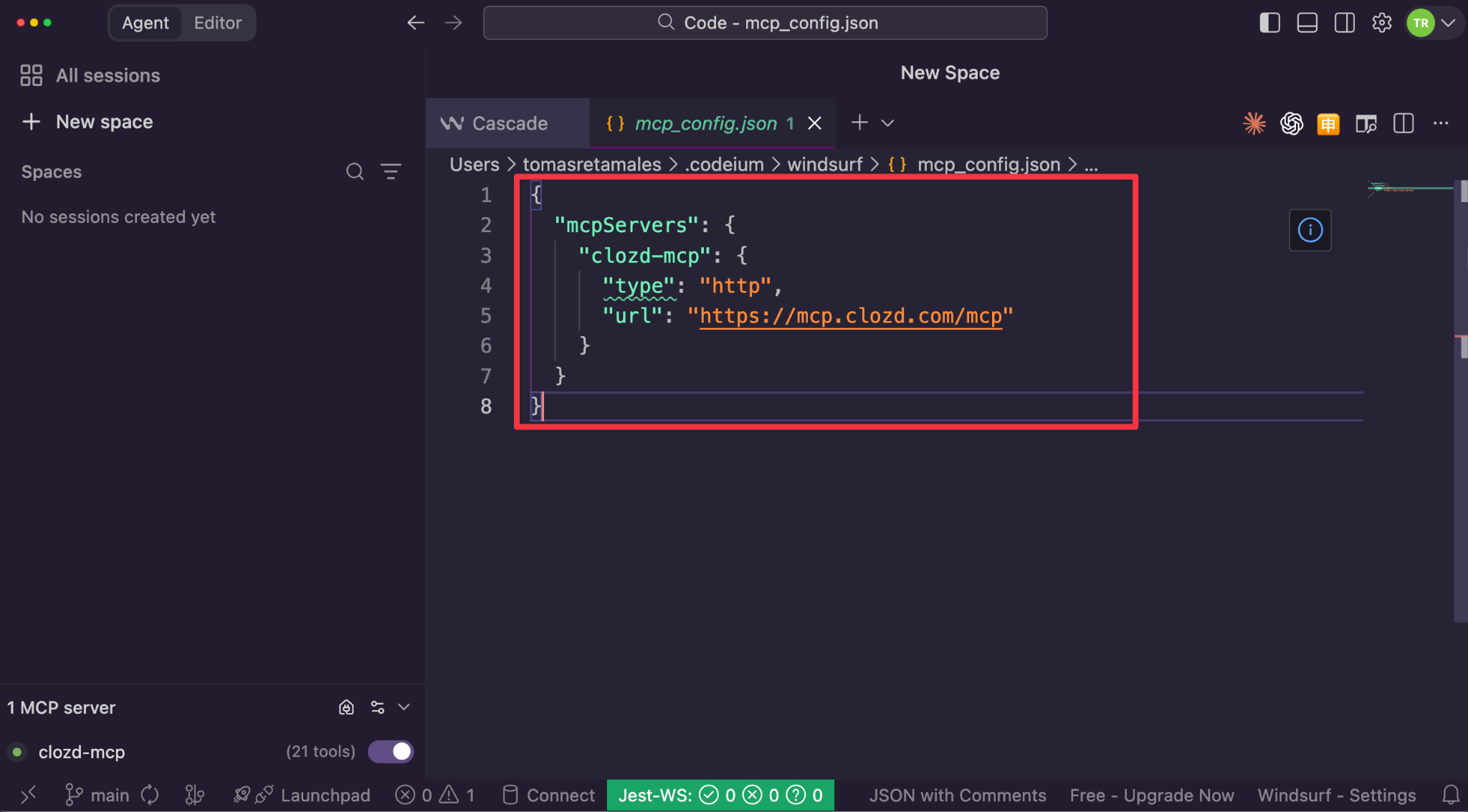
Paste the following configuration into the file:
 {
   "mcpServers": {
     "clozd-mcp": {
       "type": "http",
       "url": "https://mcp.clozd.com/mcp"
     }
   }
 }
4. Authorize access to Clozd
A browser window will open automatically. Enter your Clozd email address. The next screen will show the login method your organization has configured (e.g., password, Google, Okta, or SAML).
5. Verify the connection
Once connected, you'll see Clozd listed under MCP Servers in the bottom-left corner with the number of available tools. Click + New Session and type: "What tools do you have from Clozd?"
Antigravity
Antigravity is an AI-powered IDE that supports MCP servers through its built-in agent settings.
Step-by-step instructions
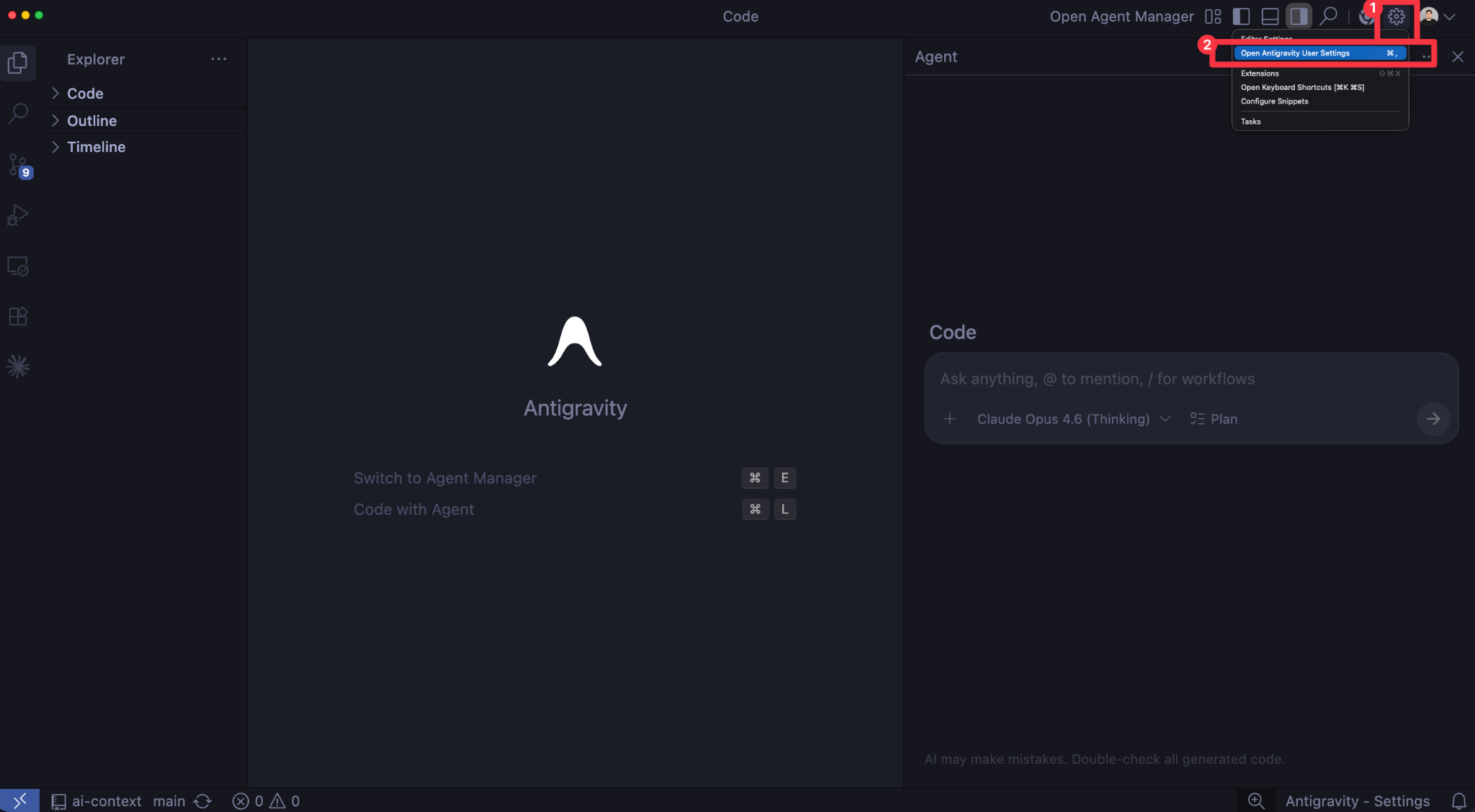
1. Open Antigravity settings
Click the Settings gear icon in the top-right corner → Open Antigravity User Settings. This will open a separate settings window.
2. Open the MCP config file
Click the Customizations tab → Open MCP Config. This will open mcp_config.json back in the IDE window.
3. Add the Clozd server
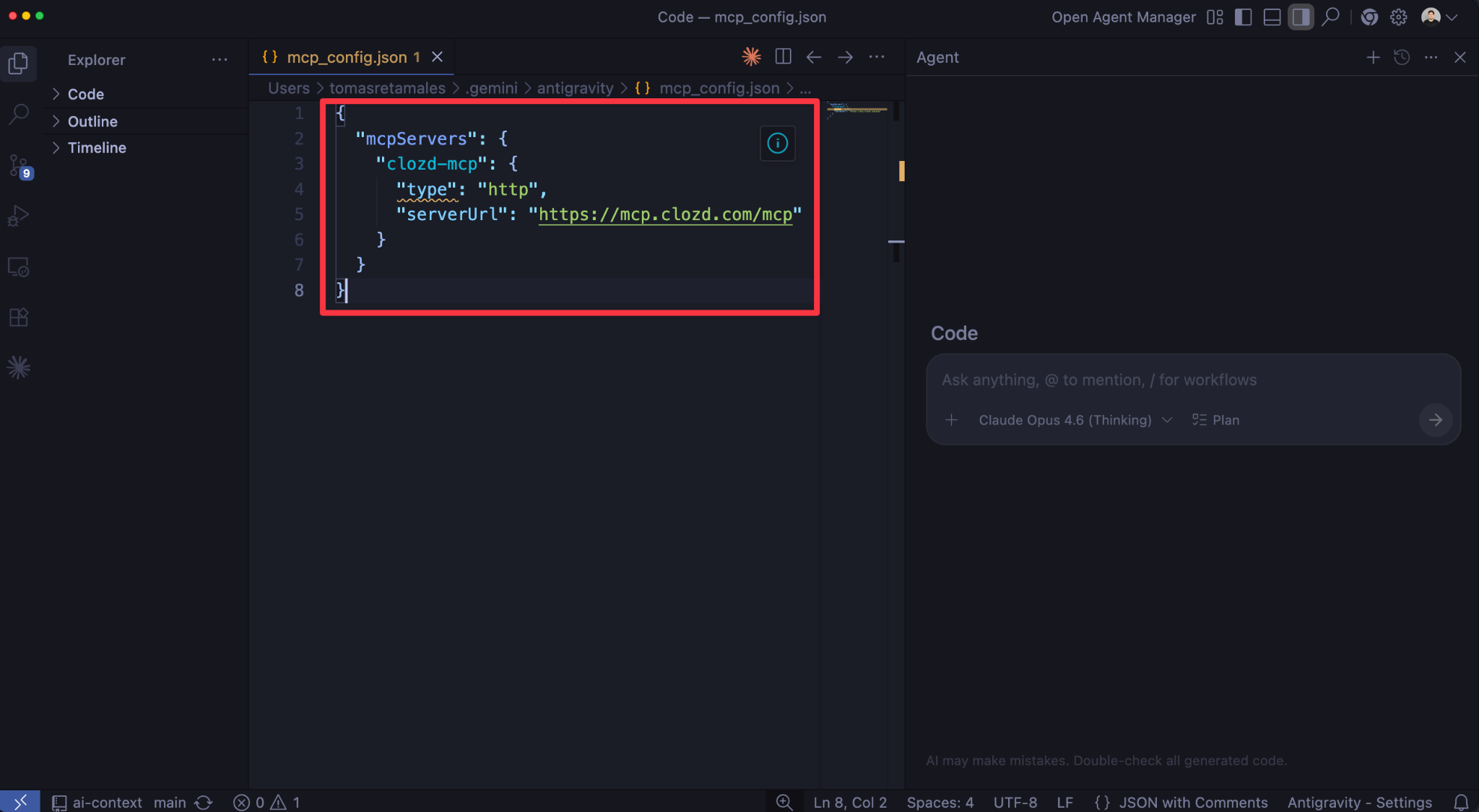
Paste the following configuration into the file:
 {
   "mcpServers": {
     "clozd-mcp": {
       "type": "http",
       "serverUrl": "https://mcp.clozd.com/mcp"
     }
   }
 }
Note: Antigravity requires serverUrl instead of url. Make sure to use the exact key shown above.
4. Refresh and authenticate
Go back to the settings window and click Refresh. Once the Clozd MCP appears, click Authenticate next to it.
5. Authorize access to Clozd
You'll be taken to an authorization page that generates a code. Click Copy to Clipboard, paste the code back into the settings window, and then click Submit.
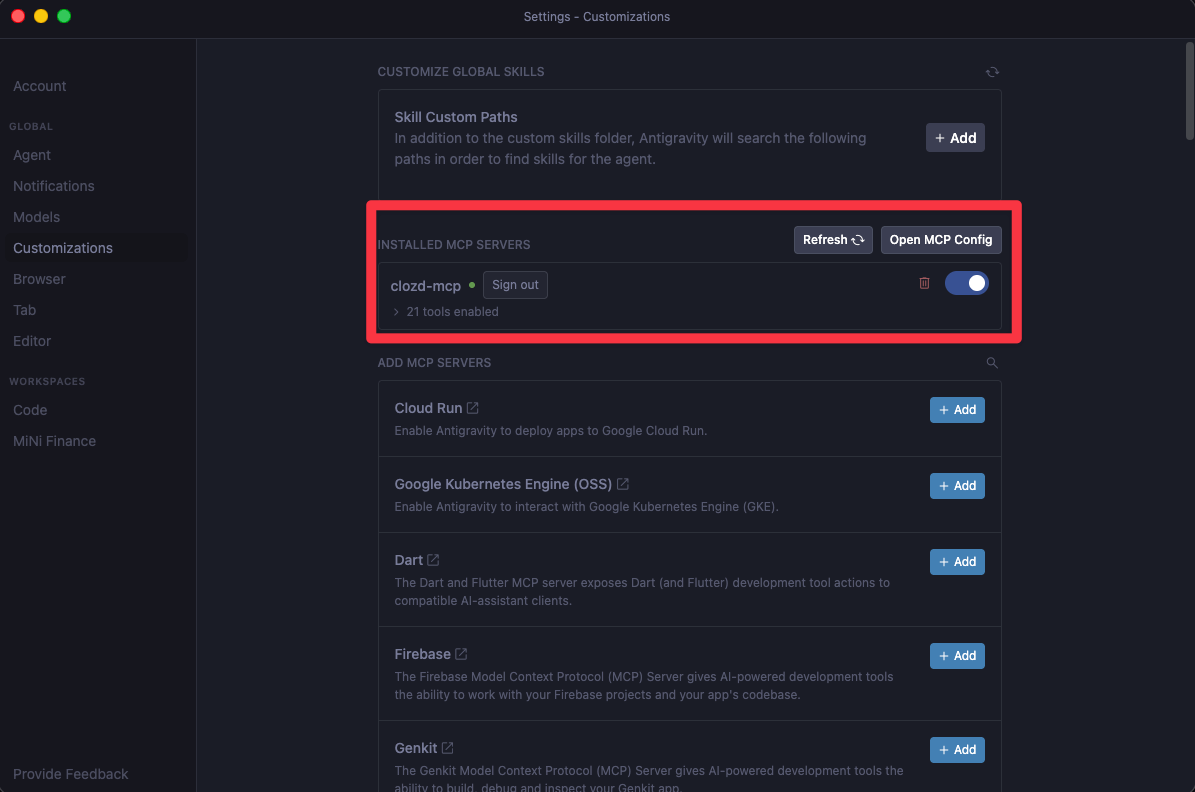
6. Verify the connection
Start a new chat and type: "What tools do you have from Clozd?" Antigravity should list the available Clozd tools.
Gemini CLI
Google’s Gemini CLI supports OAuth-based MCP servers via a local configuration file. This is a terminal-based interface best suited for developers.
Step-by-step instructions
1. Install Gemini CLI
If you haven’t already:
npm install -g @google/gemini-cli
2. Create or edit your MCP config
Open or create ~/.gemini/settings.json and add:
{
  "mcpServers": {
    "clozd": {
      "httpUrl": "https://mcp.clozd.com/mcp"
    }
  }
}
3. Run Gemini CLI
Start a new session:
gemini
4. Authorize via your identity provider
The CLI will open a browser window to complete OAuth login with your organization’s identity provider. Complete the login to activate the connection.
5. Test the connection
List the tools available from Clozd.
Generic setup: Any MCP-compatible client
If you’re using an MCP-compatible client not listed above, use the following instructions. Most clients follow one of two patterns:
Pattern A: URL-based configuration (most common)
Simply enter the server URL. The client will handle OAuth automatically:
Server URL: https://mcp.clozd.com/mcp
No authentication headers or tokens are needed. When you first use a Clozd tool, your client will prompt you to log in via your identity provider.
Pattern B: JSON config file
If your client uses a JSON config file:
{
  "mcpServers": {
    "clozd": {
      "url": "https://mcp.clozd.com/mcp"
    }
  }
}
Refer to your specific client’s MCP documentation for any additional fields required. OAuth will be initiated automatically when the connection is first used.
What data is available?
Below is a list of tools and descriptions of data available through the Clozd MCP server:
| Tool Name | Description |
|---|---|
| get_programs | Lists the Clozd win-loss programs available to the authenticated user. Call this first to retrieve program IDs needed by all other tools. |
| get_deals | Returns a paginated list of deals with fields like outcome, amount, industry, closed date, sales rep, region, and segment. Use to browse or search deal records. |
| get_responses | Returns a paginated list of win-loss interview and survey responses, including deal link, respondent role, channel, and publish date. |
| get_response_summaries | Returns AI-generated summaries of published win-loss feedback. Faster than loading full transcripts when you need a quick read on a response. |
| get_transcripts | Returns full-text transcripts of win-loss interviews or surveys. Best used when the complete conversation content is needed; prefer summaries or quotes for most use cases. |
| get_decision_drivers | Lists individual decision drivers ranked by mention count with sentiment breakdowns. Use to answer "What are the most common reasons we win or lose?" |
| get_decision_driver_categories | Lists high-level driver categories (e.g., Product, Pricing, Support) with aggregated sentiment. Use for broad thematic questions like "Which category of feedback is most negative?" |
| get_decision_driver_category_counts | Returns a frequency count of driver mentions by category. Use when you want a ranked summary of which categories appear most. |
| get_driver_quotes | Returns verbatim buyer quotes linked to a specific decision driver or theme, including respondent context. Use for direct evidence (e.g., "Show me quotes about pricing.") |
| get_win_rates | Calculates overall win-loss rates with optional breakdown by dimension (industry, product, sales rep, deal size, etc.). |
| get_competitors | Lists competitors encountered across deals with encounter counts and win-loss tallies per competitor. |
| get_competitor_sentiment_drivers | Returns the decision drivers associated with a specific competitor filtered by positive or negative sentiment. Use to answer "Why do we beat Competitor X?" or "Why do we lose to them?" |
| get_awe_deals | Returns deals flagged as At-risk, Win-back, or Expansion opportunities. Use to surface actionable accounts for CS, sales, or revenue teams. |
| get_tags | Lists user-defined tags applied to deals with usage counts. Optionally returns the deal IDs associated with each tag. |
| get_gong_drivers | Lists AI-detected decision drivers surfaced from Gong call recordings, with sentiment distribution. Distinct from interview-based drivers. |
| get_gong_driver_categories | Lists high-level category groupings of Gong-identified drivers with sentiment. Use for broad questions about themes emerging in sales calls. |
| get_gong_driver_counts | Ranks Gong-identified drivers by frequency of mention. Use to find the most common themes across Gong call data. |
| get_gong_driver_category_counts | Returns a frequency count of Gong driver mentions by category. Use for a ranked category-level view of Gong call themes. |
| get_gong_driver_overlap | Compares Gong-identified drivers against Clozd interview drivers to show alignment and gaps between the two data sources. |
What can you ask?
Once connected, here are some example prompts to try:
- Summarize the top win-loss themes from the last 90 days.
- What are the most common reasons we lose to [Competitors]?
- Pull insights from our last 10 win interviews.
- What product gaps are showing up most often in loss interviews?
- Compare win rates by deal size over the past two quarters.
Coming soon
Native Clozd MCP integration is being submitted to Claude.ai’s connector marketplace and OpenAI’s plugin directory. Once approved, you’ll be able to connect with a single click, no configuration file required.
Need help?
If you run into issues connecting or using the Clozd MCP server:
- Email: support@clozd.com
- Clozd Help Center: https://help.clozd.com
- Contact your Clozd program manager directly