
Overview
The Gmail integration provides two key capabilities to help improve your program participation rates:
Send from Gmail (Read & Send): Send program emails directly from your team members' Gmail accounts instead of from Clozd's domain. By sending emails directly from your Gmail account, you leverage your organization's existing email reputation and IP address rather than Clozd's shared infrastructure. This significantly reduces the likelihood that your program emails will be blocked by spam filters or corporate firewalls, leading to higher open rates and better participation. When using the Read & Send capabilities, you also have access to all of the Inbox monitoring capabilities (see below).
Inbox monitoring (Read Only): Monitor connected Gmail inboxes for participant responses when using DKIM to send emails (for more information, see DKIM). By monitoring your Gmail inbox for participant responses, Clozd can automatically stop sending follow-up emails to participants who have already replied. This prevents over-communication, improves the participant experience, and ensures that your team members don't send unnecessary reminders to engaged participants.
These integrations give you more control over email deliverability and help improve participation rates in your programs. This article will be broken out into the following sections:
Setup process
Step 1: Connect Gmail accounts
Organization administrators can invite team members to connect their Gmail accounts. You can choose between two permission levels:
Read & Send: Allows Clozd to send emails directly from Gmail AND monitor the inbox for responses
Read Only: Allows Clozd to monitor the inbox for participant responses (useful when combined with DKIM)
Organization admin instructions:
- From your organization’s homepage, navigate to Admin → Integrations → Gmail and click the Settings button on the Gmail banner.
- Click + Add to choose a user whose Gmail account you want to connect. If the person hasn’t been added as a user in Clozd yet, add them on the Admin → Users page.
- Choose the correct permissions (Read & Send or Read Only) based on your needs, and hit the Invite button.
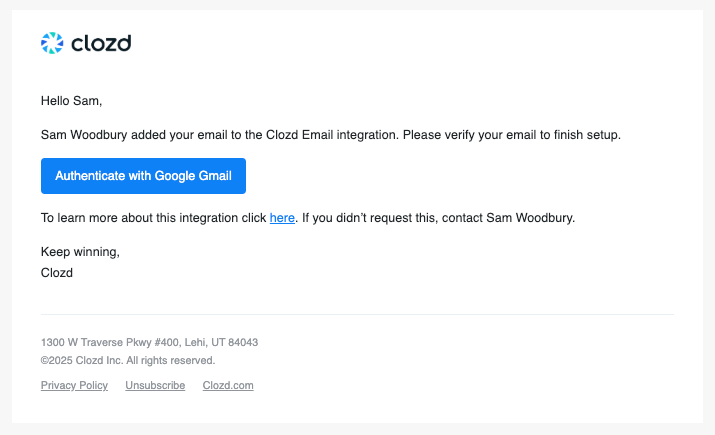
- The user will receive a verification email. Once verification is complete, you'll see the account listed as Active with the selected permission level.
- Edit, Resend Verification Link, or Delete an integration by clicking the 3 dots under Actions.
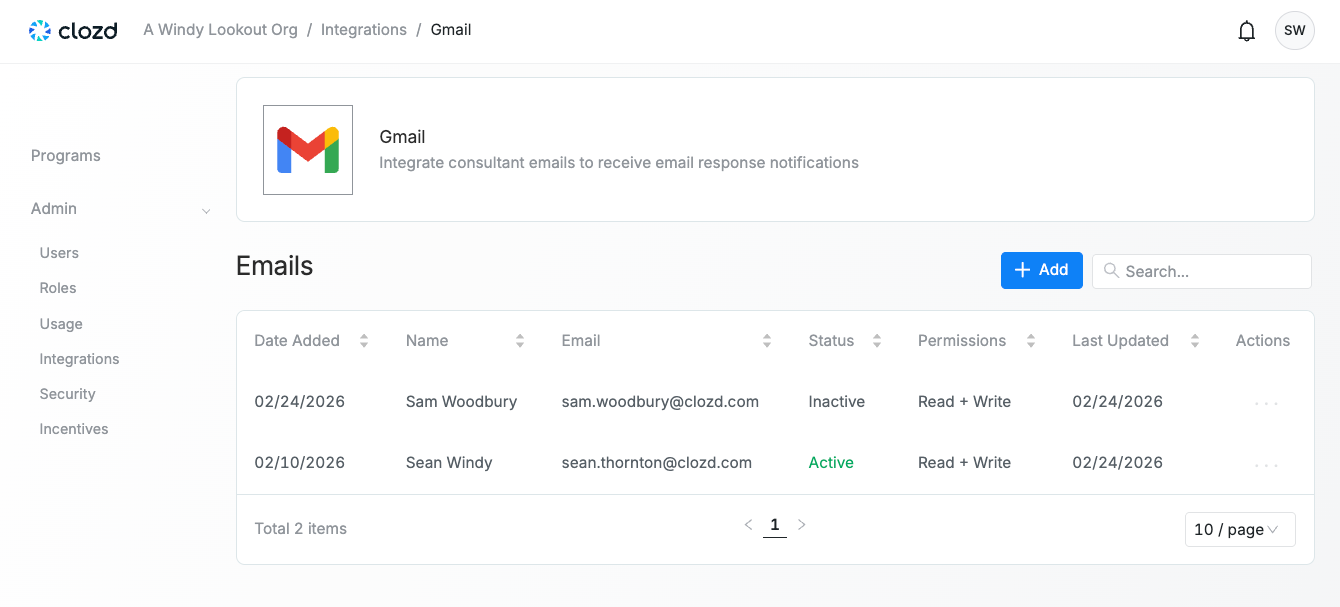
Note: You can connect multiple Gmail accounts from different team members. This is useful if different people manage different programs or if you need to distribute email sending across multiple accounts to stay within daily limits.
User instructions:
- Navigate to the verification email that you received from Clozd (subject line is Allow Clozd access to your email).
- Click the Authenticate with Google Gmail button.
- Sign into your Gmail account. Make sure to choose the account that matches the email in your inbox.
Step 2: Configure email settings in your sequence
Once Gmail accounts are connected, you can configure your sequences to send from those accounts.
- From your program's homepage, navigate to Configuration → Feedback Collection → Sequences.
- Create a new sequence or edit an existing one.
- In the Email Settings section (under the Client section), select Email Integration.
- Choose the connected Gmail account from the dropdown list.
- In each email in the sequence, you now have the option to choose From {{Org Name}}. Selecting this option will show the Gmail account selected as both the sending and receiving address.
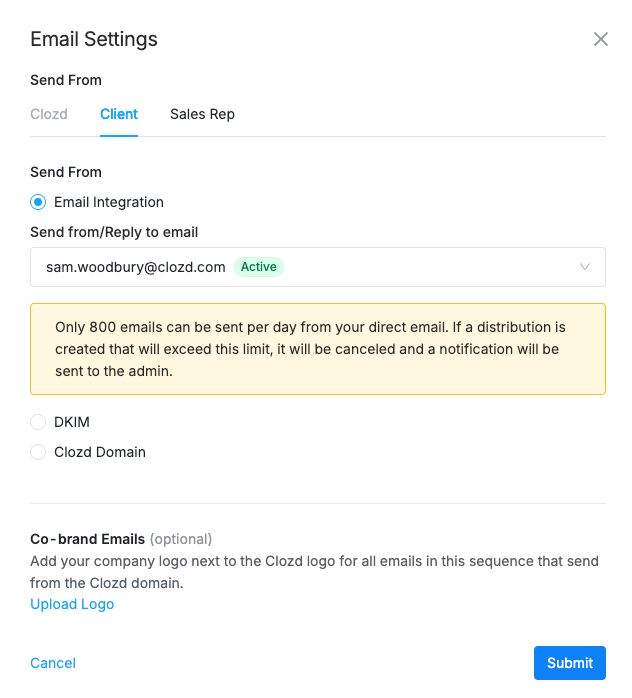
Note: If you also have DKIM configured, you'll see both options in the dropdown in Email Settings. Make sure to select the Gmail account with the Email Integration label if you want to use the Gmail integration feature.
Step 3: Create and send distributions
Once your sequence is configured, you can create distributions as usual:
- Create a manual distribution or use an automated workflow.
- Select the sequence configured with Gmail Integration.
- The system will validate that your distribution doesn't exceed daily sending limits (see Daily Sending Limits below).
- Emails will be sent directly from the connected Gmail account.
Expected functionality
Inbox monitoring (read-only)
When you connect a Gmail account with Read Only permissions, Clozd monitors the inbox for participant responses:
- The system periodically checks the connected inbox for replies every ~15 minutes from program participants.
- When a participant responds to a program email, Clozd automatically identifies the response.
- The sequence for that participant is immediately discontinued. No further follow-up emails will be sent to participants who have replied.
- This works seamlessly with DKIM-configured emails or emails sent from an integrated Gmail account, allowing you to send from your domain while still benefiting from intelligent response detection.
Email sending (read & send)
- Emails are sent directly from the connected Gmail account.
- Recipients will see the email as coming from your team member's Gmail address.
- Emails will appear in the Sent folder of the connected Gmail account.
- The email will show as mailed by your domain in the recipient's inbox.
- When using Read & Send permissions, inbox monitoring is also active (see above).
Daily sending limits
To protect your Gmail account from being flagged as a spam account or bulk sender, Clozd enforces a limit of 800 emails per day per connected Gmail account.
- Manual distributions: If you try to create a distribution with more than 800 recipients using the Gmail integration, you'll see a warning message asking you to reduce the recipient list.
- Scheduled distributions: These are validated when the scheduled send time arrives. If the distribution would exceed the limit, it will fail and you'll receive a notification.
- Automated distributions: These are checked each time the workflow attempts to create a distribution. If it would exceed limits, the distribution will fail and participants will remain in Ready for Distribution status until the next scheduled attempt.
Status and tracking
- You can view email delivery status in the Distribution History.
- Email statuses include: Sent, Bounced/Failed.
- Workflow participant statuses update appropriately based on email delivery.
Note: Email open tracking is not currently supported for the Gmail integration
Managing connected accounts
In the Gmail integration settings page, you can:
- See which accounts are connected and their permission levels (Read Only vs. Read & Send)
- Send new verification emails if team members need to reconnect
- Edit permissions (this requires re-authentication)
- Remove connected accounts
Note: You cannot delete a Gmail integration that's currently being used in an active sequence. You must first remove it from all sequences before deletion.
Frequently asked questions
What's the difference between the Gmail integration and DKIM?
DKIM (DomainKeys Identified Mail) allows Clozd to send emails that appear to come from your domain but still use Clozd's IP addresses and email infrastructure. The Gmail integration with Read & Send permissions sends emails directly from your Gmail account using your own email server and IP address, which provides better deliverability.
You can use both features together:
- DKIM + Gmail Read only: Send emails from your domain via DKIM while monitoring your Gmail inbox for responses to automatically stop sequences when participants reply.
- Gmail Read & Send only: Send directly from Gmail with automatic inbox monitoring included.
Why is there an 800 email per day limit?
Gmail has a daily sending limit of approximately 2,000 emails for standard accounts. We set our limit at 800 emails per day per account to ensure that you can still use your Gmail account for regular business email without risk of being blocked or flagged as spam.
What happens if I exceed the daily limit?
If a distribution would cause you to exceed the 800 email daily limit:
- Manual distributions: You'll see an immediate warning and need to reduce your recipient list.
- Scheduled or automated distributions: The distribution will fail, you'll receive a notification, and participants will remain in their current workflow status. The system will attempt to create the distribution again on the next scheduled run.
Can I send from multiple Gmail accounts?
Yes! You can connect multiple Gmail accounts from different team members. This allows you to:
- Distribute email sending across multiple accounts to handle larger volumes
- Have different programs send from different team members
- Ensure continuity if one account becomes unavailable
Note: Only one Gmail account can be used per sequence.
Is the Gmail integration secure?
Yes! Our Gmail integration conforms to the security guidelines set by Google for approved use cases, and leverages secure OAuth standards.
-
Clozd never sees or stores your Google password or login information.
-
The gmail.send scope is limited to sending emails that are approved and initiated by the program admins.
-
The gmail.readonly scope only detects replies and bounce notifications associated with threads initiated by Clozd.
- Clozd uses targeted filters, such as thread IDs and message identifiers, to ensure that we don't access unrelated inbox content.
- Clozd does not scan entire mailboxes, export email data, or store message bodies beyond what is necessary to determine response or delivery status.
-
Permissions can be easily revoked by the organization’s Google Admin or the account holder.
What happens if the Gmail connection breaks?
If the Gmail authentication token expires or the connection is lost:
- The integration status will change to Inactive
- You'll receive a notification email requesting re-authentication
- Any sequences using that integration will be affected
- You'll need to reconnect the Gmail account by clicking the verification link
Will emails appear threaded in my Gmail account?
Currently, emails from a sequence are sent as individual messages and are not threaded together. Each email in the sequence appears as a separate conversation in both your sent folder and the recipient's inbox.
Can I track email opens with the Gmail integration?
Email open tracking is not currently available for the Gmail integration. You can track:
- Sent status
- Bounced/Failed status
- When participants schedule or complete interviews
Do I need "Read and Send" permissions or just "Read Only" permissions?
Read and Send permissions are required to send emails directly from Gmail using the Gmail integration feature. This also includes inbox monitoring to automatically stop sequences when participants respond.
Read Only permissions allow Clozd to monitor your Gmail inbox for participant responses without sending emails from Gmail. This is useful when:
- You have DKIM configured and want to send from your domain (via Clozd's infrastructure)
- You still want the benefit of automatic sequence discontinuation when participants reply
- You don't want Clozd to send emails directly from your Gmail account
With Read Only permissions, Clozd will check your inbox for replies and stop follow-up emails for participants who have responded, preventing over-communication.
What happens to automated workflows if I delete a connected Gmail account?
You cannot delete a Gmail integration that's actively being used in a sequence. You must first:
- Remove the Gmail integration from all sequences that use it
- Update any workflows that use those sequences
- Then you can delete the Gmail integration
Who can see and manage Gmail integrations?
Organization administrators can:
- Send invitations to connect Gmail accounts
- See all connected accounts and their status
- Remove integrations
- Manage permissions
Program managers with access to the integrations page can also manage connected accounts.
Need help?
If you have questions about setting up or using the Gmail integration, please contact your Clozd program manager or reach out to support@clozd.com.