
Overview
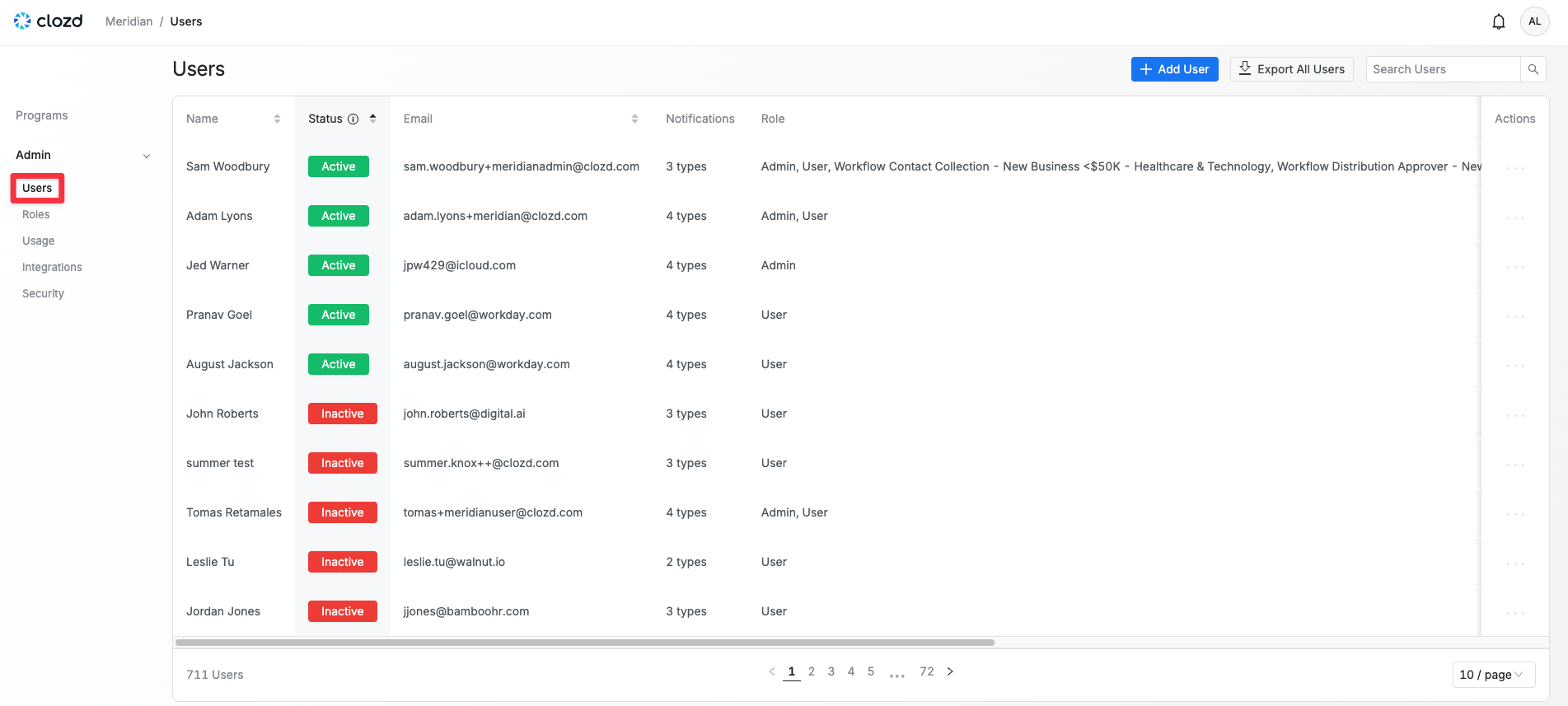
The Users section displays all users within your organization who have access to the Clozd Platform, along with details about their roles, activity status, and more.
This article contains the following sections:
Users
When you click on the Admin tab, the first option in the dropdown is the Users section. This section displays a list of all Clozd Platform users within your organization.
You can view and filter users by:
- Name
- Status
- Notifications
- Role
- Last login
- Login count
- Created date
- Department
- Level
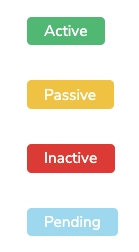
Status
See how active users are by seeing their login status.
- Active: An active status denotes a user that has logged into the Clozd Platform in the last 30 days.
- Passive: A passive user is one whose last login was between 30 and 180 days ago.
- Inactive: An inactive user has not logged in within the last 180 days.
- Pending: A pending user is one who has yet to accept the email invite to create an account.
Here is the current notification logic by user status:
- AI summary: Notifications are sent only to enabled users (Active, Passive, or Inactive) and Pending users.
- Published interview: Notifications are sent only to enabled users (Active, Passive, or Inactive) and Pending users.
- Reports: Notifications are sent only to enabled users (Active, Passive, or Inactive).
- Comments: Email notifications are required and are sent to all users, regardless of status.
- Tags: Notifications are sent to all subscribed users, regardless of status.
If a Pending user would like to receive reports, an admin can manually send them a report by selecting the user from the dropdown list in the Reports section.
Notifications
View the notifications each user is subscribed to. Hover over the number of notification types to see which notifications they have enabled.

See the Edit user section for details on how to modify a user’s notification settings.
Actions
Here you have the ability to edit a user's account. The available actions vary depending on what kind of user they are.
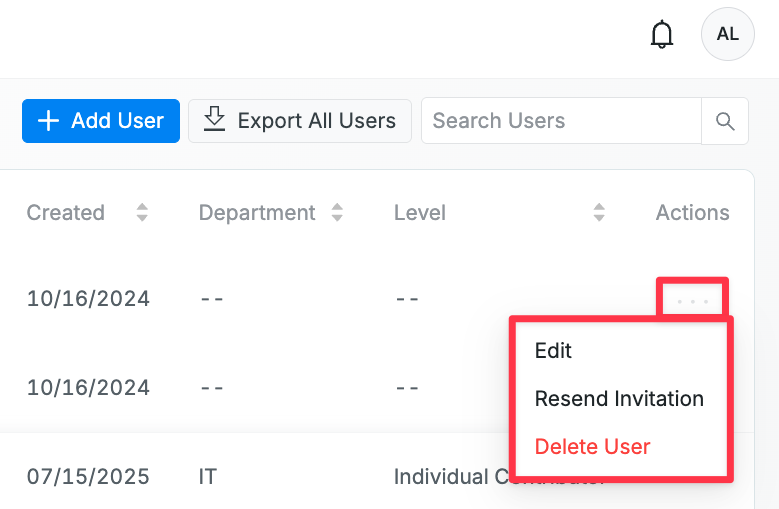
If they're an Active user, you have the option to edit, or send reset password.
If they're a Passive user, you have the option to edit, send reset password, disable, or delete user.
If they're an Inactive user, you have the option to edit, send reset password, disable, or delete user.
If they're a Pending user, you have the option to edit, resend invitation, or delete user.
Edit users
To edit a user, click on the ... under Actions, then select Edit.
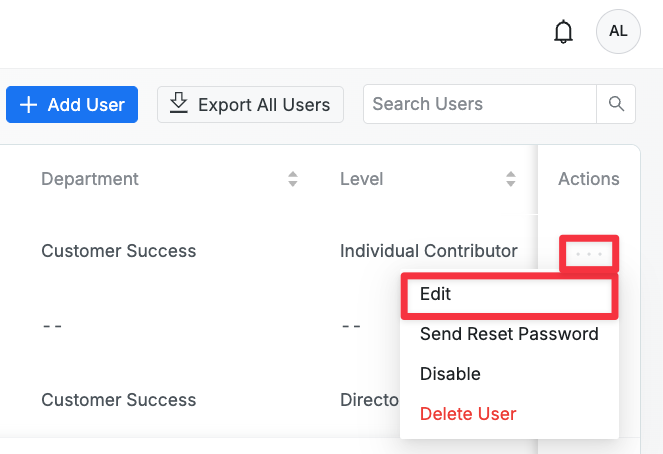
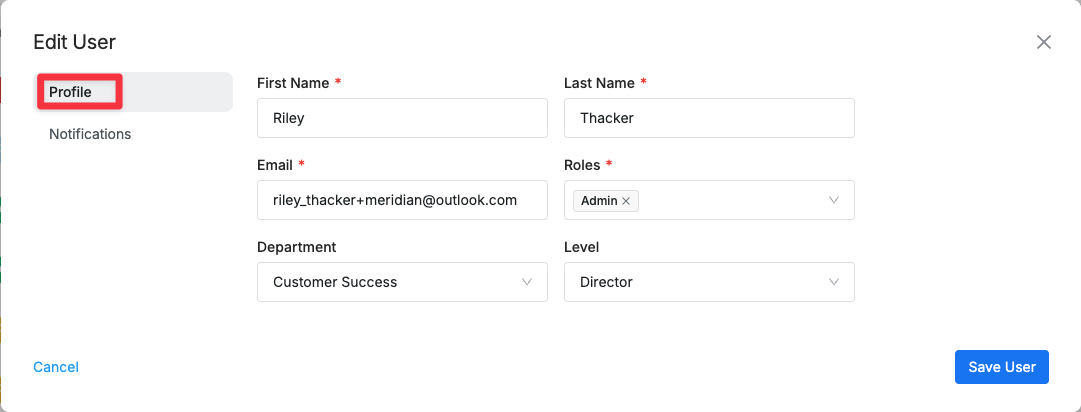
The pop up box will default to the Profile section on the left. This is where you can edit the user's first name, last name, email, roles, department, and level.
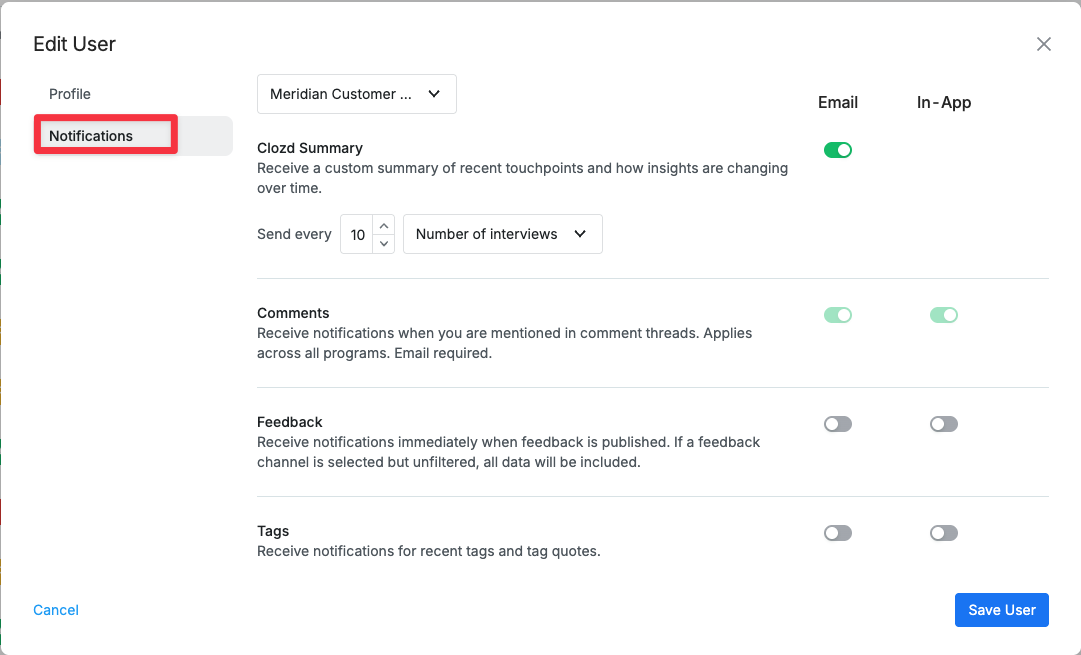
To edit what notifications the user has, click on Notifications on the left hand side of the Edit User pop up box (found under Profile).
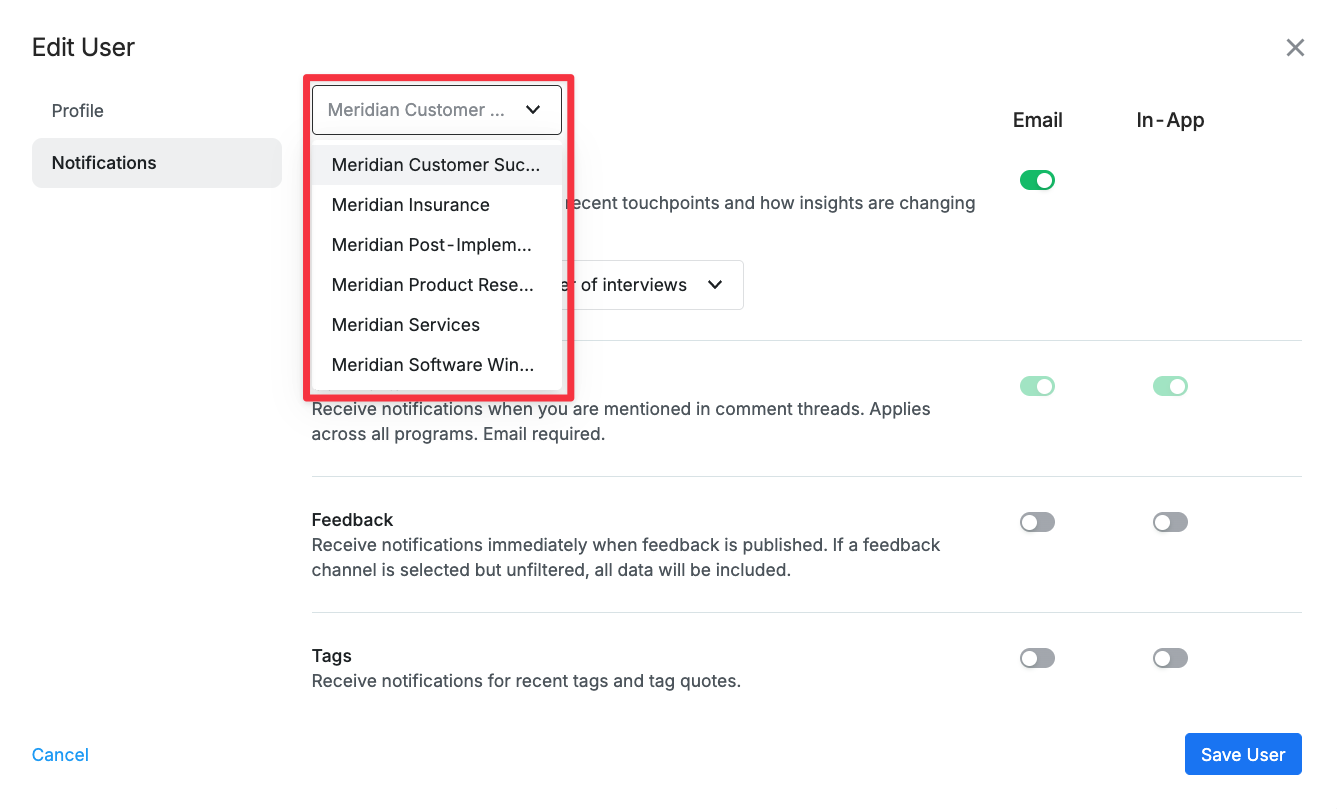
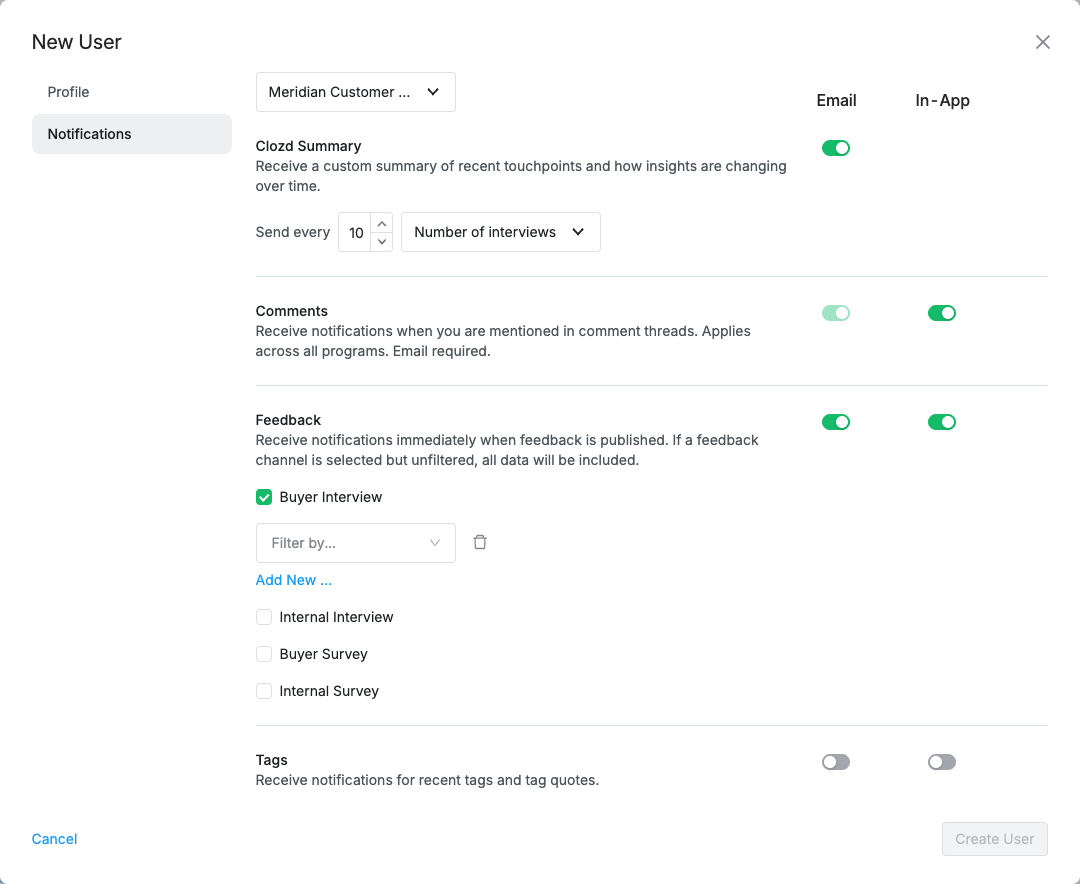
To customize your notifications for a specific program, select the program from the dropdown menu at the top of the page.
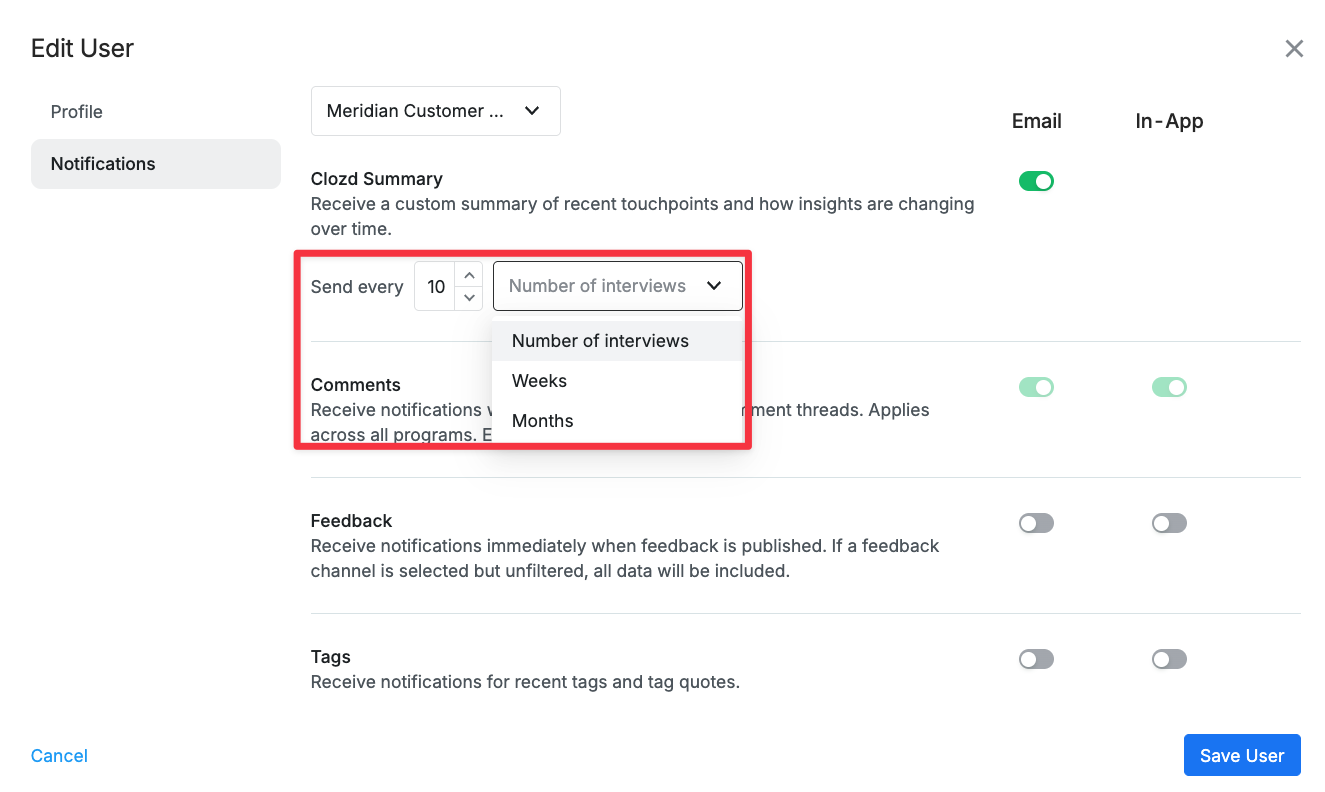
To send Clozd summaries of recent touchpoints or opportunities, you can choose how often these notifications are sent, based on the number of interviews, weeks, or months.
Click Save User when you’ve finished making your changes.
Reset password
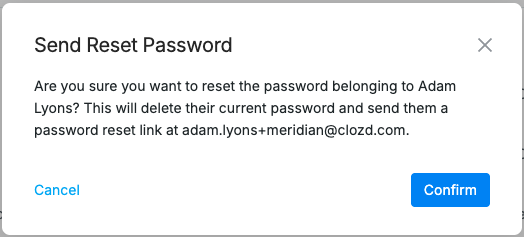
When you click Send/Resend Reset Password, you will see a pop up making sure you want to send the reset. If you send the reset password, this will delete their current password and send them a reset link.
Add users
To grant additional employees access to the Clozd Platform, click the blue Add User button in the top-right corner of the page. The following pop-up window will appear:
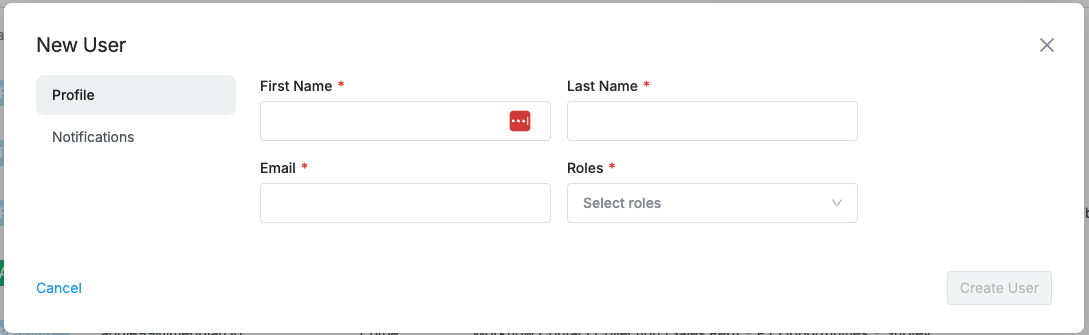
On the Profile tab, enter the new user’s contact information and assign a role. By default, the available roles are Admin or User. Then navigate to the Notifications tab to select which notifications the user should receive. Users can later update their notification preferences in their Account Settings.
After you click Create User, the new user will receive an email invitation to activate their account.
Note: Adding a user directly through this page only works if your organization is NOT set up with SSO (Single Sign-On). If your organization uses SSO, please contact your IT team to add the user.
Delete users
To delete a user, click on the ... under Actions, then select Edit.
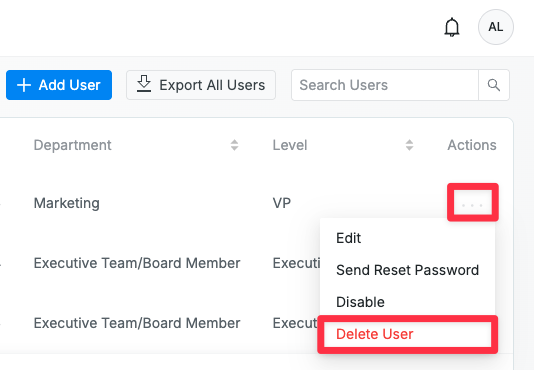
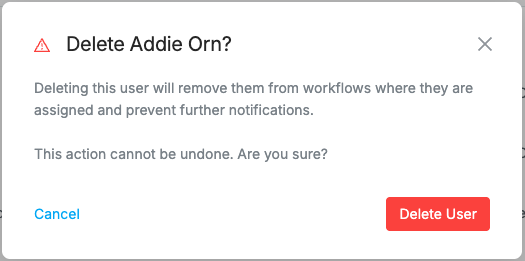
From the dropdown, choose Delete User. A confirmation pop-up will appear asking you to confirm the deletion. If you’re sure, click Delete User to proceed.
Questions?
For questions about managing users, please contact support@clozd.com.