
Overview
The Sales Rep Email (Email 0) is an optional workflow setting that notifies sales reps before outreach begins to buyers on their deals. When sales reps encourage their buyers to participate in win-loss feedback, participation rate is 25% higher.
This email gives sales reps visibility into which deals are about to receive outreach and allows them to review and confirm that outreach should proceed. It helps prevent surprises and ensures internal stakeholders are aligned before Clozd contacts participants.
This article will cover:
- What is the Sales Rep Email (Email 0)?
- When the Sales Rep Email is sent
- Where to configure the Sales Rep Email
- What the Sales Rep Email includes
- How the Sales Rep Email relates to Sequences and Distributions
- Stopping outreach after a distribution starts
- FAQs
- Questions
What is the sales rep email (Email 0)?
The Sales Rep Email is a notification sent to the sales rep associated with a deal before buyer outreach begins. If you hear the term Email 0, don't worry, as they both refer to the same thing.
The purpose of the Sales Rep Email is to:
- Notify sales reps of upcoming outreach to participants.
- Avoid unexpected outreach to buyers.
- Encourage sales reps to participate in outreach.
This email is typically used in workflows where internal visibility and approval are important before contacting participants.
When the sales rep email is sent
The timing of the Sales Rep Email depends on how outreach is initiated.
Automated outreach
When outreach is automated, the Sales Rep Email is sent 48 hours before buyer outreach begins (excluding weekends). This gives sales reps time to review deals and make any necessary updates.
Note: The Sales Rep Email must be enabled at least 48 hours before scheduled outreach in order to send. If the Sales Rep Email is enabled fewer than 48 hours before the next scheduled outreach, the Sales Rep Email will not be sent.
For example, if automated outreach is scheduled for Monday at 4:00 PM, the Sales Rep Email will be sent on Thursday at 4:00 PM, since the 48-hour window does not include weekends.
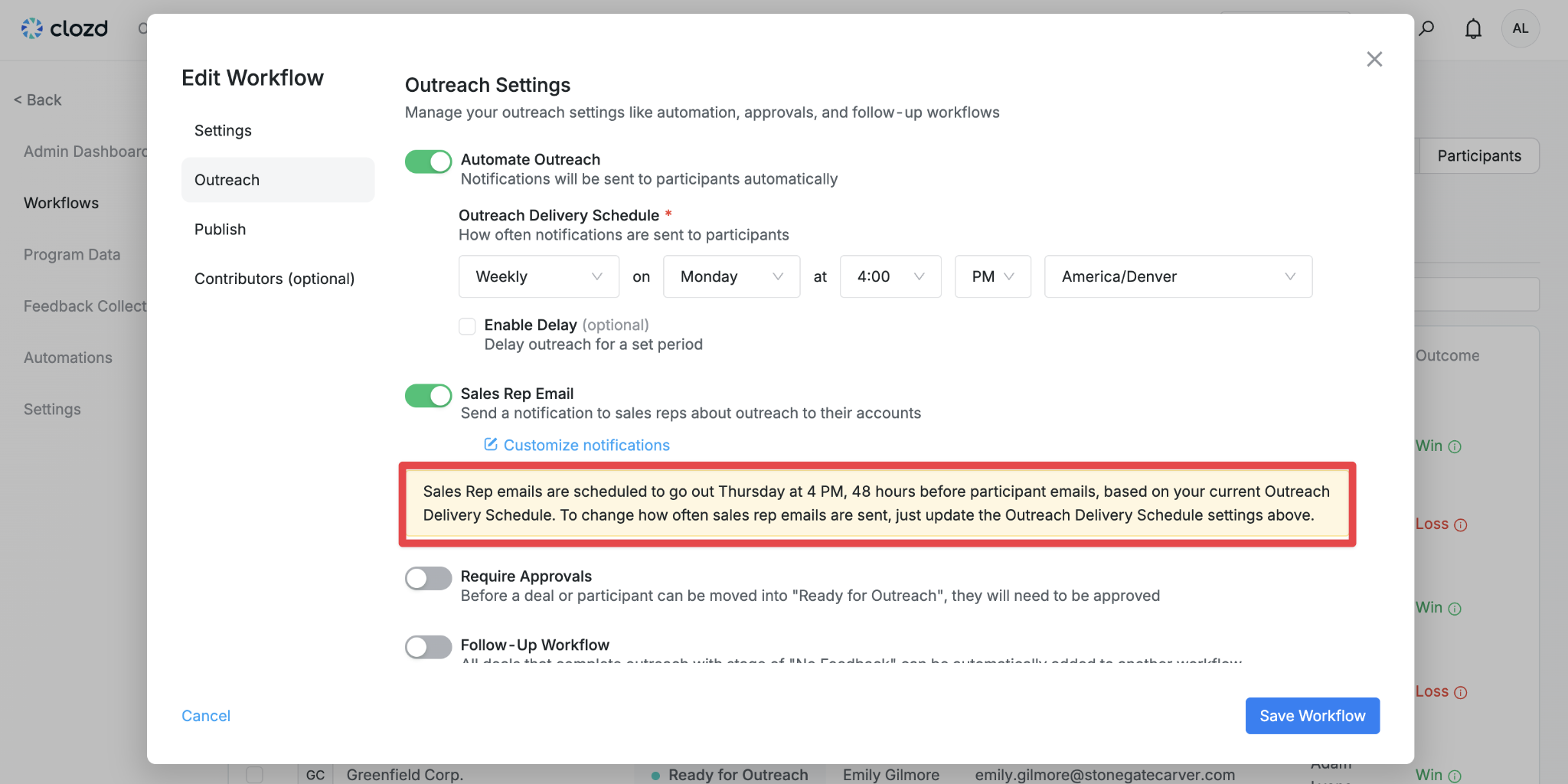
Note: If the Sales Rep Email is enabled, the Next Distribution notification will update to reflect when the Sales Rep Email will be sent. This does not indicate when outreach will be sent to customers. Customer outreach will still be sent according to the schedule defined in the Outreach Settings.

Manual outreach
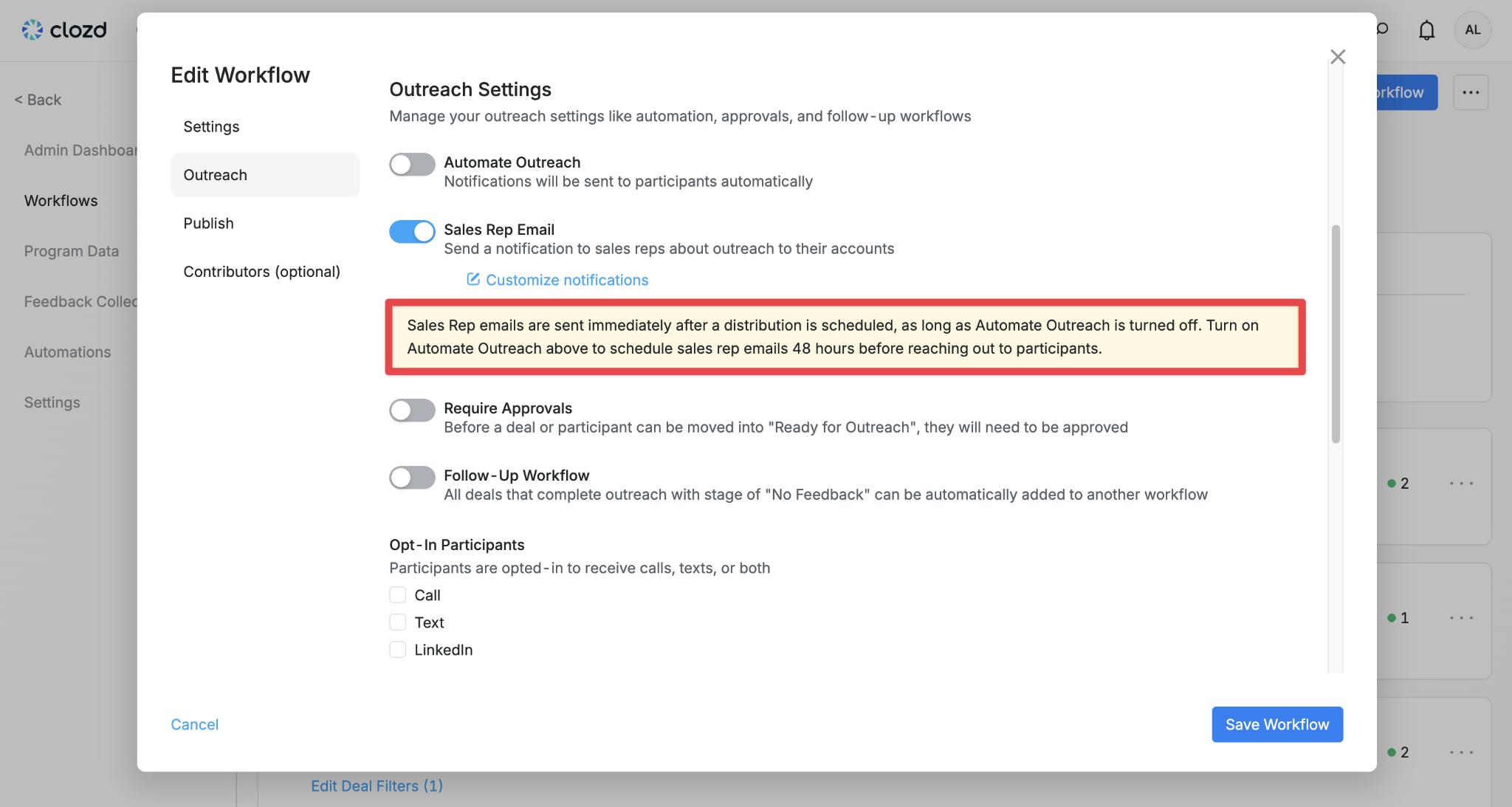
When outreach is triggered manually using Request Feedback, the Sales Rep Email is sent immediately.
Where to configure the sales rep email
The Sales Rep Email is configured at the workflow level.
To enable or edit the Sales Rep Email:
- Navigate to Configuration → Workflows
- Select the workflow you want to edit
- Open the workflow settings
- Locate the Sales Rep Email section in the Outreach Settings.
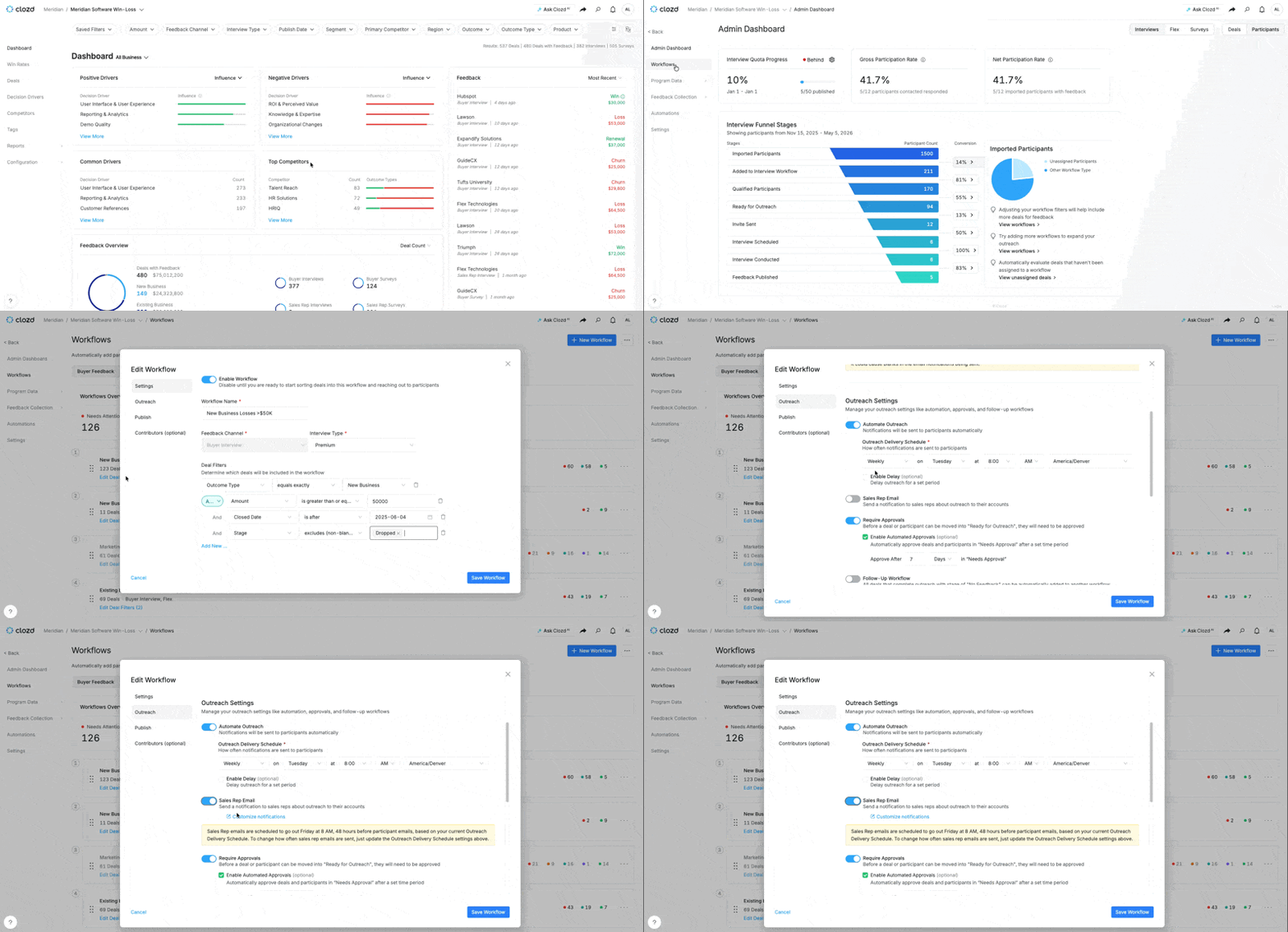
To edit the email that will be sent out, click on Customize Notifications under Sales Rep Email. You'll be taken to a screen where you can edit the subject line and body of the email.
What the sales rep email includes
When the Sales Rep Email is enabled, you can configure who receives the email and what information is included.
We can send the Sales Rep Email from DKIM?
Email content
The Sales Rep Email includes a required deal list section that cannot be removed.
This section shows the recipient which deals are included in the upcoming outreach so they can review them before outreach begins.
The default email looks like the following:
Hi John Doe,
As part of our ongoing effort to improve our understanding of why deals are won or lost, we have partnered with Clozd, a leader in win-loss analysis. Clozd specializes in gathering direct, unbiased feedback from buyers to help us enhance our sales process, product offering, and overall competitive advantage.
Below we have attached a list of your clients that we will be reaching out to in the next few days.
When you receive the email, please reply and encourage your buyer to participate. It can be as simple as:
"Hi [First Name], thanks for evaluating [Company Name]! Just wanted to confirm this is a legitimate request from our partner, Clozd. We'd really appreciate your feedback - thanks so much!"
This initiative has been proven to uncover actionable insights that help teams like ours win more deals. Please reach out to your program admin if you have any questions.
Best regards,
[Your Name]
[Your Title]
Participants
John Doe • Zion's Medical Center
Jane Doe • Cottonwood Clinic
How the sales rep email relates to Sequences and distributions
Email 0 is part of the broader outreach workflow and works alongside sequences and distributions.
- A Sequence is the set of email templates and timing rules used for outreach (see Sequences for more information)
- A Distribution is the batch of participants enrolled into a sequence, either manually or through workflows
The Sales Rep Email is sent prior to the distribution’s outreach beginning.
Stopping outreach after a distribution starts
If a distribution has already been created and you need to stop outreach for a specific participant, this must be handled at the distribution level.
To stop outreach:
- Locate the participant within the distribution
- Discontinue or remove them from the distribution
This will prevent further outreach to that participant.
Once the Sales Rep Email has been sent out, the deals will show in "In Progress." This does NOT mean that outreach has started to the participant. If you discontinue the participant in the Distribution History, they'll be moved back into Ready for Distribution if outreach hasn't sent to the participant.
To stop the current distribution, go to Configuration → Feedback Collection → Distribution History, and search for the participant. Click on the three dots on the right side of the distribution, and select View Participants. Locate the Actions column on the far right, and click Discontinue. Click Discontinue in the box asking if you're sure you want to discontinue further emails. This will stop the rest of the emails in the distribution from going to the participant.
Note: If you'd like to stop all current emails in the distribution AND any further emails from across your organization, click Do Not Contact instead of Discontinue.
If you'd like to not have the participant reached out to in the next distribution, make sure to exclude the participant from the workflow AND discontinue them in the Distribution History.
FAQs
Why didn't the sales rep email send?
The most common reason the Sales Rep Email is not sent is timing. The Sales Rep Email will not send if it was enabled fewer than 48 hours before the scheduled outreach start time.
Won't the sales reps get spammed with all of the emails?
Sales Reps will only get one email per distribution, with a list of all of the buyers that will be contacted.
What happens if my outreach is sent daily?
Daily outreach still includes a 48-hour buffer. The Sales Rep Email is sent each day to any participants in the Ready for Outreach status, and the corresponding distribution is then scheduled to send 48 hours later.
Questions?
If you have questions about configuring the Sales Rep Email or managing outreach, please contact your Clozd program manager or reach out to support@clozd.com.