Overview
As a Contributor, you're responsible for reviewing deals, confirming participant information, and approving outreach when required.
The Contributor Portal allows you to complete these tasks directly within the Clozd Platform without needing full access. Instead of relying on spreadsheets or back-and-forth communication, you can quickly take action on your assigned deals in one place.
This article contains the following sections:
- What is Clozd?
- Accessing your assigned deals
- Updating contact information for outreach
- Approving or rejecting deals and participants
- Reviewing additional deal details
- What happens after you take action
- Accessing the Contributor Portal for admins
- Questions
What is Clozd?
Clozd is a platform that helps businesses collect candid, in-depth feedback from their buyers. Your company uses Clozd to better understand why it's winning and losing deals, and to make more informed decisions to improve future performance.
As part of this process, Clozd works with your company to collect a curated list of contacts for each deal. You've been identified as a Contributor, which means that you're responsible for reviewing your assigned deals, confirming participant information, and approving outreach when required.
Accessing your assigned deals
If you have deals that need attention, you will receive an email notification that looks like this:
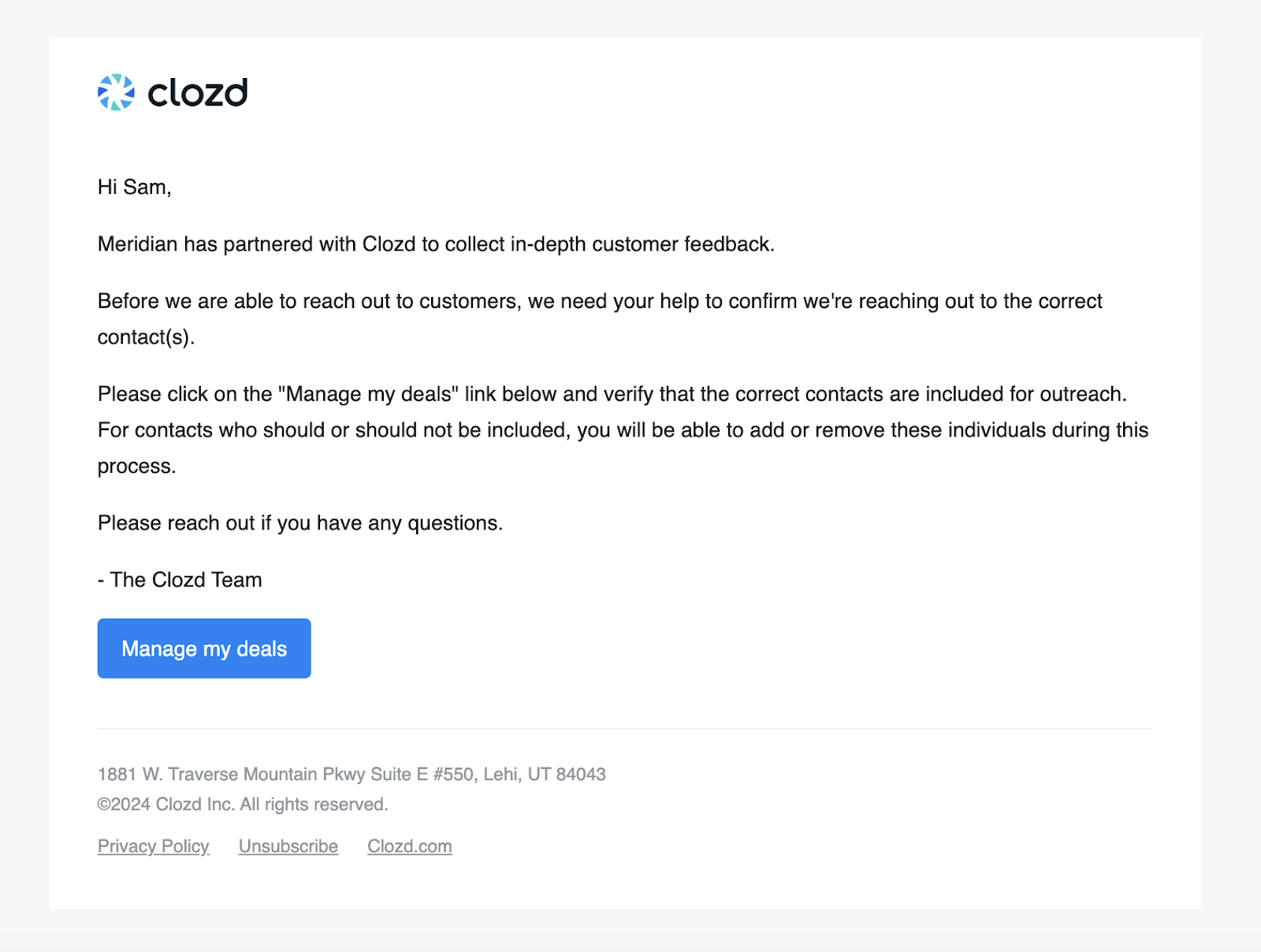
This email includes a secure link to the Contributor Portal, where you can manage your assigned deals.
Clicking the link will automatically log you in. If this is your first time accessing the portal, you may be asked to:
- Enter your name, department, and level
- Set a password (depending on your organization’s setup)
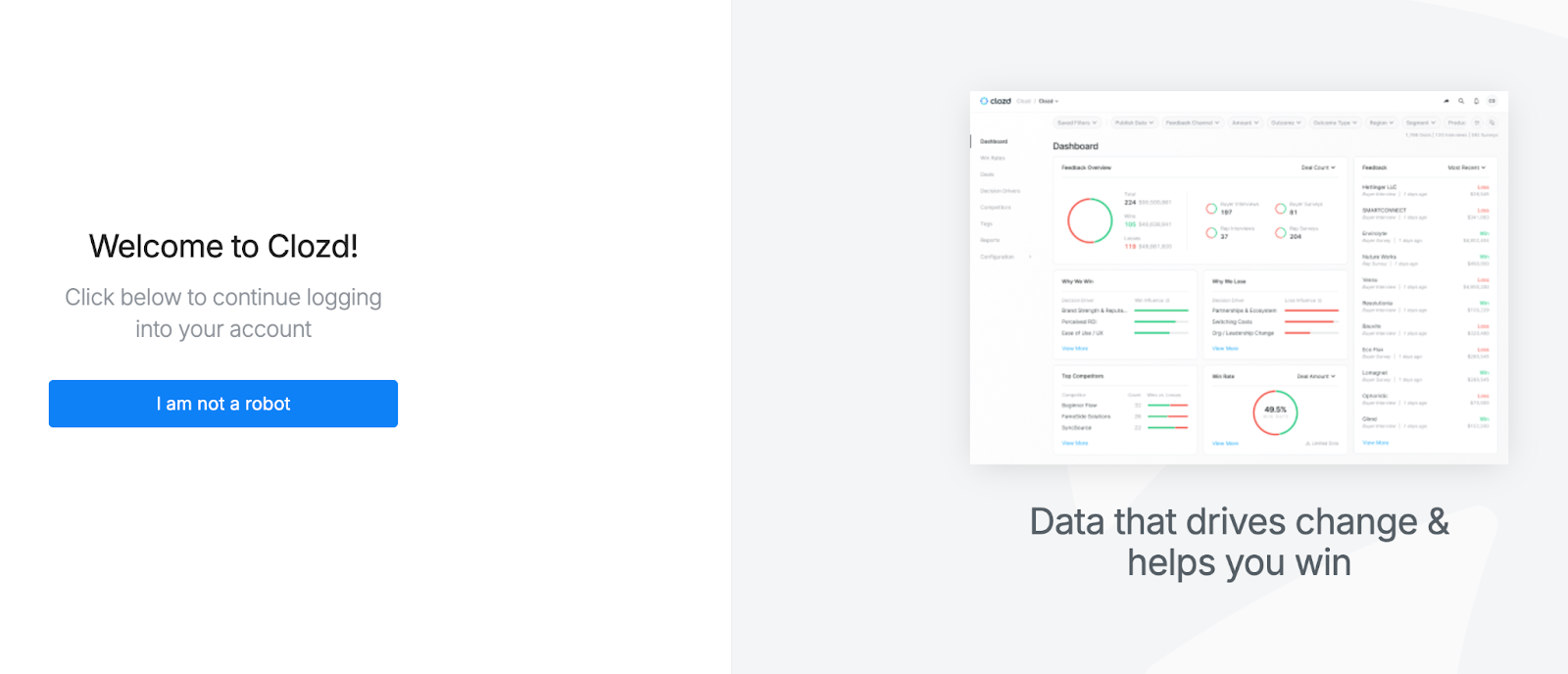
On future visits, you'll typically only need to verify that you are not a robot.
Note: The unique link in the email is currently the primary way to access the Contributor Portal. Do not forward or share this link with others.
Updating contact information for outreach
Once you enter the Contributor Portal, you'll see a list of your assigned deals.
Each deal includes key details such as deal name, stage, and status. Deals may appear under sections like Needs Attention or Needs Approval, depending on what action is required.
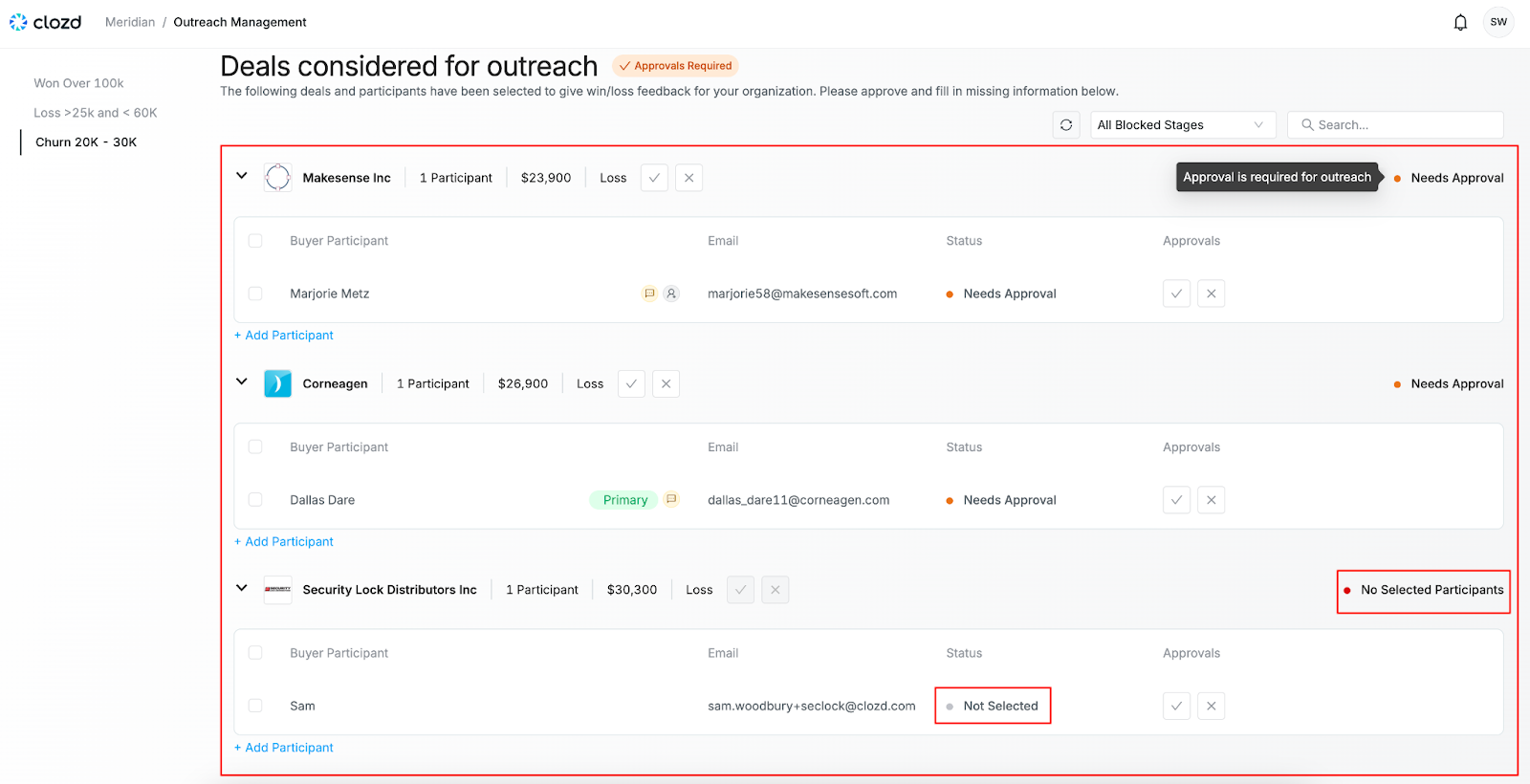
Within each deal, you'll see associated participants. Each participant may have required fields that must be completed before outreach can begin.
To prepare a deal for outreach:
- Review each participant listed under the deal
- Update any missing or incorrect information directly in the table
- Complete any required fields
You can edit participant details inline by clicking into a field. If a participant is missing, select + Add Participant to open a form and add their information.
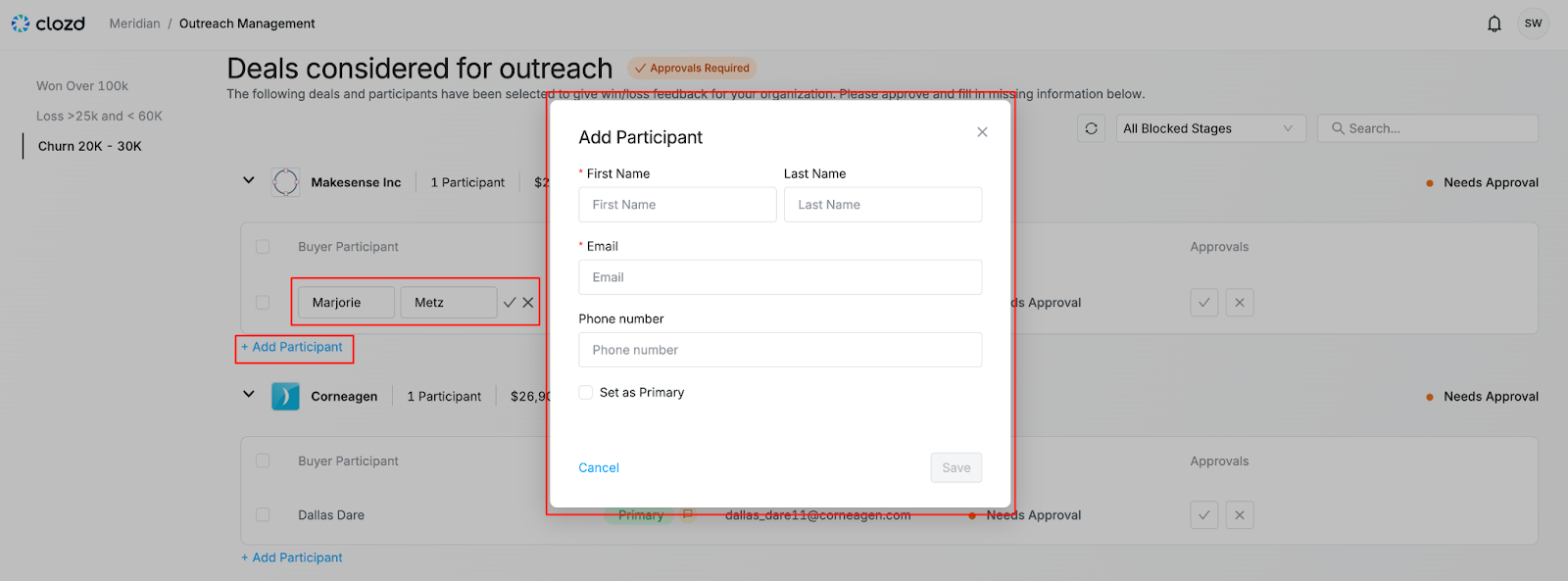
If needed, you may also have the option to exclude a participant or an entire deal from the workflow.
Approving or rejecting deals and participants
If approvals are enabled, you'll be asked to review deals before outreach can begin.
Deals that require action will appear in a Needs Approval section.
To take action:
- Select Approve to move the deal or participant forward.
- Select Reject if the deal or participant should not proceed.
If you reject a participant, you're required to provide a reason.
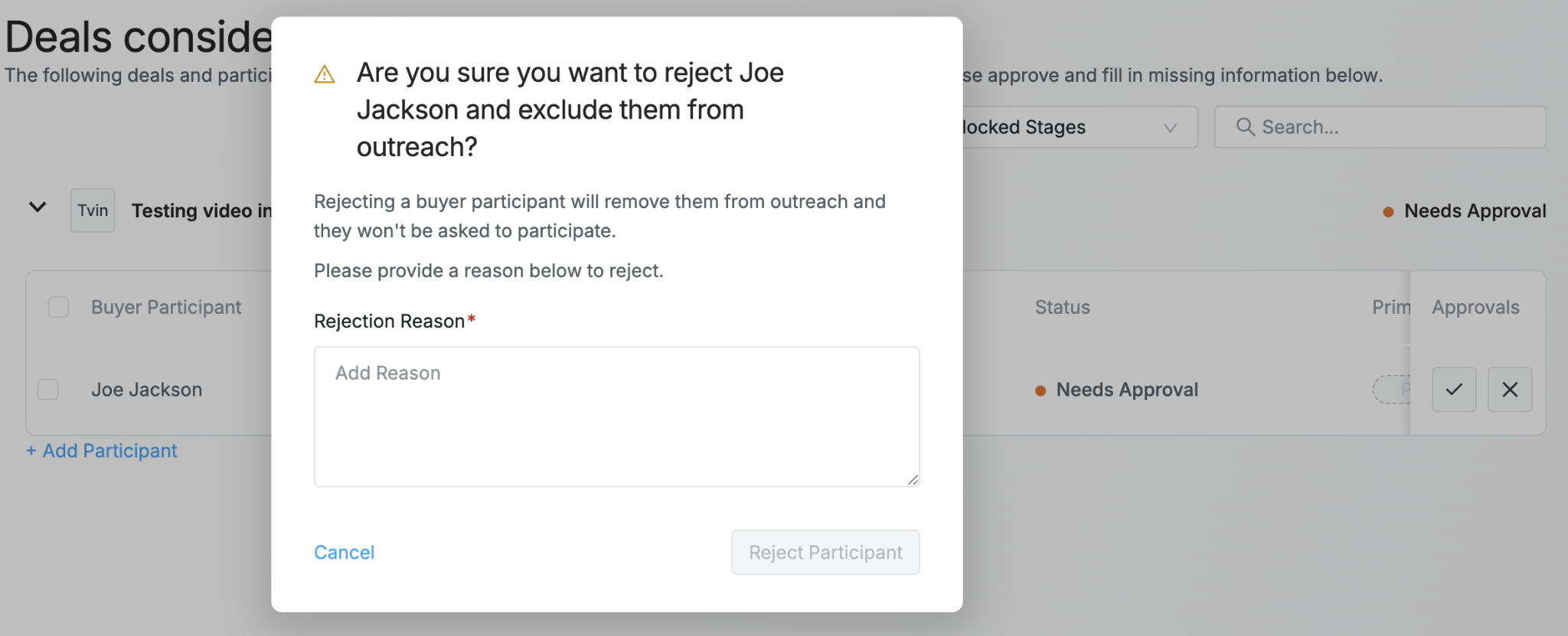
You can also approve at the deal level, which will approve all participants associated with that deal.
Note: If no action is taken, deals may be automatically approved after a set period of time, depending on the workflow settings.
Reviewing additional deal details
If you need more information before taking action, click on the deal name.
This will open a detailed view showing additional information about the deal and its participants.
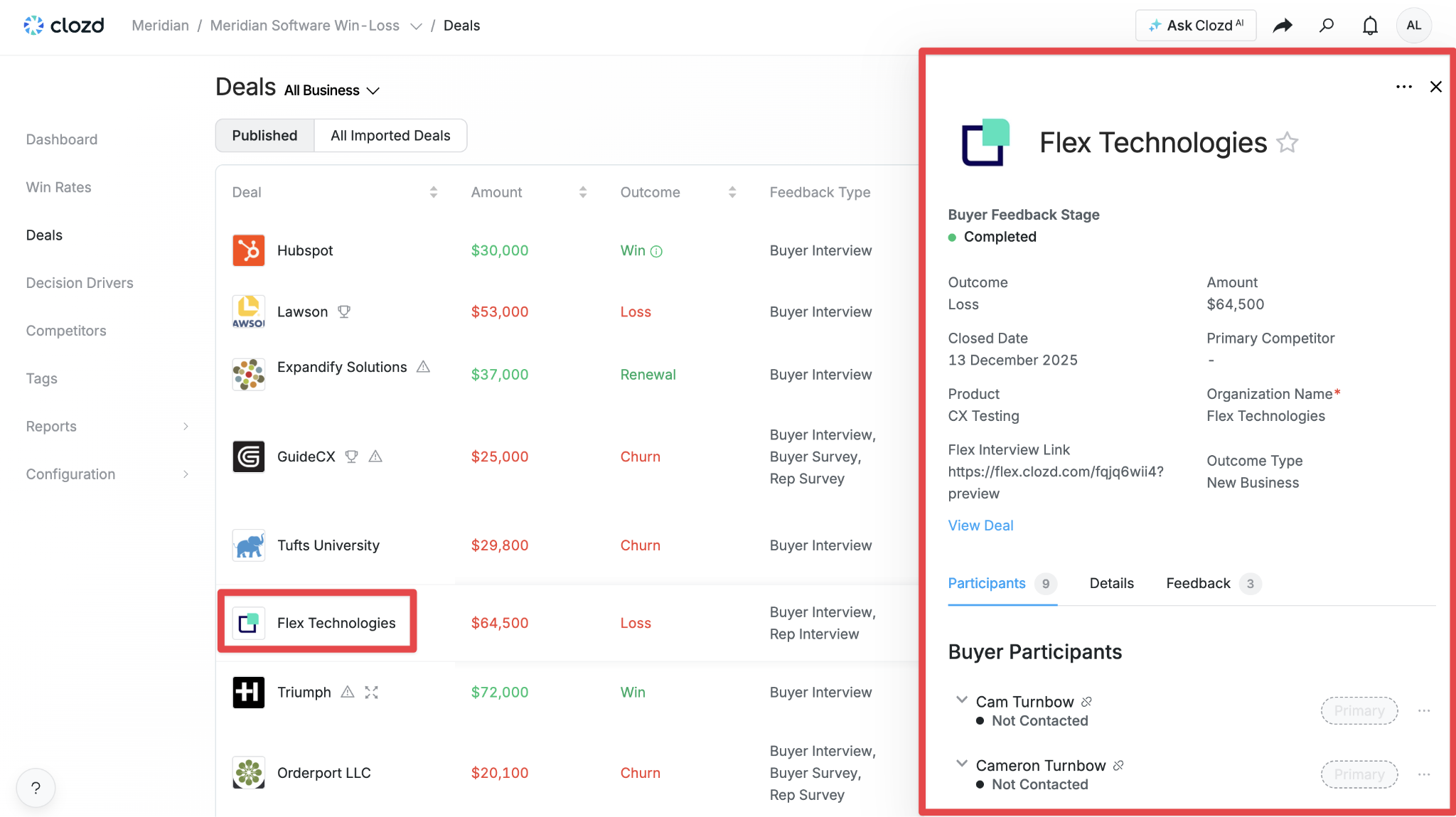
Use this view to better understand the deal context before updating participant information or making approval decisions.
What happens after you take action
Once participant information has been updated and approvals are completed:
- The deal status will move to Ready for Outreach
- Outreach will begin to approved participants
If additional deals are assigned to you, they'll appear under Needs Attention, and you may receive reminder emails until action is completed.
Note: Outreach and reminder emails will occur according to the cadence setup in the workflow.
Accessing the Contributor Portal for admins
Admins can access the Contributor Portal directly from within the Clozd Platform to preview and manage the contributor experience.
To access the portal as an admin:
- Navigate to the relevant Workflow (Configuration → Workflows)
- Open the Workflow details page
- Click the eye icon in the top-right corner
This will open the Contributor Portal view for that workflow.
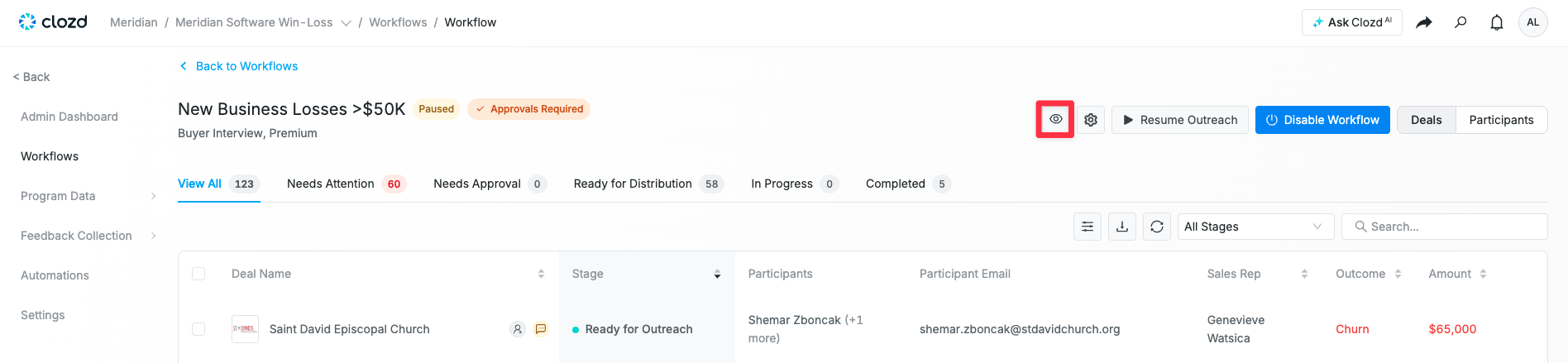
From this view, admins can see exactly what contributors see, including:
- Assigned deals
- Participant information
- Approval requirements
- Required fields and statuses
This is helpful for validating workflow setup and troubleshooting contributor questions.
Additional admin visibility
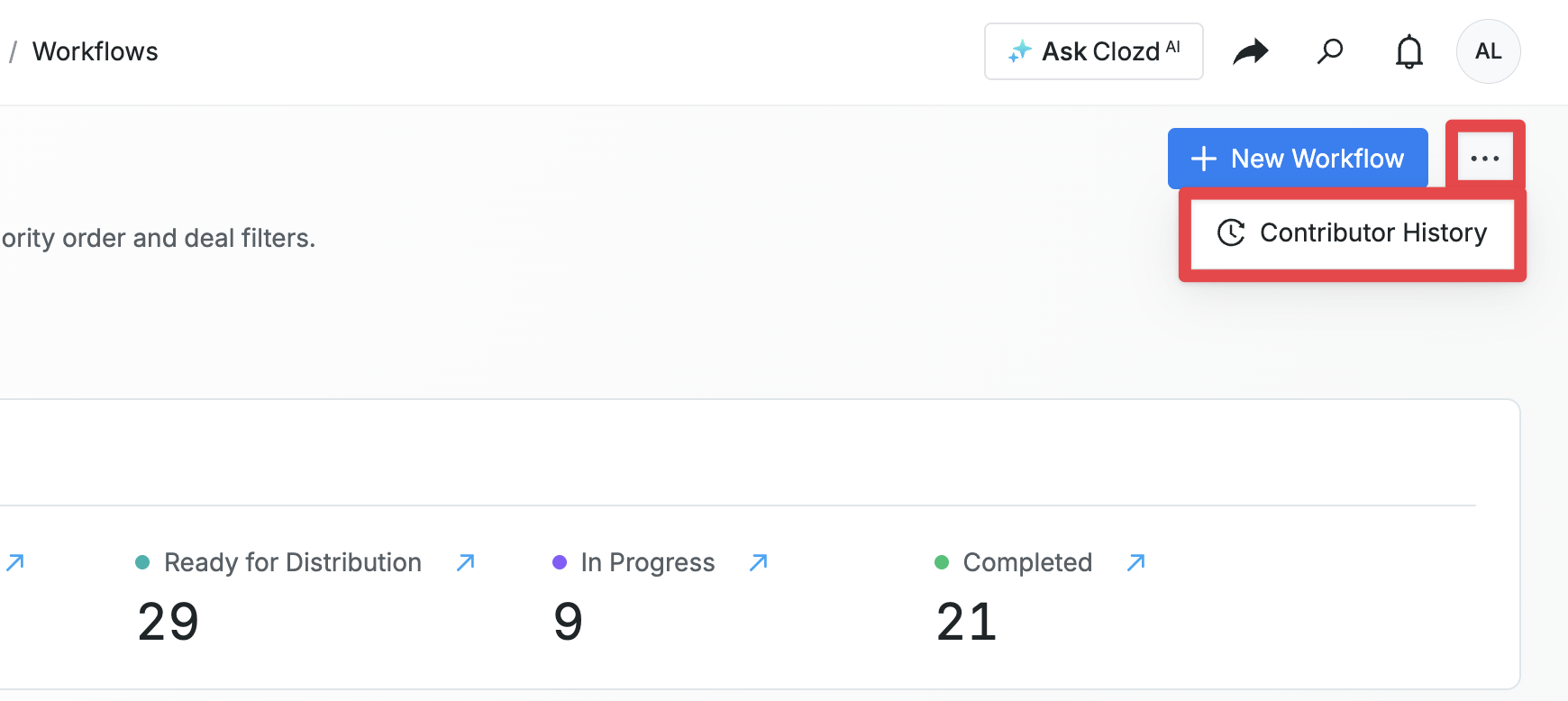
Admins can also access Contributor History to monitor contributor activity across workflows.
To access Contributor History:
- Go to the Workflows page
- Click the three-dot menu in the top-right corner
- Select Contributor History
From this view, admins can:
- See all contributors across workflows
- View how many workflows each contributor is assigned to
- Identify outstanding tasks
- Review recent contributor notifications (up to 45 days)
Questions?
If you have questions about your assigned deals or the actions required, please email support@clozd.com or contact your Clozd program manager directly.