
Overview
URL parameters let you pre-fill participant and deal metadata when you send a Shareable Link for a Flex Interview.
This is useful when you already know information about the participant (like email or name) or deal/account (like company name), and you want to reduce typing and improve data quality.
Shareable Links are designed to be distributed through any channel (Slack, LinkedIn messages, warm intro emails, QR codes, community posts, etc.). URL parameters are an optional add-on that makes those shareable links even more effective, especially when a rep or teammate is sending the link and can include known context up front. This article contains the following sections:
How it works
When someone opens a shareable link, Clozd collects identifying info before starting the Flex Interview.
- Email is required for responses submitted through a shareable link.
- You can optionally collect additional participant or deal metadata fields (up to 5 total).
- If some fields are prefilled via URL parameters, the participant can still edit them before starting.
Passing data into a shareable link (URL parameters)
If you already know some participant or deal info, you can pre-fill those fields when sending the shareable link.
Step 1: Choose which fields can be passed in
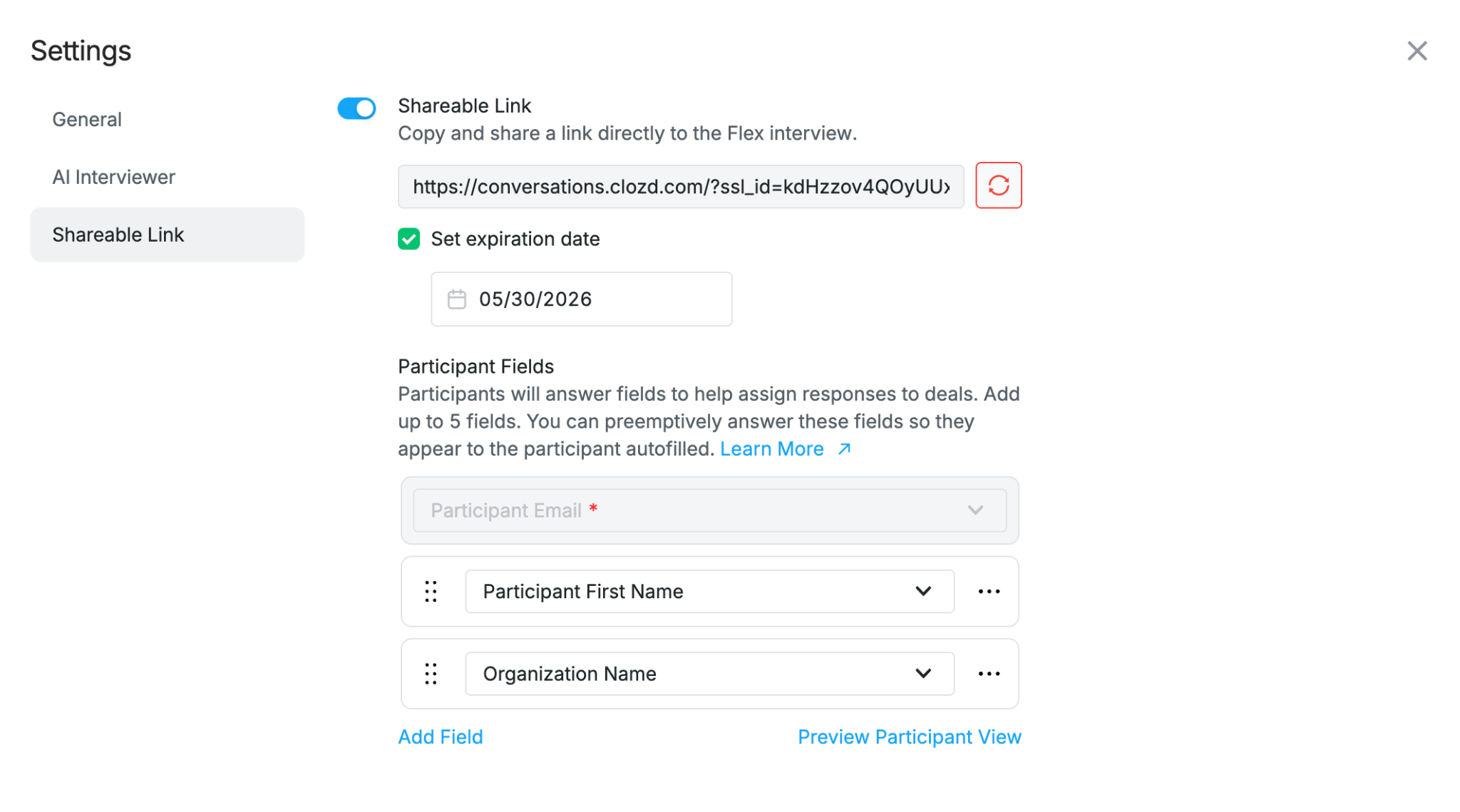
In the Flex Interview’s Shareable Link settings, select the participant/deal metadata fields you want to collect (up to 5 total).
Only the fields enabled in settings can be prefilled via URL parameters.
Step 2: Add URL parameters to your shareable link
To pre-fill a field, add it as a query string parameter:
- Format: ?{metadata_field_name}={value}
- If you include multiple fields: &{metadata_field_name}={value}
The parameter name must exactly match the metadata field name configured in the Flex Interview settings.
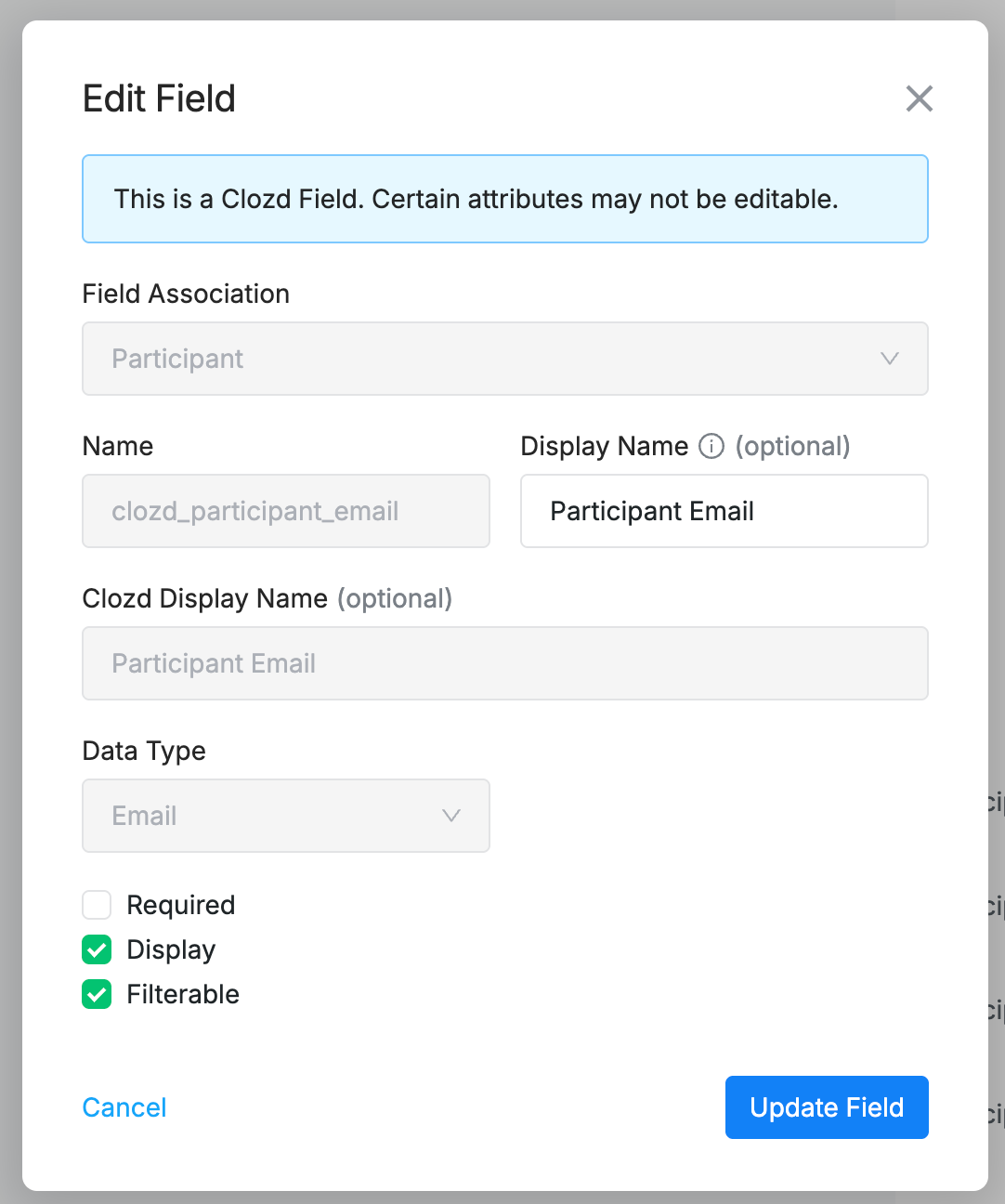
- You can find the exact name for a metadata field by going to Configuration→Settings→Fields, opening the Edit Field modal, and looking at the “Name” attribute. For example, the “Name” for Participant Email is clozd_participant_email.
- If the name used in the URL parameter does not exactly match a metadata field name, Clozd will ignore it, and the input field will be empty.
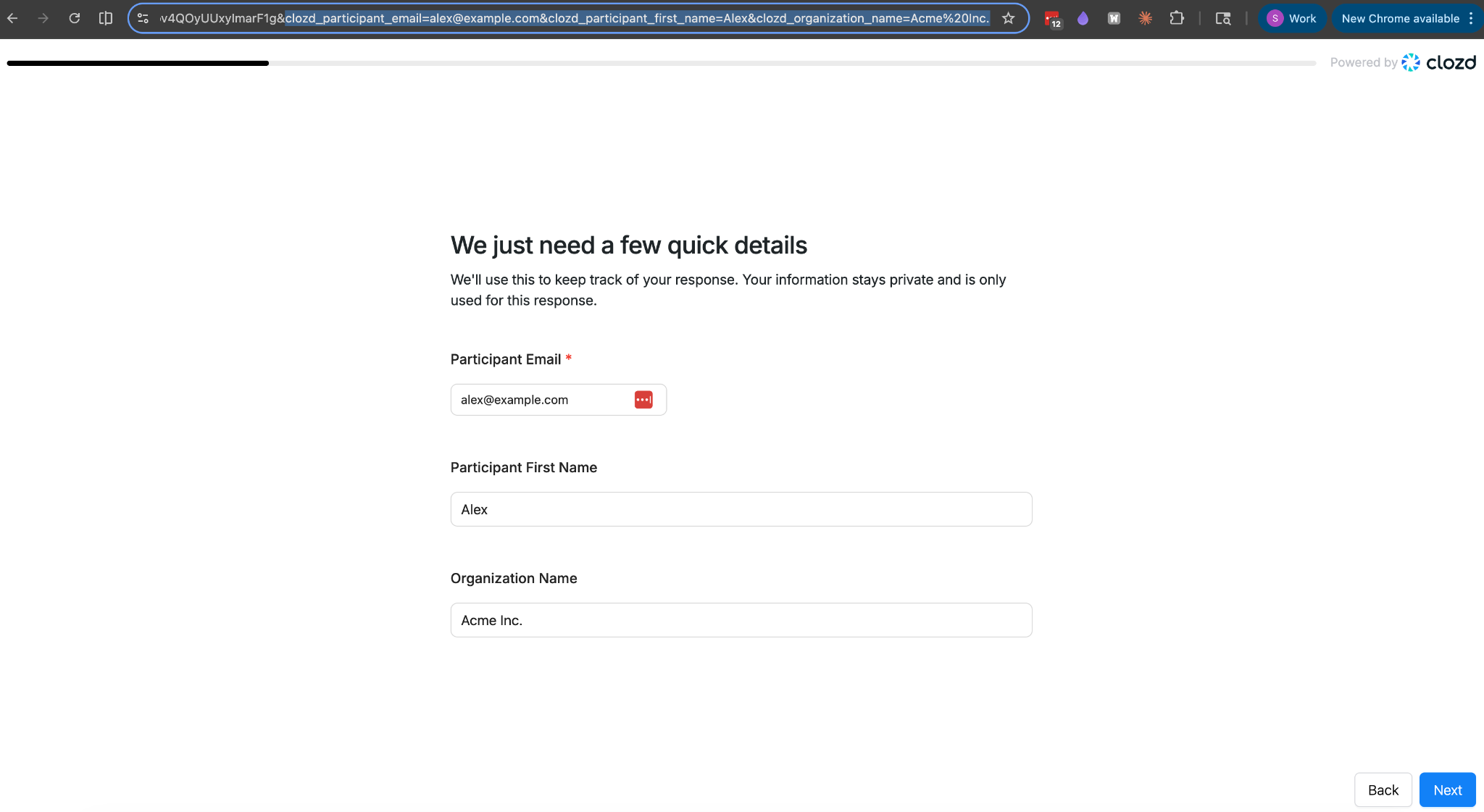
- Prefilled values will appear on the participant info page, and the participant can still edit them.
Example
If your Flex Interview shareable link is:
- https://YOUR_SHAREABLE_LINK_HERE
And your metadata fields are named:
- clozd_participant_email
- clozd_participant_first_name
- user type
- clozd_organization_name
An example link could look like:
- https://YOUR_SHAREABLE_LINK_HERE?clozd_participant_email=alex@example.com&clozd_particiipant_first_name=Alex&user%20type=super%20admin&clozd_organization_name=Acme%20Inc.
Notes:
- You may need to URL-encode spaces (for example, First%20Name).
- If you pass a value for a field that is not configured for that Flex Interview, it will be ignored.
FAQs
Why didn’t my field pre-fill?
The most common cause is that the parameter name doesn’t exactly match the metadata field name configured in settings.
Can participants change prefilled values?
Yes. Prefilled values can still be edited before the Flex Interview begins.
Will parameters work if the shareable link is disabled?
No. Disabling the shareable link makes the link invalid until it’s re-enabled (the URL remains the same once re-enabled).
Need help?
If you have questions about enabling Shareable Links, managing Anonymous Responses, or setting up URL parameters for pre-filling metadata fields, contact your Clozd program manager or support.