
Overview
Shareable Links make it easy to collect Flex Interview responses outside of email distributions.
Instead of sending a participant a unique, tracked invitation link, you can generate a single shareable link for a Flex Interview and send it through any channel, like:
- Slack or LinkedIn messages
- Warm intro emails sent by a sales rep
- A website embed or customer community post
- QR codes at events
When participants respond through a Shareable Link, Clozd captures the response and attempts to match it to an existing participant using email address. If Clozd cannot confidently match the response, you can review it in the Anonymous Responses queue and assign it manually. This article contains the following sections:
How shareable links work
- One active link per Flex Interview: Each Flex Interview has a single shareable link.
- Always up to date: The shareable link always points to the latest version of the Flex Interview. If you edit the Flex Interview, the link stays the same and participants will see the newest version.
- On/off control: You can disable the shareable link at any time. Turning it back on makes the same link valid again.
Share a Flex interview
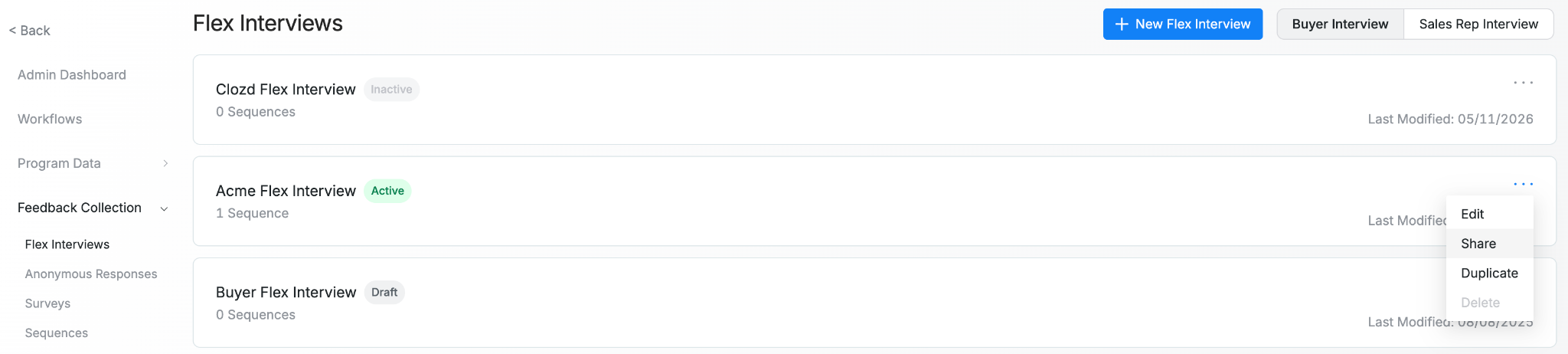
- Go to Program → Configuration → Feedback Collection → Flex Interviews
- Find the Flex Interview you want to share.
- Click the action button for that Flex Interview.
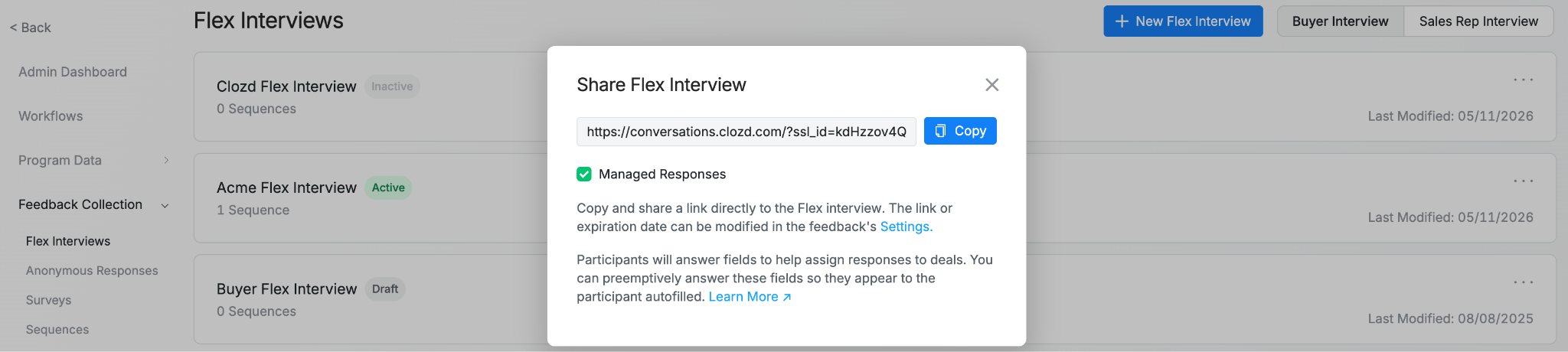
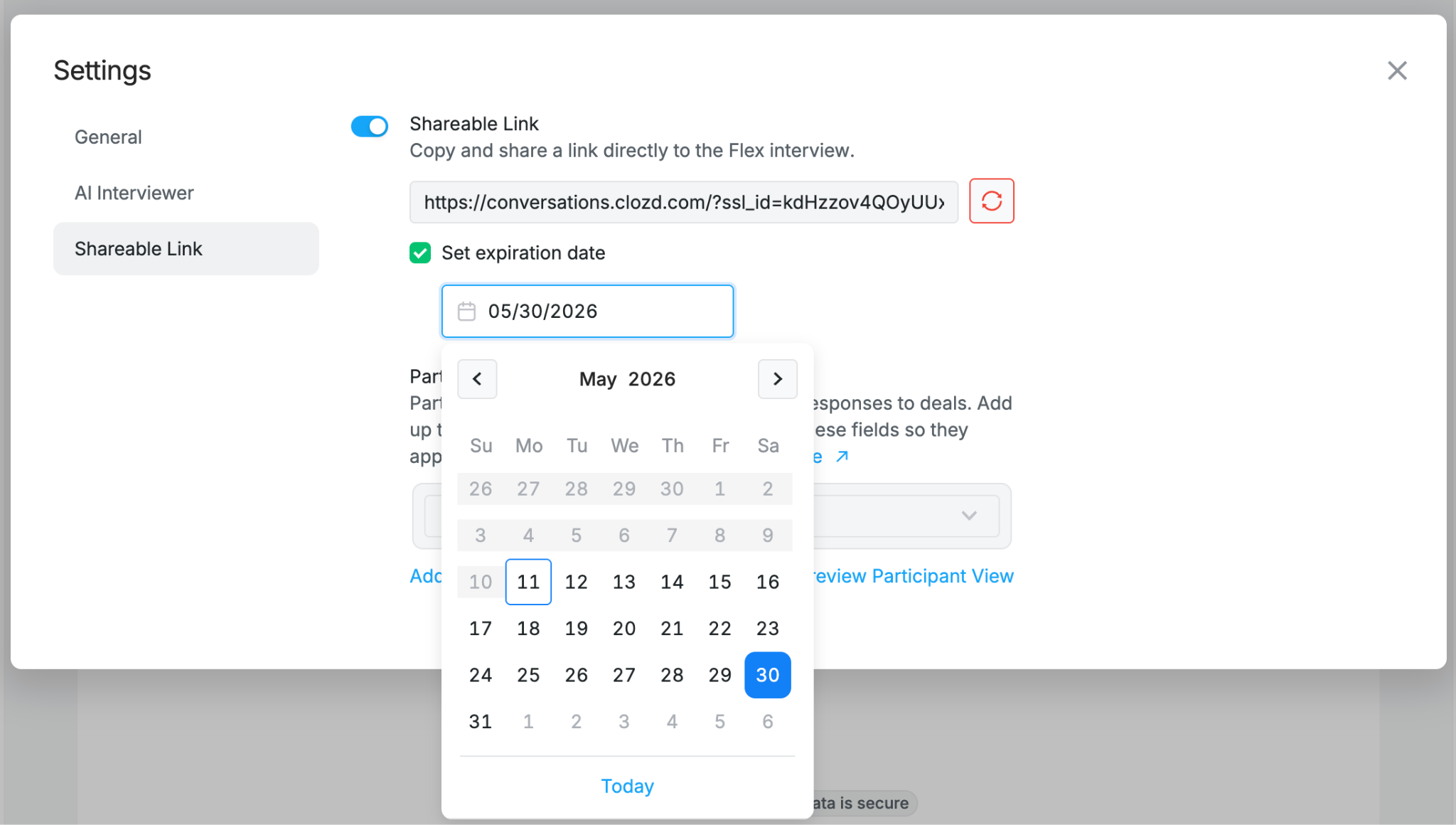
- Click Share. If the Share button isn’t there, navigate into the flex interview settings to enable shareable links.
- Copy the shareable link and send it to participants through any channel.
Configure shareable link settings
You can control whether a Flex Interview’s shareable link is enabled and key settings for shareable link behavior.
-
Go to Program → Configuration → Feedback Collection → Flex Interviews
-
Click into the Flex Interview you want to configure.
-
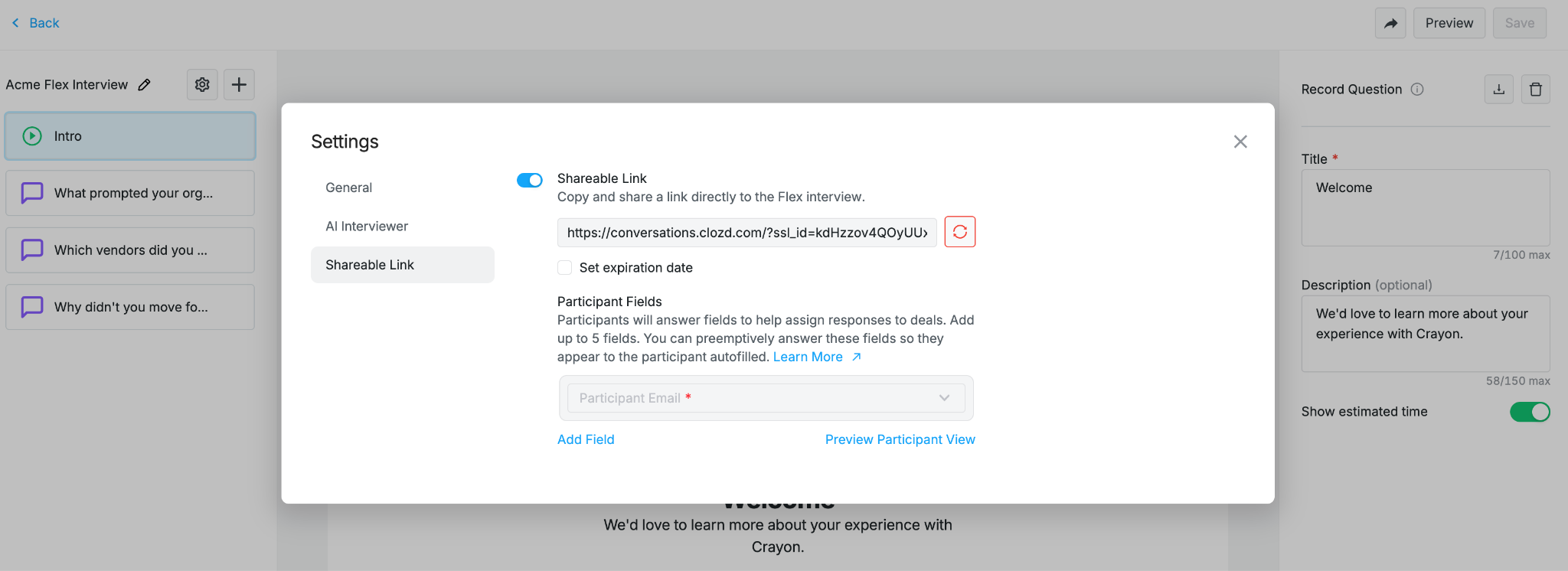
Click the Settings button (gear icon) in the top-left corner.
-
Find the Shareable Links settings.
-
Configure:
- Whether the shareable link is enabled
- Expiration date for the shareable link
- Which participant/deal metadata fields are collected (and which can be passed in via URL parameters - see [URL Parameters Helpdesk article] for more information)
Re-generate shareable link
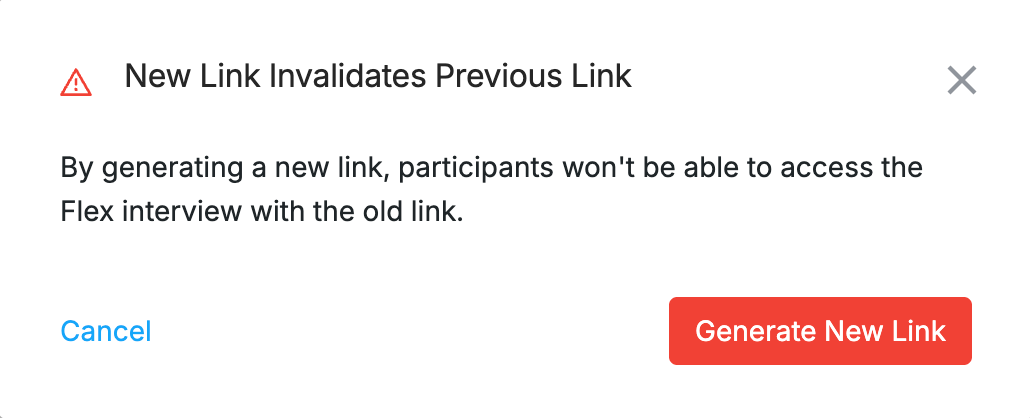
The shareable link for a flex interview can be regenerated at any time from the flex interview settings page. This is done by clicking the ‘regenerate’ icon next to the link. When the link is regenerated, participants will no longer be able to access the Flex interview with the old link. This functionality can be useful if the link is accidentally exposed to the wrong audience.
Link expiration
An expiration date can be set for shareable links on the flex interview settings page. Once the expiration date is passed, the shareable link will automatically be made invalid - participants will no longer be able to access the Flex interview with the link. In order to give participants access to the Flex interview again, a new shareable link must be generated. If no expiration date is set, then the link will remain valid indefinitely. Setting an expiration date can be a useful security measure to prevent link abuse.
What participants experience
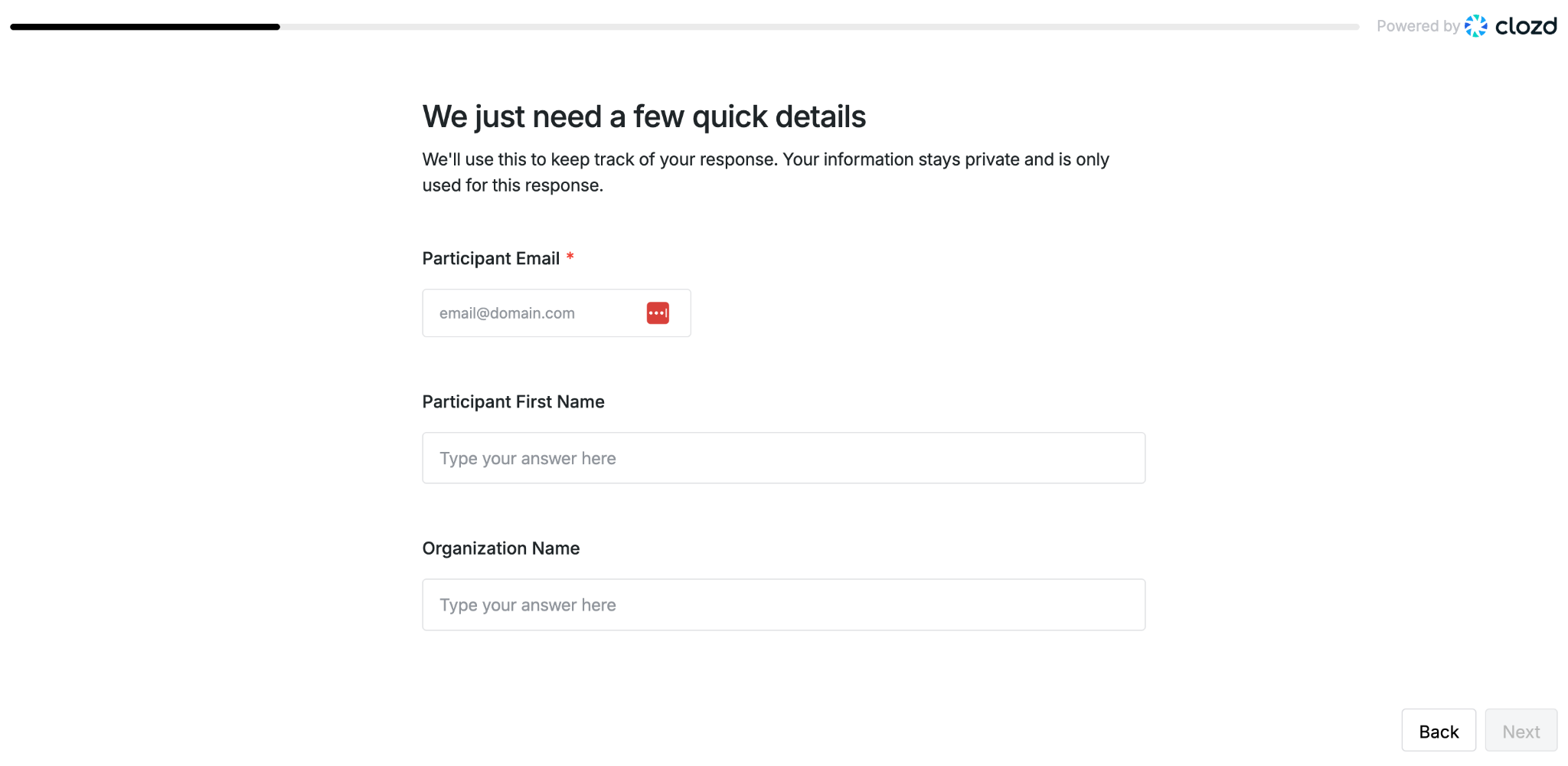
When someone opens a shareable link, Clozd collects identifying info before starting the Flex Interview experience.
- Email is required for responses submitted through a shareable link.
- You can optionally collect additional participant or deal metadata fields (up to 5 total).
- If some fields are prefilled via URL parameters, the participant can still edit them before starting.
Managing anonymous responses
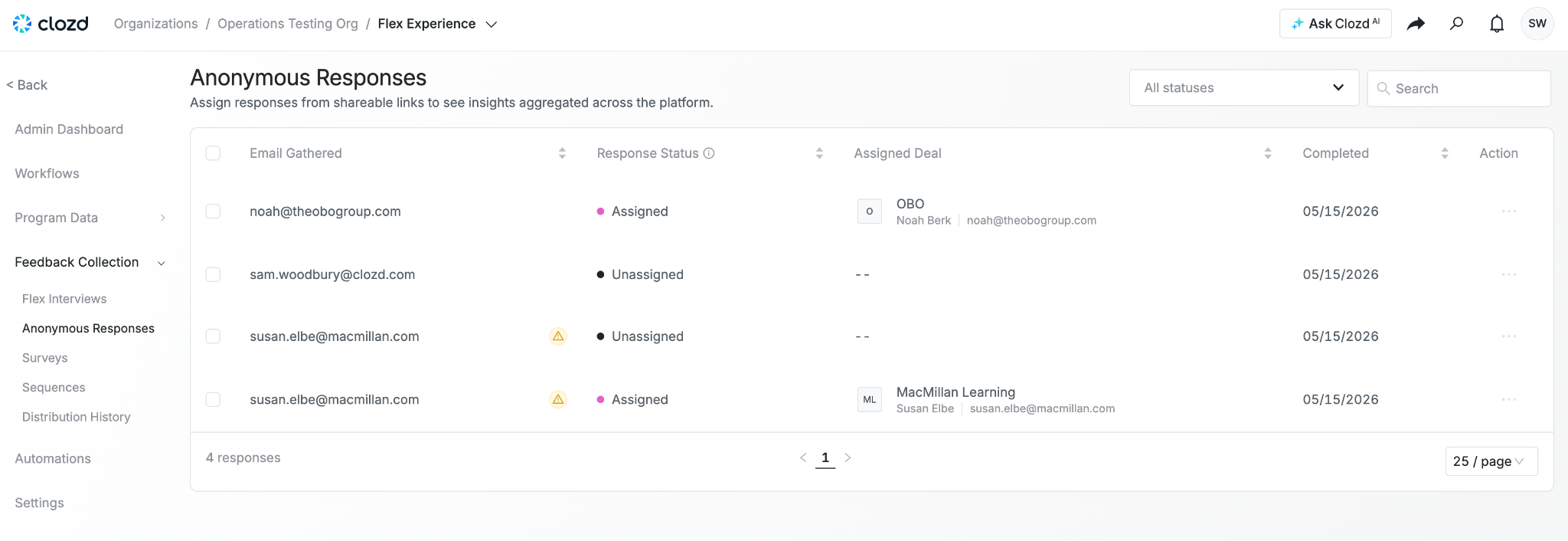
When responses come in through Shareable Links, you can review and manage them by navigating to Program → Configuration → Feedback Collection → Anonymous Responses.
In the Anonymous Responses queue, each response will have one of three statuses:
Unassigned
Clozd could not confidently match the response to a single deal participant.
Common reasons:
- No participant exists with that email.
- More than one deal participant shares the same email (Clozd will indicate that multiple potential matches exist).
From Unassigned, you can:
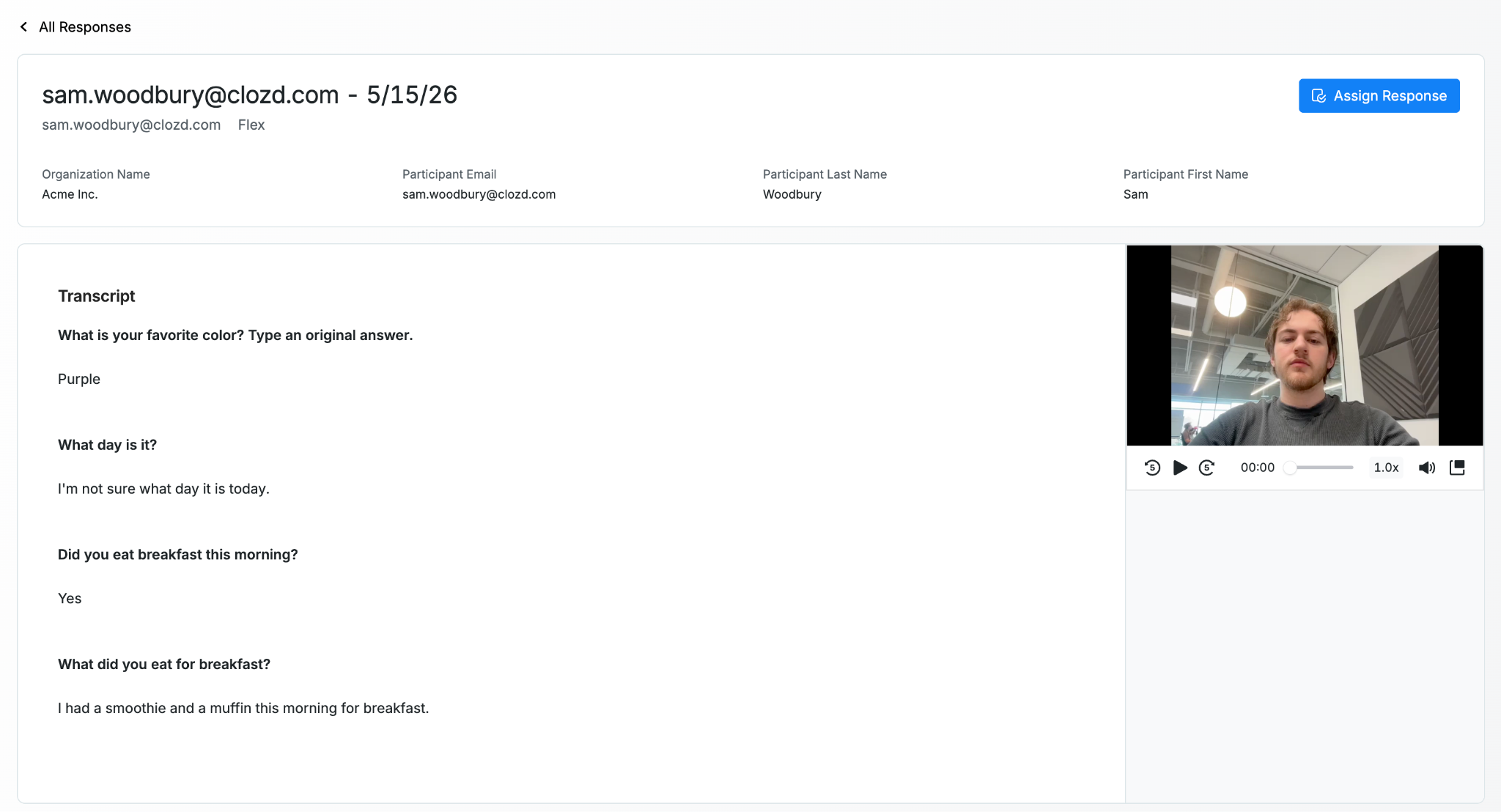
- Review the response details (including the email, other provided metadata, media, and transcript).
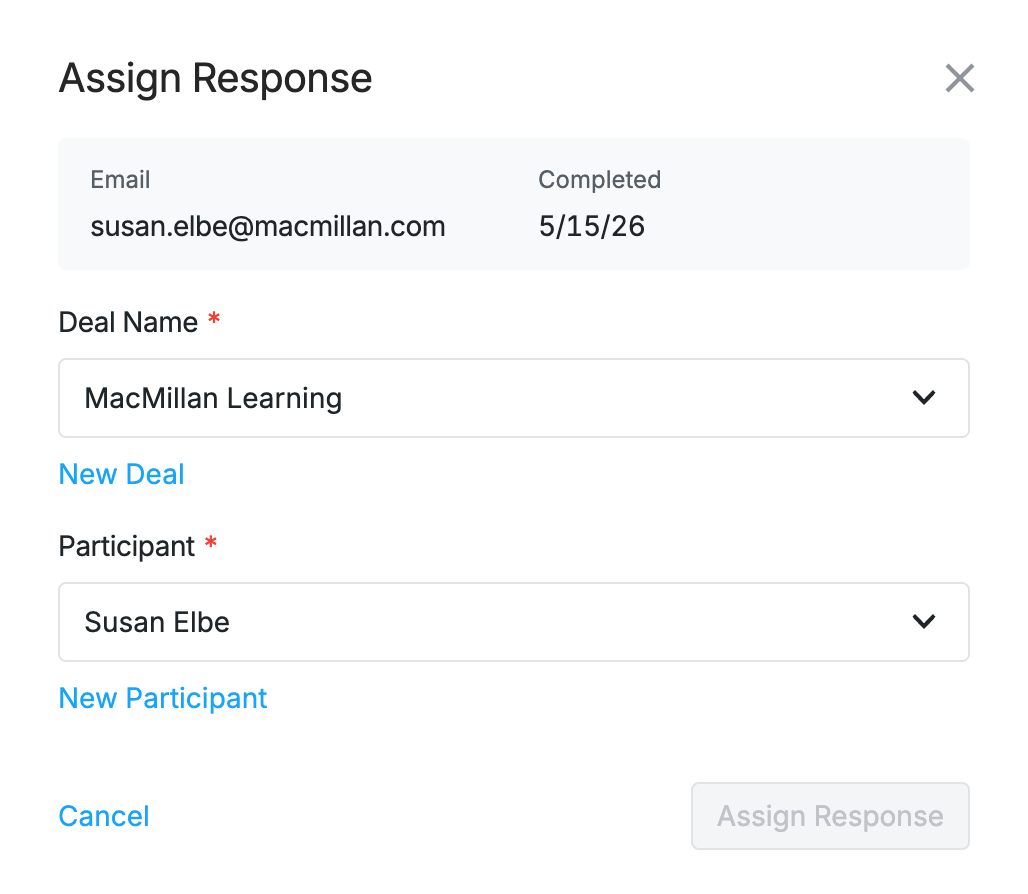
- Assign the response to the correct deal/participant (or create a new deal/participant for the response, as needed).
- Archive the response if it’s not valid or not needed.
Assigned
The response has been assigned to a deal/participant in Clozd. The Clozd system attempts to auto-assign responses to a deal participant when the response is recorded based on the email provided by the participant.
Important notes:
- Assigned responses follow your program’s Flex Interview auto-publish settings.
- Once assigned, the response becomes part of the participant’s record and can be used in analysis and reporting like other Flex Interview responses.
Archived
Archived responses are hidden from active review queues but are not permanently deleted.
- You can unarchive responses if you want to return them to the Unassigned queue and assign them.
Re-assigning a response
If a response is assigned to the wrong deal/participant, you can re-assign it.
When you re-assign a response:
- Clozd removes the response from the original deal/participant.
- Any generated content tied to that response (for example: summaries, decision drivers, or other AI-generated outputs) will also be removed.
- After re-assignment, those outputs will need to be regenerated on the newly assigned deal/participant.
Passing data into a shareable link (URL parameters)
Shareable Links support URL parameters so you can prefill participant and deal metadata (when you already know it) before the Flex Interview begins.
For step-by-step instructions and examples, see: [Link to URL parameters article - see below for content]
FAQs
Does the shareable link change when I edit the Flex interview?
No. The shareable link stays the same and always points to the most recent version of the Flex Interview.
Can I turn off the shareable link?
Yes. You can disable sharing at any time. Turning it back on re-validates the same link.
How does Clozd match responses to participants?
For v1, Clozd matches using email address only.
If there are multiple possible participant matches for the same email, the response will remain Unassigned, and you will see that there are multiple potential matches.
Will responses auto-publish?
They can, depending on your program’s Flex Interview auto-publish settings. These settings can be edited by going to Configuration → Settings → Interviews.
Need help?
If you have questions about enabling Shareable Links, managing Anonymous Responses, or setting up URL parameters for pre-filling metadata fields, contact your Clozd program manager or support.