Overview
You can connect a GPT to Clozd by generating and using a Clozd API token. This guide walks you through the process of creating an API token and accessing Clozd's public API.
Part 1: Create an API Token in Clozd
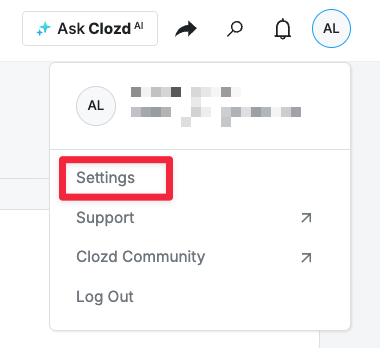
- Click on your initials in the top-right corner of your Clozd Dashboard.
- Click Settings in the dropdown.
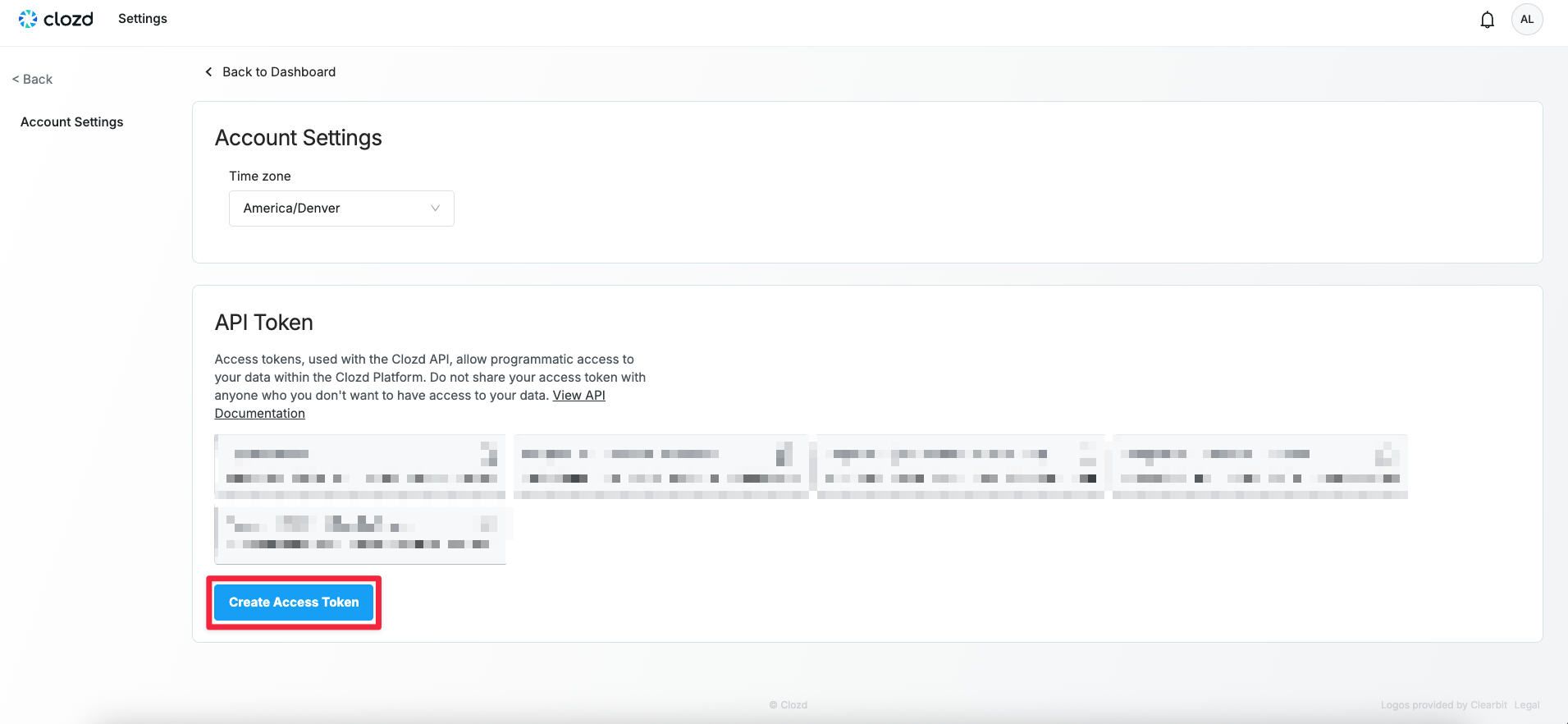
- Scroll down to the API Token section.
- Click the Create Access Token button.
- Name your token (e.g., GPT Access) and confirm.
Note: You’ll only see your access token once—be sure to copy and store it securely before navigating away from the page. If lost, you’ll need to create a new one.
Part 2: Use the Token in GPT to Access the API
Once you have your token, you can start using the Clozd API to connect your GPT to real-time Clozd data.
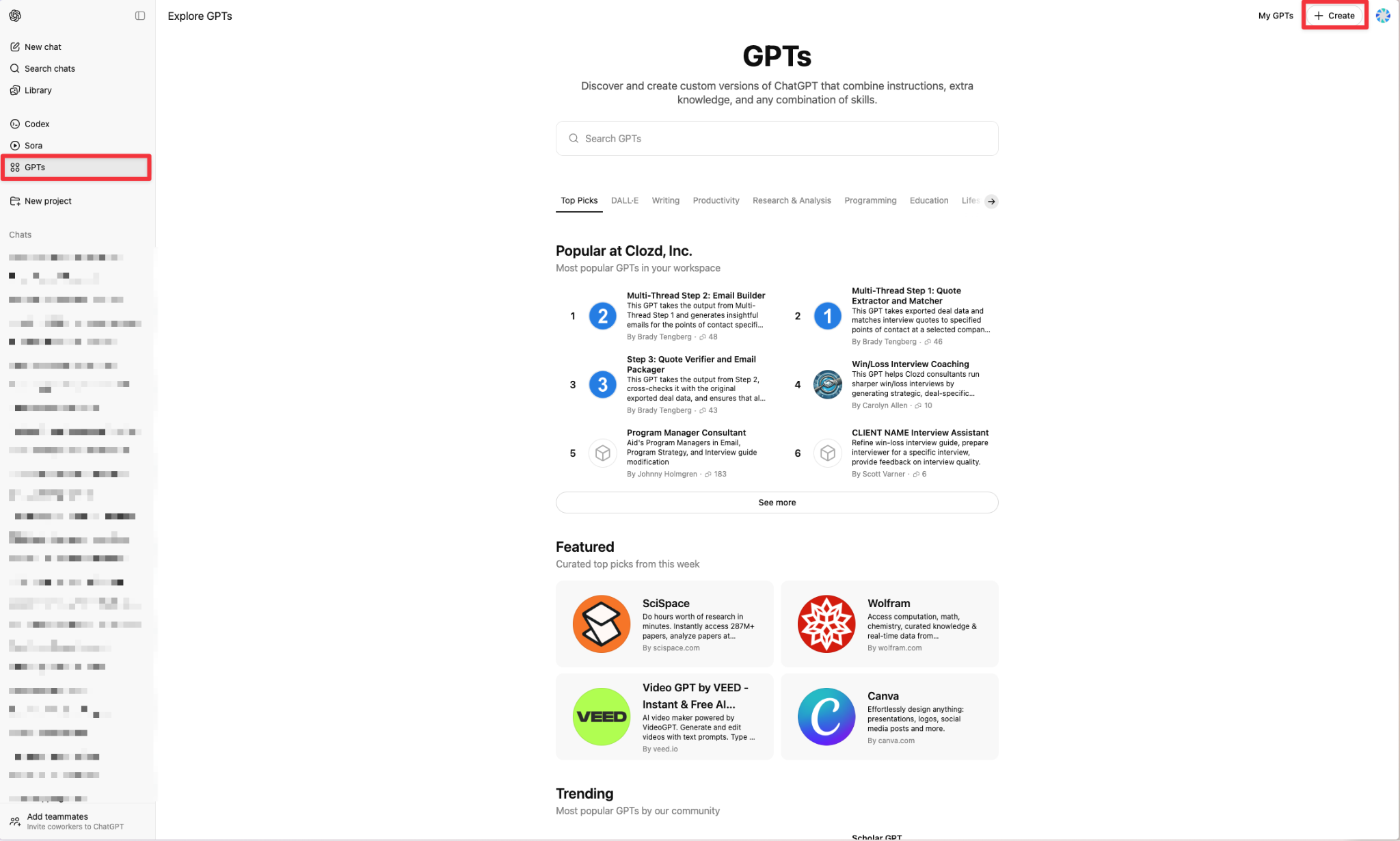
- Navigate to GPTs, then select "+ Create."
Note: You need a ChatGPT Plus account to create a GPT.
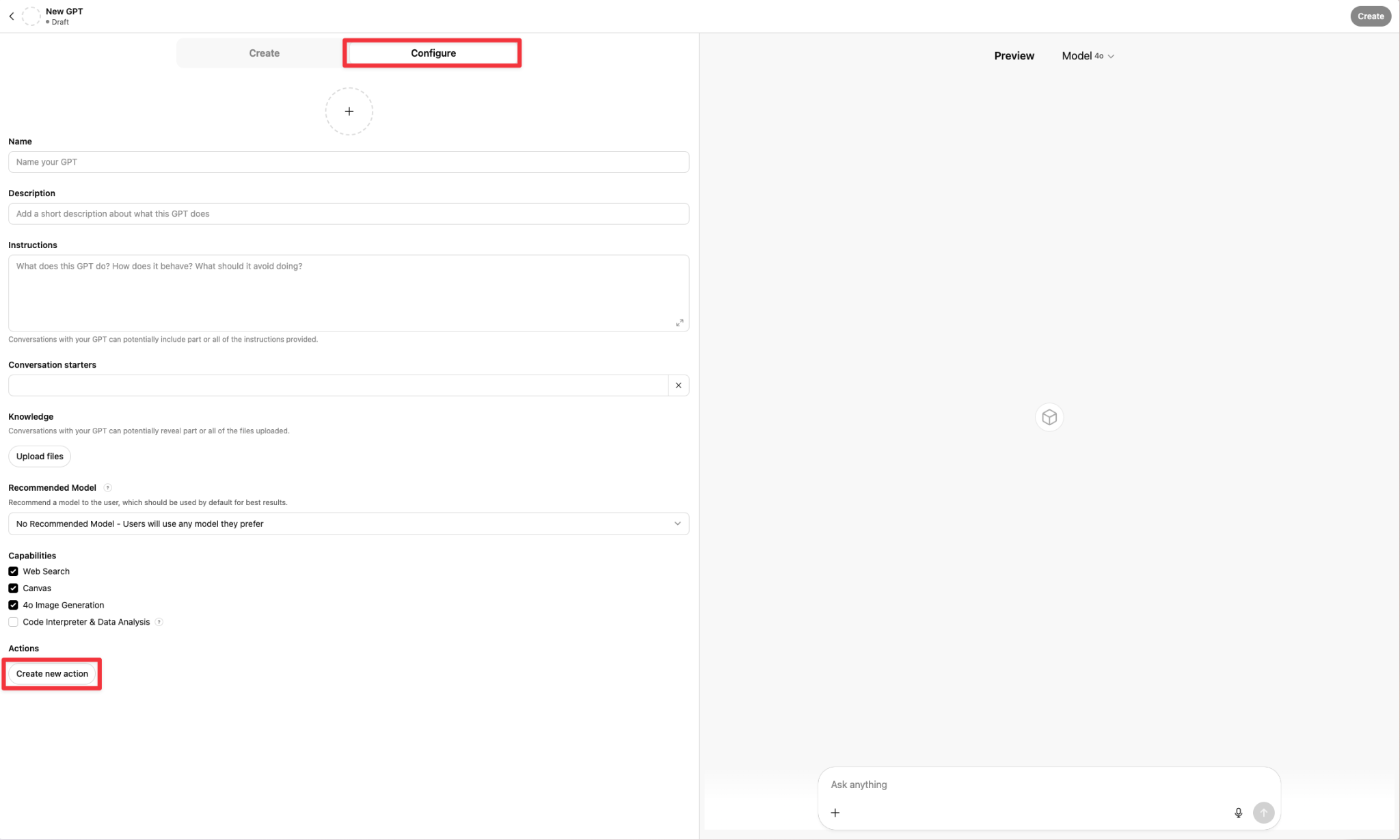
- Click on Configure, then fill out the desired fields (e.g. Name, Description, Instruction, etc.). When finished, click Create new action.
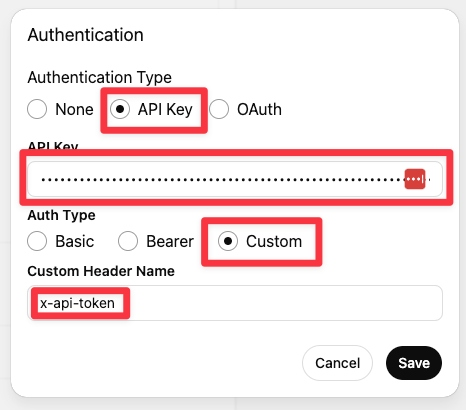
- In the Authentication pop up, select API Key and paste your API Key from Clozd (see Create an API Token in Clozd). The Auth Type should be Custom, and the header name is "x-api-token." Then click Save.
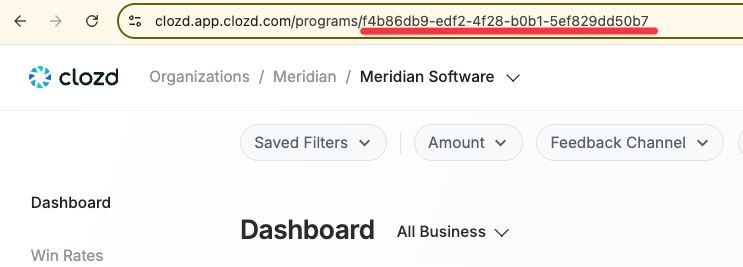
- A: Get Your Program ID from your personal Clozd URL (between the // after programs in your URL).
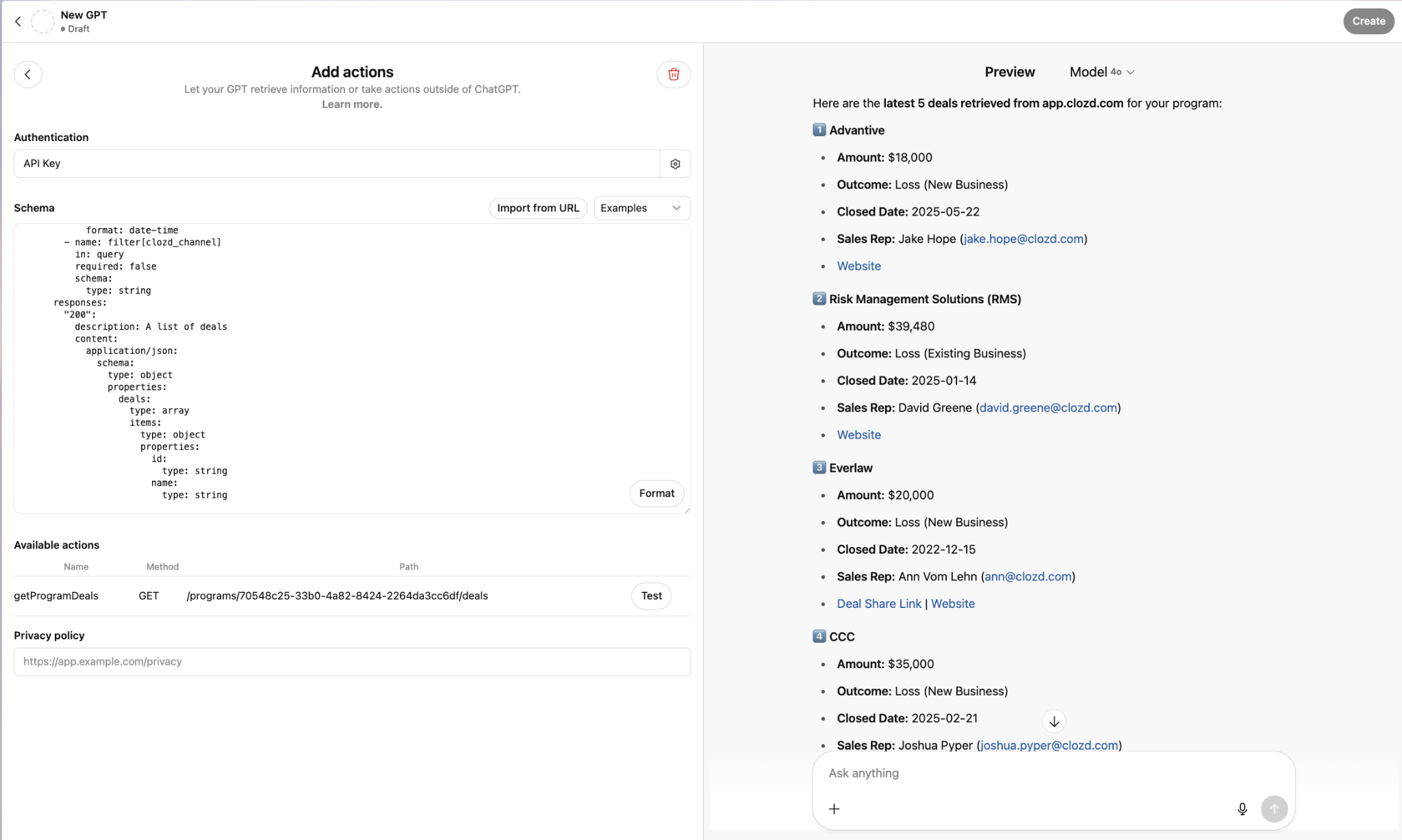
4. B: Put in the following code in the Schema(with your Program ID):
openapi: 3.1.0
info:
title: Clozd Public API
version: 3.0.0
servers:
- url: https://app.clozd.com/public-api/v3
paths:
/programs/PUT-YOUR-PROGRAM-ID-HERE/deals:
get:
operationId: getProgramDeals
summary: Get deals for a program
parameters:
- name: program_id
in: path
required: true
schema:
type: string
- name: limit
in: query
required: false
schema:
type: integer
- name: offset
in: query
required: false
schema:
type: integer
- name: include
in: query
required: false
schema:
type: array
items:
type: string
style: form
explode: true
- name: filter[feedback_published_since]
in: query
required: false
schema:
type: string
format: date-time
- name: filter[feedback_updated_since]
in: query
required: false
schema:
type: string
format: date-time
- name: filter[clozd_channel]
in: query
required: false
schema:
type: string
responses:
'200':
description: A list of deals
content:
application/json:
schema:
type: object
properties:
deals:
type: array
items:
type: object
properties:
id:
type: string
name:
type: string
# ADD MORE DEAL FIELDS HERE AS NEEDED
Refer to our API Documentation on the different fields you can add to the schema: API Documentation (v3.0)
- Click Test, then Always Allow on the right half of the screen.
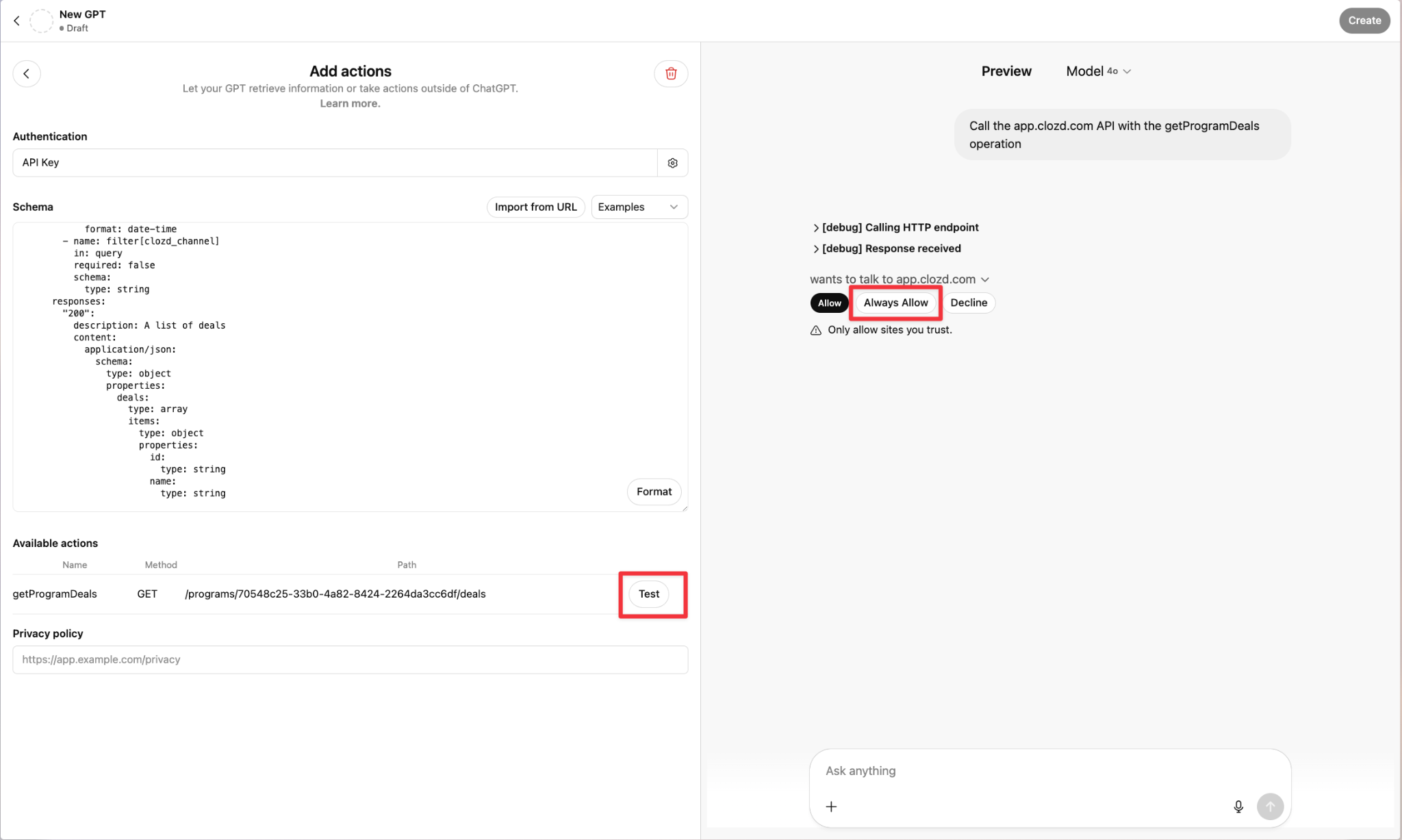
- The deals will show up on the right hand side of your screen
Refer to Clozd’s Public API documentation for endpoints and payload structure:
If you need help with integrating GPTs or working with the API, reach out to Clozd Support: support@clozd.com